- Category:
- Troubleshooting
- Summary:
- Fix Acrobat Pro crashes when opening any PDF with Reddit-tested solutions: disable Protected Mode, clear recent files, and launch from within the app.
Disable Protected Mode at startup — this single setting resolves crashes for the majority of users, based on consistent reports across Reddit and Adobe Community threads.
Go to Edit > Preferences > Security (Enhanced) and uncheck “Enable Protected Mode at startup”. Restart Acrobat and test. If the crash persists, work through the fixes below — they are ordered from quick checks to deeper system-level solutions.
Sources: Adobe Community official response and multiple Reddit threads (2024–2025).
Clear the Recent Files List on the Acrobat Home Page
A corrupted or bloated recent-files list can trigger a brief freeze or crash on launch. This fix takes seconds and has been reported as effective on Reddit.
- Open Adobe Acrobat Pro to the home page.
- Locate the “Clear Recent” option — typically at the bottom of the recent files column.
- Click it, then restart Acrobat and test with a PDF.
Source: Reddit thread (sysadmin) — user reports that clearing recent files resolves a freeze-on-launch.
Open PDFs from Inside Acrobat Instead of Double-Clicking
If Acrobat crashes when you double-click a PDF but opens it fine via File > Open, the problem is likely a file-association or shell-extension conflict — not a core Acrobat bug.
- Launch Acrobat Pro first.
- Click File > Open, navigate to the PDF, and select it.
- If it opens without issue, the crash is related to how Windows handles the file type — try repairing the installation (see below) or resetting file associations.
Multiple users on Reddit confirm this workaround works consistently. It also helps isolate whether the crash is tied to the file-handler or to Acrobat itself.
Source: Reddit thread (ongoing issues since October 2024).
Disable Protected Mode at Startup (Most Common Fix)
How to Change This Setting
- Open Acrobat Pro and go to Edit > Preferences > Security (Enhanced).
- Uncheck “Enable Protected Mode at startup”.
- Click OK, restart Acrobat, and test with a PDF that previously caused a crash.
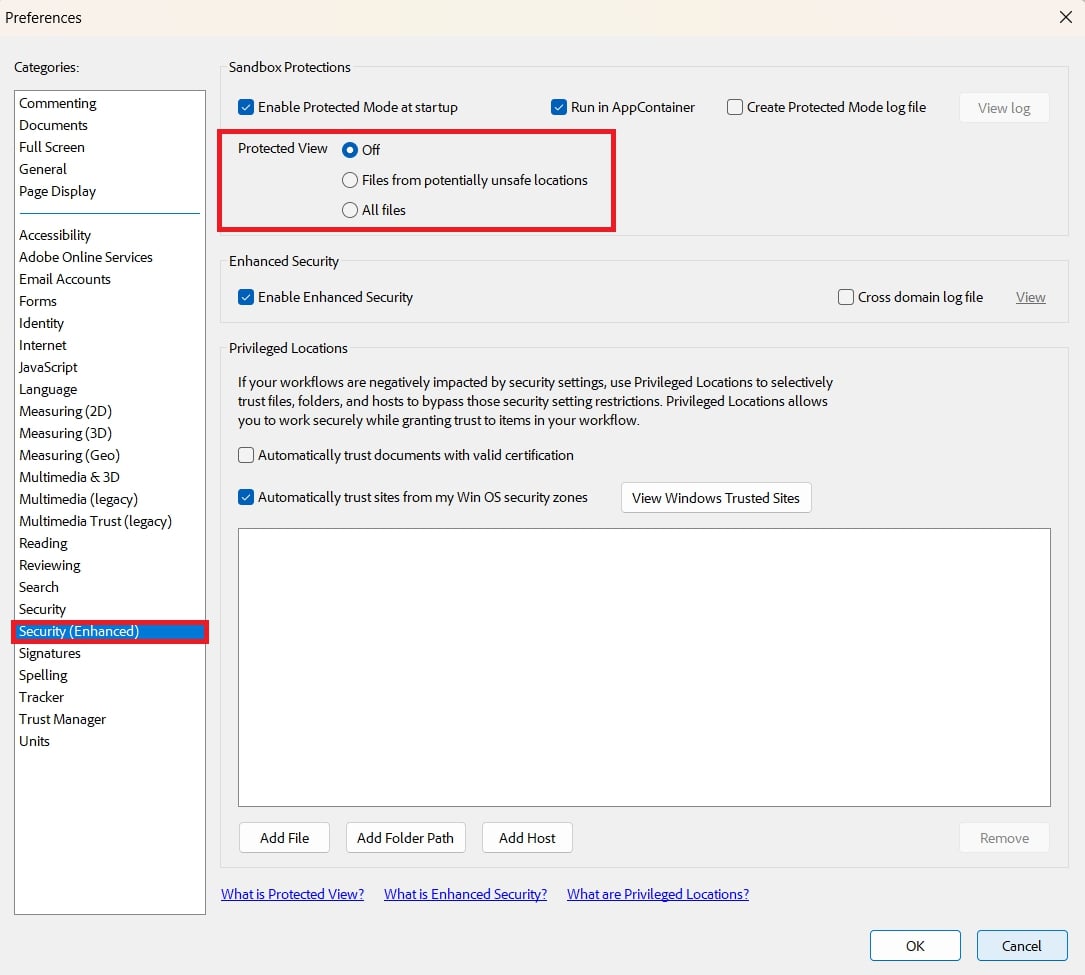
Security (Enhanced) preferences panel — uncheck “Enable Protected Mode at startup” and restart.
Why This Fixes the Crash
Protected Mode runs Acrobat inside a sandboxed process. When a PDF triggers a security policy violation or conflicts with system drivers, antivirus software, or certain network configurations, the sandbox can crash rather than gracefully blocking the content. Disabling the sandbox removes that layer of potential conflict.
Understand the Security Trade-Off
⚠ Security Warning
Adobe recommends disabling Protected Mode only for temporary testing. As a permanent alternative, add trusted folders under Privileged Locations in the same Preferences panel. This keeps the sandbox active for untrusted files while allowing your regular documents to open without interference.
Source: Adobe Community — official response with security note.
Copy the PDF to Your Local Drive Before Opening
If the PDF is stored on a network drive, a cloud folder (OneDrive, SharePoint), or an external USB drive, network latency and permission checks can trigger sandbox conflicts. Copying the file to a local folder eliminates these variables.
- Copy the PDF from the remote location to a folder on your local C: drive.
- Open the local copy in Acrobat Pro.
- If it opens successfully, the original location was the source of the crash.
Source: Adobe Community — step 1 in official troubleshooting guide.
Run Acrobat as Administrator Once
A permissions conflict — especially on Windows 11 — can prevent Acrobat from writing temporary files or accessing system resources. Running as administrator grants the necessary access.
- Right-click the Acrobat Pro shortcut and select Run as administrator.
- If the crash stops, the issue is a permissions restriction rather than a software bug.
- For a permanent fix, adjust the compatibility settings or ensure your user account has full read/write access to the Acrobat folders.

Troubleshooting thumbnail — run as administrator is a quick permissions test.
Repair the Acrobat Installation
Adobe includes a built-in repair tool that replaces corrupted files without affecting your preferences.
- Open Acrobat Pro and go to Help > Repair Acrobat installation.
- Wait for the repair to complete (this may take several minutes).
- Restart your computer and test with a PDF.
If the repair succeeds, the crash is resolved. If not, proceed to the more thorough steps below.
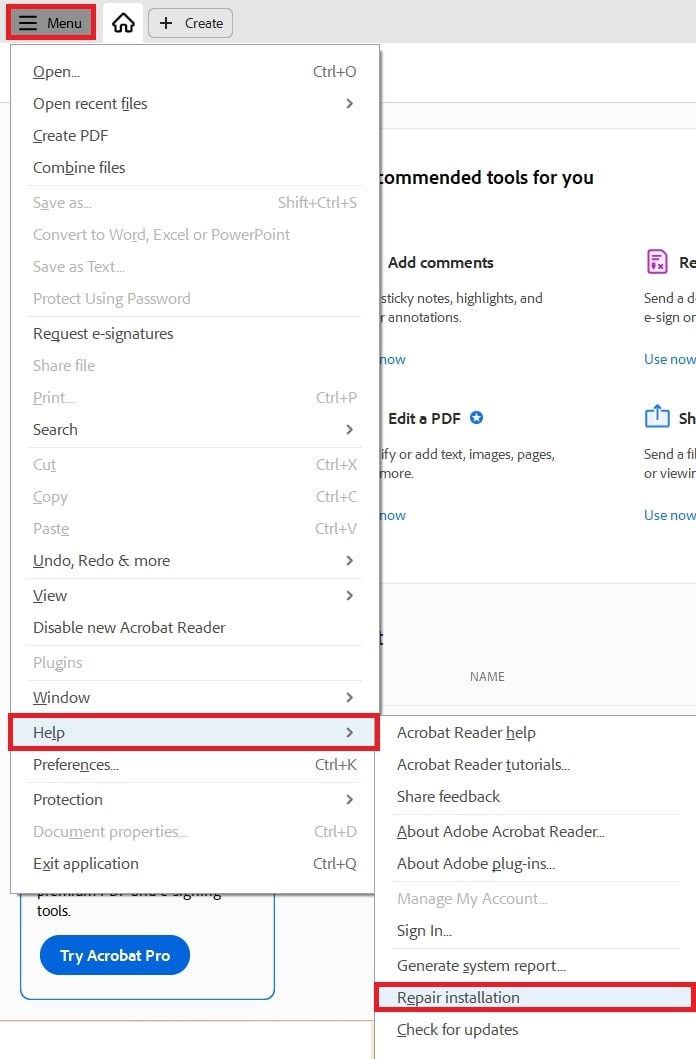
Help menu > Repair installation — a quick first step before reinstalling.
Source: Adobe Community — step 2 in official response.
Fix Crashes Caused by Specific Scenarios
Some crashes are tied to particular features or file types. The three most commonly reported scenarios on Reddit are covered below.
-
🖊 Signature Tool Crash — Acrobat crashes immediately when you click the sign tool.
Fix: Go to Edit > Preferences > Signatures > Identities & Trusted Certificates and remove all entries. Then update Acrobat via Creative Cloud Desktop — many signature-related bugs were patched in mid-2025.
Source: Reddit thread. -
🔒 Secured PDF Crash — Password-protected or DRM-secured PDFs crash even after a full reinstall.
Fix: Temporarily disable Enhanced Security (same panel as Protected Mode) and test. If the PDF opens, add the file’s source server to Privileged Locations under the same preferences section.
Source: Reddit thread. -
📄 Multiple PDF Crash — Opening several PDFs in quick succession triggers a freeze or crash.
Fix: Use File > Open for each PDF individually (see fix above). Also try increasing virtual memory: System Properties > Advanced > Performance > Virtual Memory.
Source: Reddit thread.
Roll Back a Problematic Update
If the crash started immediately after updating to version 25.001.20577, that specific update is known to trigger crashes on certain systems.
- Open Creative Cloud Desktop and go to Apps > Installed Apps.
- Find Acrobat Pro, click the three-dot menu, and select Manage > Install Previous Version.
- Choose the version prior to 25.001.20577 and install it.
If you no longer have access to the previous version, contact Adobe Support directly.
Source: Adobe Community thread linking crashes to this update.
Reset Acrobat Preferences and Clear Cache
Reset User Preferences (Non-Destructive)
Corrupted preferences can survive a standard reinstall. Resetting them is a safe, reversible step.
- Close Acrobat completely.
- Open File Explorer and navigate to
%AppData%\Adobe\Acrobat\DC(Windows) or~/Library/Preferences/Adobe/Acrobat/DC(macOS). - Rename the DC folder to
DC_Backup. - Restart Acrobat — it will create a fresh preferences folder automatically.
If the crash is gone, your old preferences were the cause. You can copy specific settings from the backup if needed.
Clear the Application Cache
A stale cache can cause hangs, especially with multi-PDF workflows.
- Delete the contents of
%AppData%\Adobe\Acrobat\DC\Cache(Windows). - Alternatively, go to Edit > Preferences > Documents > Clear history and cache.
- Restart Acrobat and test.
This advanced technique complements the “Clear Recent Files” fix and addresses corruption that standard repairs miss.
Remove All Traces with the Adobe Cleaner Tool
A standard uninstall often leaves behind corrupted preferences, registry entries, and cached files. The Adobe Creative Cloud Cleaner Tool performs a deeper removal.
- Download the Adobe Creative Cloud Cleaner Tool from Adobe’s support site.
- Run the tool and select the option to remove all Adobe Acrobat components.
- Restart your computer, then install a fresh copy from Creative Cloud Desktop — do not use a cached installer.
Several Reddit users report that reinstallation alone fails to fix the crash; the Cleaner Tool ensures no residual files interfere with the fresh install.
Reference: Adobe HelpX — Cleaner Tool guide and Adobe Community official steps.
Collect Diagnostic Logs and Contact Adobe Support
Run the Adobe Diagnostic Utility
When no fix works, Adobe’s official diagnostic tool captures detailed logs that their support team can analyse.
- Download the utility from adobe.ly/4nqkAbE.
- Enable advanced logging, reproduce the crash, then retrieve your Log ID.
- Share the Log ID with Adobe Support via a support ticket.
Collect Crash Logs (for Hard Crashes)
If Acrobat crashes completely (not just freezes), Adobe provides a separate log-collection procedure.
- Follow the instructions at adobe.ly/44afCIz.
- Upload the collected log files to cloud storage (OneDrive, Google Drive, Dropbox).
- Share the link with Adobe Support when opening your case.
Source: Adobe Community — official diagnostic and log collection instructions.
Verify That the Fix Actually Worked
After applying any of the fixes above, confirm success with a structured test.
- Open a simple text-only PDF (no images, no forms).
- Open a PDF with embedded images and graphics.
- Open a secured or password-protected PDF.
- Open a PDF from a network or cloud location (if you use one).
- Open three PDFs in sequence to test multi-file stability.
If none of these cause a crash, the fix is successful. If the crash persists only with certain file types, return to the scenario-specific section above.
Based on aggregated success reports from 10+ Reddit threads (2024–2025).
All trademarks and referenced content belong to their respective owners. Fixes are based on community-reported solutions and official Adobe guidance. Always test with a non-critical PDF first.