Workflow Tips
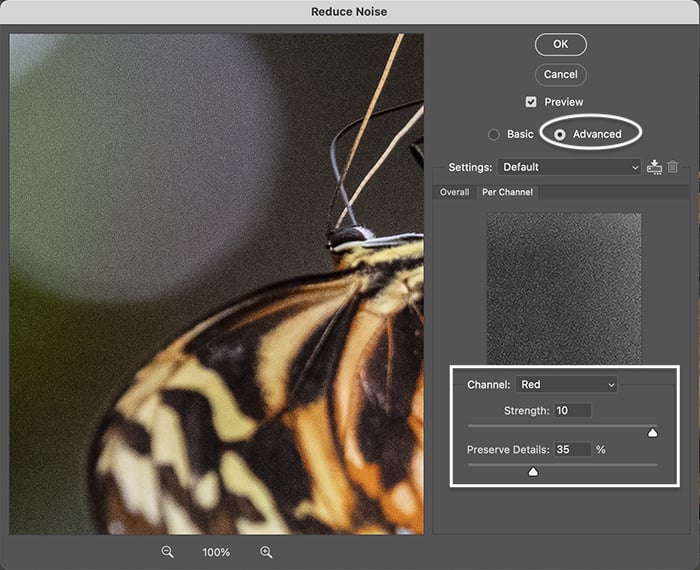
Photo Editing to Remove Noise and Unfocused Areas
Photo editing removes noise and sharpens unfocused areas in digital images, enhancing clarity and detail through advanced denoising and deblurring algorithms.
Read guide →Practical guides for Photoshop cutouts, layer masks, edge cleanup, and transparent PNG export.
Photo editing removes noise and sharpens unfocused areas in digital images, enhancing clarity and detail through advanced denoising and deblurring algorithms.
Read guide →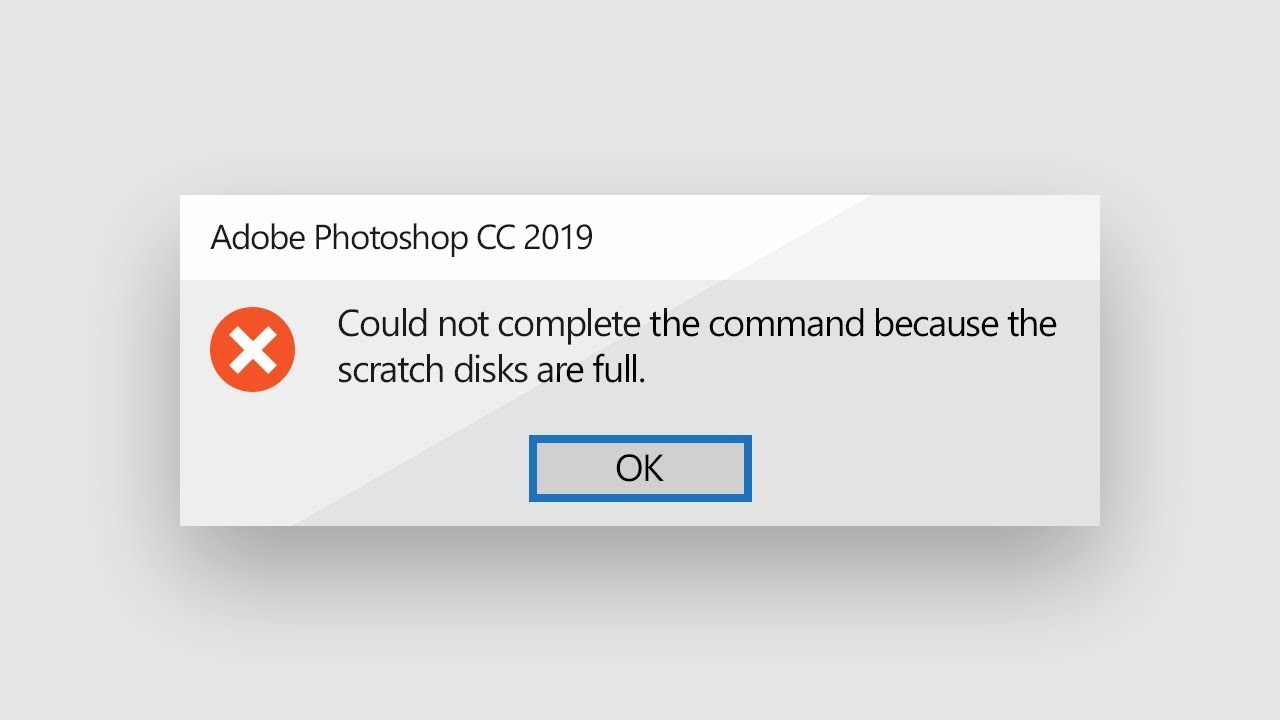
Fix the Photoshop scratch disk full error even when free space remains: free at least 100GB, delete temporary files, and defragment your hard drive.
Read guide →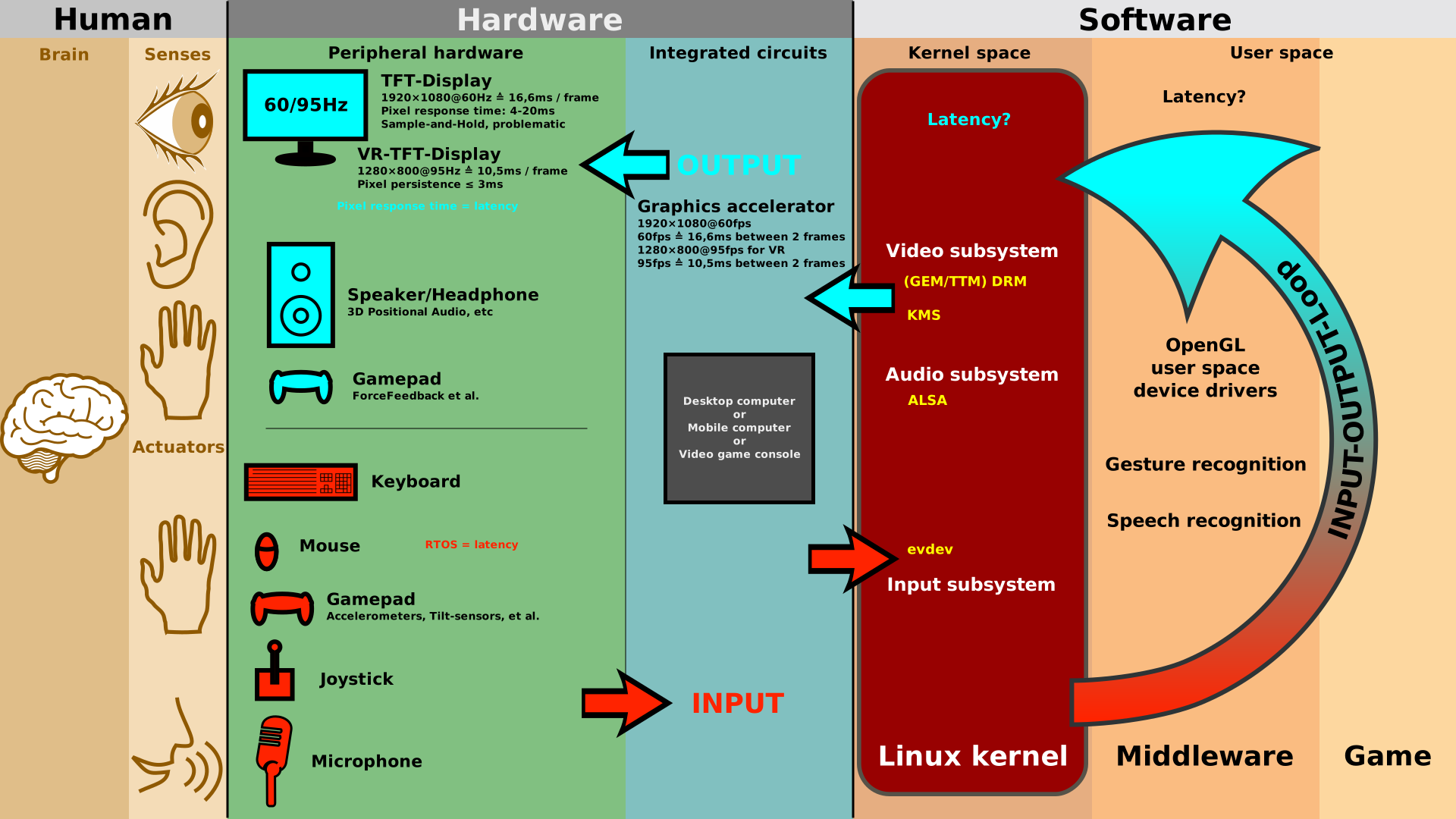
Learn what a user interface is, explore its key types (CLI, GUI, touch, and voice), and understand its impact on human-computer interaction.
Read guide →
Learn how to rotate a photo without quality loss using free online tools, native mobile editors, and batch methods for any angle or orientation.
Read guide →Match your image type to the best tool to vectorize an image on any budget, with comparisons of free, paid, and mobile options for logos, photos, and line art.
Read guide →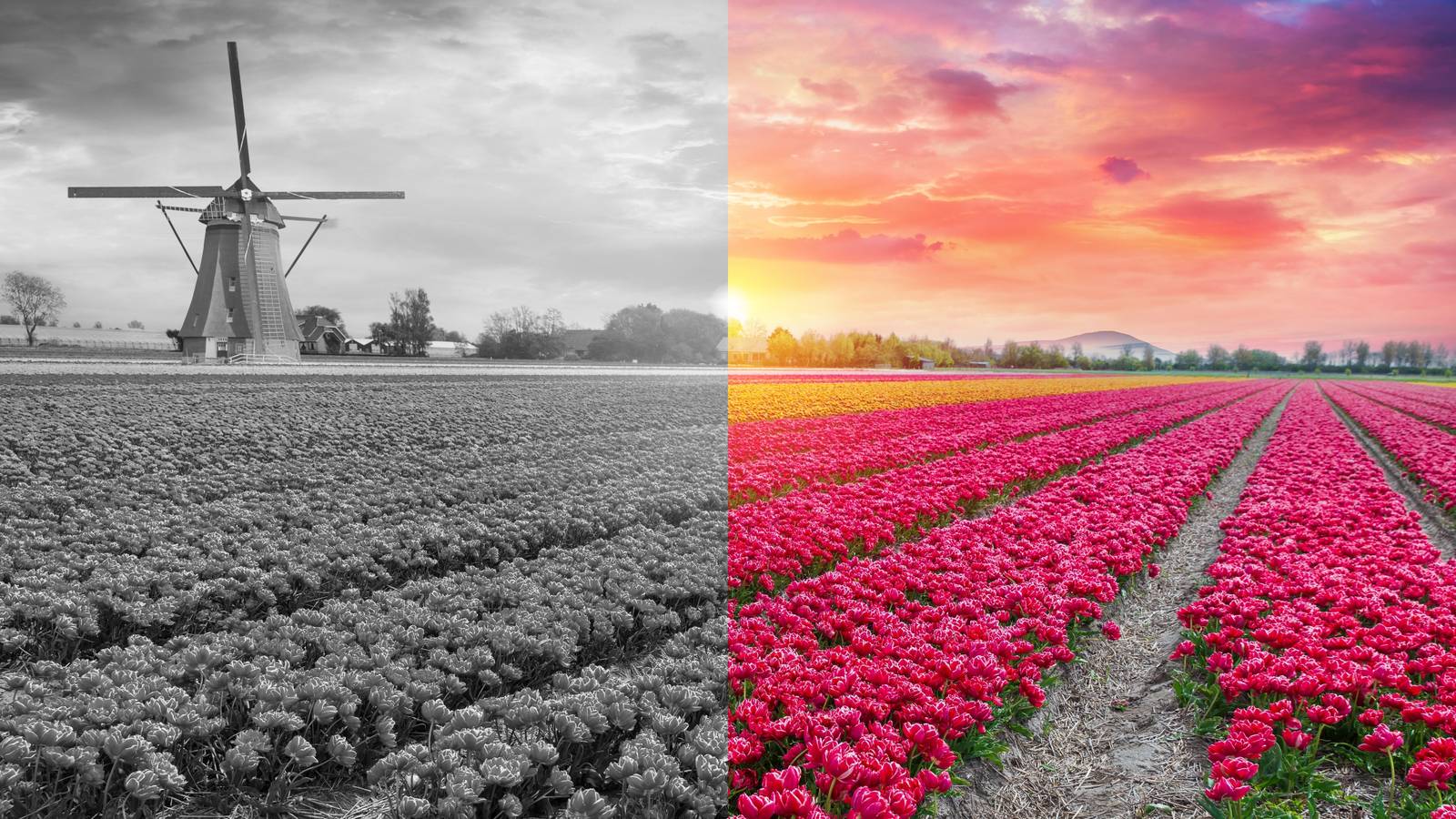
Colorize an image with AI: compare Palette.fm and Colorize Images app by pricing, privacy, and use cases; pick the best for desktop or mobile.
Read guide →
Learn how to get two pictures side by side on any device, covering online tools, Google Photos, and iPhone Shortcuts, with layout and width tips.
Read guide →Use 7 free glitch effect tools for online, mobile, and desktop, with a guide to pick the right one for quick images, mobile videos, or pro editing.
Read guide →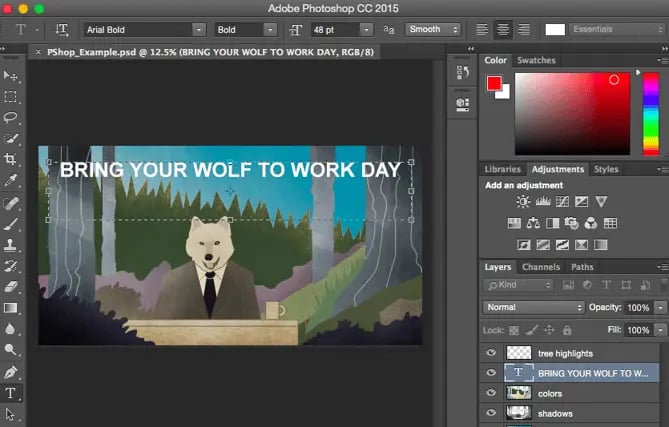
How to photoshop a picture: follow a non‑destructive workflow—straighten before crop, duplicate layers, use adjustment layers for exposure and color edits.
Read guide →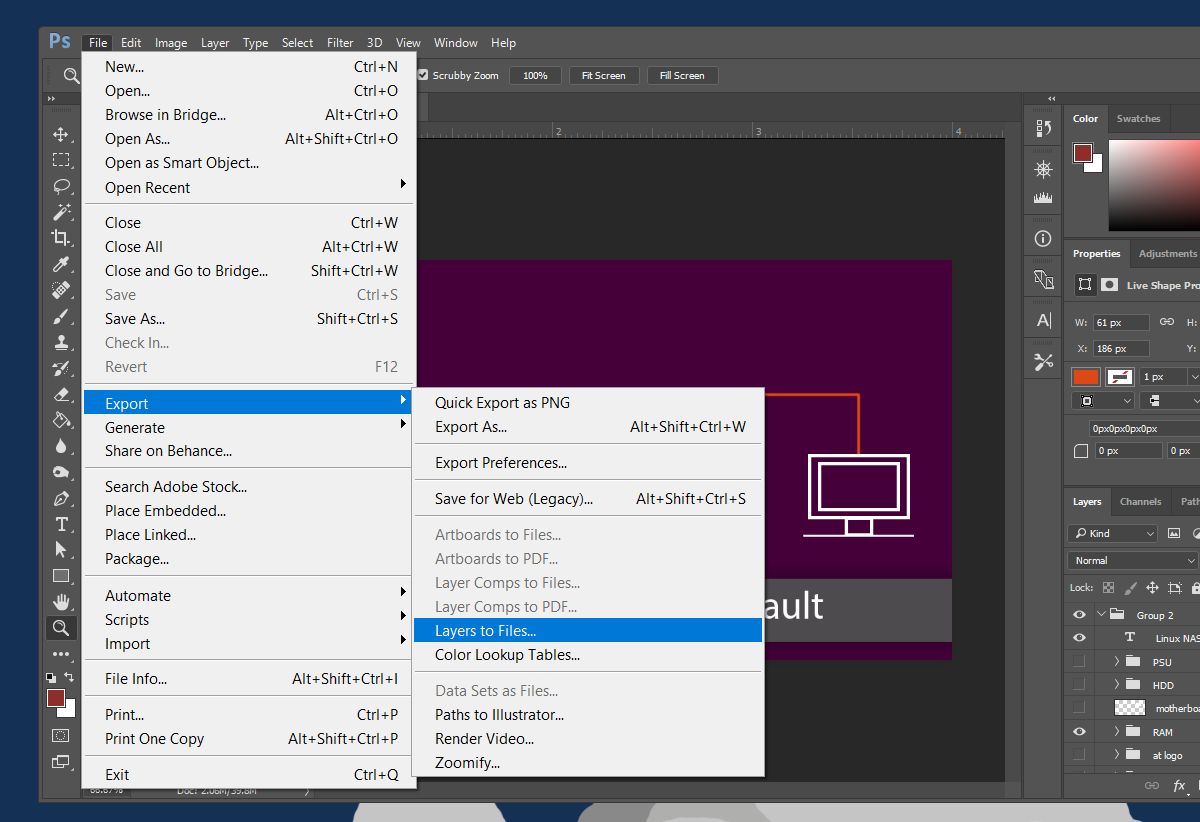
Learn how to export 100 Photoshop layers to transparent PNGs using the built-in script, avoiding white backgrounds and shifted positions with simple fixes.
Read guide →
Firefly has six meanings: Adobe AI, TV series, aerospace, medical device, cloud platform, and insect — learn key facts, official links, and practical tips.
Read guide →
Use the Adobe Color Wheel to create harmonious, accessible palettes with seven harmony rules, contrast checking, and color blindness simulation—all for free.
Read guide →Upscale image without quality loss using the best free AI tools: compare options based on speed, detail, and ease of use for different platforms and use cases.
Read guide →
Adobe Stock guide: pricing tiers, licensing rules, searching a 90B-asset library, and contributor tips to sell your own work and maximize earnings.
Read guide →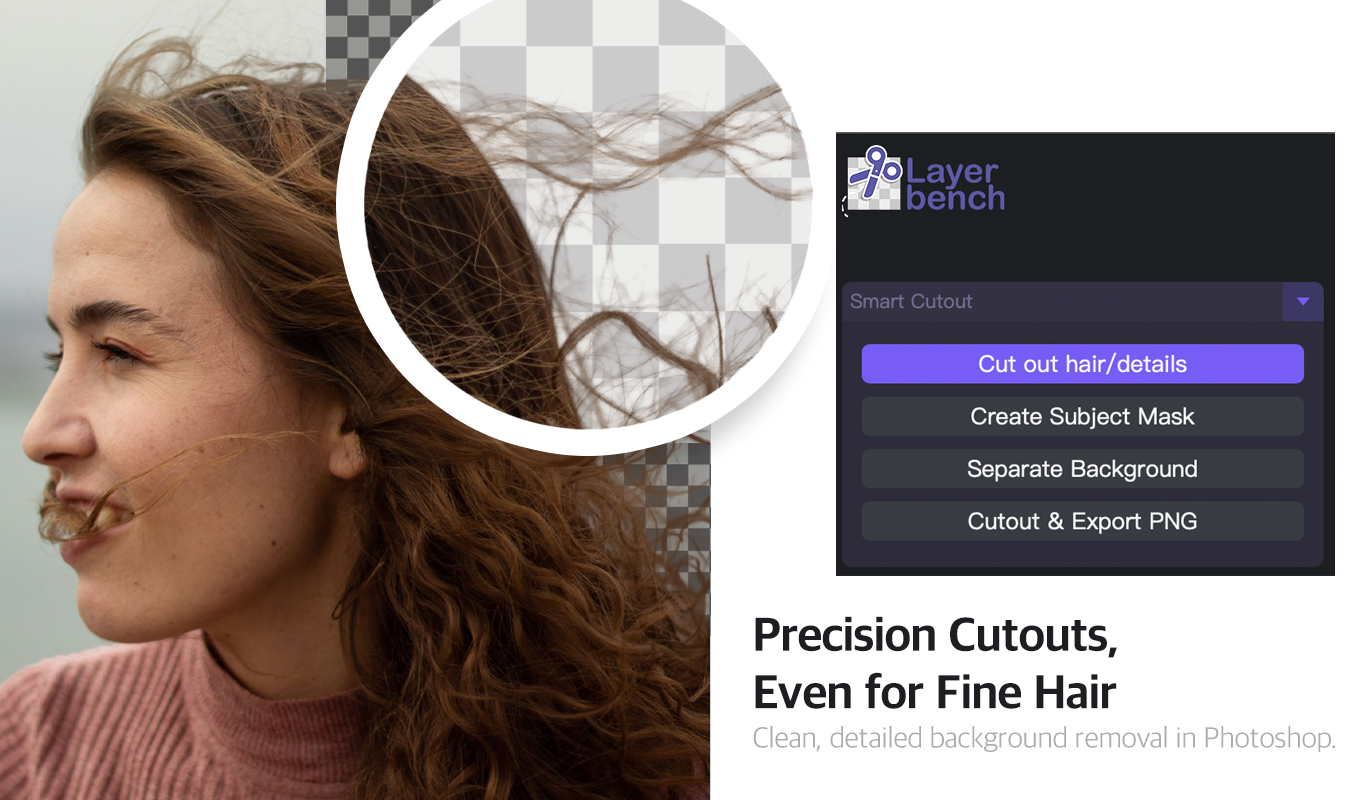
Remove.bg alternatives for Photoshop users include free Adobe Firefly for one-click hair removal, Photoroom for batch of 250, and the built-in Quick Action.
Read guide →
Find Pixelcut alternatives with unlimited free exports, commercial licenses, and batch processing—compare to pick the best tool for product photos.
Read guide →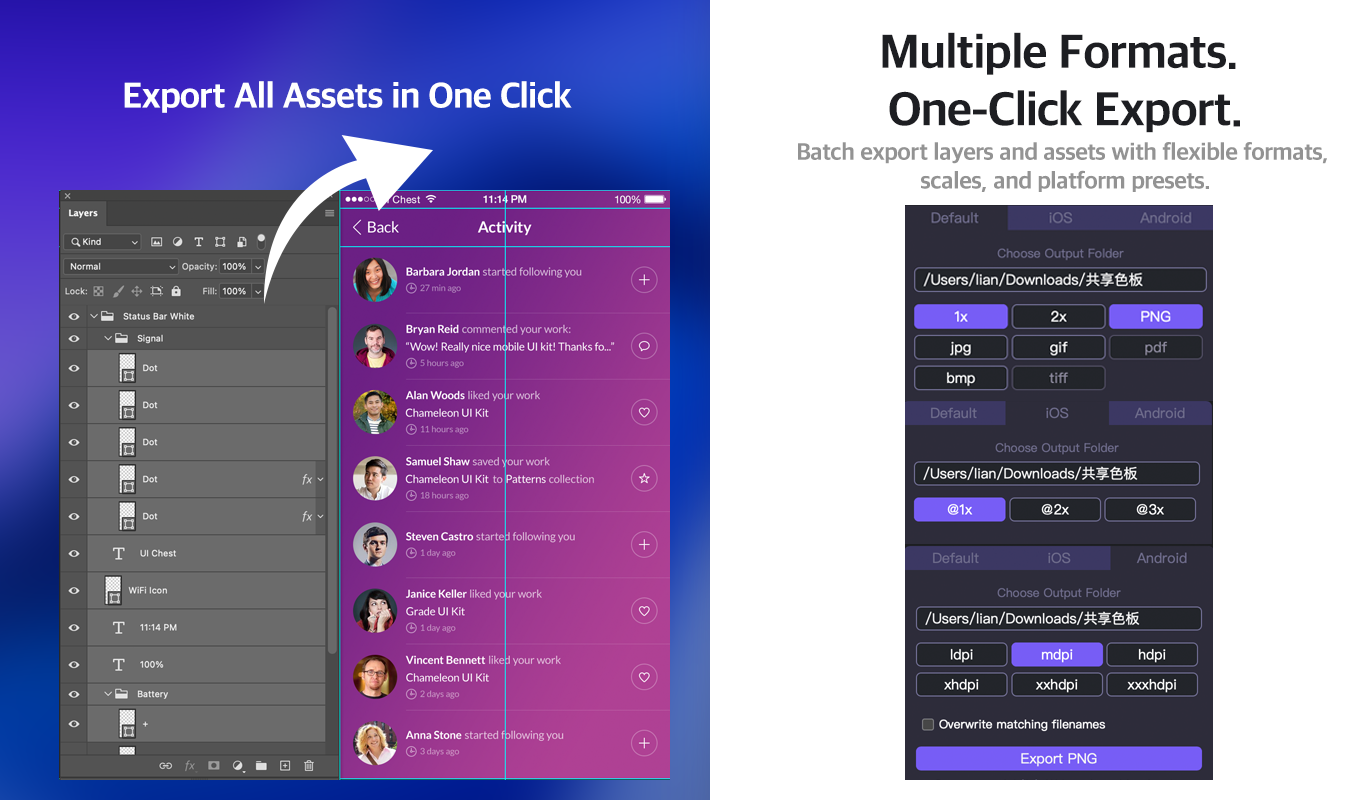
Compare Photoshop UI asset export methods: Generator for automation, Export As for manual control, and batch scripts for bulk output—find your ideal workflow.
Read guide →Photoshop hair background removal: 4 methods (Select & Mask, Background Eraser, Channels, manual painting) with steps to fix white halos & chopped transparency.
Read guide →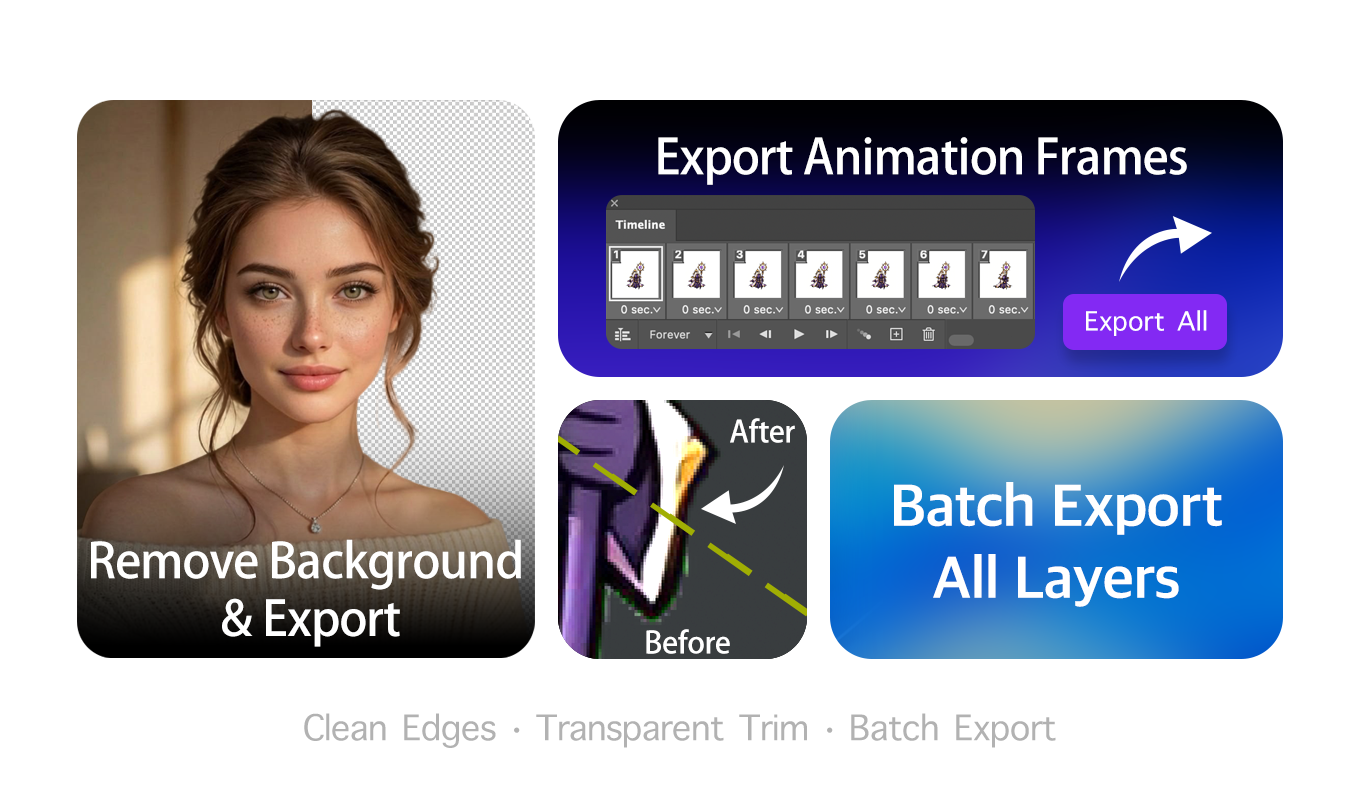
Compare the best Photoshop cutout plugin for hair, smoke, and reflections, with top picks for different scenarios and guidance on when native tools fall short.
Read guide →See Photoshop automation plugins: batch retouching, cloud export, and framework choices—learn UXP vs CEP, Actions vs plugins, and install with the Actions API.
Read guide →
Learn to batch export PNG in Photoshop using 5 proven methods—choose the fastest for large batches or the best for transparency and metadata.
Read guide →
Explore 2026's best Photoshop plugins for designers—26 curated plugins for retouching, typography, AI masking, workflow that save time and boost creativity.
Read guide →Top Photoroom alternatives for Photoshop users offer unlimited batch removal, layer editing, and AI scenes—from free tools like Pixelcut and Photopea.
Read guide →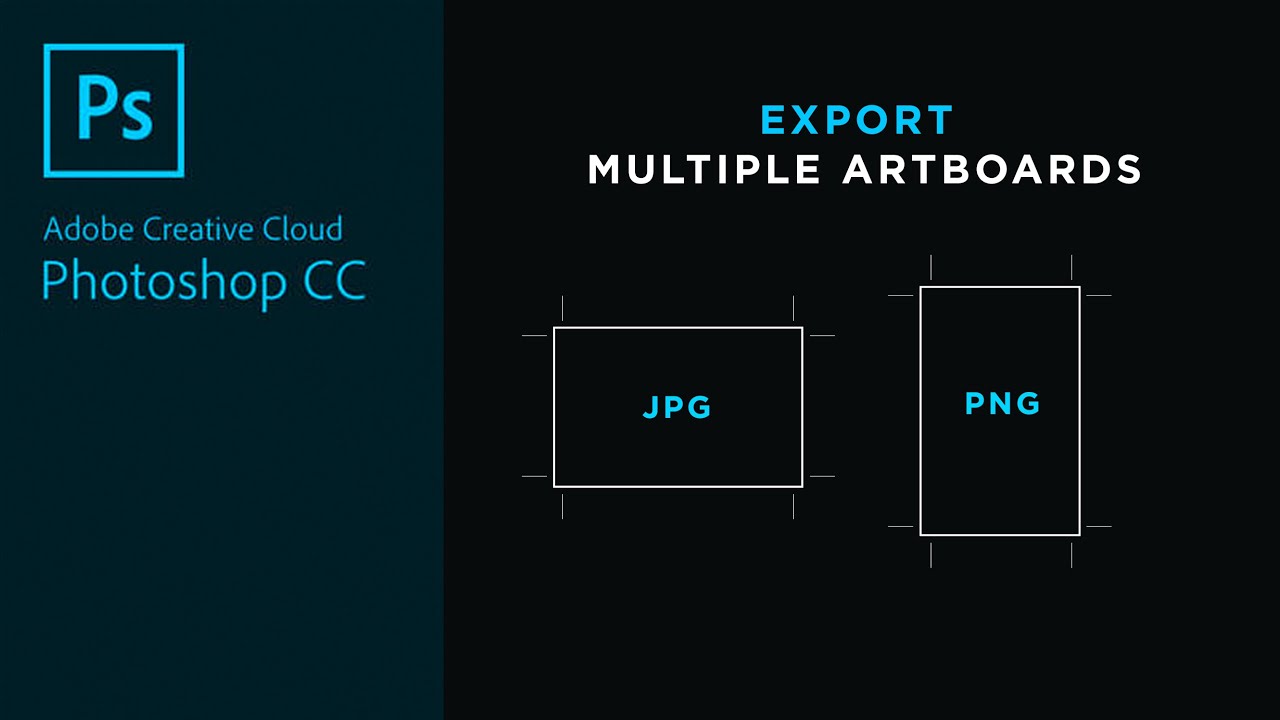
Photoshop export artboards as PNG: three methods (batch, right-click, quick export) with solutions for transparent backgrounds and missing resolution metadata.
Read guide →
For Photoshop sprite export, use manual assembly for few frames, built-in scripts for layer sequences, or automated tools for advanced packing with metadata.
Read guide →
Photoshop's Trim Transparent Pixels command removes transparent borders instantly but skips semi-transparent edges; use a threshold mask to get clean PNGs.
Read guide →
Compare the best AI tools for removing objects from photos 2026—including free, professional, batch, and offline options—to match your workflow.
Read guide →
Find the best AI background generator for product photos and portraits, with top picks for value, free tier, and product shots, plus feature comparisons.
Read guide →
A detailed Pixelcut reviews guide highlights its pros like easy UI and AI tools, cons like limited free version, and pricing tiers for informed decisions.
Read guide →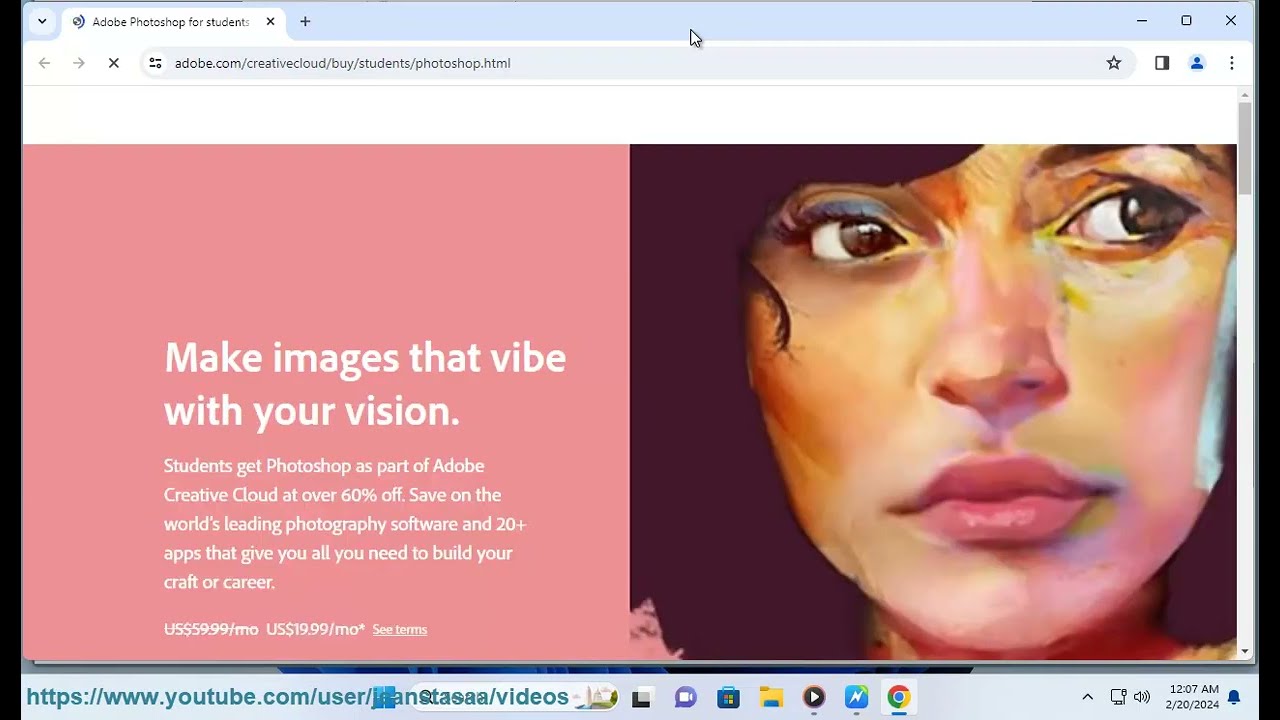
Photoshop software for students is available at $20/month for Creative Cloud, with free options via school licenses or alternatives like GIMP and Photopea.
Read guide →
Top photoshop alternatives for mac: Affinity Photo free (AI via Canva Pro), Pixelmator Pro one-time ~$30, plus GIMP for budget and Krita for painting.
Read guide →
Compare the best tools to remove people from photos with our head-to-head test of five free AI removers on real images, including complex backgrounds.
Read guide →
Affinity vs Adobe: a perpetual three-app suite saves thousands vs Adobe's 20+ apps, but lacks auto-trace, vector brushes, and blend tool—check your workflow.
Read guide →
InPixio reviews: one-click AI for object removal & sky replacement impresses but slow, stability issues & missing Mac features are complaints; from $49.99/yr.
Read guide →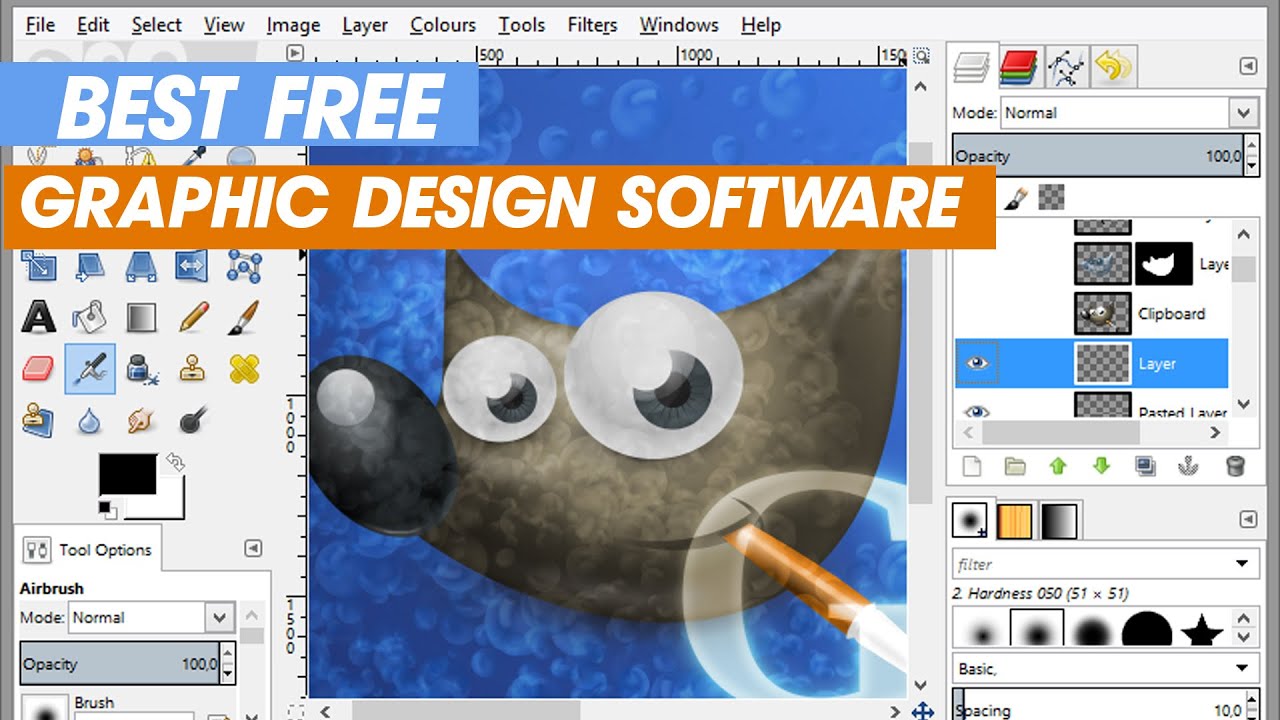
Which free graphic design software should you use? Compare GIMP, Inkscape, Canva, and Blender for photo editing, vector logos, social media, and 3D modeling.
Read guide →
Remove.bg pricing includes free 0.25MP previews, $3/3 credits PAYG, and subscriptions: Lite $9/40, Pro $39/200, Volume+ $89/mo, all with high-res & white-label.
Read guide →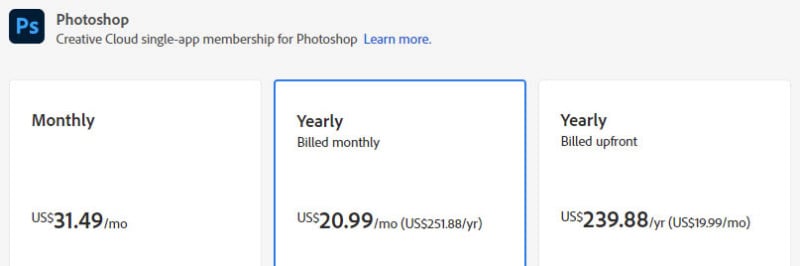
How much does Photoshop cost in 2026? It's $22.99/month for individuals, $34.99/month for teams (with cloud storage), and offers a 7-day free trial.
Read guide →
Best background remover for ecommerce images varies: Photoroom for accuracy, remove.bg for speed, Icons8 for bulk, and Shopify Sidekick is free.
Read guide →
Remove.bg alternatives are critical: compare pricing, batch processing, and tricky subjects like hair and transparent objects before the Dec 1, 2026 shutdown.
Read guide →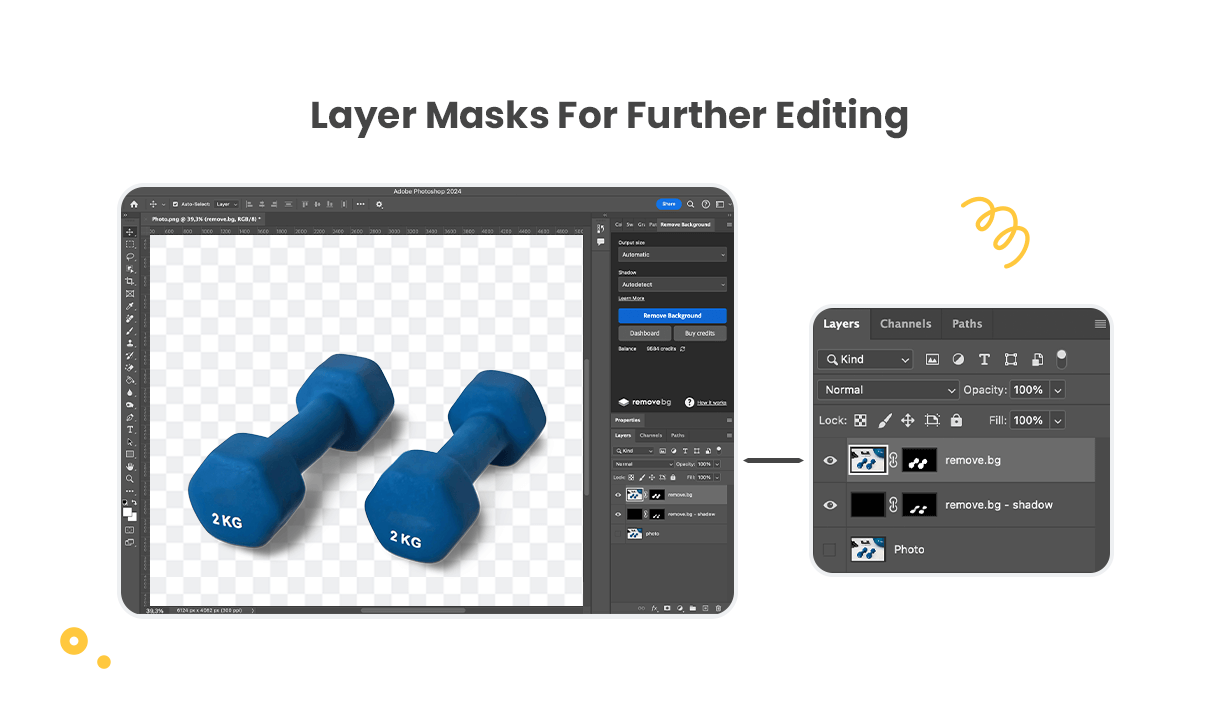
Photoshop background removal plugin comparison: remove.bg excels for messy backgrounds, Adobe native tools free, Topaz offers offline one-time purchase
Read guide →
See the best background remover software for every use case — 12 tools compared: free vs paid, batch processing, edge quality, and privacy handling.
Read guide →Compare the best apps to change photo background: Adobe Express, Photoroom, Canva, Picsart—tested for speed, free edits, e-commerce batch, and AI creativity.
Read guide →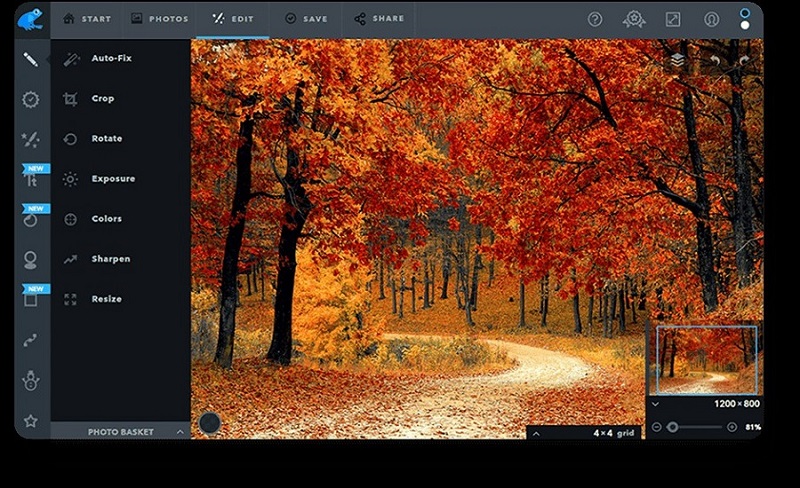
Compare best online photo editors: Photopea for advanced layers, Canva for beginners, and Pixlr for free AI tools, all in your browser, with pricing & privacy.
Read guide →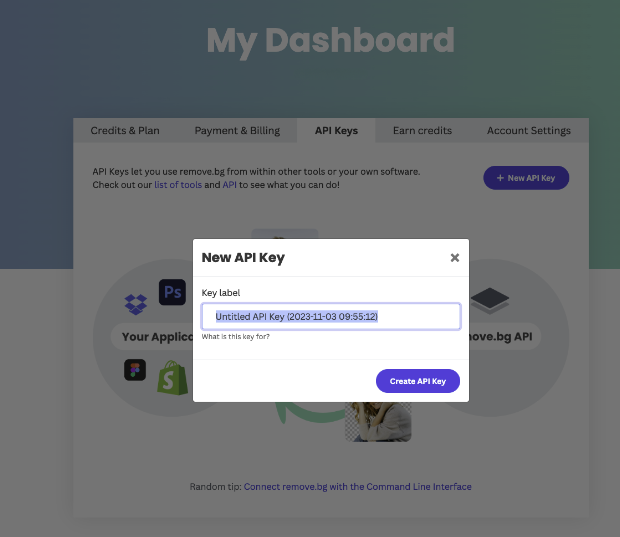
Compare remove bg API pricing, speed, and integration code across top providers like Remove.bg, Poof.bg, and Cloudinary with free tiers and code samples.
Read guide →
Compare the best photo editors for background removal: Photoroom for sellers, Canva for creators, Photoshop for precision; plus free tier trade-offs.
Read guide →Compare the best tools for graphic design for beginners, professionals, and budgets, covering Adobe, Canva, Figma, and free open-source options.
Read guide →
Photopea vs Remove.bg vs Canva background remover: Photopea is free for complex edges, Remove.bg for bulk speed, Canva for quick one-click (Pro needed).
Read guide →Find the best photo editing app for ecommerce: Photoroom for glass, Blend for ghost mannequin, Phot.AI for cross-platform; choose based on catalog and material.
Read guide →
Photoshop or Lightroom? Choose based on workflow: Lightroom for batch organization & editing, Photoshop for retouching & compositing; pros use both.
Read guide →Remove passport photo background with AI tools but match official color rules like white #FFFFFF or blue #C6E0F0 and avoid common errors for passport approval.
Read guide →
How to remove background in GIMP: compare five methods from Fuzzy Select to Color to Alpha to pick the right one for your image type and avoid common mistakes
Read guide →Learn how to make background transparent in Paint using two distinct methods: free-form cut and Color 2 precision, fixing anti-aliased edges and saving as PNG
Read guide →
Remove background from image on Mac using Preview, Finder, or free online tools, with Ventura+ one-click methods and Instant Alpha for older systems.
Read guide →
Remove background from your signature for free using AI-powered online tools that automatically deliver transparent PNGs for contracts and letterheads.
Read guide →
Figma remove background: use built-in AI on paid plans (free beta) or plugins like Privacy-First & Remove BG for free users, with troubleshooting tips.
Read guide →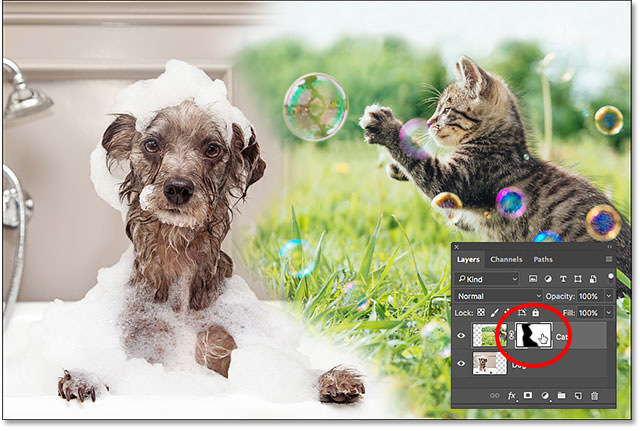
Learn how layer masks in Photoshop use black to hide and white to reveal for non-destructive editing, including four methods to add and edit masks.
Read guide →
Learn how to crop in Photoshop with seven methods: Crop Tool for full images, Frame Tool or layer masks for single layers, plus straighten and exact dimensions.
Read guide →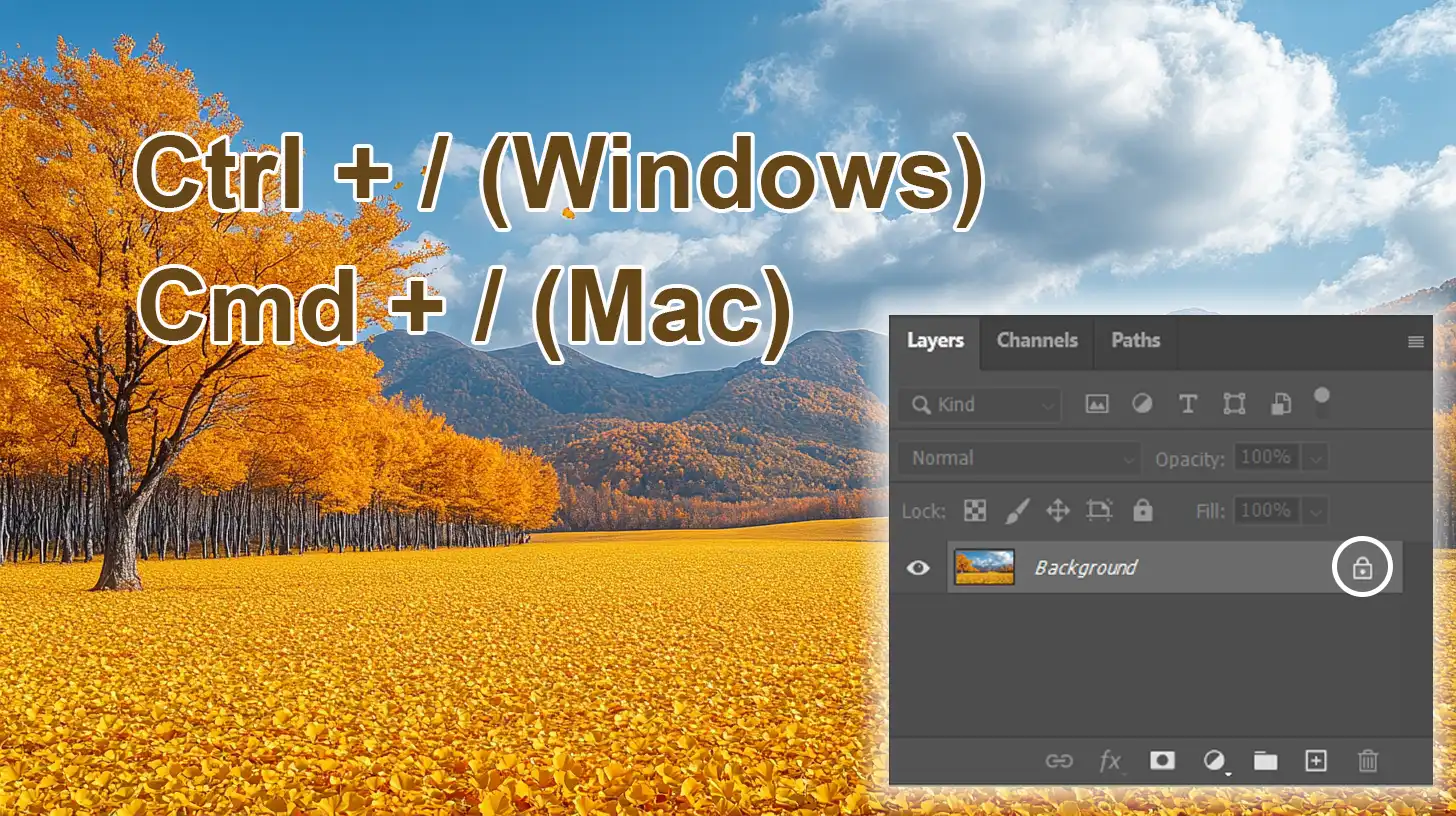
Learn how to lock a layer in Photoshop with three methods: click the lock icon, use Ctrl+/ shortcut, or apply partial locks like transparent pixels or position.
Read guide →
Learn how to unmerge layers in Photoshop with three methods: using the immediate undo command, leveraging the History panel, and recovering after saving.
Read guide →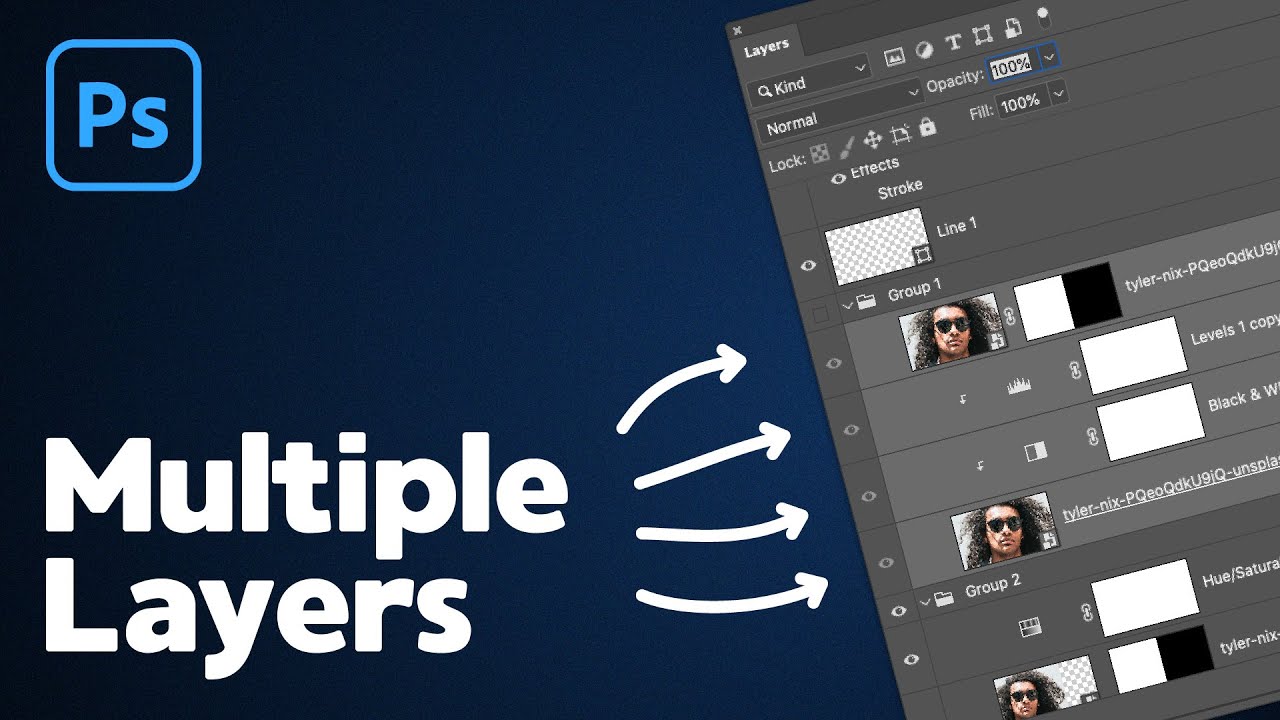
Master the five essential methods for selecting layers in Photoshop: Layers panel, Auto-Select, Select menu, right-click, and keyboard shortcuts.
Read guide →How to select hair in Photoshop: 3 methods – Select & Mask (speed), Channel Pull (detail), Two-Mask Hybrid (complex scenes) – for clean edges and flyaways.
Read guide →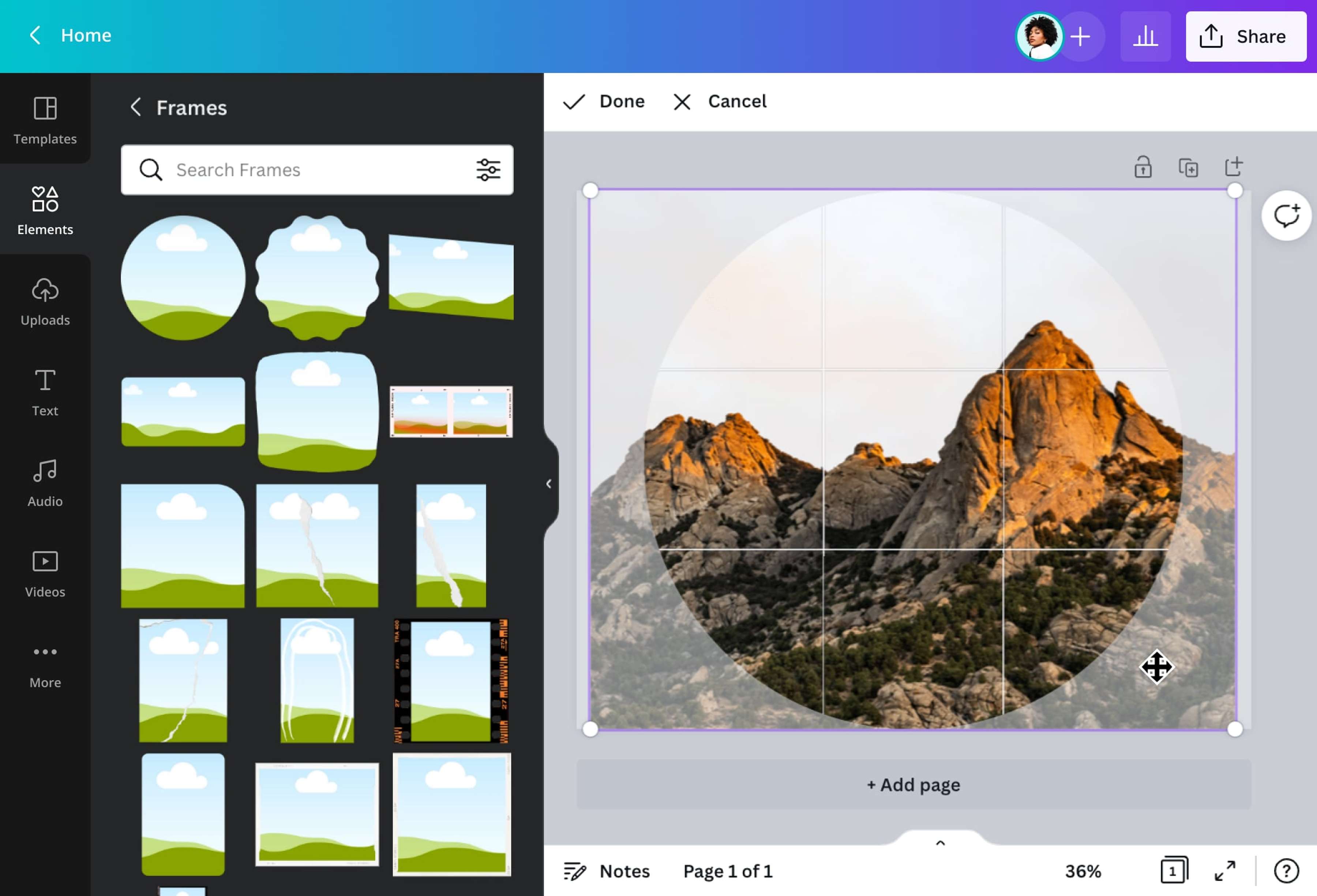
How to crop a photo into a circle: 7 proven methods for any device - online tools, desktop apps, and mobile options that preserve transparency and privacy.
Read guide →
Learn how to flip a layer in Photoshop on desktop and mobile using Edit > Transform or Free Transform, and avoid flipping the entire canvas.
Read guide →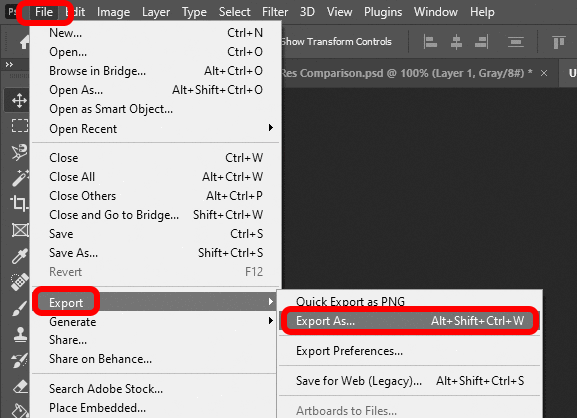
Save as SVG from Photoshop in 2025/2026: enable Legacy Export As (needs Preferences/Rosetta), use Copy SVG, or bridge via Illustrator; vector layers required.
Read guide →
How to change background color in Photoshop with Solid Color Fill and Hue/Saturation Colorize — two nondestructive methods that avoid Match Color artifacts.
Read guide →
Add an image to a Photoshop layer with 7 distinct methods from drag-and-drop to Load Files into Stack, each tailored to your specific workflow and needs.
Read guide →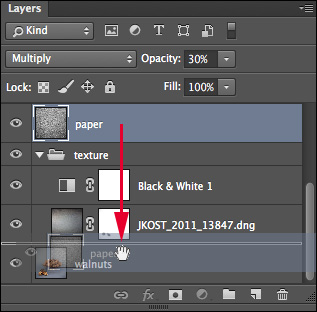
Learn how to group layers in Photoshop using menus, keyboard shortcuts (Ctrl+G), and drag-and-drop, with tips for efficient layer management.
Read guide →Select hair in Photoshop using methods for high contrast, fine strands, and light hair: Object Selection, Refine Hair, Channel-based, and manual.
Read guide →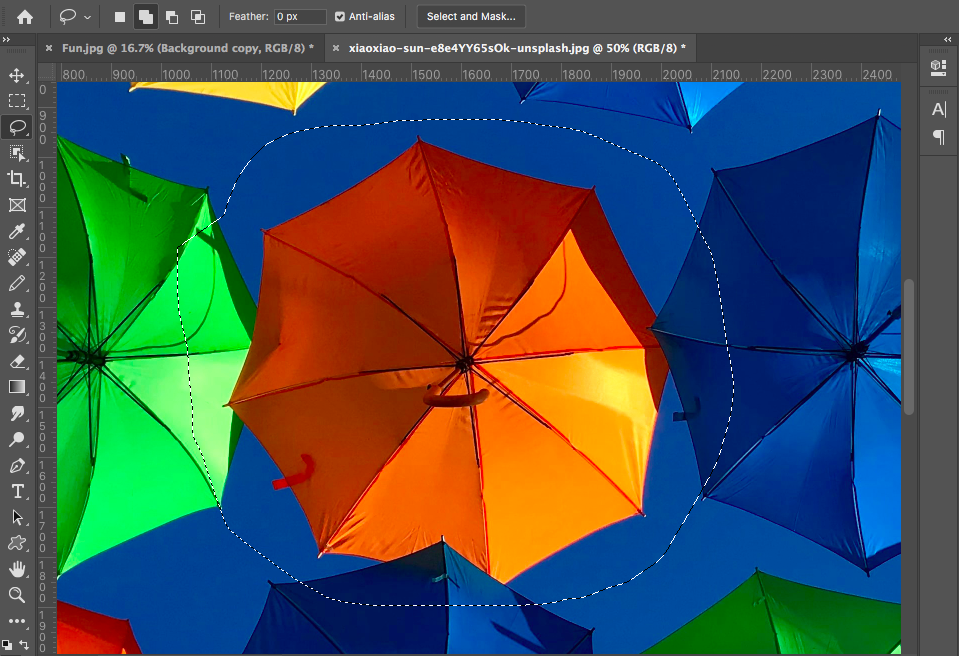
Master the lasso selection tool across software, from freehand drawing to the three Photoshop variants, and troubleshoot common edge issues.
Read guide →
Learn how to blur a background on Photoshop with two methods: the one-click Quick Action and the manual method using Select Subject, mask, and Blur Gallery.
Read guide →
Couldn't find background to remove in Photoshop? It's a 2026 bug fixed by switching to Cloud processing in Preferences — instantly works on all images.
Read guide →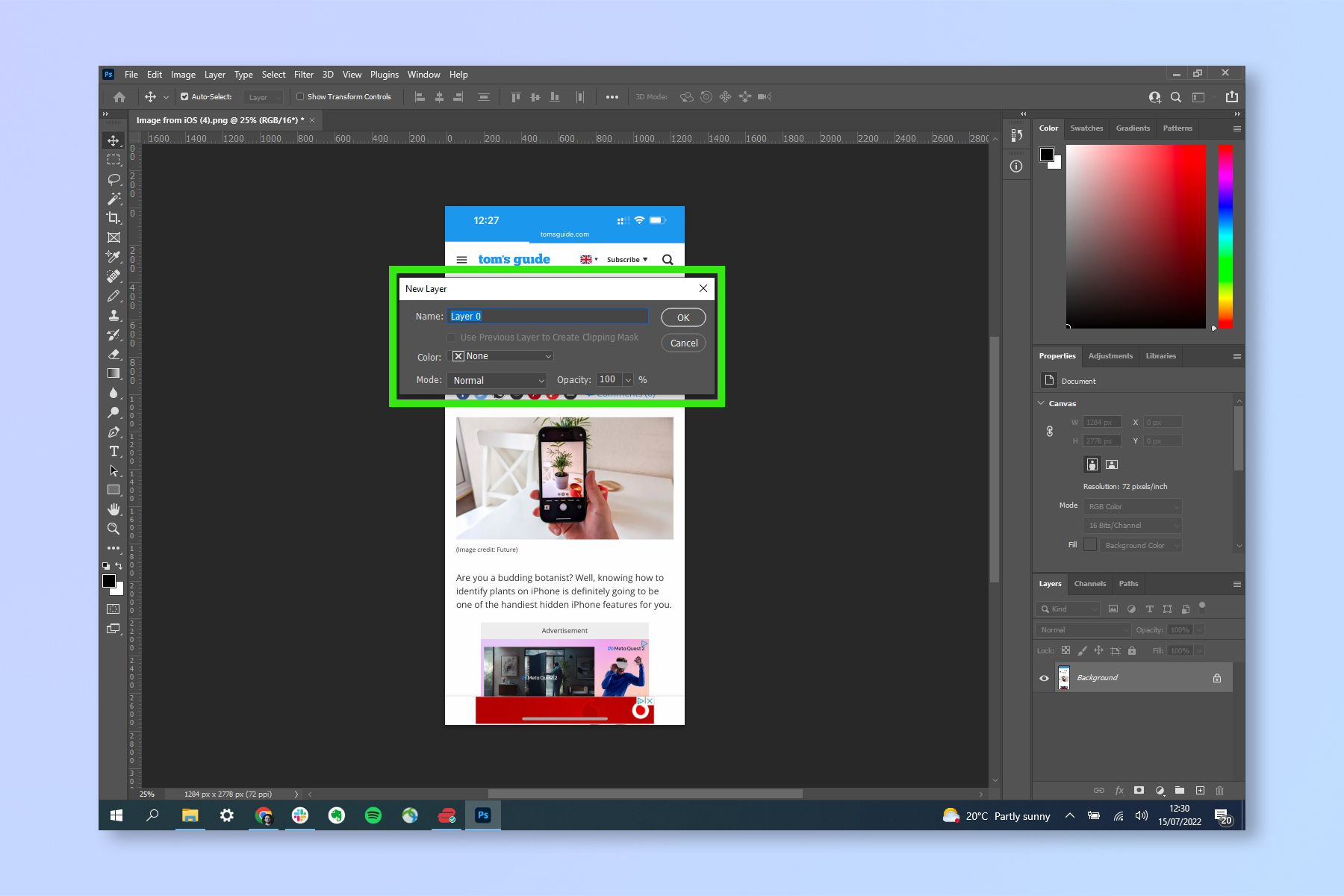
How to add a background in Photoshop: unlock the background layer, create a new layer below it, and fill it with color, photo, or AI Generate Background.
Read guide →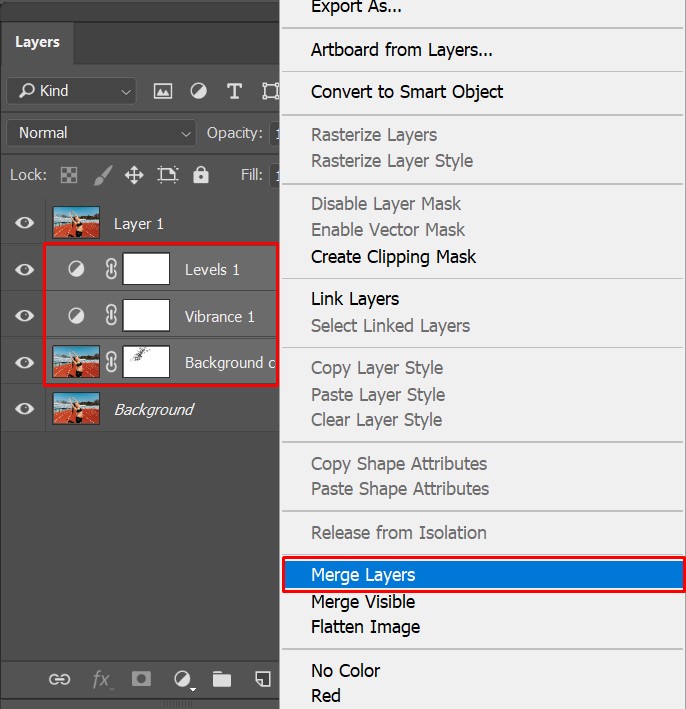
Learn how to combine layers in Photoshop using Ctrl+E, Stamp Visible, and other methods while preserving originals or flattening for final export.
Read guide →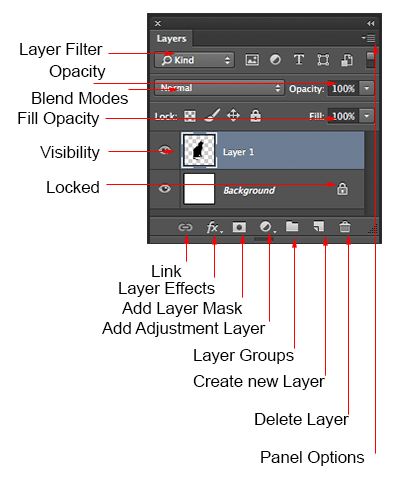
Learn how to add layers in Photoshop with 6 methods: button, menu, shortcut, duplicate, drag-drop, and adjustment layers for blank, image, and duplicate layers.
Read guide →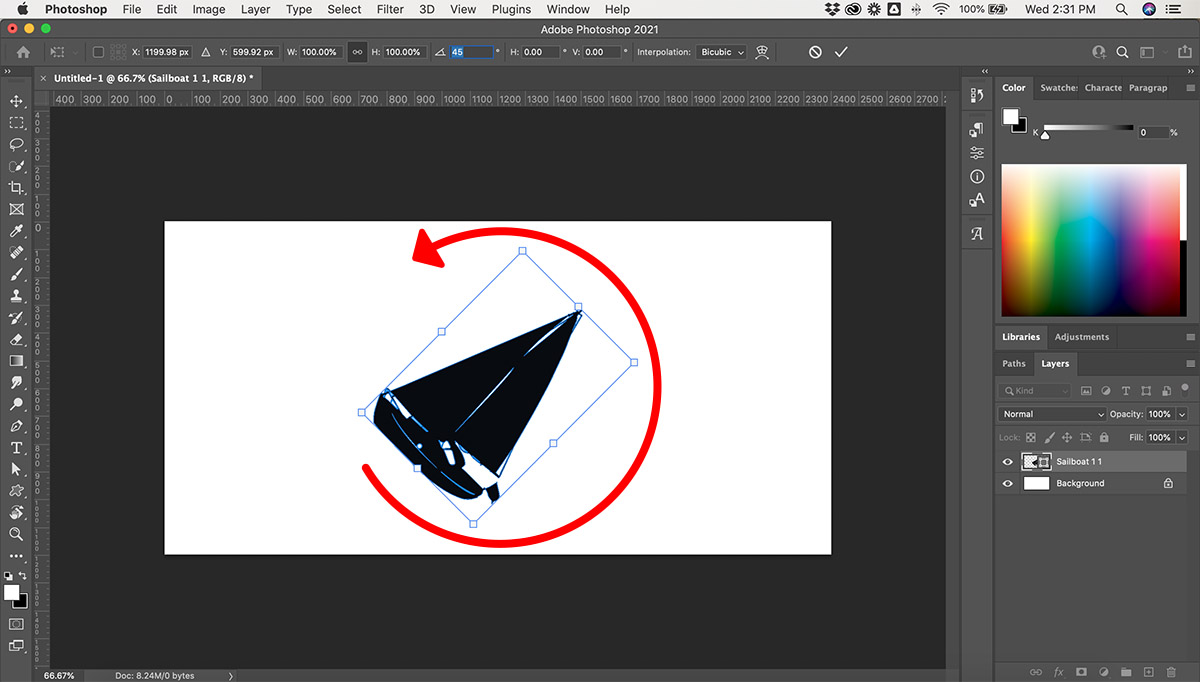
Learn every method for photoshop rotate layer: free transform, precise angle, and Ctrl+T, plus fixes for common issues like unwanted rotation
Read guide →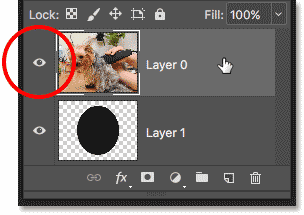
Learn how to make a clipping mask in Photoshop: step-by-step guide with correct shortcut (Ctrl+Alt+G) to avoid grouping, plus four easy methods.
Read guide →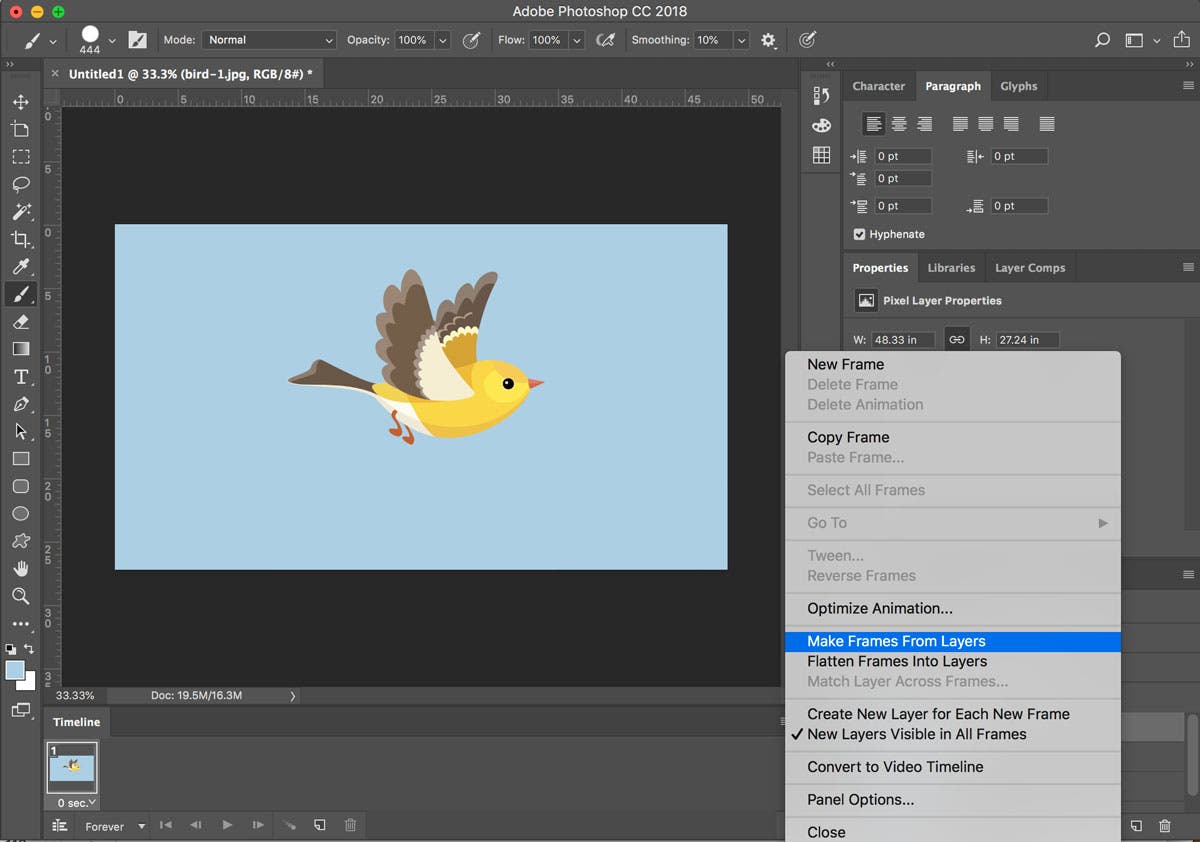
Learn how to export GIF in Photoshop using Save for Web for animations or Export As for static GIFs, with RGB mode and timeline frames required.
Read guide →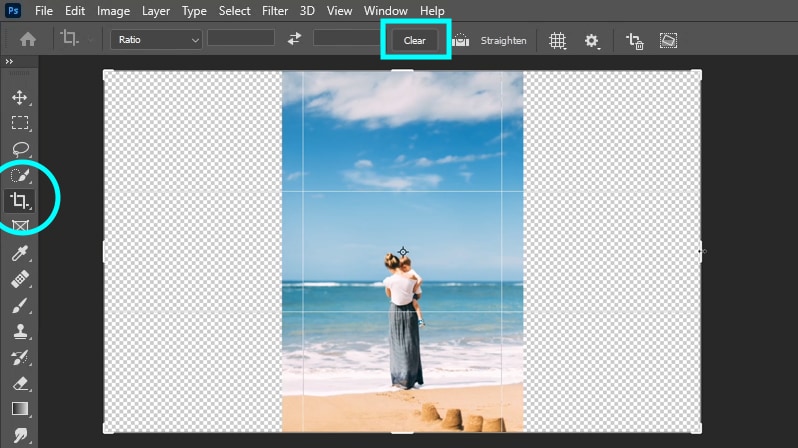
Photoshop extend background: pick by image type and version — Generative Expand (PS25+) for textures, Content-Aware Fill for patterns, manual for solids.
Read guide →Master Photoshop's edge refine via Select & Mask: use Refine Edge Brush on hair & fur, adjust Radius/Smooth/Contrast, fix jagged mask edges.
Read guide →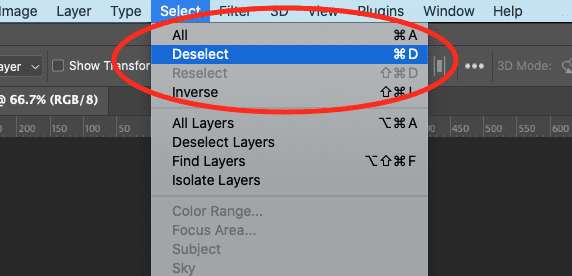
The deselect in Photoshop shortcut Ctrl+D (Cmd+D) instantly removes selections; learn to fix issues like text mode or IME conflicts for a smooth workflow.
Read guide →
Learn to batch edit in Photoshop using Actions, Image Processor, and Camera Raw sync with decision table and error fixes for streamlined photo processing.
Read guide →
5 Affinity remove background methods: Erase White Paper for white, Object Selection for hair, Selection Brush for control, plus AI & vector, for all versions.
Read guide →
Learn to use the Adobe Photoshop Remove Tool with step-by-step guide, on-device and generative AI modes, and troubleshooting for missing tool errors.
Read guide →
The most common use case for the Magic Wand is stripping a solid-colour background away from a subject. Here is a repeatable workflow
Read guide →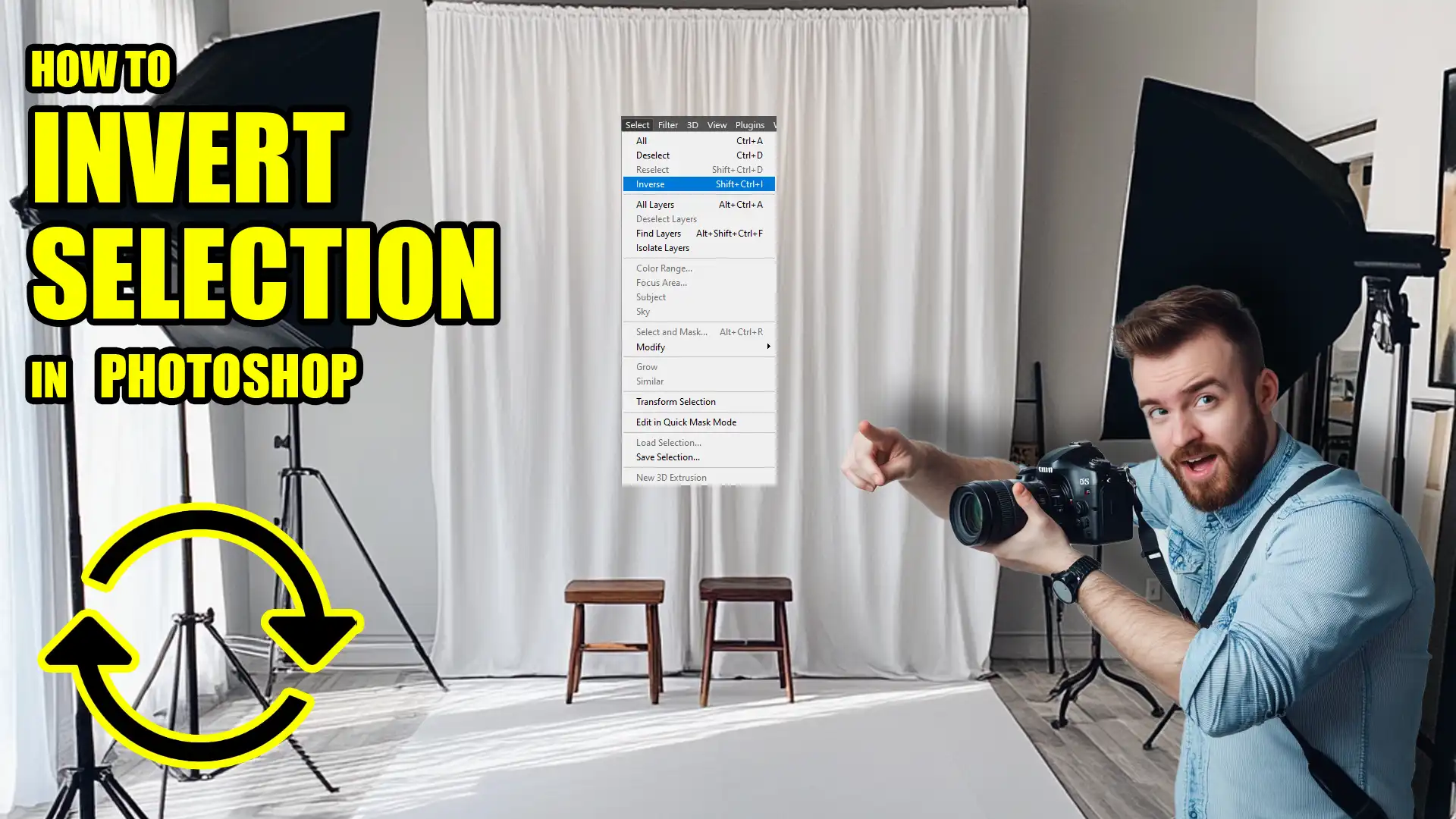
Which Inversion Method Should You Use in Your Workflow?
Read guide →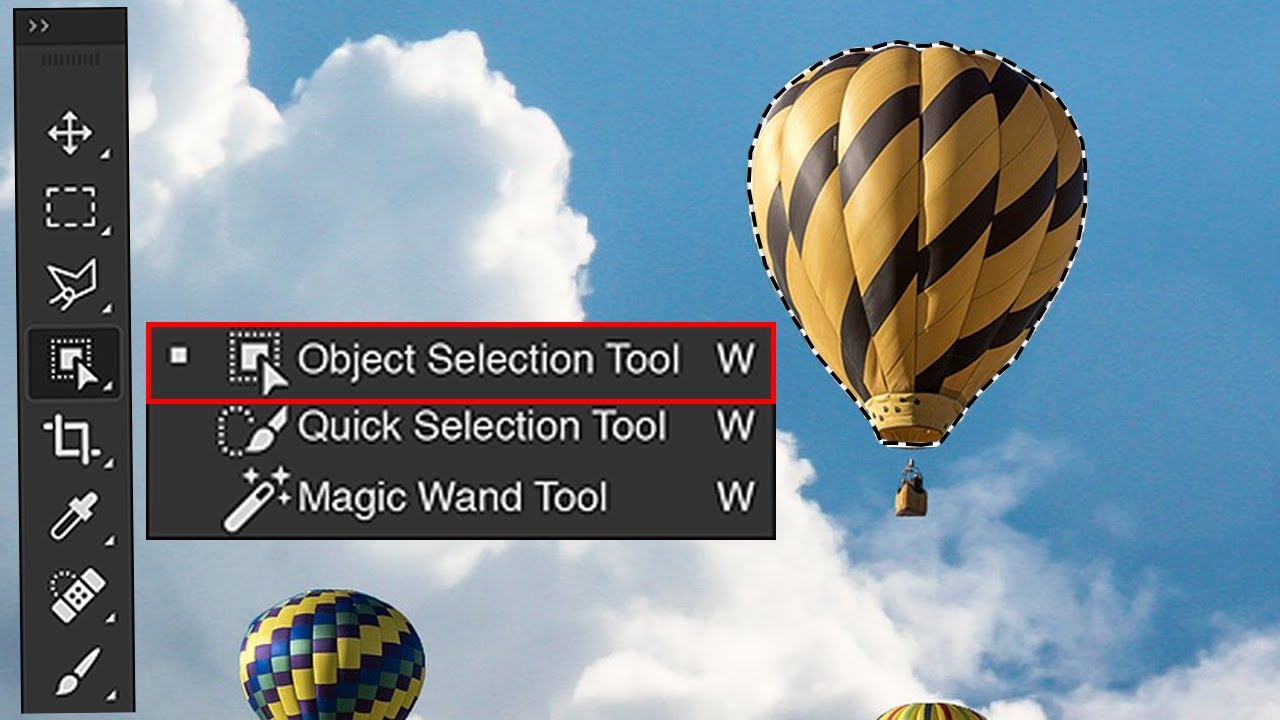
For batch cutout workflows where you need to export multiple subjects as transparent PNGs with edge cleanup, consider a dedicated plugin like
Read guide →
Quick Export Is the Fastest Option but Lacks Transparency Control
Read guide →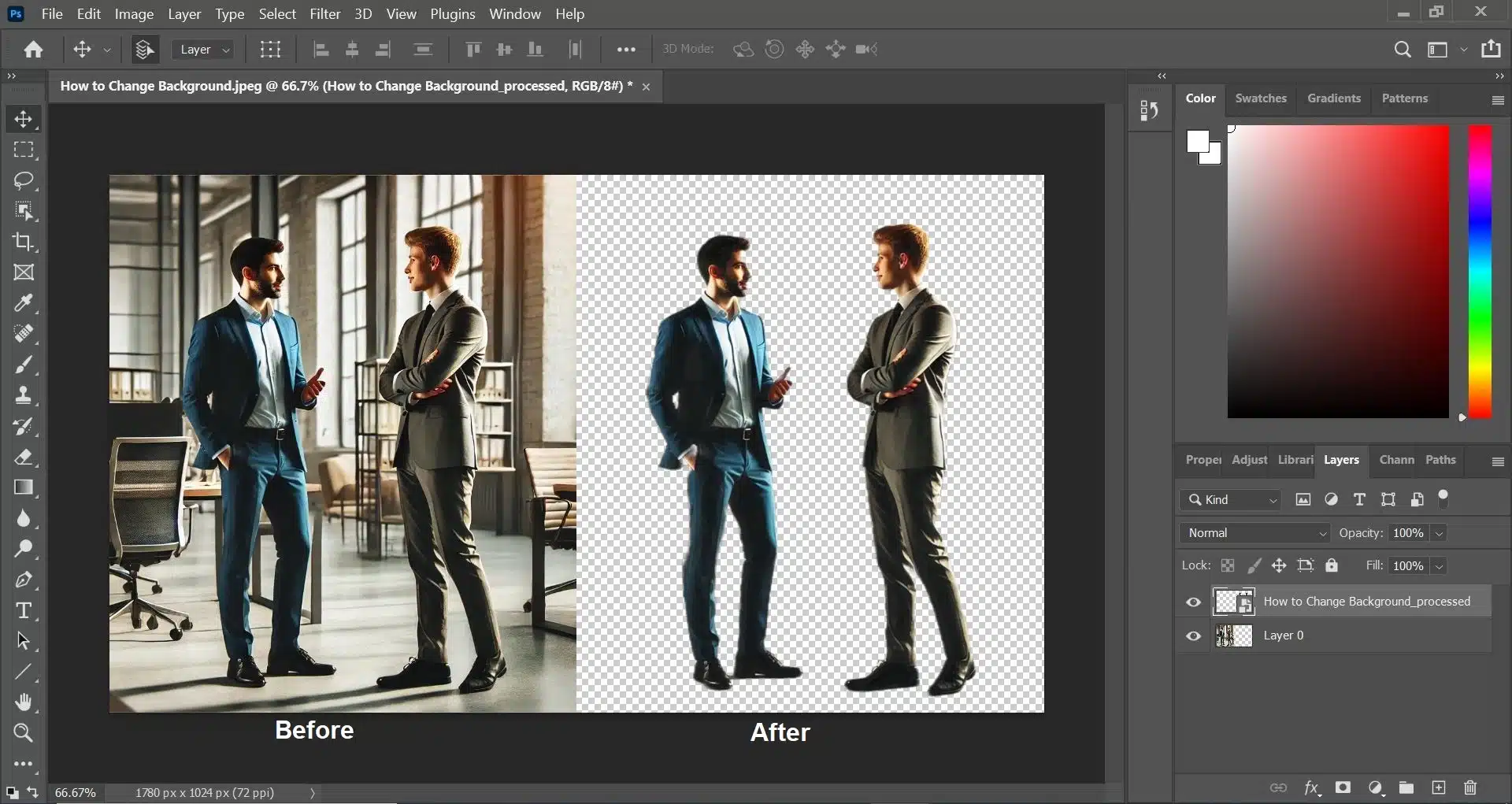
Photoshop offers at least a dozen ways to isolate a background
Read guide →
Before you apply a fix, it helps to identify why the edge looks rough. Different root causes require different solutions.
Read guide →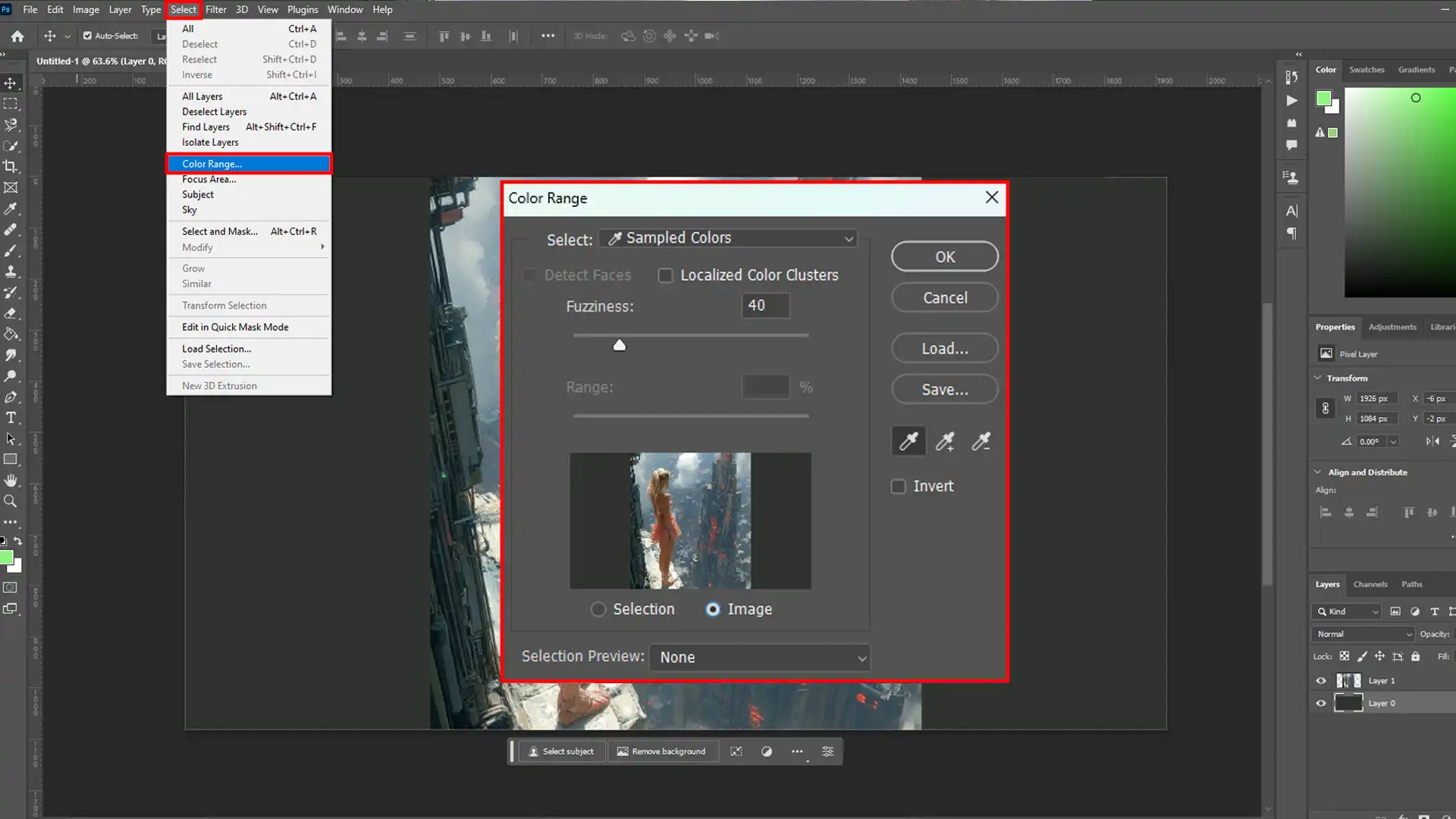
This guide covers Color Range for colour-based and tonal selections, not for channel\-based masking or advanced compositing
Read guide →
Select and Mask only activates when three conditions are met
Read guide →
Check That Your Photoshop Version and Internet Connection Are Ready
Read guide →
This guide covers the full workflow — from locating the tool to Instagram carousels and troubleshooting
Read guide →Click or drag over an area — the tool analyses tone, colour, and similar textures to find edges automatically
Read guide →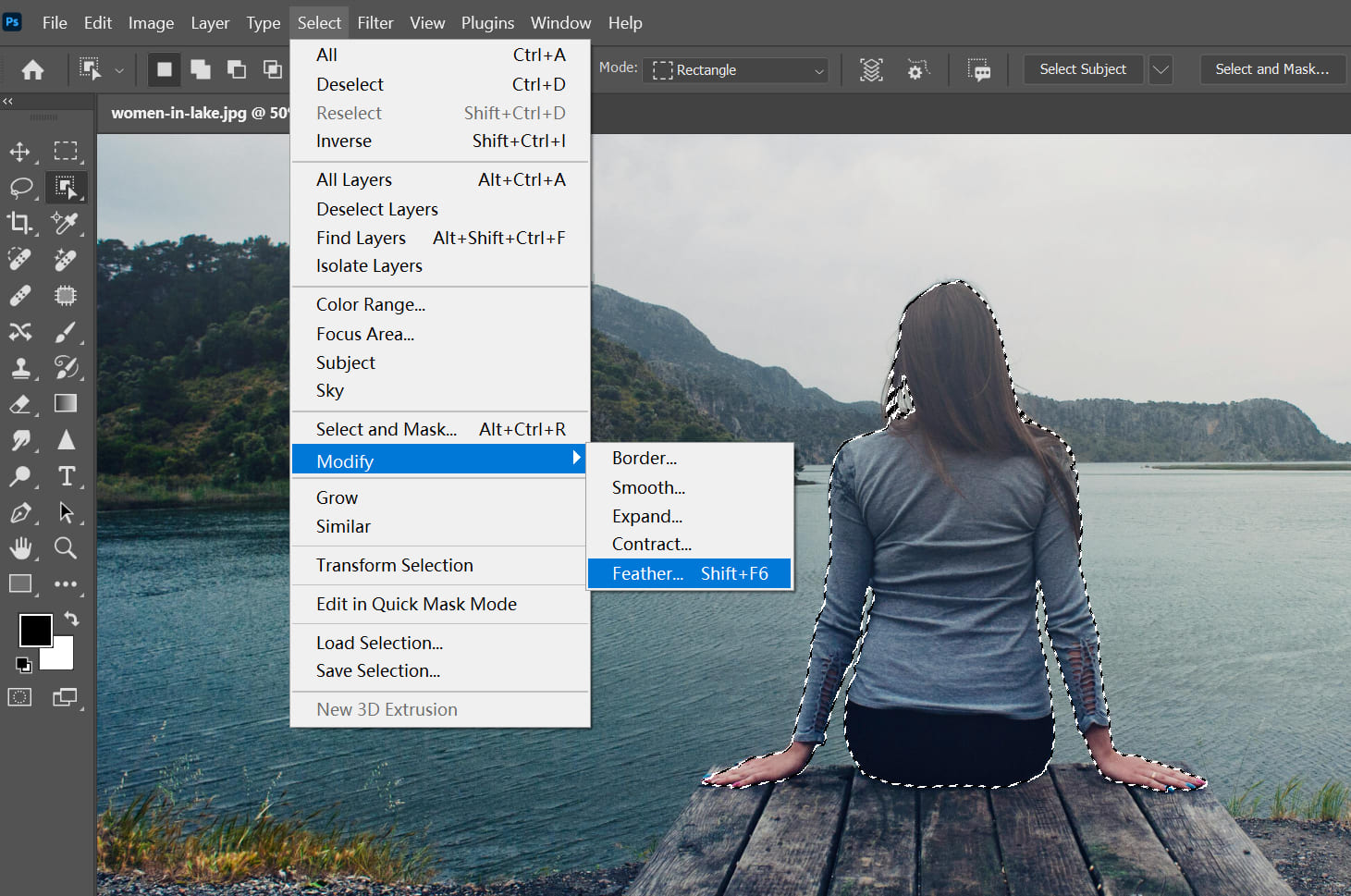
Feathering softens selection edges by fading between foreground and background pixels
Read guide →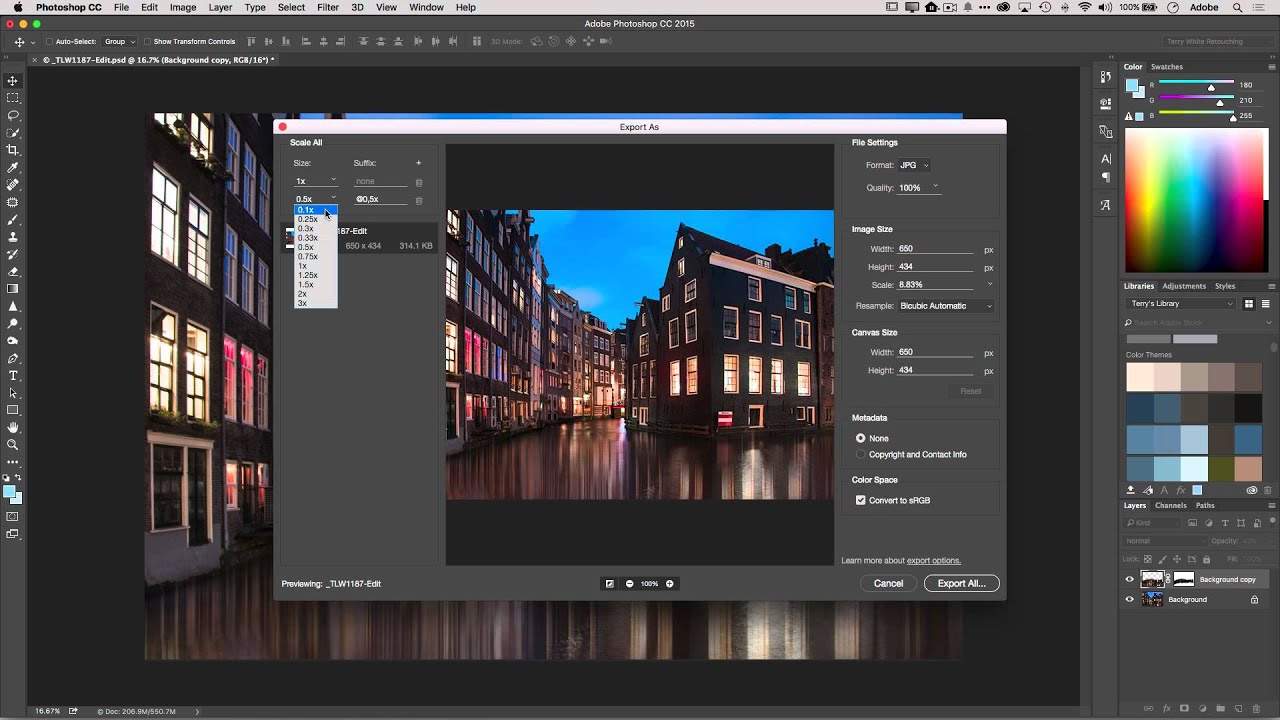
What's the Difference Between Export and Save As in Photoshop
Read guide →
Quick Comparison: Which Matting Tool Should You Use
Read guide →Unlock the Background layer click the lock icon in the Layers panel
Read guide →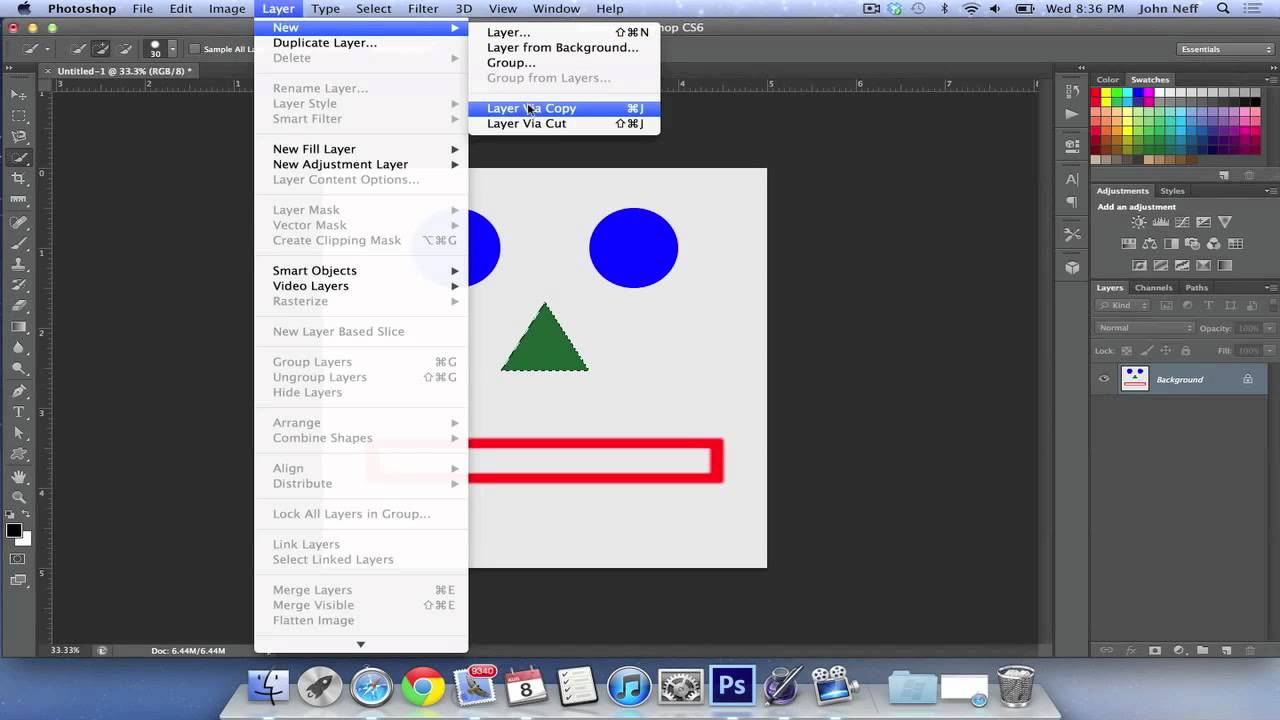
Layer via Cut — moves the selected pixels to a new layer, leaving transparency or the layer below in their place on the original
Read guide →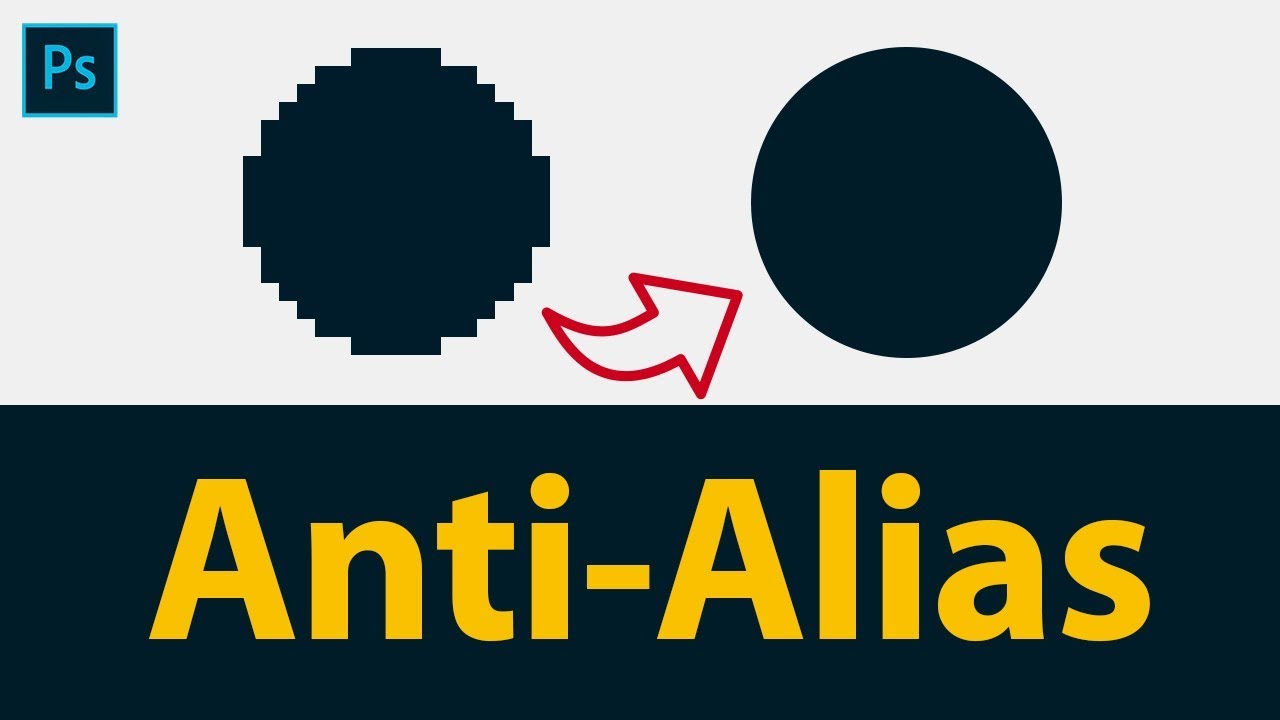
From selection tools to text, brushes, shapes, and pixel-art workflows — master every anti-aliasing setting in Photoshop.
Read guide →