- Category:
- Workflow Tips
- Summary:
- Master the five essential methods for selecting layers in Photoshop: Layers panel, Auto-Select, Select menu, right-click, and keyboard shortcuts.
Five ways to select a layer in Photoshop
You can make a layer active using the Layers panel, the Move tool's Auto-Select, the Select menu, a right-click on the canvas, or keyboard shortcuts. Each method suits a different workflow and skill level.
- Layers panel
- Auto‑Select
- Select menu
- Right‑click
- Keyboard shortcuts
Select a Single Layer in the Layers Panel
The Layers panel is the most direct way to target a layer. Every layer in your document appears in this panel, stacked from top to bottom.
- Click the layer name (the text label, not the small preview thumbnail) in the Layers panel. The layer becomes highlighted — it is now active and ready for editing.
- To deselect, click the empty space below the last layer in the panel, or use Select > Deselect Layers.
Practitioner note The difference between clicking the layer name and clicking the layer thumbnail is the most common source of confusion for new users. Clicking the name selects the layer itself; clicking the thumbnail loads its non-transparent pixels as a marching-ants selection. More on that below.
Source: Adobe HelpX — Select layers
Select Multiple Layers in the Layers Panel
When you need to move, group, or apply a change to several layers at once, use these panel-based selection methods.
- Contiguous layers — Click the first layer, then
Shift+click the last layer in the stack. All layers between them are selected. - Non-contiguous layers —
Ctrl+click (Win) /Cmd+click (Mac) each layer individually. Layers do not need to be adjacent. - Drag-select in the panel — Click and drag in the empty space below the layer list to rubber-band select multiple layers at once.
Practical scenario: You have a stack of adjustment layers between two specific points and want to apply a group mask. Use Shift+click to select the range, then Ctrl+G to group them.
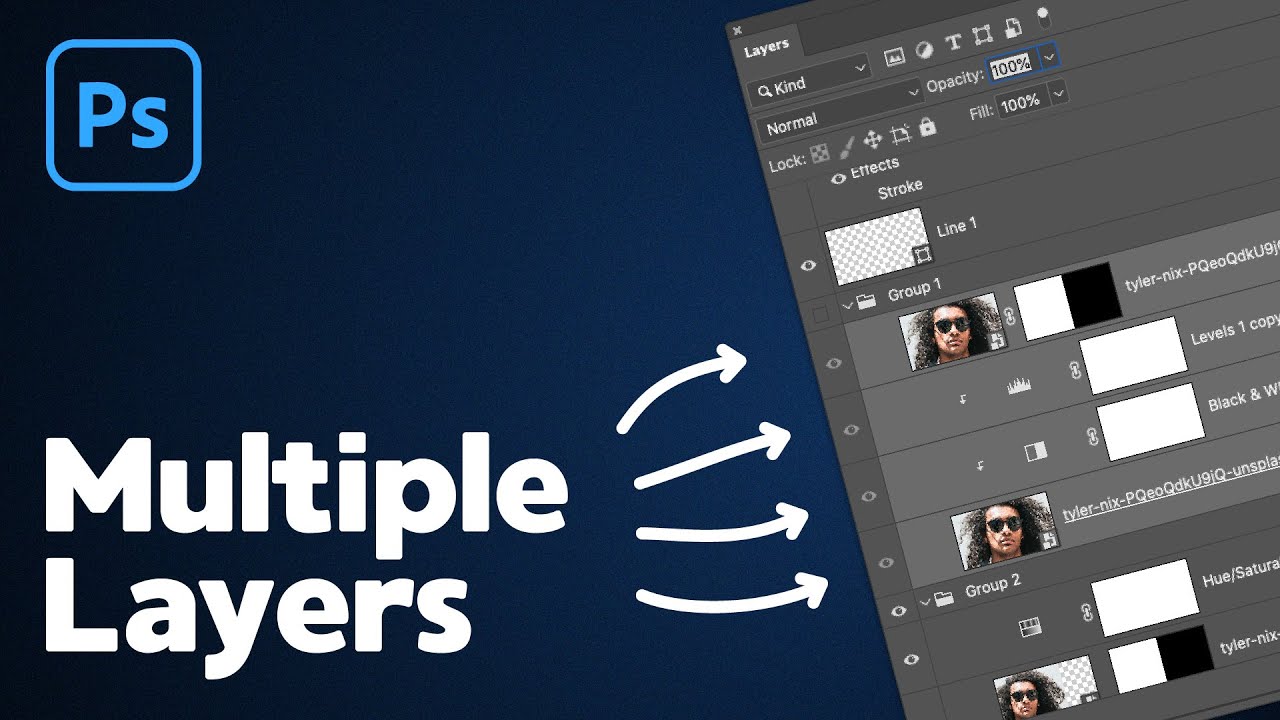
The Layers panel with several layers selected. Use Shift+click for a contiguous range or Ctrl/Cmd+click for non-adjacent layers.
Source: Adobe HelpX — Select layers
Use Auto-Select to Pick Layers by Clicking the Canvas
Auto-Select lets you choose a layer by clicking directly on the image content — no need to hunt through the panel.
- Activate the Move tool by pressing
V. - In the Options bar at the top, check Auto-Select and choose Layer (to select the topmost layer under the cursor) or Group (to select the entire group).
- Click on any visible element in the canvas. The layer containing that pixel becomes active.
Temporary toggle With the Move tool active, press and hold
Ctrl(Win) /Cmd(Mac) to temporarily enable or disable Auto-Select without changing the setting. Release the key to revert.
Drag to select multiple: With Auto-Select on, drag a selection rectangle across the canvas. Photoshop selects every layer that overlaps the marquee. This works best when the Background layer is locked.
Toggle mode with a key: Press the . (period) key while the Move tool is active to switch between Layer and Group auto-selection mode.
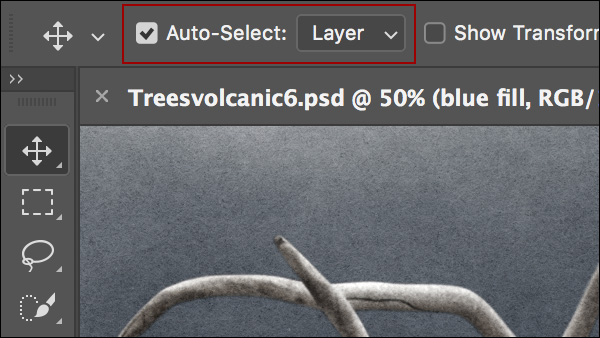
Auto-Select option in the Move tool's Options bar. Check the box and choose Layer or Group mode.
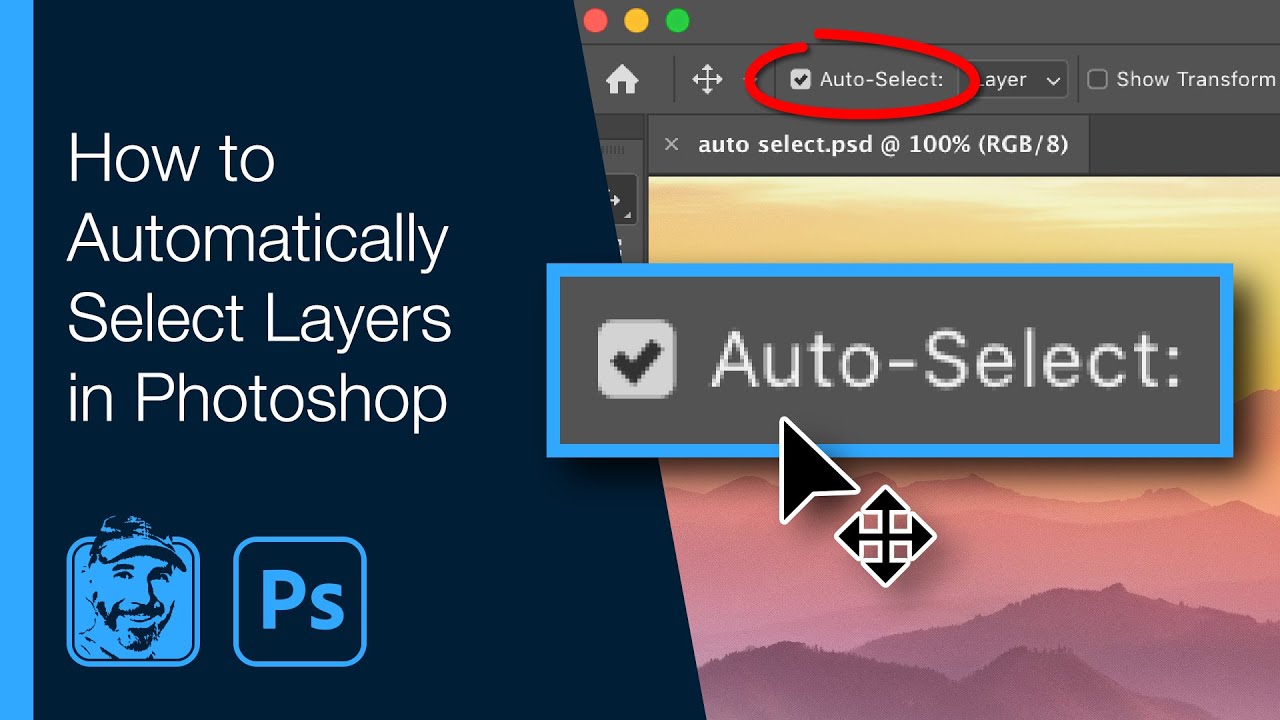
Auto-Select lets you pick a layer by clicking on its visible content — no panel browsing required.
Source: Adobe HelpX — Select layers · Adobe Community — temporary toggle
Select a Layer Using the Right-Click Context Menu
When multiple elements overlap in the same screen area, the context menu shows every layer that has pixels under your cursor — ordered from top to bottom.
- Make sure the Move tool is active (
V). - Right-click (Win) or
Ctrl+click (Mac) anywhere on the canvas. - A menu appears listing all layers with content at that point. Click any name to make it the active layer.
Troubleshooting tip If only one layer appears in the list, the layer below it may be fully occluded (covered by opaque pixels) or hidden. Try moving a top layer temporarily to reveal what is underneath.
Source: Adobe HelpX — Select layers
Select All Layers or Groups of Similar Layers
These commands save time when you need to act on many layers at once, especially in documents with dozens or hundreds of layers.
Select All Layers
Go to Select > All Layers or press Cmd+Opt+A (Mac) / Ctrl+Alt+A (Win). This selects every layer in the document — including hidden ones — but does not select the Background layer. If you need to include the Background, click it manually.
Select Similar Layers
Select one layer of a given type (for example, a text layer), then go to Select > Similar Layers. Photoshop selects all layers of the same kind — all text layers, all shape layers, all adjustment layers, and so on. This works across groups and nested folders.
Practical scenario: You need to change the font for every text element in a brochure. Select one text layer, run Select Similar Layers, then adjust the font family in the Options bar — all text layers update at once.
Select Linked Layers
If you have linked layers (the chain icon next to their names), select any one of them, then go to Layer > Select Linked Layers. All layers in the link chain become selected.
Source: Julieanne Kost blog — Eight ways to Select and Filter Layers · Adobe HelpX — Manage layers and groups
Select the Pixel Content of a Single Layer
This is one of the most frequently misunderstood operations in Photoshop. The goal is to create a marching-ants selection that outlines only the non-transparent pixels on a specific layer — not the full canvas.
- Locate the layer's thumbnail in the Layers panel (the small preview image, not the text name).
- Ctrl+click (Win) / Cmd+click (Mac) directly on that thumbnail.
- The non-transparent pixels are now loaded as a selection. You can use this selection to mask, fill, or apply effects to only that layer's content.
Most common mistake Users click the layer name instead of the thumbnail. Clicking the name selects the layer for editing; clicking the thumbnail loads the pixel selection. If you are getting the full canvas instead of just the object, you clicked the name. Try again on the thumbnail.
Alternate method: Press Ctrl+A (Select All), then with the Move tool active, press any arrow key once. This constrains the selection to the object's bounding box. Not as precise as the thumbnail click, but useful when the thumbnail method is not responding.
Source: Reddit r/photoshop — selecting content of a single layer
Related reading: how to create a new layer from a selection in Photoshop covers the next step once your pixel selection is active.
Filter and Search for Layers by Name, Type, or Effect
In complex documents with 50+ layers, scrolling through the panel is slow. The filter and search tools let you show only the layers you need — and select them in one step.
Use the Layer Filter Dropdown
At the top-left of the Layers panel, click the icon with three horizontal lines to open the filter menu. The following filter types are available:
- Kind — Icons for Pixel, Adjustment, Type, Shape, Smart Object — click to show only that type.
- Name — Type a layer name to filter the panel to matching layers.
- Effect — Choose an effect (Drop Shadow, Stroke, etc.) to find all layers using it.
- Mode — Show layers with a specific blending mode (Multiply, Screen, etc.).
- Attribute — Locked, hidden, linked, clipped, or layers with masks.
- Color — Filter by layer color label (red, blue, green, etc.).
- Smart Object — Show only Smart Object layers.
- Selected — Show only the currently selected layers — an alternative to Isolate.
- Artboard — Filter layers belonging to a specific artboard.
Practical scenario: "I need to find every layer with a Drop Shadow so I can adjust the angle." Use the Effect filter, choose Drop Shadow, and all matching layers appear. Then select them all and edit the effect in one go.
Search Layers by Name
Press Opt+Cmd+Shift+F (Mac) / Alt+Ctrl+Shift+F (Win) to toggle the name search bar in the Layers panel. Type part of a layer name — Photoshop filters the panel to show only matching layers, even those buried inside nested groups.
Isolate Layers to Hide Everything Else
Select the layers you want to work with, then go to Select > Isolate Layers. All unselected layers are hidden from the panel view (they are not deleted — just visually hidden). Toggle isolation off by selecting Isolate Layers again or clicking the filter switch in the panel header.
!Side-by-side comparison of the Photoshop Layers panel showing normal view versus Selected filter isolating specific layers
The 'Selected' filter (right) isolates only the layers you chose — everything else is hidden from view but not deleted.
Source: Julieanne Kost blog — Eight ways to Select and Filter Layers
Master the Keyboard for a Mouseless Workflow
Once you know the shortcuts, you can navigate and select layers without ever touching the mouse. These are documented in depth by Julieanne Kost, Adobe's Principal Evangelist.
Navigate the Layer Stack
Opt + [(Mac) /Alt + [(Win) — target the layer directly above the current one.Opt + ](Mac) /Alt + ](Win) — target the layer directly below.Opt + ,(Mac) /Alt + ,(Win) — jump to the bottom layer in the stack.Opt + .(Mac) /Alt + .(Win) — jump to the top layer.
Add Layers to an Existing Selection
Opt + Shift + [— add the layer above to the current selection (wraps around at the stack ends).Opt + Shift + ]— add the layer below to the current selection.Opt + Shift + ,— select all layers from the current layer down to the bottom.Opt + Shift + .— select all layers from the current layer up to the top.
Toggle and Search Without the Mouse
.(period key) with Move tool active — toggle Auto-Select between Group and Layer mode.Opt+Cmd+Shift+F(Mac) /Alt+Ctrl+Shift+F(Win) — toggle the name search field in the Layers panel.
Keyboard-only workflow sequence
Opt+Cmd+Shift+F→ type layer name →Returnto select →Opt+[/Opt+]to navigate →Opt+Shift+[/Opt+Shift+]to expand the selection. No mouse required.
Source: Julieanne Kost blog — Eight ways to Select and Filter Layers
Fix Common Layer Selection Problems
Community forums show that a handful of issues come up repeatedly. Here is how to diagnose and resolve each one.
Auto-Select Does Nothing When I Click the Canvas
- Is the Move tool active? Auto-Select only works with the Move tool (
V). - Is Auto-Select enabled? The checkbox must be checked in the Options bar, set to "Layer" or "Group".
- Are you clicking on content? Clicking empty canvas space does nothing.
- Is the layer the Background? The Background layer is locked and cannot be selected via Auto-Select. Double-click it and name it to convert to a normal layer.
- Temporary bypass: Hold
Ctrl/Cmdand click — this toggles Auto-Select on temporarily even if the checkbox is off.
Free Transform Ignores Some Selected Layers
You select five layers, press Ctrl+T / Cmd+T, but the bounding box only covers three. This happens because Free Transform calculates its bounding box based only on visible, unlocked, pixel-based or shape layers. Layers that are locked, hidden, or the Background are excluded. Fix: Unlock hidden layers, make them visible, or convert Background to a normal layer before transforming. Note that text layers and Smart Objects are included; Adjustment Layers are not rendered in the bounding box.
The Selection Tool Grabs the Wrong Layer Content
You click on the canvas expecting to select a layer, but nothing happens or the wrong layer becomes active. The root cause is almost always the name vs. thumbnail confusion described earlier. Clicking the layer name selects the layer itself; clicking the thumbnail loads the pixel selection. If Auto-Select is behaving unexpectedly, check which one you are clicking.
Quick diagnostic If you see marching ants around the entire canvas when you meant to select a single object, you used Select > All Layers instead of Ctrl+clicking the thumbnail. Deselect and try again with the thumbnail click.
Sources: Adobe Community — Auto-Select not working · Reddit — thumbnail vs. name
For more on selection tools and edge refinement, see: how to use Select Subject and troubleshoot it properly.
Which Selection Method Should You Use?
The right method depends on your task, the document complexity, and whether you have a mouse available. Use this decision guide to choose:
| Your Task | Recommended Method | Why It Works |
|---|---|---|
| Move an element on canvas | Auto-Select | Click directly on what you want to move — no panel interaction. |
| Apply a filter to multiple text layers | Filter by Kind > Type, then Select All | Works across all groups and nested folders in one action. |
| Mask a subject based on its own pixels | Ctrl/Cmd+click the thumbnail | Loads only the non-transparent pixels — no extra steps. |
| Work in a complex document with 50+ layers | Layer Filter dropdown or Name Search | Eliminates visual clutter instantly. |
| Apply a batch change to a group | Auto-Select in Group mode | Treats the group as a single unit for moves and transforms. |
| No mouse available | Keyboard shortcuts | Full mouseless workflow possible with the shortcuts above. |
| Recover from a bug or unexpected behavior | Troubleshooting checklist | Systematic diagnosis before restarting Photoshop. |
Once your layers are selected, you can group them, apply linked transforms, or — using a plugin like Layerbench — export them all as lossless transparent PNGs in a single action, trimmed to their visible bounds.
Source: Julieanne Kost blog — Eight ways to Select and Filter Layers