- Category:
- Background Removal
- Summary:
- Top Photoroom alternatives for Photoshop users offer unlimited batch removal, layer editing, and AI scenes—from free tools like Pixelcut and Photopea.
What you need depends on your workflow:
| Need | Tool |
|---|---|
| Batch background removal → | Pixelcut (unlimited), eBay free tool |
| Layer-based editing → | Photopea (free), GIMP (free) |
| AI-powered scenes → | Adobe Express, Canva, Bazaart |
| Stay inside Photoshop → | Actions + Layerbench plugin |
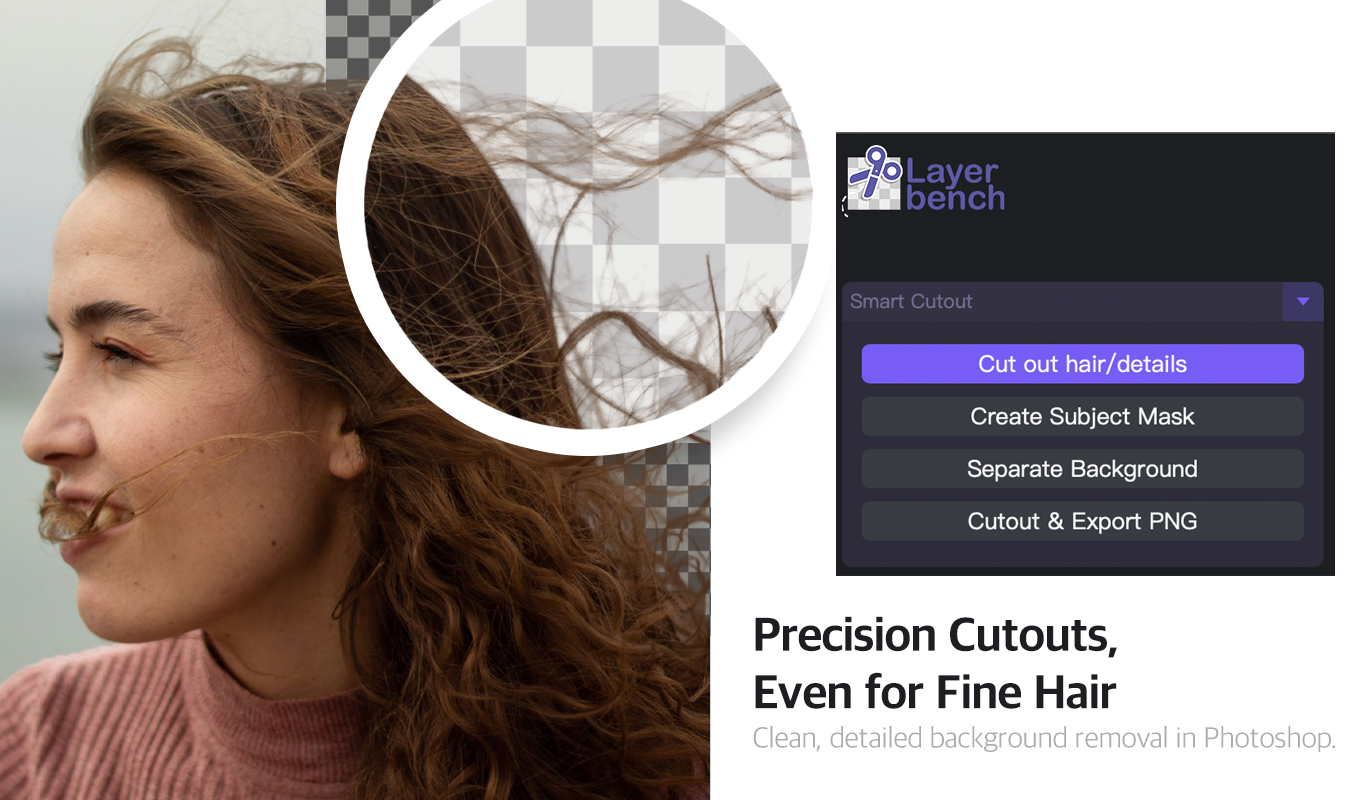
Layerbench — a separate Photoshop plugin: Smart Cutout keeps fine hair on transparency (Cut out hair/details, Create Subject Mask, Separate Background, Cutout & Export PNG).
Related: Photoshop background-removal plugins compared · best background remover for e-commerce.
Pricing ranges from free to ~$15/month. See the sections below for detailed trade-offs.
Can any single tool replace both Photoroom and Photoshop?
Photoroom specialises in fast, bulk background removal and AI scene generation — it prioritises speed and consistency over pixel-level control. Photoshop offers deep layer-based editing but lacks a dedicated batch background-removal mode. The tension is real: users on the r/software thread report that Photoroom crashes or spins indefinitely during background removal, while an employee (justynphototips) says it tests normally. Meanwhile, the Adobe Community forum has an unanswered question about whether Photoshop can match Photoroom's batch workflow.
“Photoroom tends to work best when speed, consistency, and bulk really matter … If someone needs deep, pixel-level control … tools like GIMP or Photopea can maybe make more sense.” — justynphototips, Photoroom employee (Reddit)
A Reddit user lamented that Adobe has no direct batch background-removal competitor, forcing separate subscriptions. The takeaway: no single tool fully replaces both, but several pairings come close.

Creative workflow with digital product icons — representing the variety of tools discussed.
Why Photoroom Pro's batch limit is the top reason to switch
Photoroom Pro caps batch processing at 500 images per month. One Reddit user reported the upgrade costs “four times as much” for only 20% more allowance. On Facebook, Poshmark seller Sherri Meakin Martinez hit that cap and sought a free or cheap alternative with unlimited batch for plain white backgrounds — no AI scenes needed.
Facebook community tips Pixelcut — user Brittney Powell switched to Pixelcut because its pro tier offers unlimited batch processing and works “a lot like Photoroom used to.” Pricing starts at $10/month. eBay app — Lisa Hamilton Jennings noted that eBay's mobile app includes a free background removal tool (limited to eBay platform use).
If your work is mostly plain-white-background product shots, these options remove the cap without adding complex AI scenes.
Background removal illustration — the core task that drives most users to seek alternatives.
Which free editors offer layer-based editing like Photoshop?
For users who need layers, masking, and retouching — but at zero or low cost — several editors fill the gap. Tom's Hardware tested five free Photoshop alternatives including GIMP, Krita, and Paint.net, all fully offline. Photopea works in the browser with advanced layer support. Snapseed (100% free, mobile) excels at selective edits but lacks batch background removal.
- Photopea (Browser + Desktop) — Free (ads) · $8/mo ad-free. Advanced layer-based editing, PSD support, runs in any browser. Source
- Snapseed (Mobile) — 100% free. RAW support, U Point localized edits. No batch background removal. Source
- GIMP (Desktop) — Free, offline. Full layer stack, masks, scripts. Steep learning curve but highly capable. Tom's Hardware
- Paint.net (Desktop) — Free, offline. Windows-only, plugin ecosystem, good for quick layer work and background removal.
- Fotor (Web + Mobile) — Free (watermarks) · $8.99/mo. Magic Eraser for object removal, basic layer support. Source
- Picsart (Web + Mobile) — Free (ads) · $10.50/mo yearly. Artsy filters and effects, layer editing, AI background removal. Source
Which AI tools handle product photos in one click?
Several AI-first platforms offer one-click background removal and scene generation. eesel.ai's comparison lists Canva ($15/mo, Magic Studio), Adobe Express ($9.99/mo, 25 Firefly credits), Pixelcut ($10/mo, AI Photoshoot & Batch Editor), and others. Bazaart claims its free tool handles hair and fur cleanly. Remove.bg (part of Canva family) now includes batch editing and a Magic Brush.
Note on claims Bazaart describes its background removal as “flawless,” but independent user verification is limited. The same Bazaart blog post promotes its own tool — treat accuracy claims as unverified. Photoroom's own employee acknowledges the app has bugs that affect some users.
Playyy.ai describes itself as an all-in-one AI alternative, but the source is self-promotional. For most sellers, Canva or Adobe Express offer the best balance of reliable AI, template libraries, and export quality.
How to pick the right alternative for your specific use case
No single tool fits every workflow. The table below maps common user profiles to recommended tools, with pricing and batch limits.
| User profile | Recommended tool | Price (starting) | Batch limit | Platform |
|---|---|---|---|---|
| Quick seller (plain white backgrounds) | Pixelcut or eBay app | Free / $10/mo | Unlimited (Pixelcut Pro) | Web, mobile |
| Budget designer (layers, masks) | Photopea or GIMP | Free / $8/mo ad-free | No batch tool | Browser / desktop |
| Adobe loyalist (stay in ecosystem) | Photoshop + Actions + Layerbench | $23/mo (PS only) | Unlimited (via Actions) | Desktop |
| Mobile-first creator | Canva app or Snapseed | Free / $15/mo | Varies by plan | Mobile, web |
| Professional photographer (RAW, control) | GIMP or Photoshop | Free / $23/mo | No native batch | Desktop |
| AI scene & template user | Adobe Express or Canva | Free / $9.99–$15/mo | 25 credits (Express free) | Web, mobile |
The core trade-off from earlier holds: tools like Pixelcut and eBay are fast for bulk work but offer limited editing; Photopea and GIMP provide deep control but require manual effort for batch tasks.
Real user workarounds for common Photoroom frustrations
When Photoroom's background removal spins indefinitely or its AI backgrounds regenerate unexpectedly, users have found practical fixes. The most valuable comes from Photoroom employee justynphototips on Reddit:
Workaround: lock an AI background 1. Export the generated background as an image. 2. Re-upload it as a static background in Photoroom. 3. Use the retouch tool to erase the original product area. Result: the background stays identical when you replace the product.
This addresses the common question: “How do I reuse the same AI background without regeneration when swapping the product?” The same technique works for users who want a consistent scene across a batch.
If background removal spins indefinitely, try reinstalling the app or switching to the web version. The employee acknowledges a bug exists, while multiple users report the feature as broken — the web version often bypasses device-specific issues.
How to automate batch background removal in Photoshop
For users who want to stay inside Photoshop but need batch efficiency, two approaches work: a manual Action-based workflow and the Layerbench plugin for one-click cutout and export.
Limitations of Photoshop's generative fill for batch work
On the Adobe Community forum, a user reports that generative fill feels “clunky and unpredictable” for uniform background placement. It works for creative scenes but lacks the consistent, reproducible output needed for batch product photography. The question remains unanswered in official channels — the Action-based method below fills that gap.
Layerbench plugin: one-click cutout and export
Layerbench is a Photoshop plugin panel built for subject cutout and layer slicing. Its documented capabilities include:
- One-click cutout & export — runs Select Subject, creates a mask, trims to the subject's bounds, and exports a transparent PNG in a single action.
- Mask-only mode — creates the cutout mask on the current layer without exporting, keeping the PSD editable for further refinement.
- Cut subject to a new layer — isolates the detected subject onto its own layer, replacing the manual select-copy-paste sequence.
- Edge cleanup — applies a Minimum (shrink) with a user-chosen radius (1–3 px) to reduce halos and fringing.
- Lossless layer export — exports selected layers as transparent PNGs, trimmed to visible-pixel bounds at original scale.
Layerbench integrates directly into Photoshop, so you keep full access to Photoshop's retouching and colour tools while gaining a dedicated cutout workflow.
Step-by-step: batch background removal using Actions
If you prefer a built-in approach, Photoshop Actions can automate background removal for an entire folder. This method is driven by the need expressed in the Adobe Community question.
- Record the Action. Open one product image. Go to the Actions panel (Window > Actions), create a new Action named “Remove Background Batch.” Click Record.
- Select & mask. Choose Select > Subject. With the selection active, click the Add Layer Mask button in the Layers panel. The background becomes transparent.
- Trim (optional). Image > Trim, choose “Transparent Pixels” to crop away empty space. This reduces file size and centres the subject.
- Edge cleanup. With the mask selected, go to Filter > Other > Minimum. Set Radius to 1–2 px (depending on fringe severity). This shrinks the mask slightly to remove halos.
- Save & close. File > Save As (PNG with transparency) then File > Close. Stop recording the Action.
- Run batch. File > Automate > Batch. Choose your Action, select the source folder, set destination for output. Photoshop processes all images in sequence.
Performance note This Action-based method uses Photoshop's built-in Select Subject, which handles most product photos well. For challenging edges (hair, glass, motion blur), you may need to refine edges manually per image — no fully automated tool handles every case perfectly. The Layerbench plugin offers a similar workflow with fewer steps if you process frequently.