- Category:
- Background Removal
- Summary:
- Photoshop background removal plugin comparison: remove.bg excels for messy backgrounds, Adobe native tools free, Topaz offers offline one-time purchase
At a glance
remove.bg leads on one-click accuracy for messy backgrounds (pay-per-use).
Adobe native tools (Select Subject / Remove Background) are free with your subscription and work well on simple subjects.
Topaz Photo AI offers a one-time purchase and works offline.
Slazzer and Nero AI are strong AI alternatives.
For free options, try G’MIC or trial versions.
Comparison Table: Key Features of the Leading Plugins
| Plugin | Price Model | AI-Powered | Hair / Fur Detail | High‑Res (42 MP) | Offline Support | Photoshop Version Min. |
|---|---|---|---|---|---|---|
| remove.bg | Pay‑per‑use | Yes | Strong | Yes | No | CC 2018+ |
| Adobe Native<br/><small>(Select Subject / Remove BG)</small> | Included with subscription | Yes | Moderate | Yes | Yes | CC 2020+ (improved) |
| Slazzer | Subscription / credits | Yes | Strong | Yes | No | CC 2018+ |
| Nero AI | Subscription | Yes | Strong | Yes | No | CC 2018+ |
| Topaz Photo AI | One‑time purchase | Yes | Very strong | Yes | Yes | CC 2018+ |
| Layerbench | One‑time purchase | Uses PS Select Subject | Moderate | Yes | Yes | CC 2018+ |
| G’MIC (free) | Free / open source | Limited | Variable | Yes | Yes | CS6+ / CC |
How to read this table: Pay‑per‑use models work well for light or occasional use but can get expensive at volume. One‑time purchases favour heavy users. Offline support matters if you work without a stable internet connection. Hair/fur detail is based on real Reddit user experiences and Quora expert feedback.
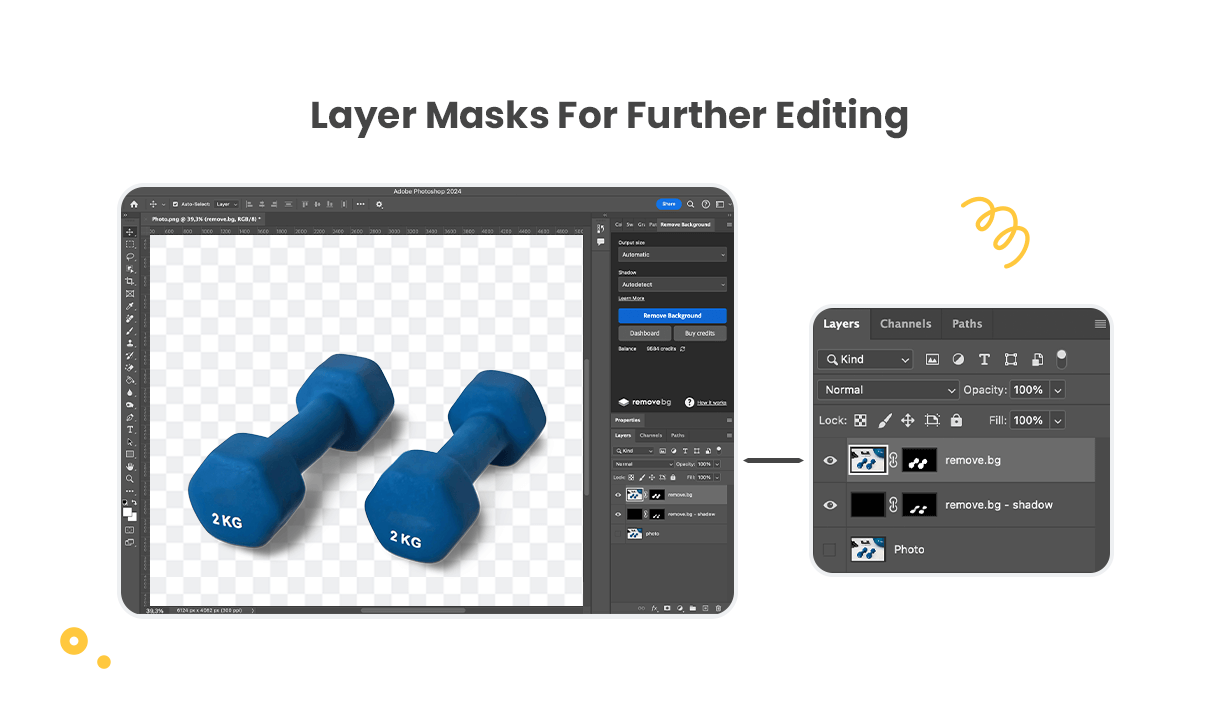
A one‑click result from the remove.bg plugin — the layer mask isolates the subject cleanly, even with a busy background.
remove.bg Plugin: The Pay‑Per‑Use Benchmark
In community forums, remove.bg is regularly described as the gold standard for one‑click background removal. Reddit users note that it handles poorly lit or cluttered backgrounds with minimal effort. Its official Photoshop plugin page demonstrates a workflow that takes seconds.
However, the pay‑per‑use model is a recurring pain point. One Reddit user who processes high‑resolution (42 MP) images said they like the results but dislike paying per image and would prefer a “pay once for unlimited use” option. For a heavy user processing 500 images a day, the cost adds up quickly.
ⓘ Community voices
“Remove.bg is better than Adobe’s native tool for messy backgrounds,” says one Reddit poster. Another counters: “Adobe’s new Select Subject is quite good and it’s free with your subscription.” The right choice depends on your tolerance for per‑image billing versus subscription overhead.
Best suited for: Users who prioritise speed and accuracy on complex backgrounds and don’t mind per‑image billing. For batch work, calculate your monthly volume before committing.
Adobe’s Native Background Removal Tools: Free but with Limits
Photoshop’s built-in Select Subject and Remove Background (found in the Properties panel) have improved significantly since their initial release, particularly from 2020 onward. Adobe’s official help page outlines the one‑click workflow.
On simple backgrounds (solid white, evenly lit), the native tools perform respectably. Reddit user CreeDorofl comments that “the new select subject is quite good” and suitable for many everyday tasks. However, fine hair against complex backgrounds remains a weak point. Quora expert Joseph notes that even the best plugins struggle with “hair against busy backgrounds,” and the native tools are no exception.
Green‑screen workflows introduce additional challenges. Users report green spill on subjects and a “green blob” bug where the Remove Tool stops working correctly. An Adobe Community thread documents the bug and its fix (clearing preferences).
Best suited for: Casual users and those who want a free, integrated option. Not ideal for professional‑grade hair extraction or heavy green‑screen work without manual cleanup.
Slazzer, Nero AI, and Topaz Photo AI: The AI Competitors
Beyond remove.bg, several AI‑powered plugins offer comparable one‑click convenience with different pricing and feature trade-offs.
Slazzer
AI‑powered, subscription / credits
Slazzer’s Photoshop plugin delivers fast one‑click cutouts with strong edge detection. Its pricing works on a credit system, making it a middle ground between pay‑per‑use and subscription.
Nero AI Image Toolkit
Subscription, includes upscaling
Nero AI bundles background removal with AI upscaling — a useful combo for users who need both. Its processing is cloud‑based, so an internet connection is required.
Topaz Photo AI
One‑time purchase, offline
Topaz Labs improved its Mask AI models in April 2020, and the current Photo AI handles fine detail and high resolutions well. The one‑time purchase addresses the “pay once” frustration that Reddit users express about remove.bg.
All three support high‑resolution images up to 42 MP and beyond. For offline work, Topaz is the clear choice; Slazzer and Nero require connectivity.
Layerbench: Streamlined Cutout and Export
Layerbench is a Photoshop plugin panel designed for subject cutout and layer slicing. It calls Photoshop’s own Select Subject capability to build a mask, then offers several outcomes in one action: create a mask, cut to a new layer, or export a transparent PNG trimmed to the subject’s bounds.
A mask‑only mode leaves the PSD fully editable for further refinement — useful when you want to check the selection before committing. The edge cleanup feature applies a Minimum (shrink) effect with a user‑chosen radius of 1–3 px, which helps reduce light fringes and background halos. For production work, the lossless layer export trims one or more selected layers to their visible‑pixel bounds and exports them as transparent PNGs at original size, with no scaling.
Because it relies on Photoshop’s Select Subject, Layerbench inherits the same limitations on fine, wispy hair against complex backgrounds. It’s best suited for product shots, solid‑background subjects, and workflows that need a quick export pipeline.
Free Options: G’MIC and Trial Versions Worth Trying
Finding a genuinely free, high‑quality Photoshop background removal plugin is harder than it looks. A Super User question from 2009 remains without a definitive answer, and the landscape today still lacks a single standout free AI plugin.
G’MIC is an open‑source plugin that works on older Photoshop versions, including CS6. It offers batch processing and a range of filters, but its background removal tools are less intuitive than modern AI solutions and require manual parameter tweaking.
erase.bg GitHub plugin is a developer‑focused, free option that requires manual setup. It’s available on GitHub, but it’s not a plug‑and‑play solution for most designers.
Trial versions of paid tools — Topaz Photo AI, remove.bg (limited images), Slazzer — give you a risk‑free way to test. These are often the most practical “free” path for getting professional results without immediate payment.
ⓘ What “free” really means
Many free options cap resolution, limit exports, or require significant manual work. If you need consistent quality on high‑resolution images, a trial of a paid tool is usually more productive than wrestling with a free plugin.
Legacy Plugins for Photoshop CS6 and Older Versions
Modern AI plugins typically require Photoshop CC 2018 or later. If you’re on CS6 or an older version, you’ll need alternatives. Digi5Studios lists several legacy tools that still function, though they lack modern AI convenience.
Mask Pro
Discontinued — free upgrade to ON1 Photo 10.5
Mask Pro is no longer in development, but existing users can move to ON1 Photo 10.5 at no cost. Its interface is dated but functional for manual masking.
Fluid Mask
Legacy, no longer updated
Fluid Mask offered edge detection and blending modes that were advanced for their time. Today it feels sluggish compared to AI tools.
Topaz Remask / Imageskill
Legacy, usable on older PS versions
Topaz Remask (predecessor to Topaz Photo AI) and Imageskill Background Remover are still usable on CS6 but lack modern AI models.
!Mask Pro interface with bubble photograph and editing palettes
The Mask Pro interface — a legacy tool that still works on older Photoshop versions.
!Top 5 legacy Photoshop background removal plugins: Mask Pro, EZ Green Screen 5, Fluid Mask, Imageskill, Topaz ReMask
An infographic of older background removal plugins — most have been superseded by AI‑powered alternatives.
G’MIC also works on older versions and remains a viable free fallback for users who cannot upgrade their Photoshop license.
Combining Plugins with Manual Tools for Precision
No plugin handles every edge case perfectly. Professional retouchers often combine a one‑click plugin with manual refinement. This hybrid approach addresses the limitations that Reddit and Quora users highlight: green spill, halos, and fine hair against busy backgrounds.
Step 1: Plugin for the rough cutout
Run your chosen plugin (remove.bg, Adobe native, Topaz, etc.) to create an initial layer mask or transparency. This handles the bulk of the work in seconds.
Step 2: Fix green spill with Color Range
If your subject has green fringing (common in green‑screen work), use Select > Color Range. Sample the green fringe, then add a Hue/Saturation adjustment layer and desaturate the greens. This directly addresses the green‑spill problem described by Reddit user g0nzales.
Step 3: Shrink and feather the mask
Apply a Minimum (shrink) of 1–2 px to the mask to remove leftover background halos, then feather by 0.5 px. The Layerbench plugin can do this in one click, or you can use Photoshop’s Select & Mask workspace manually.
Step 4: Pen tool for hard edges
For objects with straight edges, glass, or intricate shapes, switch to the Pen tool. Quora expert Joseph states that “for greatest precision, nothing works as well as the pen tool.” Use it to refine paths where the plugin produced soft or jagged edges.
!Red and green selection lines on a dog image during manual edge refinement in Background Remover software
Manual edge refinement using selection lines — a technique that pairs well with plugin‑generated masks.
⚠ Common pitfall
Don’t apply a strong feather after shrinking — it will soften the edge and reintroduce halos. Keep feather values at 0.5 px or below for sharp subjects.
How to Test Which Plugin Fits Your Workflow
Rather than committing to a single tool based on this article alone, run a structured test. The following five‑step workflow helps you compare plugins on your own images.
- Define your use case. E‑commerce (batch speed) vs. portraits (hair detail) vs. hobbyist (occasional use). This decides which features matter most.
- Download trials. Install the plugins you’re considering. Follow the official remove.bg installation tutorial for that plugin, and check each product’s help page for others.
- Use the same test image. Pick two images: one with fine hair against a patterned background, and one product shot on solid white. This covers the two most common difficulty levels.
- Compare results side by side. Evaluate edge quality at 100% zoom, processing time, the amount of manual cleanup needed, and cost per image at your expected volume.
- Decide based on your criteria. If speed and accuracy on messy backgrounds are critical and you don’t mind per‑image billing, remove.bg is strong. If you want offline, unlimited use, Topaz Photo AI or Layerbench may serve you better. For a free fallback, G’MIC is worth exploring.
This test takes about an hour and will tell you far more than any review can. The right plugin is the one that meets your combination of speed, quality, budget, and workflow constraints.
Related reading on this site: How to use Select Subject in Photoshop · How to defringe in Photoshop · How to cut out an image in Photoshop