- Category:
- Background Removal
- Summary:
- Compare the best AI tools for removing objects from photos 2026—including free, professional, batch, and offline options—to match your workflow.
Which AI object remover fits your workflow?
| If you need… | Start here | Why |
|---|---|---|
| Free, no signup, unlimited | Web Overchat AI | No account, no watermark, 30–40 s processing |
| Professional-grade control | Desktop Photoshop $9.99/mo | Distraction Removal + Generative Fill, industry standard |
| E‑commerce batch work | Mobile/Web Photoroom | 250-image batch, Amazon/eBay templates, detail preservation |
| Quick one‑off fixes (light use) | Web Cleanup.pictures | Unlimited free removals, simple interface, full res at $5/mo |
| Offline / privacy-sensitive | Open source Sanster/IOPaint | Runs locally, MAT model is state‑of‑the‑art open source |
| Already in Canva ecosystem | Web Canva Magic Eraser | Integrated, $15/mo Pro required |
What Percentage of Photos Need Object Removal?
~40% of iPhone photos contain an unwanted object, according to Overchat AI.
Tourists stepping into the frame, a stray coffee cup on a product shot, power lines cutting across a landscape — these are the small intrusions that turn a good photo into a discarded one. The 40% figure comes from Overchat AI's analysis of user uploads, and it aligns with what many photographers anecdotally report: the need to clean up a shot is routine, not exceptional.
That is why AI object removal has become a standard tool in both casual and professional editing. Below we look at how these tools work, which ones deliver reliable results in 2026, and — just as important — where they still fall short.

AI removal of a bench and trash can from a beach scene — a common use case for casual and real-estate photography.
How Do AI Object Removers Actually Work?
Most modern object removers use an inpainting model: the AI analyses the pixels surrounding the area you mark, then generates replacement content that matches the background's texture, lighting, and perspective. The technical approaches differ:
- Brush‑select tools (Photoshop Remove Tool, Overchat AI) let you paint over the unwanted area. The AI then fills the selection.
- One‑click detection (Photoshop Distraction Removal for wires/cables, Lightroom Detect Objects) identifies common distractions automatically and removes them with a single click.
- Cloud‑based processing (Adobe Firefly, Cleanup.pictures) sends your image to a remote server for computation — convenient but requires an internet connection.
- Local processing (Sanster/IOPaint, Photoshop desktop) runs on your own machine. This offers a privacy advantage and works offline.
Some tools, like Luma Layers, take a different approach: they separate the visual into independent components rather than simply filling a hole. That makes them more suited to creative teams who need to repurpose assets across campaigns rather than perform quick cleanups.
Top AI Object Removal Tools Compared: How Each One Works
This section covers the major tools grouped by use case. Prices and features are current as of September 2026.
Adobe Photoshop — Distraction Removal & Generative Fill
Photoshop's Remove Tool received a major update in October 2024 (v.26) with the addition of Distraction Removal. Two modes are available:
- Wires and Cables — one‑click removal. The tool detects power lines, ropes, and similar linear distractions.
- People — brush‑based refinement required. Note: this mode removes distractions (e.g. a passerby), not the main subject.
Adobe recommends covering more area than the object itself — include its shadow — for seamless results. The tool can run in AI mode, non‑AI mode, or Auto mode where the software decides. Generative Fill is used for object swapping or creating variations; the Remove tool applies changes directly without creating a new layer.
Pricing: The Photography plan (Photoshop + Lightroom) costs $9.99/month, while the standalone Photoshop plan is $22/month. Currently, generative AI use is unlimited, but Adobe has announced a future quota system.
Pro tip: For complex scenes with reflections or fine edges (hair, fur), Photoshop still outperforms most AI‑only tools because you can combine the Remove Tool with manual clone/heal layers and the Pen tool for precise masking.
Full Photoshop v.26 review on Shotkit →
Adobe Lightroom — Mobile & Desktop Remove Tool
Lightroom's Remove tool (v.14.0.1, October 2024) offers AI‑based removal that can be enabled or disabled — there is no Auto mode like in Photoshop. The "Detect Objects" feature works well only on isolated objects with clear edges; for more complex shapes you will need to brush manually.
Best suited for photographers already in the Adobe ecosystem who want a lightweight alternative to opening Photoshop. The same $9.99 Photography plan covers both Lightroom and Photoshop.
Adobe Firefly — Web, Free Tier
Firefly's Generative Remove is a browser‑based tool: brush over the object, click Generate, and the AI fills the area. It is free with an Adobe ID and uses commercially safe training data (licensed Adobe Stock content + public domain).
Limitations: Minimum image size is 512×512 pixels; maximum file size is 100 MB. This blocks use on very small thumbnails or large raw files. Firefly is a solid choice for quick, non‑professional edits or when you need commercial safety without a subscription.
Adobe Firefly Generative Remove →
Overchat AI — Web, No Signup, Unlimited Free
Overchat AI offers brush‑based removal with no account required, no watermarks, and unlimited free generations. Processing takes about 30–40 seconds. It handles partially obscured faces and hands notably well — a clear differentiator for group photos where people overlap.
If you need a quick, no‑commitment tool for casual use, this is among the strongest free options available in 2026.
Cleanup.pictures — Web, Free + Pro
A minimalist interface that focuses on one thing: removing objects. Unlimited free removals, but free exports are capped at 720 pixels on the longest side. The Pro plan costs $5/month and unlocks full‑resolution downloads. Ideal for occasional use where you do not want to commit to a monthly subscription.
Details on Overchat AI's comparison →
Photoroom — Mobile, E‑Commerce Focus
Built specifically for product photography, Photoroom handles batch processing up to 250 images per session. It includes templates for Amazon, eBay, and other marketplaces, and preserves product details (textures, labels) better than most general‑purpose tools.
For sellers who need consistent results at scale, Photoroom is a popular choice. The batch limit of 250 images may be restrictive for very large catalogs, but it covers the needs of most small to mid‑size sellers.
Photoroom batch specs on Luma →

Product‑photo removal example: accessories removed from a flat‑lay using AI tools like Photoroom and Claid.
Canva Magic Eraser — Web, Requires Pro
Integrated directly into the Canva design suite, Magic Eraser lets you remove objects without switching to a separate app. It requires a Canva Pro subscription ($15/month for unlimited use). If you already use Canva for design work, this is a convenient addition — but it is not a standalone tool and the cost is higher than many dedicated alternatives.
Airbrush — Mobile, Portrait Retouching
Airbrush is a mobile‑first app rated 4.8/5 from over 7,950 reviews. It excels at portrait retouching and quick social‑media edits. The Studio Pro plan costs $99/year. However, reviewers note that its AI model quality lags behind desktop tools for complex scenes — a trade‑off to consider if you need professional‑grade output.
Airbrush object remover →
Luma Layers — Creative Teams, Multi‑Market Campaigns
Rather than simply filling removed areas, Luma Layers separates a visual into independent, editable components. This makes it less of a "remove and forget" tool and more of a creative‑team platform for managing campaigns across different markets and formats. Overkill for casual removal, but highly valuable for professional studios.
Claid — E‑Commerce API for Repeatable Workflows
Claid is an API‑first solution designed for automated product‑photo pipelines. It is built for repeatable, high‑volume workflows where consistency matters more than manual control. Pricing is per image; there is no free tier. A strong fit for e‑commerce teams who already use automated image processing.
Claid object removal tools →
Open‑Source & Offline Options — Sanster/IOPaint, GIMP, TouchRetouch
For users who prioritise privacy or want to avoid subscriptions, open‑source tools are a viable path:
- Sanster/IOPaint — uses the MAT model, widely considered a top open‑source inpainting model. Runs entirely on your machine.
- GIMP with Resynthesizer plugin — free, but requires manual clone/heal skills. Not one‑click.
- DigitalMagicWand — recommended by Reddit users for blending textures in car photography.
- TouchRetouch — paid iOS app, one‑time purchase, good for mobile users who prefer a single payment over a subscription.
Reddit discussion on object removal tools →
Which Tool Offers Free Removal Without Signup?
The strongest candidates are Overchat AI (free, no account, no watermark, unlimited) and Cleanup.pictures (free tier with unlimited removals but exports capped at 720 px).
Canva Magic Eraser requires a $15/month Pro subscription — it is not truly free. TouchRetouch is a paid iOS app (one‑time purchase, not subscription). Among free options, Overchat AI offers the fewest restrictions.
!Laptop on a wooden desk displaying an 'Object Removal' software interface with a before-and-after comparison of a beach scene
A typical AI object‑removal interface — brush over the unwanted area, and the tool fills the background.
Why Do Some Users Say "Nothing Works Except Photoshop"?
There is a real tension in user feedback. Overchat AI claims that modern AI tools "often achieve significantly better results than Photoshop" for straightforward removals. Yet on Reddit, a professional editor counters: "Nothing really that actually works except Photoshop" without manual cleanup.
Both views are valid — they describe different scenarios. For simple backgrounds (solid walls, skies, empty floors) and isolated objects with clear edges, AI‑only tools can indeed outperform Photoshop in speed and convenience. But for complex scenes — hair, reflections, intricate car contours, water, foliage — AI alone still produces artefacts. Professional results on demanding images still require manual clone/heal layers and, for precise contours, the Pen tool.
The community wisdom: AI object removers save time on easy removals, but they are not yet a full replacement for editing skill in high‑stakes work.
Removing an object vs. removing the whole background
One distinction worth making: the tools above erase an object and fill the gap (inpainting). If what you actually want is to drop the entire background and keep the subject — a cutout, not a fill — that's a different job. Inside Photoshop, the Layerbench panel handles that side: Create Subject Mask / Cut out hair/details isolate the subject on an editable mask, Separate Background splits it onto its own layer, and Clean Edges trims any halo. It won't inpaint a removed object, but for clean subject cutouts and transparent-PNG export it's a fast, non-destructive option — try it at Layerbench.
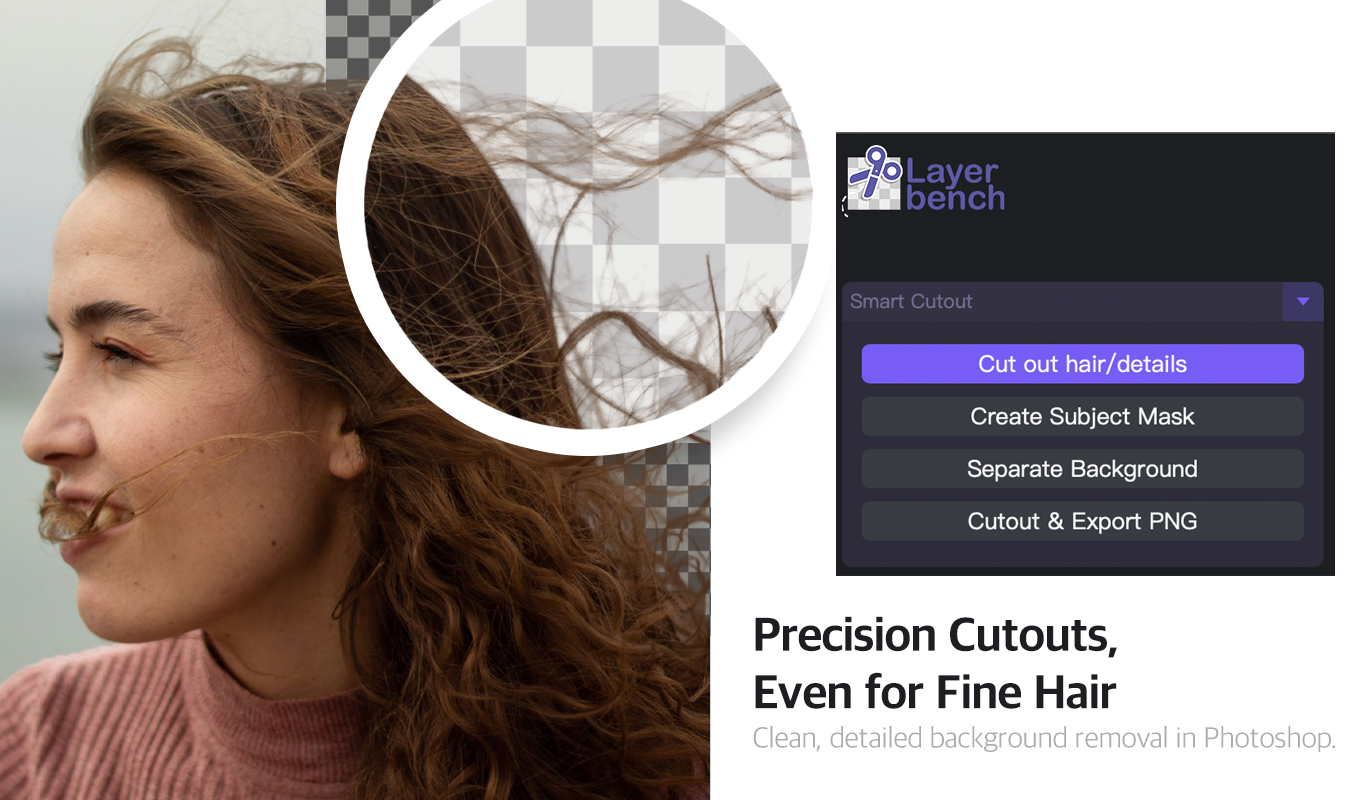
Layerbench — a Photoshop plugin for clean subject cutouts. When you need the whole background gone (rather than one object inpainted), it keeps the subject, hair and all, on transparency.
How to Remove Objects from Photos Without Losing Quality?
Based on testing from Shotkit and advice from Reddit users, here are practical steps to get clean results:
- Cover more than the object. Include its shadow and a small margin of surrounding area. The AI needs context to generate a believable fill.
- Use the Pen tool for precise contours. For cars, products, or any object with a hard edge, a hand‑drawn path gives cleaner results than a brush selection alone.
- For complex backgrounds (hair, water, foliage), Sanster/IOPaint's MAT model is among the strongest open‑source options. Its local processing also avoids compression artefacts from cloud uploads.
- Watch resolution caps. If your final output needs to be large, avoid free tiers that limit export resolution — Cleanup.pictures caps free exports at 720 px.
Workflow tip: After removal, zoom to 200% and inspect the filled area for repeated textures or blurry patches. A quick pass with the Clone Stamp tool (Photoshop) or a soft brush (GIMP) can fix most artefacts in under a minute.
Can I Use These Tools for E‑Commerce Product Photography?
Yes, but the choice depends on volume and workflow:
- Photoroom (batch up to 250 images, Amazon/eBay templates) and Claid (API, repeatable workflows) are the leading options for e‑commerce.
- Photoshop Actions can automate removal for consistent shots, but require initial setup.
- Luma Layers is useful for teams that need to repurpose product images across multiple markets and formats.
- Airbrush is not recommended for product photography — its mobile focus and quality limitations make it a poor fit for consistent catalogue work.
Should I Worry About Privacy When Uploading Photos?
It depends on the tool. Cloud‑based services (Firefly, Photoroom, Overchat, Cleanup.pictures) send your images to remote servers. Always check their privacy policies — especially for sensitive content like family photos, product prototypes, or images with license plates.
Offline options eliminate this concern entirely:
- Sanster/IOPaint — runs locally, no data leaves your machine.
- GIMP + Resynthesizer — fully offline.
- Photoshop desktop — processes locally (though an internet connection is needed for subscription validation).
Adobe Firefly uses commercially safe training data (licensed Adobe Stock + public domain), but images are still processed on Adobe's servers. For maximum privacy, choose an offline tool.
How to Choose the Right Object Removal Tool (Decision Framework)
The table below matches common scenarios to the tools that fit best. Use it as a starting point, then test your shortlist with a handful of real images.
| If you… | Choose… | Why |
|---|---|---|
| Need free, no signup | Overchat AI or Cleanup.pictures (free tier) | Unlimited free removals; Overchat has no watermark |
| Do e‑commerce batch work | Photoroom (250 batch) or Claid (API) | Templates, product‑detail preservation, repeatable workflows |
| Want commercial safety | Adobe Firefly | Licensed training data, free with Adobe ID |
| Need offline / privacy | Sanster/IOPaint or GIMP | Open source, runs locally, no upload required |
| Already use Canva | Canva Magic Eraser ($15/mo) | No app switching, integrated into existing suite |
| Demand professional quality on complex scenes | Photoshop ($9.99 Photography plan) | Deepest control, Distraction Removal, manual refinement options |
| Want one‑time mobile purchase | TouchRetouch (iOS) | No subscription, single payment |
!Infographic highlighting five AI-powered object removal tools for photo editing with a before-and-after comparison of a scenic coastal view
An overview of five AI object‑removal tools, showing the variety of options available in 2026.
Can ChatGPT Remove an Object from a Photo?
No. ChatGPT is a language model — it cannot directly edit images. It can recommend tools, explain workflows, or generate prompts for DALL·E 3 inpainting, but the actual removal requires a dedicated tool from the list above.
If you come across claims that ChatGPT can remove objects, the reality is that someone used a separate image‑generation model (like DALL·E 3) through ChatGPT's interface. For precise, controlled removal, use Photoshop, Overchat AI, Sanster/IOPaint, or any of the other tools in this guide.
What Limitations Should I Be Aware of in 2026?
Even the best AI object removers have boundaries. Here are the key limitations to keep in mind:
- Adobe's upcoming generative AI quota. Photoshop currently offers unlimited generative use, but a monthly quota is planned. Heavy users may need to budget their usage.
- Firefly's size constraints. Minimum 512×512 pixels, maximum 100 MB. Very small thumbnails and very large raw files cannot be processed.
- Photoroom's batch limit. 250 images per session. For large catalogues, you may need multiple batches or an API‑based solution like Claid.
- Airbrush quality. Mobile‑first convenience comes with a trade‑off: its AI model lags behind desktop tools for complex scenes.
- Open‑source setup effort. Sanster/IOPaint and GIMP require technical installation and familiarity with the tools. They are not one‑click solutions.
- The "Photoshop gap" remains. For intricate edges — hair, reflections, car contours — AI‑only tools still produce artefacts that require manual cleanup. No tool has fully closed that gap as of 2026.
!Vintage 16mm film camera mounted on a tripod in the middle of a vast sandy desert under a clear blue sky
Edge cases — complex textures and harsh lighting — still push AI object removers to their limits.
Heads-up: The conflict between "AI tools beat Photoshop" and "only Photoshop works" is not resolved in 2026. Each approach has its territory. For quick, simple removals, AI tools are remarkably capable. For demanding professional work, Photoshop (or a similar desktop editor) remains the safer choice. Testing a tool on your own typical images is the only reliable way to know which camp you belong to.