- Category:
- Workflow Tips
- Summary:
- How to crop a photo into a circle: 7 proven methods for any device - online tools, desktop apps, and mobile options that preserve transparency and privacy.
You can crop any photo into a circle in under 30 seconds. The fastest route: use a client-side online tool like CircleCropImage.com — upload a JPG or PNG, drag to position, and download a transparent PNG. No signup, no watermark, and your image never leaves your device.
Seven methods are covered here: four online tools (Canva, CircleCropImage, Crop-Circle.ImageOnline, RoundCut.app), three desktop applications (Photoshop, Microsoft Office, GIMP), plus mobile workarounds for iOS and Android. Each method is rated for speed, output quality, and privacy.
A teacher needed a circle crop of a hedgehog photo for classroom materials. The image had to sit on a coloured handout without a white box around it — meaning the background outside the circle had to be fully transparent. A quick visit to CircleCropImage.com solved it in about ten seconds: upload, drag the circle over the hedgehog, download as PNG. No account, no payment, no waiting.
That same core workflow — upload, position, download — works across nearly every circle-crop method out there. What changes between platforms is the level of control, the file formats available, whether the processing happens on your device or on a server, and how well each tool handles transparency. This guide walks through every credible approach, from ten-second browser tools to precision workflows in Photoshop and GIMP, so you can pick the one that matches your skill level and your privacy needs.
Online Tools Crop Images Into Circles Without Installing Anything
Browser-based tools are the fastest path to a circle crop. Most require no signup, work on any operating system, and output a transparent PNG by default. Four stand out for different reasons.
Canva Uses a Frame-Based Circle Crop
Canva offers a circle crop through its Frames feature. Upload your photo, go to Elements, search for “Frames,” select a circular frame, and drag your photo into it. You can resize and reposition the image inside the frame without affecting the original. Download as JPEG, PNG, or PDF. No signup is required for basic use, though Canva does upload your image to its servers for processing — something to keep in mind if privacy is a concern.
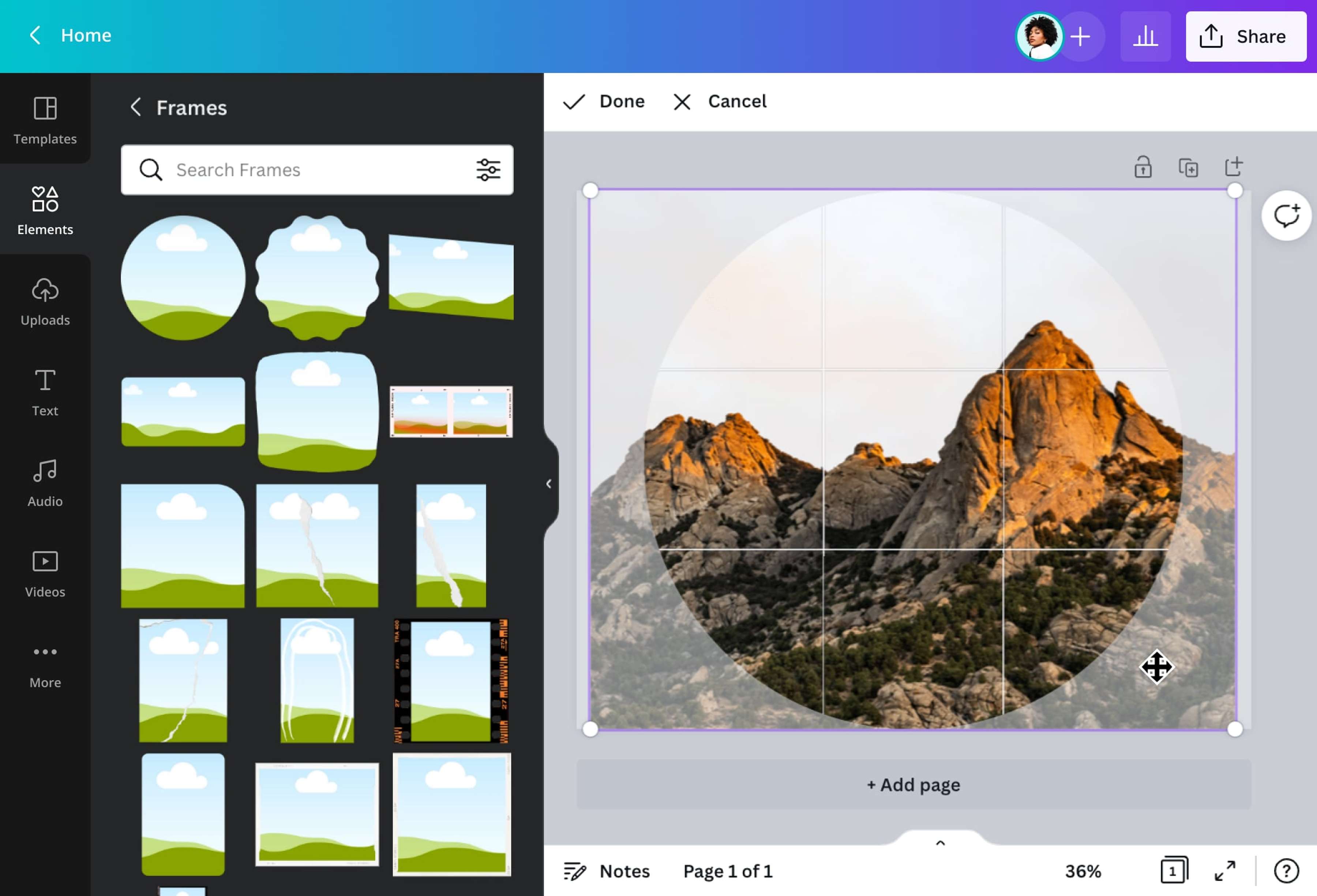
The Canva circular frame tool lets you position your photo inside a perfect circle before exporting.
CircleCropImage.com Processes Images Entirely in Your Browser
CircleCropImage.com is built for speed and privacy. Upload a JPG, PNG, or WebP, then drag or zoom to frame your subject inside the circle. The “Fit” mode keeps the whole image visible inside the circle, which is useful for logos or product shots where nothing should be clipped. You can also add borders, padding, and gradient backgrounds. The output defaults to a transparent PNG, with WebP and JPEG also available. All processing happens client-side — your image never reaches any server, making this a strong choice for sensitive photos. No signup, no watermark, and usage is unlimited.
Crop-Circle.ImageOnline.co and RoundCut.app Offer Mobile-Friendly Alternatives
Crop-Circle.ImageOnline.co works similarly: upload JPG, JPEG, PNG, WebP, or even BMP, drag the circular overlay, and download a transparent PNG. It is also fully client-side and free, with no watermarks. RoundCut.app adds export presets at 320, 400, 512, and 1080 pixels, plus custom dimensions — useful when you need a specific size for a profile picture or avatar. It supports pinch-to-zoom on mobile browsers.
| Tool | Privacy | Output Formats | Size Presets | Free / Paid | Watermark |
|---|---|---|---|---|---|
| Canva | Server-based | JPEG, PNG, PDF | No presets | Free tier; Pro for extras | No (free tier) |
| CircleCropImage | ✓ Client-side | PNG, WebP, JPEG | No presets | Free, unlimited | None |
| Crop-Circle.ImageOnline | ✓ Client-side | PNG (transparent) | No presets | Free | None |
| RoundCut.app | Server-based | PNG | 320, 400, 512, 1080 px + custom | Free | None |
Desktop Software Gives You the Most Control Over Circle Crops
When you need precise selection, non-destructive editing, or batch processing, desktop applications offer capabilities that online tools cannot match. These four cover the major platforms.
Photoshop’s Frame Tool Creates a Non-Destructive Circle Crop
In Adobe Photoshop, the fastest method uses the Frame Tool. Open your image, convert the background layer to a normal layer (double-click the lock icon), select the Frame Tool from the toolbar, choose a circle shape in the options bar, then hold Shift and drag to draw a perfect circle. Drag your image layer onto the frame to place it inside. Everything remains non-destructive — you can reposition the image within the frame at any time. A detailed walkthrough is available in the PHLEARN video tutorial.
Microsoft Office “Crop to Shape” Offers Fill vs Fit Options
In PowerPoint, Word, Outlook, and Excel, you can crop any photo into a circle using the “Crop to Shape” command. Select the image, go to Picture Format, click Crop, choose Crop to Shape, and pick the circle. Two sizing modes appear after cropping: Fill enlarges the image to fill the entire circle (edges may be clipped), while Fit keeps the full image visible inside the circle (may leave empty space on the sides). You can also start with a shape and use Shape Fill → Picture to achieve a similar result. Microsoft Support notes that you can select multiple pictures and apply the same shape at once, though Word has limitations with batch cropping.
Tip Use Fill for profile pictures and logos where you want the shape completely filled with no blank space. Use Fit for product shots or images where every detail must be visible — even if that means a bit of empty space inside the circle.
GIMP Is a Free Desktop Solution for Transparent Circle Crops
The GNU Image Manipulation Program (GIMP) provides a reliable free workflow. First add an alpha channel to your layer (Layer → Transparency → Add Alpha Channel). Select the Ellipse Select Tool, set the Fixed Aspect Ratio to 1:1 in the tool options, and drag to create a perfect circular selection. Invert the selection (Select → Invert) and press Delete or use Edit → Clear to remove everything outside the circle. Export as PNG — JPEG does not support transparency, and the forum community at GIMP-Forum.net regularly reminds users of this distinction. GIMP 2.10 or later is recommended for full alpha-channel support.
Affinity Photo Lacks a One-Click Circle Crop (Community Workarounds)
Affinity Photo users have asked for a dedicated circle-crop feature on the Affinity Forum, but as of 2026 no single-click tool exists. The current workaround involves using the Ellipse Tool to draw a circle, then applying a layer mask to hide the area outside the selection. It is not as streamlined as Photoshop’s Frame Tool, but it achieves the same result with a bit more manual effort.
Mobile Circle Crop Methods Vary Between iOS and Android
Mobile users face a notable gap: neither the iOS Photos app nor the default Android gallery offers a native circle crop. Workarounds exist, and some online tools are designed to work well on phone browsers.
iOS Photos App Has No Native Circle Crop
As of iOS 18, the built-in Photos and Markup tools do not include a circle-crop option. Reddit community members on r/ios share two practical workarounds: open a mobile-optimized tool like RoundCut.app in Safari (pinch to zoom works on the crop interface), or temporarily set the photo as a contact profile picture and take a screenshot — though this reduces image quality. Third-party apps such as PicsArt also provide circle cropping and are frequently recommended in forum discussions.
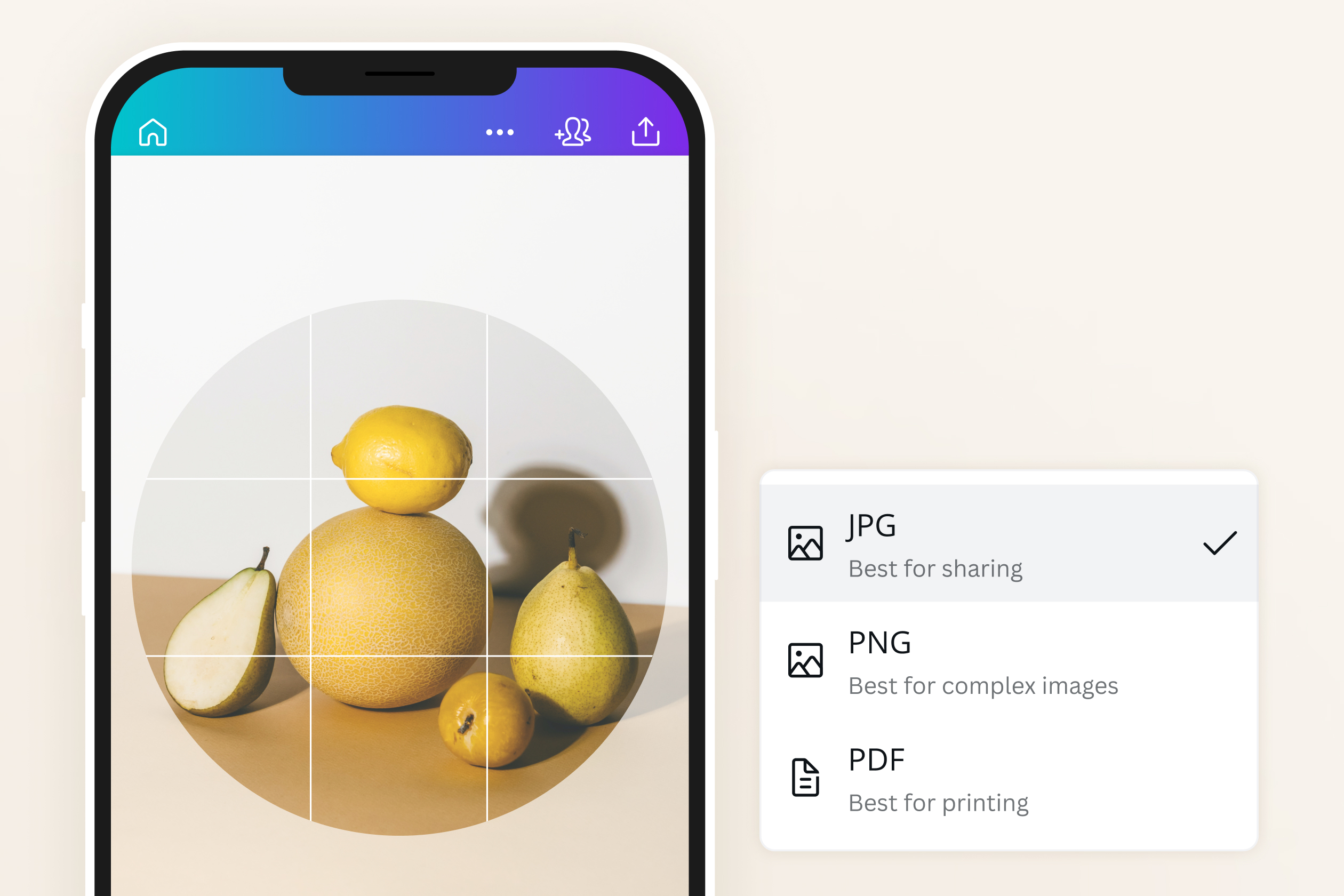
Mobile-friendly crop tools let you choose your output format directly on the phone screen.
Android Users Can Use Online Tools or Apps Like PicsArt
Android has no native circle crop either. The same browser-based tools — CircleCropImage, RoundCut.app, and Crop-Circle.ImageOnline — work on Android phones without modification. Several users in the Reddit community also mention PicsArt as a reliable free app that includes circle cropping with transparency support.
Transparent Backgrounds Require PNG – Here’s Why Users Get White Squares
One of the most common frustrations after a circle crop is finding a white (or coloured) rectangle around the circle instead of a clean transparent background. The cause is almost always a format mismatch.
PNG Supports Transparency; JPEG Does Not
The JPEG format does not support transparency at all. When you save a circle crop as JPEG, the tool fills the area outside the circle with white — or, in some tools, a user-selected colour. PNG (and WebP) preserve full transparency, so the circle sits cleanly on any background. Always export your circle crop as PNG if you need the background to be invisible. This is stated clearly in the documentation at CircleCropImage and reinforced by GIMP forum users who troubleshoot this exact issue. If your online tool offers multiple formats, pick PNG; if you accidentally chose JPEG, re-crop and re-export in the correct format.
“Fit” vs “Fill” Explained
These two sizing modes appear in Microsoft Office, Canva, and some online tools. Fill scales the image so that it completely fills the circle — parts of the image will be cropped out if the aspect ratios don't match. Fit scales the image so that the entire picture is visible inside the circle, which may leave empty space (often white or transparent) on two sides. For profile pictures and logos where you want zero empty space, use Fill. For images where every detail must be seen, use Fit. Microsoft Support provides a side-by-side comparison of both modes.
Common Mistake Reddit user bishwj on r/ios reported saving a circle crop only to get a “white square background.” The cause: the tool defaulted to JPEG. Re-saving as PNG restored full transparency. Always verify your export format before downloading.
Troubleshooting Common Circle Crop Problems
Even with clear instructions, a few issues recur frequently in forums and support threads. Here are the four most common problems and their fixes.
Circle Looks Like an Ellipse
A stretched or oval shape usually means the crop wasn't constrained to a 1:1 aspect ratio.
Fix: In Photoshop, hold Shift while drawing the circle. In GIMP, set the Ellipse Select Tool's Fixed Aspect Ratio to 1:1. In online tools, check whether the preview circle is a perfect square — if not, zoom or reposition so the circle covers a square portion of the image.
Background Isn’t Transparent The area around the circle appears as a solid white, black, or coloured block instead of being see-through. Fix: You saved the file as JPEG. Re-export as PNG (or WebP). If the tool does not offer PNG, switch to a tool that does — CircleCropImage and Crop-Circle.ImageOnline both output transparent PNG by default. In GIMP, ensure you added an alpha channel before clearing the selection.
Image Quality Is Blurry After Crop The circle-cropped image looks soft or pixelated, especially when used as a profile picture. Fix: Start with a high-resolution source image. Export at one of the size presets from RoundCut.app (320, 400, 512, or 1080 px) or set a custom resolution that matches your target use. Avoid upscaling a small image — it will always look blurry. Most online tools preserve the original resolution by default, so the crop itself does not degrade quality unless you manually resize.
Can’t Crop Multiple Photos at Once You have a folder of images and need them all cropped to the same circle shape in one go. Fix: Microsoft Office allows selecting multiple images and applying the same Crop to Shape simultaneously, though Microsoft Support notes that Word may not handle batch cropping reliably. No dedicated online tool currently supports batch circle cropping. For large batches, consider using Photoshop Actions to record a single crop and replay it across a folder, or use ImageMagick on the command line with a script. These require some setup but are the only reliable batch solutions.
Where These Methods Fall Short (When to Use a Different Approach)
Each method covered here works well for its intended use case, but all have boundaries worth knowing before you start a project.
- Client-side tools are safe but lack advanced editing. CircleCropImage and Crop-Circle.ImageOnline are excellent for single crops, but they offer no text overlay, no multi-layer compositions, and no complex background effects. If your final design needs text, borders, or layered elements, start with a server-based tool like Canva or a desktop app like Photoshop.
- Batch cropping remains unsupported in consumer tools. No dedicated circle-crop website or mobile app can process multiple images at once. Microsoft Office has a partial batch function, but it is unreliable in Word. For repetitive tasks, you will need to learn Photoshop Actions or write an ImageMagick command-line script — both of which require a time investment beyond what most casual users want to make.
- iOS and Affinity Photo users are underserved. Apple has not included a circle crop in the Photos app across multiple iOS versions, so iPhone users must rely on third-party websites or apps. Affinity Photo, despite its growing user base, still lacks a documented one-click circle-crop workflow; the Affinity Forum thread on this topic remains unresolved. Users on these platforms will need to use a workaround or switch to a different tool for this specific task.
- Transparency is fragile once saved. Exporting a circle crop as JPEG destroys the transparent area irreversibly. Even if you re-open the JPEG later, the background will remain solid. Always keep an original PNG version of your circle crop if you might need to place it on different backgrounds in the future.
- Image dimensions and aspect ratio matter more than most guides explain. If your source image is strongly rectangular (e.g., a 16:9 landscape photo), cropping it into a circle will inevitably cut away most of the frame. The same image cropped to a circle may look very different from the original composition. For important images, try positioning the subject within the circle using the drag/zoom controls before committing to the crop — or consider whether a rounded rectangle might better preserve the composition.