- Category:
- Export & Automation
- Summary:
- See Photoshop automation plugins: batch retouching, cloud export, and framework choices—learn UXP vs CEP, Actions vs plugins, and install with the Actions API.
What you need to know
A Photoshop automation plugin extends Photoshop's built-in capabilities to automate repetitive tasks — batch processing, retouching, export — without manual intervention. Five extensibility frameworks exist today:
- Actions
- Scripts
- UXP Plugins
- Droplets
- Photoshop API
For new projects in 2026, UXP is the recommended framework. Legacy CEP plugins will not run on Apple Silicon or Windows ARM. This article compares free and paid options, explains installation, and covers advanced workflows using the new Photoshop Actions API.
What Does a Photoshop Automation Plugin Actually Do?
Photoshop already ships with powerful built-in automation: Actions, Scripts, the Image Processor, Droplets, and Variables for data-driven graphics (Source: mapsoft.com; Julieanne Kost's blog). A plugin, however, goes a step further: it adds a custom user interface, accesses host APIs that Actions cannot reach, and runs complex logic at scale.
Plugins are built on one of three technology stacks today:
- UXP (Unified eXtensibility Platform) — the modern standard. It uses modern JavaScript (ECMAScript >6), Spectrum Web Components, and gives direct host API access without an ExtendScript bridge. Adobe calls it the "unambiguous default" for new development (Adobe Developer Docs). Minimum Photoshop version: v22.0 (2021).
- CEP / ExtendScript — legacy technology. CEP is only compatible with Photoshop v14.0–v20.0 and does not run on Mac M1/M2 or Windows ARM processors (Adobe Developer Docs).
- Hybrid (UXP + Native C++) — combines a UXP interface with C++ back-end for performance-critical tasks: image kernels, custom file formats, GPU work. Minimum Photoshop version: v24.2 (Adobe Developer Docs; mapsoft.com).
What does that mean for you? A well-built plugin can automate tasks that would otherwise take dozens of manual steps. For example, the free "Automation Plugin" on Adobe Exchange replaces all images in a folder with a single click. More advanced plugins add AI-driven retouching, smart layer export, or cloud-based batch processing.
Key distinction
Actions record what you do. Scripts program what you want. Plugins extend what Photoshop can do. Each has its place — and they work together.
How to Choose Between Actions, Scripts, and Plugins?
Choosing the right tool depends on the complexity of your task, your comfort with code, and whether you need a graphical interface. Here is a decision framework adapted from Mapsoft's analysis of the five extensibility frameworks.
| Tool | Best For | Complexity | Performance | UI |
|---|---|---|---|---|
| Actions | Linear, repetitive tasks (resize, sharpen, convert) | Low — record & play | Fast (runs inside PS) | None (uses PS menus) |
| Scripts (JSX/ExtendScript) | Conditional logic, file/folder loops, metadata | Medium — programming required | Moderate | Can show dialogs |
| UXP Plugin | Full-featured tools with custom panels | High — web-dev skills needed | Good (modern JS) | Rich (Spectrum Web Components) |
| Hybrid Plugin | Heavy image processing, GPU work, custom formats | Very high (C++ + UXP) | Best (native code) | Rich (UXP panel) |
| Photoshop API | Cloud/server batch, web-app integration | Medium (REST API) | Fastest (cloud, no PS open) | Web-based |
When an Action Is All You Need
If you find yourself applying the same five steps to every image — say, resize to 1200 px, apply a sharpen filter, convert to sRGB, save as JPEG — record an Action once and play it back on any number of files. Julieanne Kost, Adobe's Principal Digital Imaging Evangelist, explains that "Actions were designed to remove the need to manually apply the same sequence of commands" (source). No coding, no installation, just record and replay.
When a Script Gives You More Control
Scripts (ExtendScript or JavaScript via UXP) add conditional logic. Need to rename layers based on metadata, apply different settings to portrait vs. landscape images, or process every file in a folder and save results with a numbered suffix? A script handles that. UXP scripts (.psjs) can also access the host API directly for tasks like reading document properties or exporting layer composites (mapsoft.com; Adobe Developer Docs).
When a Plugin Is the Right Fit
Plugins shine when you need a custom panel with real-time previews, sliders, and buttons — or when performance demands native code. A UXP plugin can open a panel that stays docked in Photoshop, responds to document events, and runs complex algorithms. Hybrid plugins (UXP + C++) handle the heaviest lifting: image kernels, GPU-accelerated filters, and custom file format import/export (Adobe Developer Docs).
Still unsure?
Start with an Action. If your task needs branching logic, upgrade to a Script. If you need a polished tool you can sell or share, build a UXP plugin. For cloud-scale batch processing, use the Photoshop API.
Where to Find the Best Photoshop Automation Plugins (Free vs Paid)
Three marketplaces dominate the ecosystem, each with a different pricing model:
- Adobe Exchange — free and freemium plugins vetted by Adobe. The "Automation Plugin" (free) replaces images in a folder with one click.
- aescripts.com — the largest paid marketplace. Individual plugins start around $29.99 (Source: aescripts listing). Wide range of retouching, export, and generative tools.
- Envato Elements — subscription model (unlimited downloads). Includes actions, brushes, and layer templates alongside plugins (Source: elements.envato.com).
Below is a curated list of plugins covering different use cases. Each entry includes its type, price, key feature, and minimum Photoshop version.
| Plugin | Type | Price | Key Feature | Min. PS Version |
|---|---|---|---|---|
| Automation Plugin (Adobe Exchange) | Action-based | Free | Replace all images in a folder | 23.1.0 |
| Retouch4me | Plugin (AI) | ~$29.99+ | AI skin retouching, dodge & burn | 22.0+ |
| Layerbench | Plugin (UXP panel) | Paid | One-click subject cutout & export, AI selection, edge cleanup (1–3 px shrink), lossless layer export | 22.0+ |
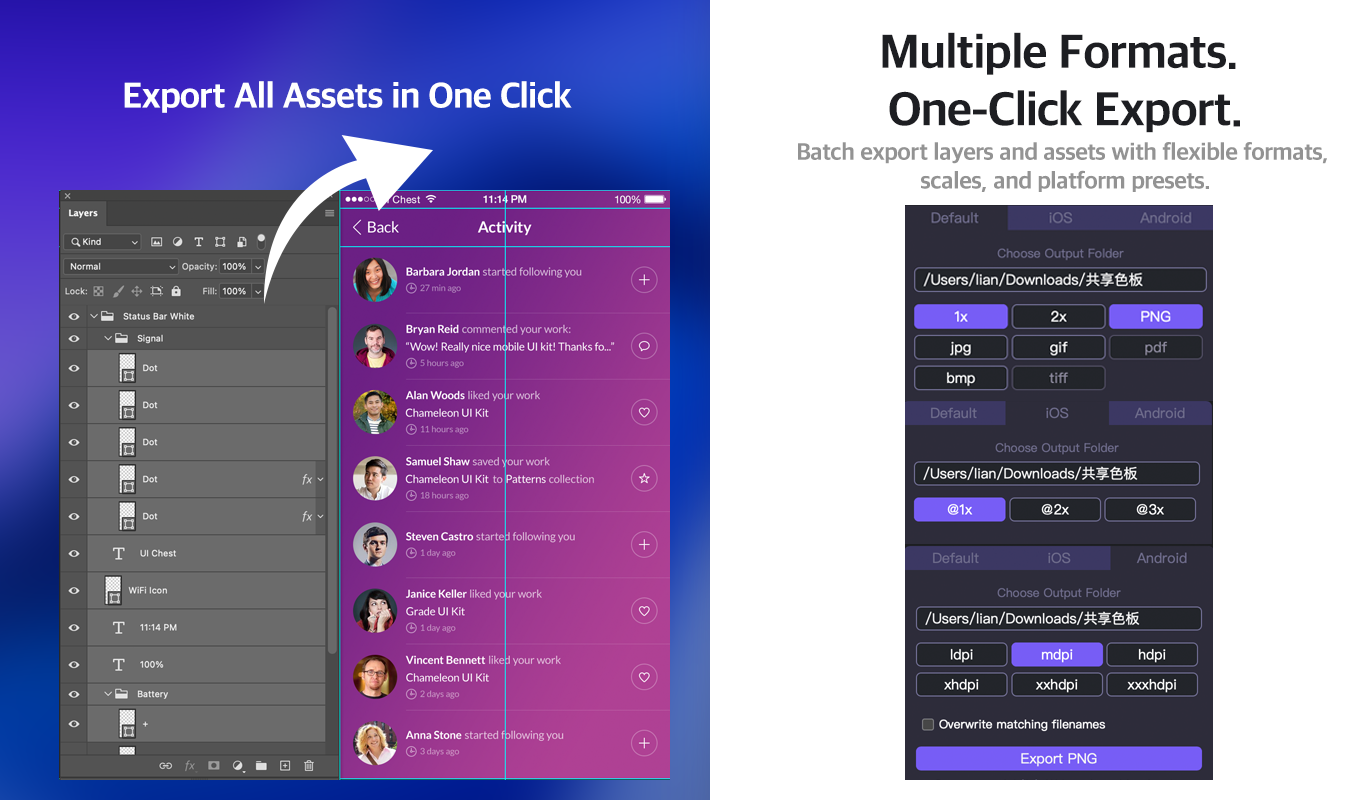
Layerbench — a separate Photoshop plugin: batch-export layers to PNG and other formats with Default/iOS/Android presets and @1x–@3x scales, each trimmed to visible pixels.
Related: how to batch edit in Photoshop · how to save a PNG in Photoshop. | Nano Banana Unwarp | Plugin (CEP) | Paid | Flatten curved images from product photography | 14.0–20.0 | | Waveloq | Plugin (UXP) | Paid | Algorithmic glitch and wave effects | 22.0+ | | Dither Pusher 2 | Plugin (UXP) | Paid | Pixel-art dithering and palettization | 22.0+ |
Layerbench deserves a closer look for anyone who frequently cuts out subjects or exports individual layers. Its capabilities — verified from the product documentation — include one-click cutout and export (runs Select Subject, creates a mask, trims to bounds, exports transparent PNG), a mask-only mode that leaves the PSD editable, and edge cleanup that applies a mask Minimum shrink with a user-supplied radius of 1–3 px to reduce background halos. It also performs lossless layer export of multiple selected layers, trimming each to its visible-pixel bounds at original size with no scaling.
How to Install a Photoshop Automation Plugin (and Fix Common Problems)
Installation differs by plugin type. Follow these steps for a smooth setup.
- Identify the plugin type from its file extension.
UXP:.ccxor.psjs| CEP/ExtendScript:.zxpor.jsx| C++ SDK:.dll,.exe, or.dmg(Source: Adobe Developer Docs). - UXP plugins (.ccx): Double-click the file. Photoshop's plugin installer launches automatically. Restart Photoshop.
- CEP plugins (.zxp): Copy the extracted folder to the CEP extensions directory:
macOS:~/Library/Application Support/Adobe/CEP/extensions/
Windows:C:\Program Files (x86)\Common Files\Adobe\CEP\extensions\ - Enable the plugin in Photoshop: go to Plugins > Plugins Panel and verify it appears. If not, use the "Reset All Plug-ins" option in Preferences or run Photoshop as Administrator on Windows.
- Check M1/M2/Windows ARM compatibility. CEP plugins will not work on Apple Silicon or ARM Windows. Look for a UXP version on the developer's site (Source: Adobe Developer Docs).
Common pitfall — "Plugin doesn't appear in Menu"
This is the most frequently reported issue (Source: Adobe Community Help). Causes: wrong folder path, missing dependencies, or incompatible processor architecture. Run Photoshop as Administrator once, then restart. If the plugin uses CEP and you're on an M1 Mac, it will never appear — request a UXP version from the developer.
File-extension awareness saves time. UXP files .ccx and .psjs are the modern format. Legacy .zxp (CEP) and .jsx (ExtendScript) still work on Intel Macs and standard Windows but are officially deprecated.
Can I Use Photoshop Automation Plugins in Batch Mode?
Yes — batch processing is one of the primary reasons to use automation plugins. There are several approaches, each suited to different scales.
1. Built-in Image Processor
Go to File > Scripts > Image Processor. It resizes, converts formats, and saves copies of all open files. Fast and built-in, but limited in what it can do (Julieanne Kost's blog).
2. Action + Batch Command
Record an Action, then run File > Automate > Batch. Select the Action, choose source and destination folders, and let Photoshop process hundreds of images. This is the most flexible no-code method (mapsoft.com).
3. Plugin with Batch UI
Many plugins — like the free Automation Plugin on Adobe Exchange — have their own batch interface. They can process entire folders with a single button click, often faster than Actions because they don't replay the UI.
4. Photoshop Actions API (Cloud Batch)
New in 2026: the Photoshop Actions API lets you trigger Actions on one or many images via the cloud — without Photoshop open on your machine. This is the fastest option for high-volume e-commerce workflows (10,000+ product photos) and integrates with web apps and CI/CD pipelines.
| Method | Speed | PS Required? | Best For |
|---|---|---|---|
| Image Processor | Fast | Yes (local) | Simple resizing & format conversion |
| Action + Batch | Moderate | Yes (local) | Any recorded sequence, any volume |
| Plugin batch UI | Fast | Yes (local) | Specialised tasks (cutout, retouch, export) |
| Actions API | Fastest | No (cloud) | 10,000+ images, server integration |
How to Combine Actions, Scripts, and Plugins for Advanced Workflows
The real power of Photoshop automation emerges when you chain different tools together. Here is a concrete three-step example for an e-commerce product photography pipeline.
- Pre-process with a Script.
Use a JavaScript script (UXP or ExtendScript) to rename layers based on metadata, convert all images to sRGB, and strip EXIF data. This ensures a consistent starting state. - Retouch with an Action.
Play back a recorded Action that applies your brand's colour grade, sharpening, and a subtle vignette. The Action runs on every image in the batch. - Export with a Plugin.
Use Layerbench or a similar export plugin to cut out each product from its background, apply a 2 px edge cleanup, and save transparent PNGs to a dated folder. Because the plugin handles mask creation and export in one step, this replaces the manual select → copy → new layer → paste sequence.
You can distribute this workflow to team members via Droplets — drag-and-drop executables that bundle an Action into a standalone app. Just save the Action, choose File > Automate > Create Droplet, and share the resulting file. Anyone can drop images onto it without opening Photoshop's Actions panel (mapsoft.com; Julieanne Kost's blog).
Cloud trigger
The Photoshop Actions API can kick off this entire pipeline from a web app. A product photographer uploads images to a portal, the API runs the Action on each file, and the plugin handles final export — all without a designer touching Photoshop.
Modern UXP plugins like Waveloq offer intuitive controls for complex algorithmic editing.
Where to Go for More – The Most Authoritative Sources on Photoshop Automation
If you want to go deeper, these three sources offer the most reliable, up-to-date information — each with a different focus.
Adobe Developer Docs
The definitive reference for UXP, Hybrid Plugins, and the Actions API. Covers version requirements, deprecation status, and code samples.
developer.adobe.com/photoshop →
Mapsoft
Industry consultant with a deep comparison of all five extensibility frameworks. Best for decision-making: Action vs. Script vs. Plugin vs. API.
mapsoft.com/platforms/photoshop →
Julieanne Kost's Blog
Adobe's Principal Digital Imaging Evangelist. The best place to learn Actions, Droplets, and the Image Processor from a practitioner who teaches them daily.
jkost.com →
Between these three resources, you can learn the basics (Kost), make architectural decisions (Mapsoft), and implement production-ready solutions (Adobe Docs). Bookmark all three — they cover the full spectrum from beginner to advanced.