- Category:
- Workflow Tips
- Summary:
- Find the best AI background generator for product photos and portraits, with top picks for value, free tier, and product shots, plus feature comparisons.
At a glance: After comparing 8 tools across pricing, output quality, editing toolchains, and real user reports, the strongest options break down by need.
🏆 Overall value: Adobe Firefly 💰 Best free tier: CapCut 📦 Best for product shots: Pacdora ⚡ Quickest trial: ProductAI 🎨 Best editing suite: Canva
Scroll down for a full feature comparison, pricing table, real Reddit feedback, and troubleshooting tips.
Feature and Pricing Comparison of the Top Tools
Free Tiers and Pricing Models
Every tool featured in the top search results offers some form of free access, but the limitations vary considerably. Understanding these tiers is important before committing to a workflow.
- Canva — Free tier with limited monthly credits; Pro plan at $12.99/month unlocks unlimited generations and Magic Studio tools.
- Adobe Firefly — 25 free generative credits per month; additional 100 credits for $4.99. Commercially safe outputs included.
- CapCut — Completely free with no watermark, a rare offering among the group. Exports up to 8K.
- ProductAI — Free with no sign-up required. Watermark policy is unverified; resolution may be limited.
- Photoroom — Free tier available, but AI environment backgrounds require payment (Pro at $9.99/month).
- Evoto — Free first trial; paid plans start after the trial period.
- Pacdora — Free tier available; paid plans for higher-resolution exports and commercial use.
- Picsart — Free tier with ads and limited features; paid plans remove restrictions.
Underlying AI Models and Unique Capabilities
Only two tools disclose their underlying models. CapCut uses the Seedream 5.0 / Image 4.0 model, developed by ByteDance research. Adobe Firefly combines its own image model with partner models from Google, OpenAI, and Nano Banana, giving users stylistic variety. Pacdora takes a different approach with unique 3D rendering that matches product angle, light type, and shadow — a step beyond the 2D inpainting used by most competitors.
Output Resolution and Supported Formats
CapCut is the only tool that explicitly claims export up to 8K resolution. Pacdora supports PNG, JPG, and WebP formats. Adobe Firefly requires a minimum input dimension of 512×512 pixels but does not specify a maximum output resolution. Most other tools output at 1920×1080 or 4K, though exact specs are rarely published.
Post-Generation Editing Tools
Canva provides the richest post-generation suite: Magic Edit, Magic Eraser, and Magic Expand let you refine or extend the background after generation. Adobe Firefly offers Generative Remove and Generative Fill for targeted corrections. CapCut includes color correction, filters, and upscaling options. These integrated tools can eliminate the need for a separate photo editor.
Missing Features — Batch Processing and API Access
None of the top-ranking tools offer batch generation or a public API. This is a notable gap for users who need to process large product catalogs or integrate background generation into automated workflows. For high-volume needs, local solutions like Stable Diffusion with ControlNet (discussed later) may be more suitable.
| Tool | Free tier | No signup | Unique model | Max resolution | Post-edit tools | Batch / API | Commercial use |
|---|---|---|---|---|---|---|---|
| Canva | Limited credits | No | — | Unspecified | Magic Edit, Magic Eraser, Magic Expand | No | With Pro |
| Adobe Firefly | 25 credits/mo | No | Own + partner models | Unspecified | Generative Remove, Generative Fill | No | ✅ Indemnified |
| CapCut | Fully free | No | Seedream 5.0 / Image 4.0 | 8K | Color, filters, upscale | No | Unclear |
| Pacdora | Free tier | No | 3D rendering | Unspecified | — | No | Unclear |
| ProductAI | Free | ✅ Yes | — | Unspecified | — | No | Unclear |
| Photoroom | Free (limited AI) | No | — | Unspecified | — | No | With Pro |
| Evoto | Trial only | No | — | Unspecified | Precision matting | No | Unclear |
| Picsart | Free (ads) | No | — | Unspecified | — | No | With paid |

A natural outdoor scene generated using an AI background tool — styles like this work well for lifestyle product shots.
Which Tool Is Best for Your Specific Use Case?
No single tool suits every situation. Here is how the options stack up for common scenarios, based on features and user feedback.
Fast product photos Photoroom delivers quick results with a minimal learning curve. However, as Reddit user azukimichi notes, the AI environment backgrounds can feel “plain and low quality” and require payment. Best for speed over perfection. Quick
Realistic ecommerce shots Pacdora uses 3D rendering to match lighting, angle, and shadow — a clear advantage for product images that need to look shelf-ready. Output formats include PNG, JPG, and WebP. 3D realism
Professional post-editing Canva and Adobe Firefly offer full editing toolchains — Magic Edit, Magic Eraser, Generative Fill, and Generative Remove — so you can refine backgrounds without switching apps. Full toolchain
Zero-friction trial ProductAI is the only tool requiring no sign-up. Upload and generate immediately. Watermark status is unverified, but it is the fastest option for a quick test. No signup
Highest resolution CapCut exports at up to 8K — a clear differentiator for print or large-format use. It also claims no watermarks and is fully free. 8K output
Creative / artistic backgrounds Adobe Firefly gives access to partner models from Google, OpenAI, and Nano Banana, enabling stylistic variety that other tools lack. Multi-model
Commercial safety Adobe Firefly stands alone in explicitly offering commercially safe outputs with an indemnity policy — critical for brands and agencies. Indemnified
Reddit alternatives (with caveats) Pebblely — backgrounds can look “simple and fake” with visible outlines. Flair AI — UI is difficult and text warps with lighting. Staige app — quality is good with careful prompting but the interface is not intuitive. Check reviews
For a deeper look at user-reported issues with these tools, see the community feedback section below.
What Real Users Are Saying — Reddit Feedback on Each Tool
Official tool pages highlight strengths. Community forums reveal the day-to-day frustrations. Here is what users on r/productphotography and other threads report.
“Photoroom is cheap and easy — I use it all the time — but the AI environment backgrounds are a little plain and low quality, and you need to pay for them.”
— azukimichi, Reddit
“Pebblely — AI environment backgrounds are too simple and fake looking on the free plan. Product images have a visible outline.”
— azukimichi, Reddit
“Flair AI — UI is super hard to figure out. Text becomes blurred/warped if you apply lighting.”
— azukimichi, Reddit
“Staige app — AI backgrounds are high quality if you prompt it right, but the UI isn't as intuitive.”
— azukimichi, Reddit
Beyond the top-8 tools, Reddit users also discuss alternatives. ShiveringBlobfish recommends Stable Diffusion with ControlNet for consistent, reproducible results. hellya notes that ChatGPT 4o can generate backgrounds but is strict about brand names. A Cybertruck forum user reported success with an unnamed free generator for cleaning up background clutter. Meanwhile, Reason_He_Wins_Again cautions that “AI is just guessing pixels, so you can't ever create a reproducible result” — a limitation worth keeping in mind for repeat shots.
How to Get the Best Results — Prompt Engineering and Post-Generation Workflow
Writing Effective Prompts
The quality of your output depends heavily on your prompt. Generic descriptions like “nice background” produce generic results. Instead, include specifics about style, mood, and setting.
- For product shots: “Minimalist white studio with soft diffused lighting and a subtle gradient backdrop” — this yields clean, professional results.
- For lifestyle images: “Nature-inspired outdoor look with warm golden-hour light, blurred greenery, and a wooden table in the foreground” — creates context without clutter.
- For portraits: “Soft pastel bokeh background with warm tones and a shallow depth-of-field feel” — keeps focus on the subject.
💡 Prompt tip
CapCut suggests including details about style, mood, and setting. Most tools respond better to concrete nouns and lighting descriptors than to abstract adjectives.
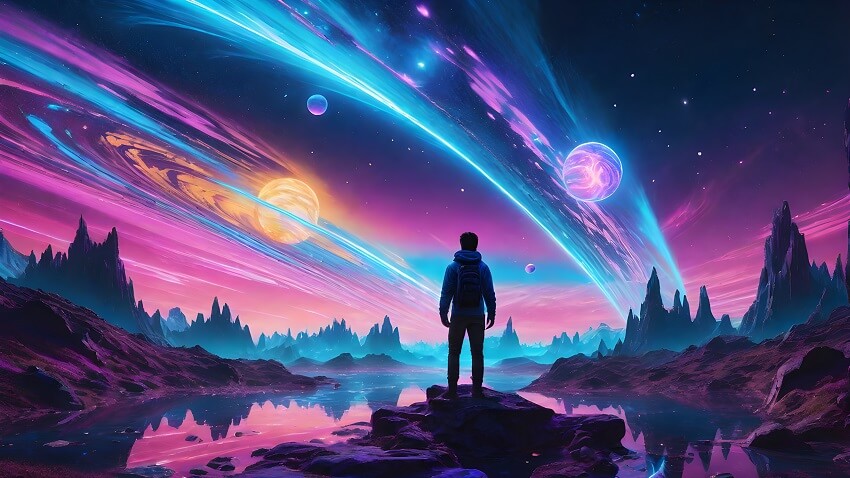
Artistic and abstract backgrounds like this are achievable with tools that offer multi-model support or advanced prompting.
Leveraging Post-Generation Tools
AI-generated backgrounds often need refinement. A strong workflow combines generation with editing:
- Generate the initial background using your chosen tool.
- Use Canva Magic Edit or Adobe Firefly Generative Fill to remove artifacts or unwanted elements.
- Adjust color and contrast with CapCut’s built-in filters or a dedicated photo editor.
- Export at the highest available resolution — CapCut’s 8K option is ideal for print.
For those already using Photoshop, our guide on using Select and Mask to clean up edges pairs well with AI-generated backgrounds.
If you're compositing a real product or person onto a generated background, cut the subject out cleanly first — a rough edge shows immediately against an AI scene. In Photoshop, the Layerbench panel does this in a couple of clicks: Cut out hair/details or Create Subject Mask to isolate the subject, Separate Background, then drop it over your generated backdrop. Try it at Layerbench.
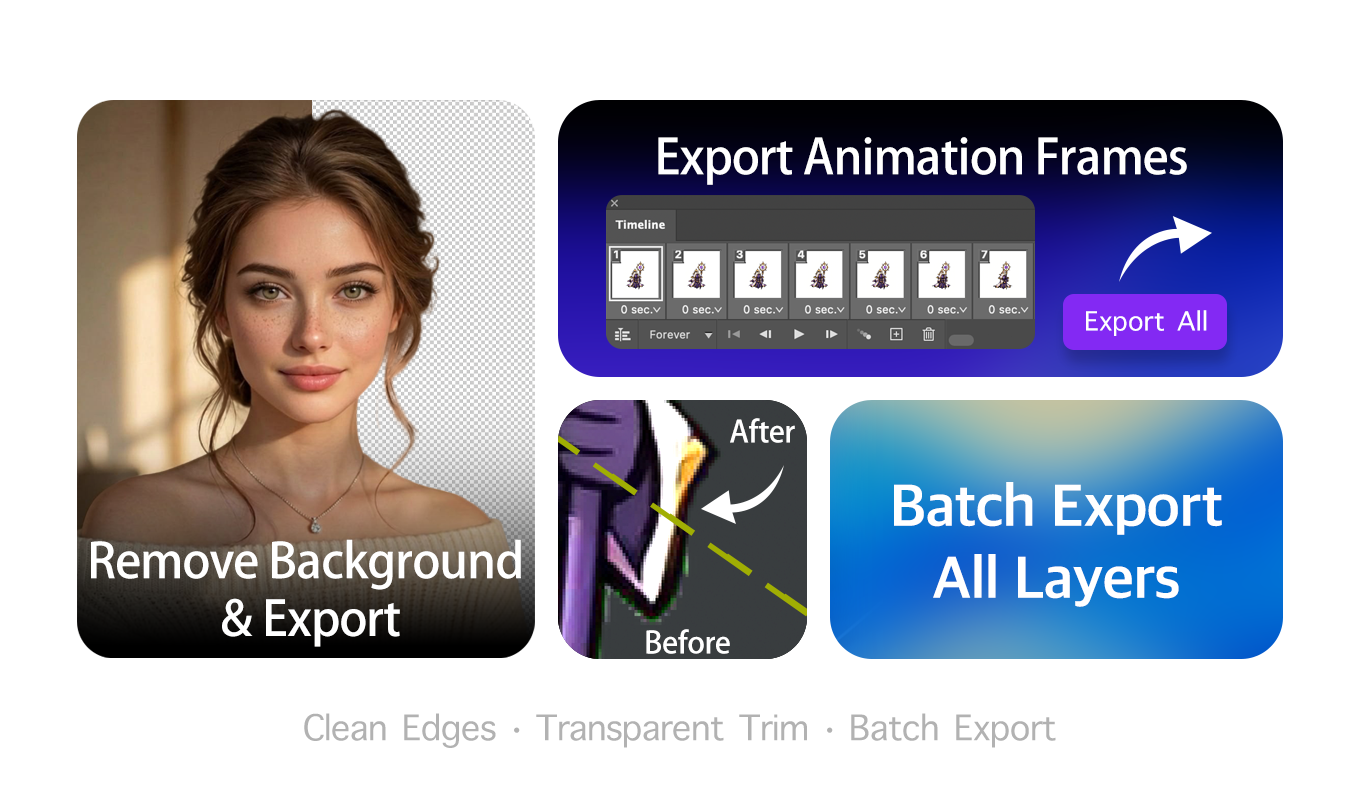
Layerbench — a Photoshop plugin: isolate the subject on transparency, then drop it onto your AI-generated background for a clean composite.
Advanced Workflow for Power Users
If cloud tools feel limiting — especially on batch processing or reproducibility — consider a local setup. Stable Diffusion with the inpaint background extension and ControlNet gives you control over lighting, object consistency, and seed-based reproducibility. This is the approach several Reddit power users recommend, and it works around the lack of batch and API support in commercial tools.
Commercial Use and Licensing — What You Need to Know
Using AI-generated backgrounds for commercial projects — product listings, advertisements, packaging — requires attention to licensing. The policies vary significantly across tools.
| Tool | Commercial rights | Watermark on free? | Batch / API |
|---|---|---|---|
| Adobe Firefly | ✅ Indemnified | No | No |
| CapCut | Unclear | No | No |
| Canva Pro | ✅ With Pro | No (Pro) | No |
| Photoroom Pro | ✅ With Pro | No (Pro) | No |
| ProductAI | Unclear | Unverified | No |
| Pacdora | Unclear | No (free tier?) | No |
| Evoto | Unclear | Trial only | No |
| Picsart | With paid | Yes (free) | No |
Adobe Firefly is the standout for commercial safety — it explicitly offers commercially safe results with an indemnity policy. For other tools, you typically need a paid plan to secure commercial rights. The lack of batch processing and API across all tools is a limitation for scalable commercial workflows. For high-volume needs, consider combining a licensed tool with local automation.
Troubleshooting Common Problems with AI Background Generators
Real-world use reveals several recurring issues. Here is what goes wrong and how to work around it.
Visible Outlines Around Products
Several users report a faint outline around the subject after background generation — particularly with Pebblely. To minimize this:
- Start with a transparent PNG rather than a JPEG with a solid background.
- Use tools with stronger matting (Evoto claims precision edge handling).
- Apply a feather or defringe step in Photoshop afterward — see our defringe workflow guide.
Blurred or Warped Text When Adding Lighting
Flair AI users report that applying lighting effects can blur or warp text in the image. Avoid applying strong lighting to text-heavy images; generate a clean background first and add text in a separate layer using a design tool.
Inconsistent or Unrepeatable Results
As one Reddit user put it, “AI is just guessing pixels.” Most cloud tools do not expose a seed parameter, so re-running the same prompt produces different results. If reproducibility matters, use a local Stable Diffusion setup where you can fix the seed and use ControlNet for consistent composition.
Free Trial Limitations That Surprise You
Photoroom is advertised as free, but AI-generated backgrounds require a paid plan. Always check the fine print on watermark, credit caps, and export resolution before building a workflow around a free tier. CapCut and ProductAI are currently the most generous free options, but each has its own trade-offs.
⚠️ Quick check
Before committing to any tool, verify: (1) Does the free tier watermark output? (2) What is the export resolution limit? (3) Are commercial rights included, or do you need a paid plan?