- Category:
- Workflow Tips
- Summary:
- Affinity vs Adobe: a perpetual three-app suite saves thousands vs Adobe's 20+ apps, but lacks auto-trace, vector brushes, and blend tool—check your workflow.
The short answer
Affinity by Canva saves thousands over five years — but you will lose auto-trace, vector brushes, a blend tool, and Adobe Fonts. If your daily work depends on any of those, the savings may not offset the productivity hit.
Three-app suite (Photo, Designer, Publisher) vs Adobe’s 20+ apps. Perpetual license vs $70/month subscription. Real users report the gaps below — check them against your own workflow before you switch.
Before you weigh Affinity vs Adobe, clarify three things about your own work: what you design (print, web, illustration, photo), who you deliver to (agencies, printers, clients who expect native files), and which tools you use daily (auto-trace, blend tool, specific plugins). The right choice depends less on brand loyalty and more on whether you can tolerate — or work around — the missing features documented below.
Affinity is a focused three-app suite: Affinity Photo (raster), Affinity Designer (vector), and Affinity Publisher (layout) — no video, 3D, or cloud collaboration tools. Adobe Creative Cloud Pro includes 20+ applications across photography, illustration, video, 3D, web, and more, as detailed on Adobe’s own comparison page.
“If you CAN afford Adobe, go with that” — but for small operations, Affinity + Canva + Inkscape suffices.
— Museum professional, AAM-US forum
Self-assessment checklist before you read further:
- Do your printers or agencies require native Adobe files (AI, INDD, PSD)?
- Do you rely on Image Trace (auto-trace) for converting sketches to vectors?
- Do you use the blend tool, Shape Builder, or Blob Brush regularly?
- Do you depend on Adobe Fonts or third-party plugins (Topaz, Nik Collection)?
- Is your budget limited to a one-time payment rather than a recurring subscription?
A “yes” to any of the first four suggests you should test Affinity thoroughly before migrating. A “yes” to the last one is where Affinity shines.

Affinity’s three-app suite versus Adobe’s broader Creative Cloud ecosystem.
Real Feature Gaps That Affinity Users Actually Miss
The following gaps come directly from designers who have used both ecosystems — not from marketing materials. Each entry includes the severity for different user profiles and a concrete workaround.
Auto-Trace (Image Trace) — The 80% Workflow Killer
One designer, Vivienne Le, reported using Illustrator’s Image Trace for 80% of her vector work; Affinity has no equivalent tool. This is a critical gap for illustrators who convert hand-drawn sketches to vector paths. For pure photo editors, the impact is low.
Workaround: Use the free, open-source vector editor Inkscape to perform auto-trace, then export the result as SVG and import it into Affinity Designer. The extra step adds roughly 30–90 seconds per asset, depending on complexity. Wacom’s blog covers this gap in detail.
No Vector Brushes or Erasers
Affinity ships with a single pre-loaded raster brush and lacks native vector brushes or erasers. Users who create hand-drawn vector art must draw raster strokes, then convert them — a multi-step process. Severity: moderate for hand-drawn vector artists; low for logo designers working with simple shapes.
Workaround: Draw strokes in a raster layer, then use the Expand Stroke function and manually re-trace the vector path. Alternatively, use Inkscape (which supports vector brush strokes) and import the result. AAM-US forum user Julia Teel confirmed this limitation firsthand.
Missing Blend Tool
Affinity Designer lacks a native blend tool for creating smooth colour transitions between shapes. Branding and identity designers who rely on blended gradients will find this moderate in severity. For most other users, it is low.
Workaround: Use live gradient fills (linear, radial, conical) or construct blends manually by duplicating objects, adjusting colour, and morphing shapes step by step. Some designers use third-party gradient plugins — but the plugin ecosystem is limited compared to Adobe’s.
Photo Straightening and Warp — Extra Steps vs Lightroom One-Click
Affinity Photo lacks a straightforward perspective-warp or auto-straighten tool comparable to Lightroom’s one-click correction. Users report needing multi-step workarounds. Severity: moderate for photo retouching professionals; low for casual editors.
Workaround: Use Affinity Photo’s geometric transform tools (Mesh Warp, Perspective Tool) or switch to GIMP for a more automated lens-correction workflow. Museum professionals on the AAM-US forum describe this as a notable friction point.
No Adobe Fonts and No Third-Party Plugin Ecosystem
Adobe Fonts provides unlimited access to thousands of typefaces; Affinity has no comparable service. Additionally, industry-standard plugins like Topaz, Nik Collection, and many Photoshop extensions do not work with Affinity. Severity: moderate for designers who rely on type variety; high for users who depend on specific plugin effects.
Workaround: Use Google Fonts (free, open-source) or purchase individual typefaces. For plugins, check whether the developer offers a standalone version or a Lightroom/PS alternative. Canva Pro ($15/month) adds a font library but does not replace the full Adobe Fonts catalogue.
File Compatibility and Printer/Agency Headaches
Affinity file formats are “pretty interoperable” with Adobe’s, but an “extra complication” arises when sending native files to printers or agencies. critical for print production designers; moderate for digital-only work.
Workaround: Always export final deliverables as PDF/X-1a or PDF/X-4 with outlined fonts. For raster assets, use PSD format (Affinity can write PSD). For vector assets, use AI format where fidelity allows. Communicate with your printer before sending native Affinity files.
Exclusive Adobe Tools: Shape Builder, Blob Brush, Advanced Typography
Illustrator’s Shape Builder, Blob Brush, and advanced typography (kerning pairs, distortion, envelope warp) have no direct Affinity equivalent. Severity: moderate for logo designers; critical for users who build complex vector shapes quickly using Shape Builder.
Workaround: For Shape Builder, use Affinity’s boolean operations (union, subtract, intersect, divide) — they are less intuitive but achieve similar results. For typography, Affinity’s character panel covers basic kerning and tracking but lacks Illustrator’s deep distortion tools. Wacom’s comparison lists these as exclusive Illustrator features.
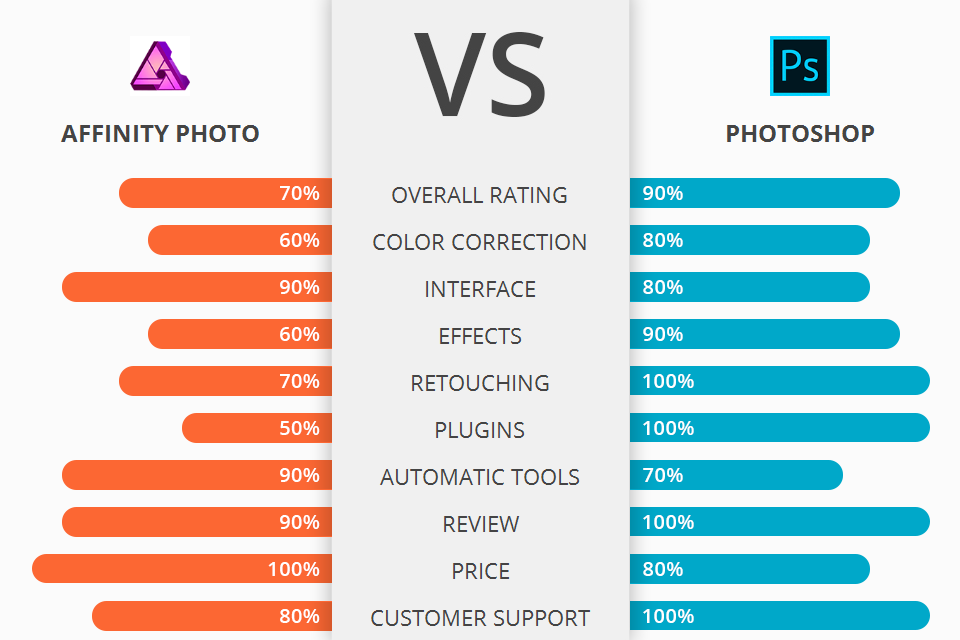
Community-sourced ratings across ten categories — Affinity Photo holds its own in core editing but trails in plugin support and advanced tools.
What Does Affinity Actually Cost Over Five Years?
Let’s put real numbers on the table. Adobe Creative Cloud Pro runs approximately $70/month according to Lindsay Marsh’s pricing analysis — that is $840/year and $4,200 over five years.
Affinity’s perpetual license was purchased by one user for $150 (historical price; current V2 Universal License pricing is listed on Adobe’s comparison page without a specific figure). If a major upgrade occurs every 2–3 years (e.g., v1→v2 was a paid upgrade), budget roughly $50–$100 per version jump. Affinity has promised to maintain perpetual licensing after its 2024 acquisition by Canva.
If you need generative AI, add Canva Pro at $15/month ($900 over five years), as noted in the same Substack analysis.
| Scenario | 5-Year Cost | vs Adobe CC Pro ($4,200) |
|---|---|---|
| Freelancer — no AI | $150 (Affinity, no upgrades) | Saves ~$4,050 |
| Freelancer — with AI | $1,050 (Affinity + Canva Pro) | Saves ~$3,150 |
| Agency — Adobe interoperability | ~$4,350 (dual ownership) | ~$150 more than all-Adobe |
- Scenario A: Freelancer, No AI — $150. One-time purchase, no recurring fees. Best value if you don’t need generative AI or cloud collaboration.
- Scenario B: Freelancer + AI — $1,050. Adds Canva Pro for generative AI. Still saves ~$3,150 vs Adobe.
- Scenario C: Dual Ownership — ~$4,350. Keep Affinity for internal work, Adobe for client-native files. Slightly more expensive but reduces compatibility friction.
Key takeaway: For a solo designer who can live without auto-trace, vector brushes, and the plugin ecosystem, Affinity saves thousands. For an agency that must deliver native Adobe files to clients, dual ownership is a modest premium over an all-Adobe subscription.

Affinity’s one-time payment model compared to subscription tiers — note that prices shown may differ from current V2 Universal License pricing.
How Adobe and Affinity Handle AI (and Whether You Actually Need It)
Both ecosystems now offer AI features, but they take fundamentally different approaches.
Affinity’s AI is local-only and non-generative: it provides “AI-supported selection of objects” computed on your own device, as described on the Affinity forum. For any generative AI tasks — text-to-image, background generation, object removal with AI fill — you must use Canva Pro ($15/month), which is not natively integrated into Affinity.
Adobe’s AI (Firefly) is built directly into Creative Cloud Pro at no extra cost. It is commercially safe (trained on licensed data) and gives access to third-party models including Google’s Nano Banana and Veo, as Adobe’s comparison page notes.
One Facebook group user reported that they do not use generative AI in Adobe at all and saw no loss after switching to Affinity — a reminder that AI importance varies heavily by individual workflow.
Heads-up: If generative AI is a core part of your daily work (background removal, text-to-image, smart fill), Adobe includes it in the subscription price. Affinity requires an extra $15/month Canva Pro subscription, which narrows the cost gap.
Can Affinity Open Adobe Files? (File Format Compatibility)
Affinity can import PSD and AI files, but fidelity varies. Complex layer styles, smart objects, adjustment layers, and embedded Illustrator effects may not transfer perfectly. Users on the AAM-US forum describe Affinity files as “pretty interoperable” while acknowledging “extra complication” when working with printers or agencies.
Recommendation: Test with a representative sample file from your own work before committing. For print delivery, always export as PDF/X-1a or PDF/X-4 with outlined fonts — this format is universally accepted and bypasses native-file compatibility issues entirely.
How to Check If Affinity Will Work for You
Rather than guessing, run a structured test. Here is a verification plan based on real user experiences.
Test Before Buying
A Wacom One purchase includes a 3-month free trial of Affinity, as noted on the Wacom blog. This gives you a full quarter to evaluate the suite against your real projects — not just tutorial files.
Self-verification checklist:
- If print production is your primary work: Test Affinity Publisher v2.0 — the typesetting community has praised it as “complete.” See the Facebook discussion.
- If you use auto-trace daily: Install Inkscape alongside Affinity and time yourself. Can you tolerate the extra 30–90 seconds per asset?
- If you rely on Adobe Fonts: Check whether your most-used typefaces are available on Google Fonts or through a purchase. If you need 20+ fonts, the cost and licensing overhead may add up.
- If you work in a team: Ask your printers or agencies whether they accept Affinity-native files or expect PDF/PSD only. Get their answer in writing.
Watch for the “Affinity trap”: After Canva’s acquisition in 2024, perpetual licensing is promised but not guaranteed. Lindsay Marsh’s video analysis warns that escaping Adobe’s rising cost may lead to unexpected limitations or a future subscription model. Weigh this risk against the immediate savings.
Practical recommendations for different profiles (based on museum professional advice and creator stacks from the AAM-US forum):
- Student / Hobbyist: Affinity + free alternatives (Inkscape, GIMP) = excellent value. No brainer.
- Freelance logo designer: Affinity Designer works well for most vector work, but test the auto-trace workaround before committing.
- Photo retouching professional: Affinity Photo is solid, but missing warp/straightening tools — test your most common correction workflow.
- Print production agency: Stick with Adobe unless you can enforce a PDF-only delivery workflow with all clients.
!Decision flow for choosing between Adobe and Affinity based on workflow needs, with logos of both suites around a central avatar
Visual decision node — your route depends on whether you need auto-trace, blend tool, and plugin support.
Final check: After using the 3-month trial, ask yourself one question: “Did I encounter a missing feature that cost me more than $70/month in lost productivity?” If yes, Adobe wins. If no, you have just saved thousands of dollars.
Related reading: How to remove backgrounds in Affinity Photo and Designer — 5 methods compared — a practical guide if you are testing Affinity’s photo-editing capabilities.