- Category:
- Background Removal
- Summary:
- Remove.bg alternatives are critical: compare pricing, batch processing, and tricky subjects like hair and transparent objects before the Dec 1, 2026 shutdown.
Migrate Before Dec 1, 2026
Remove.bg’s standalone website closes on December 1, 2026 at 9:00 CET and moves to Leonardo.Ai (Canva). This guide compares a dozen alternatives — free and paid — so you can switch before the deadline. We cover pricing, batch processing, tricky edges, and real-world fixes users have found.
The First Thing You Need to Know: Remove.bg Shuts Down on December 1, 2026
According to the Photoroom blog and bgclear.ai, remove.bg’s standalone website will stop operating on December 1, 2026 at 9:00 CET. The technology is being folded into Leonardo.Ai, which is part of Canva.
⏳ Why this matters
If you rely on remove.bg’s web interface, API, or CLI tool, you need a migration plan now. The good news: many alternatives match or exceed its accuracy, often at a fraction of the cost. Below we test the top contenders so you can move before the shutdown.

Several well-known background-removal services are viable replacements for remove.bg.
Which Tools Offer the Best Value? A Pricing and Credit Comparison
Cost per removal varies enormously. Photopea’s creator stated on Reddit that Photopea charges $5 for 3,000 removals, while remove.bg charged $389 for 2,800 credits — making Photopea roughly 78× cheaper. (Remove.bg’s current official pricing may differ, so verify on their site.)
The Photoroom comparison table lists seven tools — Photoroom, Claid, Photoshop, Canva, Clipping Magic, Adobe Express, and Removal.ai — with features, API support, and e‑commerce fit ratings. Below is a condensed view focused on cost and value.
| Tool | Free tier | Batch / API | Est. cost / removal |
|---|---|---|---|
| Photopea | Ad-supported (incognito bypass) | No native API | ~$0.0017 |
| bgclear | Free, no account | No | Free |
| Pixlr | Free, no sign‑up | Batch to ZIP | Free |
| Adobe Firefly | Free (Adobe ID) | No batch | Free |
| Photoroom | Limited free | Yes | Low (credits) |
| Canva Pro | 7-day trial | Limited bulk | ~$0.01 (pro rate) |
| ShortPixel / Slazzer | Free trial | API focused | Varies |
Bottom line: If you need high volume on a budget, Photopea is exceptionally cheap. For zero-cost one‑offs, bgclear or Pixlr work well. The Photoroom blog rates e‑commerce fit highly for their own tool and Claid, but we recommend testing with your own product photos before committing.
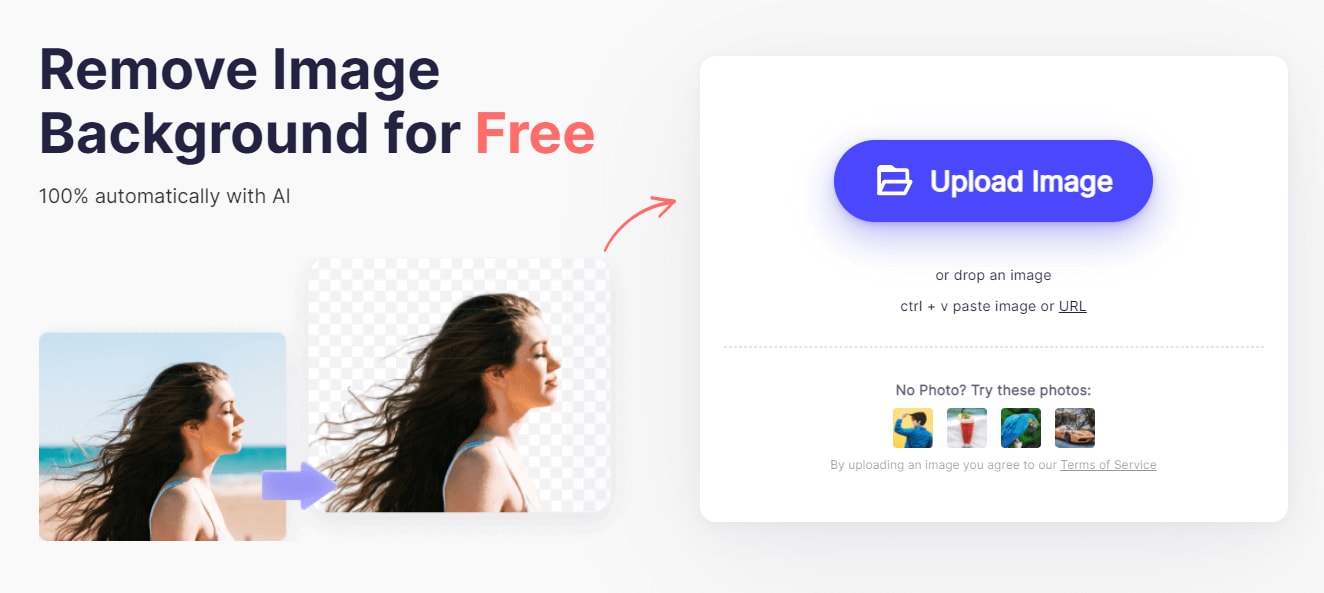
Most free tools follow a simple upload-and-download pattern. Pixlr and bgclear work without an account.
How to Handle Tricky Subjects Like Hair and Transparent Objects
Fine hair, fur, glass, and transparent objects trip up many AI background removers. Here is how three tools tackle the problem, based on user reports and vendor claims.
Digital Magic Wand – A Paid Option for Pet Hair
A Reddit user on r/web_design (CarefulLazarus, May 2025) specifically recommended Digital Magic Wand for pet hair, noting it handles notoriously difficult fur well. It is a paid tool, but if you frequently edit animals or fine hair, it is worth evaluating against the free options.
Adobe Firefly’s Claim vs. Real‑World Results
Adobe’s official Firefly page claims “precision on hair, fur, and transparent objects.” No independent head‑to‑head test against Digital Magic Wand is available (U25). In practice, Firefly requires a free Adobe ID and produces clean PNGs. We recommend testing both tools with your own problem images to see which gives better edge fidelity.
The Photopea Mask Inversion Trick
Photopea’s creator explains a clever technique for keeping the surface an object sits on — useful for glass or transparent items:
- Upload your image to Photopea.
- Click Remove BG (ad‑supported or paid credit). This creates a mask that conceals the background.
- In the Layers panel, right‑click the mask and choose Invert Mask. The subject disappears and the surface is retained.
- Refine with a brush if needed — the mask gives you full control.
This method, detailed by ivanhoe90 on Reddit, is free apart from the ad‑supported removal and works well for wine glasses, ice cubes, and other translucent objects.
!Before and after of a dahlia flower with background removed by AI, showing clean edge on complex natural subject
A dahlia flower cutout — AI tools handle organic shapes like flowers and foliage well, but fine hair remains the hardest test.
What Works for Bulk Processing? Batch, API, and CLI Options
If you need to process hundreds or thousands of images — common for e‑commerce, real estate, or inventory — these are the tools that scale.
Pixlr – Free Batch Download
Pixlr accepts JPEG, PNG, and BMP files. It allows batch processing of multiple images and exports them as a ZIP archive. No account or payment is required for this workflow, making it an excellent no-cost option for moderate batches.
Photoroom – Batch + API for E‑commerce
Photoroom’s comparison table highlights its batch processing and API access. The company claims teams using an all‑in‑one tool can “launch up to 4× faster” (marketing claim, not independently benchmarked). It offers e‑commerce fit ratings and is popular among sellers.
Remove.bg CLI for Large Volumes
A Reddit user on r/Shopify (enserioamigo, Feb 2024) reported processing 700 images at once using remove.bg’s CLI tool. Note that the CLI may stop working after the Dec 1, 2026 shutdown, so factor migration into your timeline.
Canva Pro – Good for Singles, Not for Bulk
Reddit users on r/Shopify (Devilery & kalimdore, Feb 2024) report that Canva Pro gives “perfect results” for single images but starts to “freak out” when processing many files. Use Canva for final touch‑ups after bulk processing with another tool.
ShortPixel, Slazzer, Claid – Developer‑Focused
A dev.to article lists ShortPixel, PhotoRoom, and Slazzer as top alternatives for developers, highlighting their API capabilities and batch processing limits. Claid is also mentioned in the Photoroom comparison. These are solid if you need to integrate background removal into a custom workflow.
For designers using Photoshop who need lossless layer export and edge cleanup, the plugin Layerbench can batch‑export multiple layers as transparent PNGs with a one-click cutout action. It uses Photoshop’s Select Subject to build masks and includes a shrink (Minimum) control for removing leftover halos.
!Product photo before and after background removal for online store use
Product images with clean backgrounds are essential for e‑commerce. Pixlr and Photoroom both support batch processing for this use case.
Free Tools That Don’t Require an Account or Watermark
Not every project justifies a subscription. These tools offer free, high-quality results without forcing you to sign up or deal with obtrusive watermarks.
bgclear
bgclear is completely free, requires no account, and supports JPG, PNG, and WebP. It is ideal for quick one‑off removals — just upload and download. No watermark is added.
Adobe Firefly
As noted above, Adobe Firefly requires a free Adobe ID but outputs clean transparent PNGs. If you are already in the Adobe ecosystem, it is a natural choice.
Pixlr
Pixlr works for single images without sign‑up and also handles batch processing. It is versatile and well‑maintained.
VEED.IO
Erase.bg positions VEED.IO as a free alternative. It is web‑based and handles standard background removal without requiring an account for basic use.
💡 Privacy note
If you process images containing faces, ID documents, or sensitive data, consider using an offline tool (GIMP, Affinity Photo, Photoshop actions) to avoid uploading files to third‑party servers.
Real‑World User Problems and How to Fix Them
Community forums are full of practical workarounds. Here are the most common issues people face with background-removal tools — and what actually solves them.
⚠️ Ad‑Blocker Blocks Photopea’s Free Removal
Problem: Photopea complains about an ad‑blocker even when you have disabled it. Reddit users danielmevit & ivanhoe90 found that incognito mode bypasses the issue. Whitelisting the site also works. If you prefer not to see ads, consider purchasing the $5 credit pack.
⚠️ Small Outline Remains After Removal
Problem: Cricut users (Facebook support group) and other crafters often see a faint outline left around their cut. Fixes: Use a tool with edge cleanup — Layerbench’s shrink mask (1–3 px) or Photoshop’s Minimum filter work well. In Photopea, you can invert the mask and paint the edge out. For detailed edge refinement in Photoshop, the defringe workflow is specifically designed to remove colour fringes.
⚠️ Canva Pro “Freaks Out” in Bulk
Problem: Canva Pro works well for single images but struggles with large batches. Fix: Use Pixlr or ShortPixel for initial bulk removal, then import the results into Canva for final design work.
⚠️ Paid Remove.bg Account Not Working
Problem: A Reddit user on r/web_design (Dry-Quarter6916) reported a paid remove.bg account gave “no joy.” Fix: Contact support while the service is still active. If you cannot resolve it, request a refund before the December shutdown and switch to an alternative.
⚠️ Remove‑bg.io Is No Longer Functional
Problem: User Commercial-Piano-410 noted on Reddit (Sep 2026) that remove‑bg.io no longer works. Fix: Switch to Adobe Express or one of the other tools listed in this guide. Always verify a domain is active before relying on it.
⚠️ How to Keep the Surface the Object Is On
Problem: You want to delete the subject but keep the floor or table it sits on. Fix: Use Photopea’s mask inversion technique (detailed in the tricky subjects section). This removes the person or product while preserving the surface.
How to Verify Your New Tool Works Correctly
Before integrating a tool into your production workflow, run these three checks to ensure it meets your quality standards.
Test with Three Different Image Types
- Solid‑color background — tests basic edge detection.
- Complex scene (hair or fur) — tests the tool’s ability to preserve fine detail.
- Product shot (glass or white‑on‑white) — tests transparency handling and edge cleanup.
This methodology is adapted from bgclear’s comparison approach. Inspect each output on different backgrounds (white, black, and a pattern) to spot leftover halos or jagged edges.
Check for Transparency and Edge Quality
Download the output and open it in an image viewer that shows a transparency grid (Photoshop, GIMP, or any modern browser). Look for:
- Leftover halos — a thin fringe of the original background colour.
- Jagged or stair‑stepped edges — poor anti‑aliasing.
- Lost detail — missing hair strands or blurred edges.
You can use Photopea’s mask inversion to inspect the raw mask. If the mask is clean, the output will be clean.
Confirm the Tool Is Still Active
Some tools (like remove‑bg.io) disappear from the web while still appearing in search results. Always verify the domain works and the service has been updated recently. Regularly maintained tools like Pixlr, Adobe Firefly, and Photopea are safe bets. The dev.to comparison is updated periodically and can serve as a freshness check.
🔍 Final check: If a tool passes these three tests, it is ready for your workflow. If it fails any test, move to the next alternative — the market is deep enough that you do not have to compromise on quality.