
- Category:
- Workflow Tips
- Summary:
- A detailed Pixelcut reviews guide highlights its pros like easy UI and AI tools, cons like limited free version, and pricing tiers for informed decisions.
📷 Pixelcut is an AI photo editor used by over 70 million creators.
It excels at instant background removal and batch editing up to 100 photos, but user reviews reveal serious billing problems: weekly subscriptions that charge every 4–5 days and duplicate charges. The free plan is generous and watermark-free, yet the subscription model and shadow-quality complaints make it essential to read this review before downloading.
App Store ★ 4.7 (220K ratings) · Trustpilot ★ 1.5 (70+ reviews) · 18 languages supported
What You Need to Know Before Using Pixelcut: Pricing, Billing, and Cancelation
Before you download Pixelcut, the single most important thing to understand is how its billing actually works — because what the app store shows and what users experience are two different things.
Trustpilot reviewers rate Pixelcut 1.5 stars, citing subscription-charging issues.
The real cost of Pixelcut Pro
On the Apple App Store, Pixelcut lists these in-app purchase prices: $4.99, $9.99, $59.99, and $89.99 (App Store listing). Google Play mentions monthly and yearly subscription options without listing specific prices (Google Play page). What the store pages don't make obvious is the charge frequency.
⚠ Billing warning Users on Trustpilot report being charged every 4–5 days for a plan described as "weekly." One reviewer wrote: "Their weekly subscription is not weekly, as I have been getting charged every 4-5 days." Duplicate charges have also been documented (Trustpilot reviews).
Cancellation policy
The subscription auto-renews, and you cannot cancel the current active period — only future renewals can be stopped (App Store terms). This means if you cancel halfway through a billing cycle, you still have access until that cycle ends, but you won't be charged again. This directly answers the common question "Can you cancel Pixelcut subscription anytime?" — yes, but only for future cycles, not the current one.
App requirements and safety
Pixelcut requires iOS 15.0 or later. Regarding data, Apple's privacy label shows that purchases, contact info, user content, identifiers, usage data, and diagnostics are all linked to your identity (App Store privacy details). This addresses the question "Is Pixelcut safe?" — the app does track your data, which is something to consider if privacy is a priority.
Overall, the Trustpilot rating stands at 1.5 stars ("Bad"), driven overwhelmingly by billing complaints.
The Full Pixelcut Review: Features, Performance, and Value
This is the core of the review. With over 70 million users and a 4.7-star App Store rating (Apple App Store), Pixelcut clearly delivers on something. But the detail matters — what works well, what falls short, and what the free plan actually gives you.

Pixelcut's home screen — tap into background removal, templates, and AI tools.
Background Removal — The Star Feature
Pixelcut's background removal works instantly on products, portraits, and hair (VanceAI hands-on review). For most clear subjects with defined edges, the AI produces a clean cutout in seconds. The free plan does not add a watermark to exported images, which is a significant advantage over many competing apps that reserve watermark-free exports for paid tiers.
However, the tool struggles with transparent glass, hair on busy backgrounds, and reflective surfaces like jewelry (VanceAI). If your product photos involve wine glasses, shiny metal, or models with flowing hair against a patterned backdrop, expect to do manual touch-up work.
When you need precise hair cutouts: a Photoshop alternative
The hair-and-edges gap is exactly where a Photoshop-based tool pulls ahead. If you already work in Photoshop, the Layerbench panel plugin is built for the cases Pixelcut fumbles: its Cut out hair/details action keeps individual strands instead of clipping them to a hard outline, and Clean Edges removes the leftover halo by shrinking the mask 1–3 px — non-destructively, as a standard layer mask.
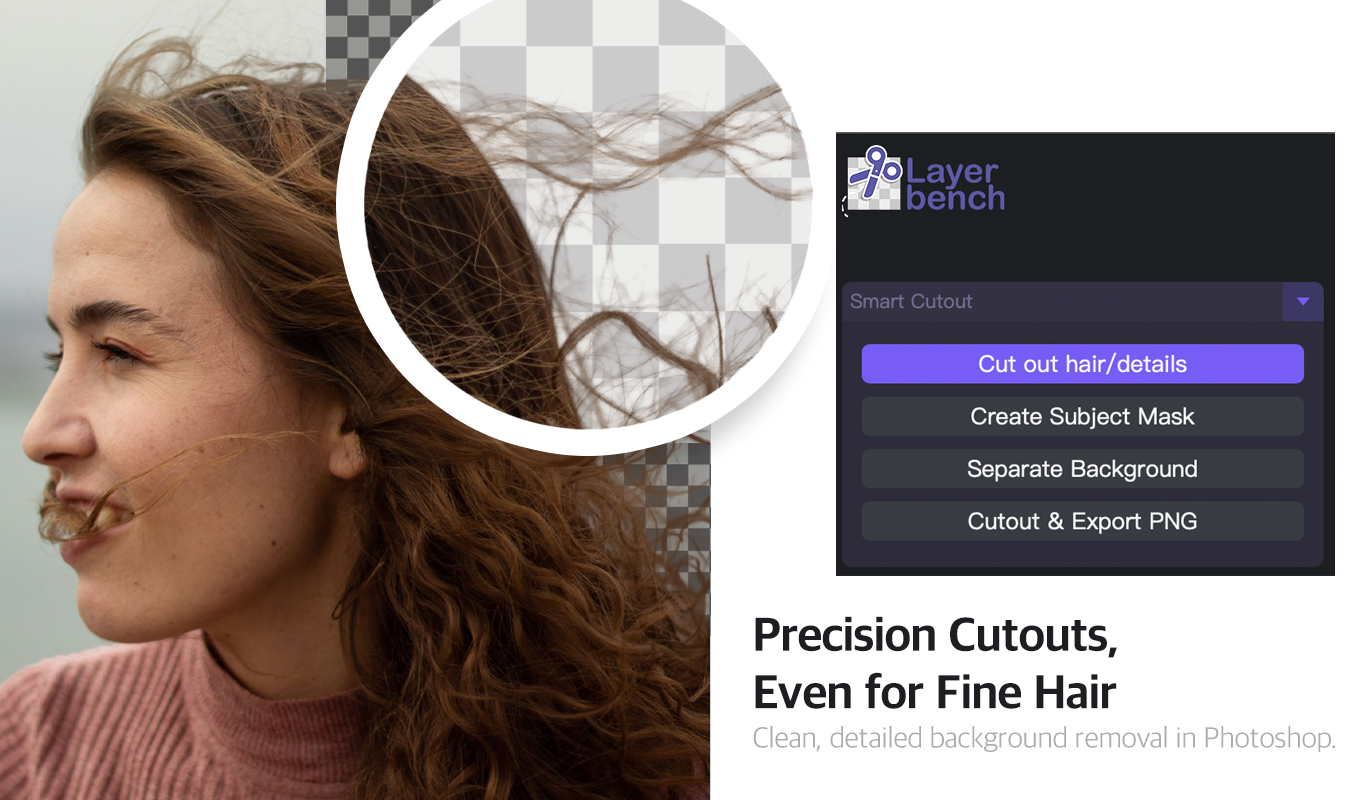
Layerbench — a separate Photoshop plugin (not Pixelcut). Its Smart Cutout keeps fine hair on transparency: Cut out hair/details, Create Subject Mask, Separate Background, Cutout & Export PNG.
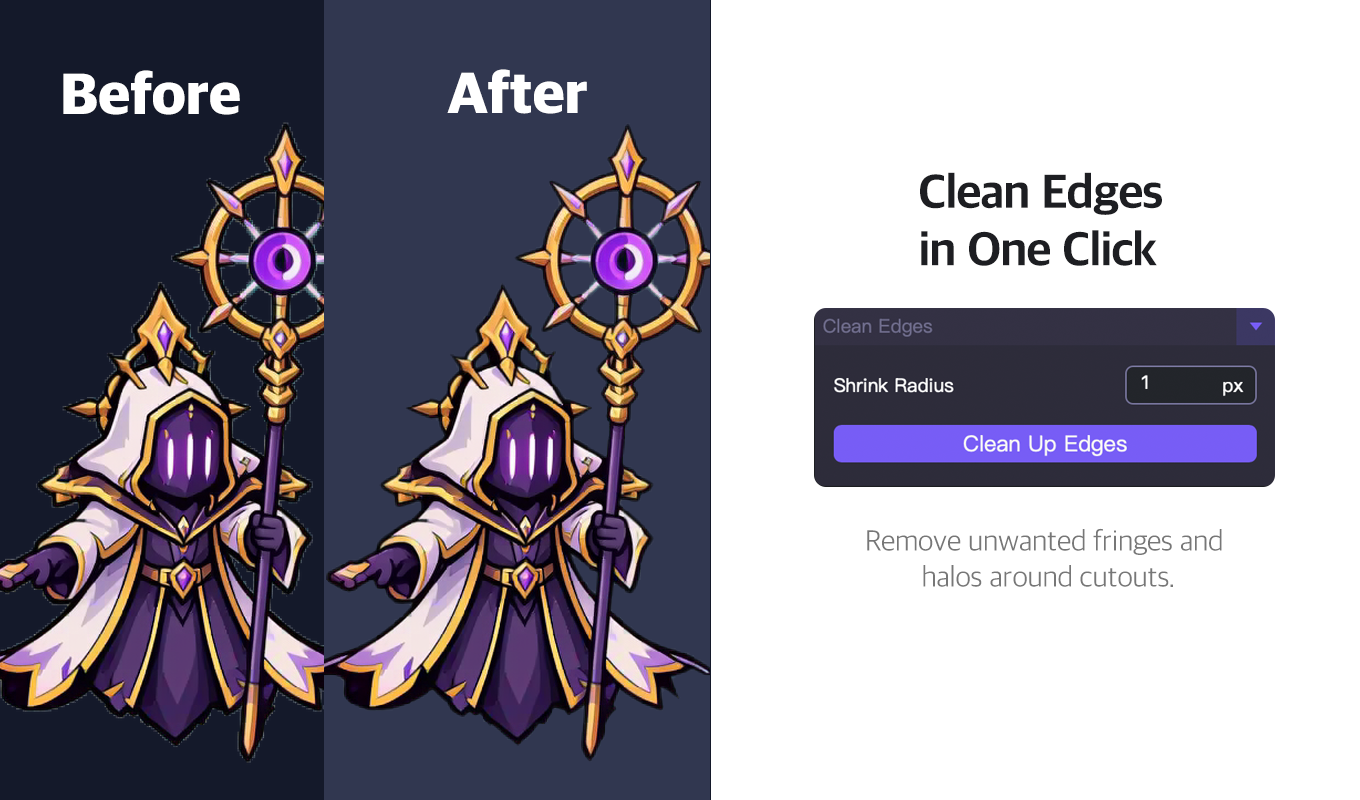
Layerbench Clean Edges: shrink the mask 1 px to clear the halo left after an automatic cutout (before → after).
It is a paid Photoshop plugin rather than a standalone app, so it suits people already in Photoshop who cut out and export a lot of assets. You can try it at Layerbench, and for a broader look at desktop options see the top Photoshop background-removal plugins compared.
Batch Editing and Workflow
Pixelcut lets you process up to 100 photos in a single batch (App Store). The feature is genuinely useful for e-commerce sellers who need to strip backgrounds from an entire product shoot. However, opinions differ on speed: Reddit users in the r/Flipping community found batch editing "not as efficient as PhotoRoom" (Reddit discussion), while VanceAI's test called it fast — "I've processed a dozen photos before my coffee cools." Your experience may depend on image complexity and device.
Less-Known AI Tools
Beyond background removal, Pixelcut includes several advanced features that are easy to overlook: AI Actors, Ghost Mannequin, Virtual Try-On, and Magic Writer (a GPT-based copywriting assistant) (App Store features). A YouTube deep-dive by Design It with Tammie Gibbs (overlooked features video) reveals combinations like using Ghost Mannequin together with Virtual Try-On for apparel e-commerce — a workflow that few users seem to know about.
Free Plan vs Pro — What You Actually Get
The free plan is generous: no watermark on exports, most essential features unlocked, and no apparent limit on batch count based on hands-on testing (VanceAI). The Pro subscription unlocks the advanced AI tools (AI Actors, Ghost Mannequin, Virtual Try-On, Magic Writer) and removes any free-plan export caps that may exist. Notably, VanceAI's review states there is no watermark on free exports; no other source contradicts this claim, but it's worth testing yourself if watermark-free output is critical to your workflow.
📌 Free plan highlight You can use Pixelcut for basic background removal and export without paying anything, and your exports will be watermark-free. This makes it a low-risk tool to try before committing to a subscription.
Ratings and Reach
- 4.7 ★ App Store rating (220K ratings)
- 70M+ Total creators
- 18 Languages supported
- 1.5 ★ Trustpilot rating
All figures from the Apple App Store listing and Trustpilot.
!Split-screen comparison of an icy landscape with arrow icon and Pixelcut logo on a light blue background
Pixelcut's background removal in action — works well on clear subjects.
Pixelcut vs PhotoRoom — Which Is Better for Product Photography?
For anyone selling products online, the choice between Pixelcut and PhotoRoom is the most common comparison. Here's how they stack up based on real user experiences from the r/Flipping Reddit community and other sources.
| Factor | Pixelcut | PhotoRoom |
|---|---|---|
| Starting price | Lower — less expensive than PhotoRoom | Higher |
| Background variety | Wider range of photo backgrounds | Narrower selection |
| Batch editing speed | Contested — some users find it slower | Faster and more streamlined (per Reddit users) |
| Shadow quality | Can be "too extreme" — less natural | More natural drop shadows |
| UI clutter | Not a commonly reported issue | Frequent complaints about layout changes and forced closes |
| Stability (crashes) | No widespread crash reports in evidence | Multiple users report forced closes |
Reddit user kittykalista summed it up: "Pixelcut's pros are that it's a bit less expensive… they seem to have a wider range of options. PhotoRoom's pros are that the app feels a bit more streamlined. I found batch editing to be faster and easier." Another user, tiggs, noted that Pixelcut's shadow looked "a bit too extreme" for professional product listings.
If you prioritize budget and background variety, Pixelcut has the edge. If batch editing speed and natural-looking shadows matter more, PhotoRoom is the stronger choice — provided you can tolerate the occasional UI frustration.
!Infographic showing product photography workflow with wrong versus right examples and a quality assurance checklist
How to prepare product images for marketplaces — Pixelcut can handle the basics if you watch the shadows.
How Safe Is Pixelcut? Privacy, Data Tracking, and Billing Fraud
Safety concerns around Pixelcut fall into two categories: data privacy and billing integrity.
Data collection and tracking
According to the Apple App Store privacy label, Pixelcut collects purchases, contact info, user content, identifiers, usage data, and diagnostics — all linked to your identity (App Store privacy details). This level of tracking is not unusual among photo editing apps, but it's worth knowing if you handle sensitive images or prefer to minimise your digital footprint. The evidence does not specify whether data is shared with third parties or how GDPR compliance is handled.
Billing fraud risks
The more immediate concern for most users is billing. As documented in the Trustpilot reviews (Trustpilot), multiple users report duplicate charges and a weekly subscription that actually charges every 4–5 days. One reviewer wrote: "I have a duplicate charge from Pixelcut on July…" These patterns suggest that the subscription system may not align with standard weekly billing expectations.
Cancelling correctly
You cannot cancel the current active period — only future renewals can be stopped. To cancel properly: go to your Apple or Google subscription settings, locate Pixelcut, and tap Cancel Subscription. This stops future charges but does not refund the current period (App Store terms).
🔒 Bottom line on safety The app tracks your content and identifiers, and the billing practices are concerning enough that you should monitor your statements closely. For basic photo editing it is functionally safe, but treat the subscription with caution — screenshot every confirmation screen.
Best Ways to Use Pixelcut for E‑Commerce and Social Media (Real‑World Workflows)
Pixelcut shines brightest when applied to specific, repeatable workflows. Here are practical use cases based on its feature set (App Store, Google Play, and the overlooked features video).
For Amazon Sellers Remove background → resize to 1000×1000 px (batch edit up to 100 photos) → apply pure white background → export as JPEG. Avoid extreme shadows — they can violate Amazon's image standards. Use the Shadow adjustment slider to keep things subtle.
For Fashion E‑Commerce Use Ghost Mannequin → apply AI Actors model → add Virtual Try-On scene → export with transparent background. This combination is rarely documented but highly effective for apparel listings.
For Social Media Managers Remove background → apply a template (product listing or Instagram story) → add Magic Writer copy → batch-resize for multiple platforms. The Magic Writer tool (GPT-based) can generate caption drafts directly inside the app.
For Portrait Photographers Use background removal on portraits but be cautious with busy backgrounds and fine hair. For tricky edges, try running the image through an upscaler first to improve edge detection before background removal.
!Promotional thumbnail for Pixelcut Image Upscaler review showing split-screen comparison of a woman's portrait with UI elements
Use Pixelcut for faster product listing creation — the upscaler can help improve edge detection before background removal.
How to Verify Your Pixelcut Subscription Is Cancelled (and Avoid Future Charges)
Given the billing complaints, confirming cancellation is the most important step you can take. Here is exactly what to do and what to expect.
- Open your device's subscription settings. On iOS: Settings → [your name] → Subscriptions. On Android: Google Play Store → Menu → Subscriptions.
- Locate the Pixelcut entry. Tap it to view details. The status should read either "Active" (if still within a billing period) or "Cancelled" / "Expired".
- Confirm cancellation. If you see a button that says "Cancel Subscription," tap it. After confirming, the status will change to "Cancelled" — but note that access continues until the current period ends (App Store policy).
- Wait 5–7 days and check for new charges. If a charge appears during that window despite a "Cancelled" status, the billing cycle may not align with standard weekly intervals (Trustpilot reports).
- Screenshot everything. Capture the subscription settings screen showing "Cancelled" and the date. If you are charged again, you will need this evidence for a refund dispute.
📋 What to do if you're charged after cancellation Report the duplicate or unexpected charge to your bank or card provider as an unauthorised transaction. Also file a complaint on Trustpilot with screenshots of your subscription settings and the charge receipt. Multiple users have documented success with chargebacks after providing clear evidence.
By following these steps, you can use Pixelcut with confidence — aware of its genuine strengths and prepared for its documented weaknesses.