- Category:
- Background Removal
- Summary:
- See the best background remover software for every use case — 12 tools compared: free vs paid, batch processing, edge quality, and privacy handling.
Top picks at a glance
| Tool | Best for | Free tier | Batch |
|---|---|---|---|
| Adobe Firefly | Quick single images, Adobe users | Free (Adobe ID) | No |
| Pixlr | Students, e‑commerce, free batch | Free | Yes (ZIP) |
| Pixelcut | E‑commerce sellers | Free single | Paid (10k) |
| Clipping Magic | Professionals, hair/fur | Trial | Yes |
| Photoshop | Full control, batch actions | Paid | Yes (actions) |
| GIMP | Linux, offline, open‑source | Free | No |
| ripolas.org | Privacy, local, fast | Free | No |
See the full comparison table below for all 12 tools.
Scope of This Comparison and a Side‑by‑Side Look at 12 Tools
This article compares standalone software, desktop applications, online tools, and Photoshop plugins that remove image backgrounds. It does not cover mobile‑only apps or browser extensions that cannot export high‑resolution transparent PNGs. Every tool listed here has been evaluated on price, batch capability, claimed edge quality, platform availability, and privacy handling — drawing from official product pages, community reports, and expert tests.
The table below summarises 12 popular background removers. Use it to quickly narrow your options before diving into the detailed sections that follow.
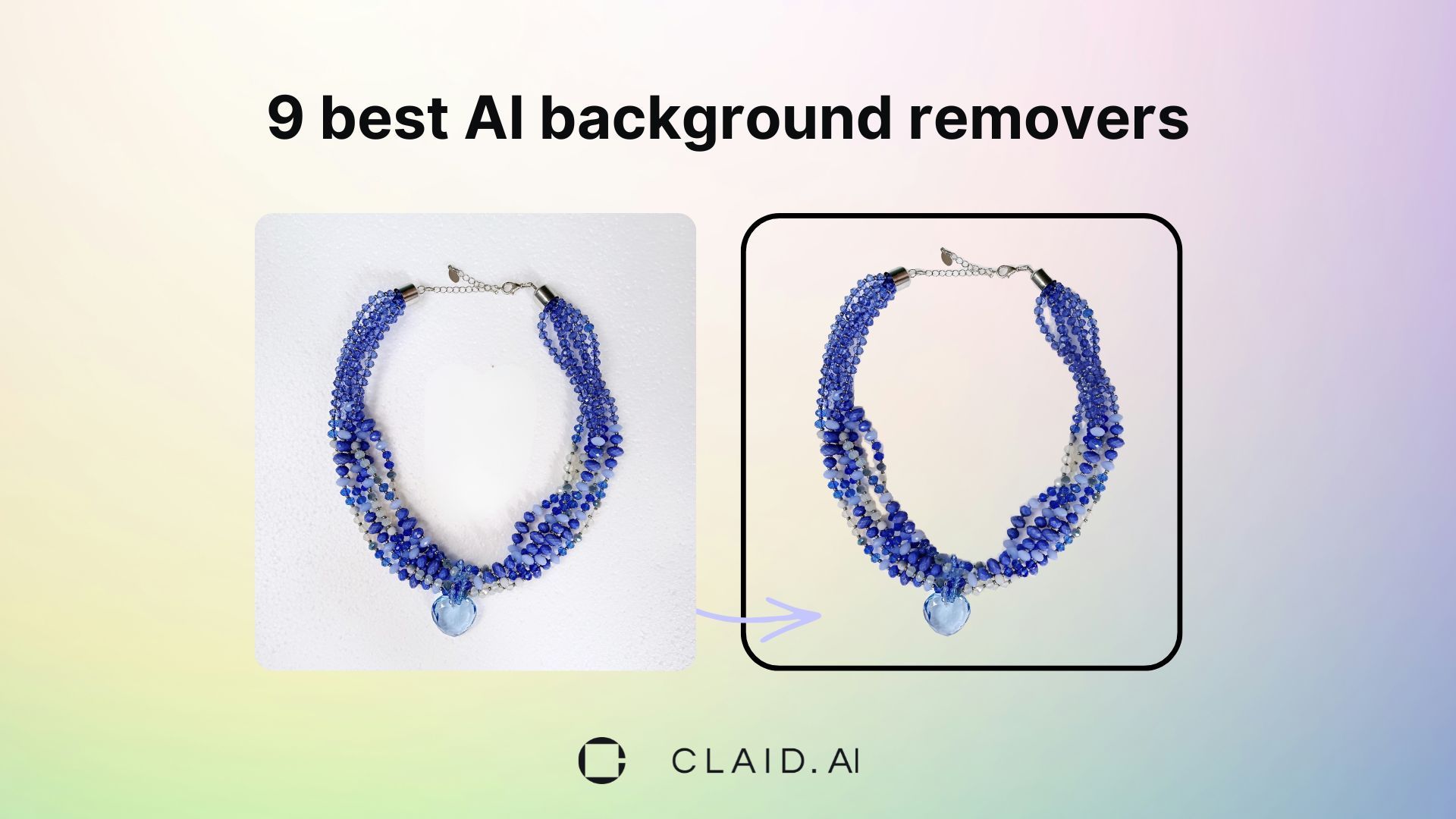
Many AI-powered tools claim fast, clean background removal. This guide tests those claims against real‑world use.
| Tool | Price (Free tier / Paid from) | Batch processing | Platform | Claimed hair/fur handling | User‑reported edge quality | Privacy |
|---|---|---|---|---|---|---|
| Adobe Firefly | Free (Adobe ID required) | No | Web | Yes — “hair, fur, transparent objects” | Good (vendor claim; community tests limited) | Cloud |
| Remove.bg | Free ≤500 px; paid for larger | “Should work” per Reddit | Web | Yes (AI‑based) | Mixed — some users report quality loss | Cloud |
| Pixlr | Free | Yes — multi‑image, ZIP export | Web | Yes (AI) | Good (community reports) | Cloud |
| Pixelcut | Free single; paid batch | Yes — up to 10k images (paid) | Web | Yes — “hair, filigree, fine edges” | Good (claimed) | Cloud |
| Clipping Magic | Free trial; then premium | Yes | Web + Desktop | Yes — “detailed hair and fur masking” | Good (pros’ choice) | Cloud / Desktop |
| Photoshop | Paid subscription | Yes — batch actions | Desktop (Win/Mac) | Via Select Subject + Refine | Excellent (with manual refinement) | Local / Cloud |
| GIMP | Free open‑source | No built‑in batch | Win / Mac / Linux | Manual (Fuzzy Select, Paths) | User‑dependent | Local |
| Democreator | Paid | Yes — batch for images & video | Desktop | Yes (AI) | Good (community) | Local |
| Aiarty Image Matting | Paid | Yes — batch | Desktop | Yes (AI) | Good (vendor claim) | Local |
| Uniconverter | Paid | Yes — batch with transparency | Desktop | Yes (AI) | Mixed (community) | Local |
| Layerbench (Photoshop plugin) | Paid | No | Photoshop (Win/Mac) | Uses Photoshop’s Select Subject | Good — includes edge‑cleanup shrink | Local (within PS) |
| ripolas.org | Free | No | Web (local processing) | Basic AI | Good (fast, private) | Local (fully offline) |
Sources: Adobe Firefly product page, FeedBird tool overview, Pixlr feature page, and Reddit community discussion.
Free Tools Come With Hidden Quality Trade‑offs
The word “free” in background removal often comes with strings attached — resolution caps, watermarks, or quality degradation. Here is what each free tier actually delivers.
- ≤500 px: Remove.bg free resolution cap
- Free: Pixlr full features, no watermark
- No sign‑up: Pixelcut free single image
- Free trial: Clipping Magic before premium
What “Free” Really Means for Each Tool
- Remove.bg — Free only for images up to 500 pixels on the longest side. Output includes a watermark unless you pay. A Reddit user reported that “it lowers the quality” (source).
- Pixelcut — Free for single images with no sign‑up required. Batch removal (up to 10,000 images) is a paid feature.
- Pixlr — Fully free for batch processing and single images. No watermark, no resolution cap mentioned. Exports as transparent PNG, black or white background.
- Clipping Magic — Offers a free trial; after that, premium plans apply.
- Adobe Firefly — Free to use with an Adobe ID. No resolution cap specified, but requires an account.
Tip For casual use — a few images per week — Pixlr and Pixelcut (single image) give you clean results at no cost. If you need high‑volume batch processing or professional‑grade edge quality, budget for a paid tool or subscription.
When Free Is Enough
If you occasionally remove a background for a social media post, a school project, or a personal photo, Pixlr’s free tier or Pixelcut’s single‑image mode work well. Neither requires a credit card, and both export standard transparent PNGs.
When You Need to Pay
Professional use cases — removing watermarks, processing hundreds of images, needing hair‑detail accuracy, or handling transparent objects — almost always require a paid plan. Remove.bg charges for watermark removal and larger resolutions; Pixelcut charges for batch; Clipping Magic and Photoshop require subscriptions.
Batch Processing Is the Real Differentiator
A Reddit user with 500 product photos asked for the “best automatic option” (source). Batch processing is where tools diverge dramatically. If you handle volume, this dimension may matter more than edge quality or cost.
| Tool | Batch support | Batch limits | Output format |
|---|---|---|---|
| Pixlr | Yes | Unlimited (free) | ZIP of transparent PNGs |
| Pixelcut | Yes (paid) | Up to 10,000 images | Transparent PNG |
| Photoshop | Yes (actions) | No hard limit | PNG / TIFF / PSD |
| Clipping Magic | Yes | Varies by plan | PNG |
| Democreator | Yes | Unlimited | PNG / video |
| Aiarty Image Matting | Yes | Batch | PNG |
| Uniconverter | Yes | Batch with transparency | PNG |
| PhotoScissors | Yes | Batch | PNG |
| Remove.bg | “Should work” (Reddit) | Not officially documented | PNG (watermarked free) |
| Adobe Firefly | No | — | Single PNG |
| GIMP | No built‑in batch | — | — |
| ripolas.org | No | — | Single PNG |
| Layerbench | No (single cutout/export) | — | Transparent PNG per layer |
Quality at Scale No vendor publishes batch‑quality benchmarks. Community reports suggest Pixlr and Democreator maintain consistent results across multiple images. Avoid using Remove.bg for volume work — users report quality drops on free tier images.
For an e‑commerce workflow, consider Pixlr (free batch) or Pixelcut (paid batch). If you already use Photoshop, its batch actions can process hundreds of images with a single recorded step — ideal for repeatable tasks.
Edge Quality Is the Number One User Complaint
“Mine always leaves a small outline around my images” — a Facebook user’s frustration (source) echoes across forums. Edge quality — halos, jagged lines, missing hair strands — is the most common pain point in background removal.
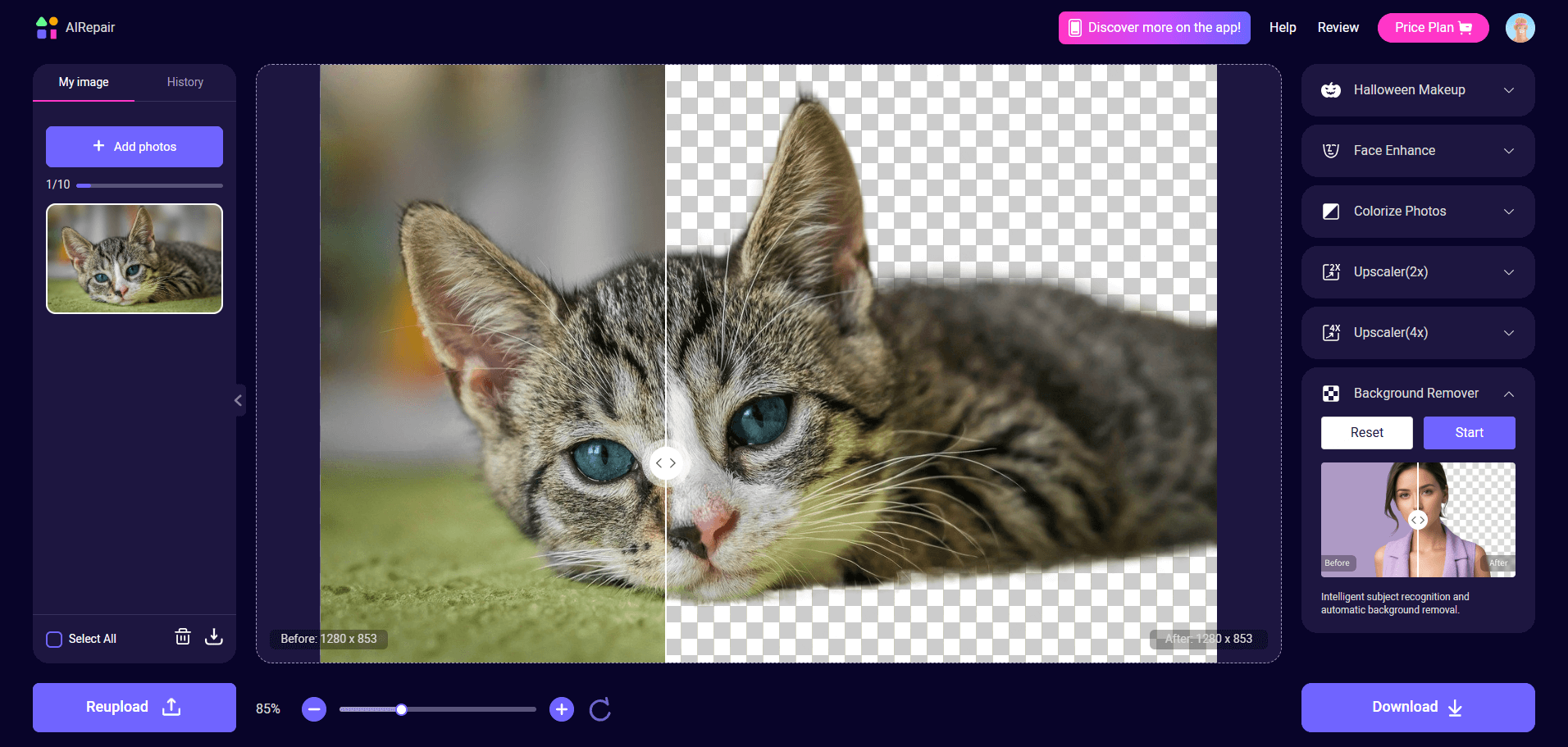
Fur and fine hair are the hardest test for any background remover. This cat image shows what a good result can look like.
Testing the Claims
Vendors make bold assertions. Adobe Firefly claims “clean edges” on “hair, fur, and transparent objects” (source). Pixelcut says it “handles details like hair, filigree, and fine edges” (source). Clipping Magic promises “accurate results with detailed editing, including hair and fur masking” (same source). Yet real users report leftover outlines and quality loss.
The most reliable way to evaluate edge quality is a side‑by‑side test using the same challenging images. Upload the same 3–5 photos — a portrait with flyaway hair, a wine glass, a fur coat, a patterned shirt — to each tool and compare the exported PNGs at 100% zoom. Look for:
- Halos — a faint coloured or white rim around the subject
- Missing strands — hair or fur that gets clipped off
- Jagged edges — stair‑step artifacts on diagonal lines
- Transparent object spill — glass or ice that loses its refraction
Which Tools Perform Best on Edges?
Based on community consensus and vendor claims:
- Clipping Magic — frequently recommended by professionals for hair and fur masking. Its adjustable edge refinement gives granular control.
- Adobe Firefly — claims precision on transparent objects; independent tests are limited but initial results look strong.
- Pixelcut — marketed specifically for fine edges; worth testing on your own images.
- Photoshop + refine tools — with Select Subject, Refine Edge, and the Layerbench plugin’s edge‑cleanup shrink (1–3 px), you can eliminate leftover fringes manually.
- Remove.bg — convenient for quick results, but several users note quality degradation on complex edges.
Power‑user tip If your tool leaves a thin halo, apply a 1–2 px Minimum (shrink) to the mask. In Photoshop, use Select & Mask > Shift Edge (negative value) or run the Layerbench edge‑cleanup feature. This one adjustment removes most background fringes without visible detail loss.
Not All Tools Respect Your Privacy
When you upload a product photo, a client portrait, or a private document to an online tool, that image is processed on the provider’s servers. Data retention policies vary, and some services may use uploaded images for model training. For sensitive work, local processing is safer.
Cloud vs. Local — What Each Tool Does
- Adobe Firefly — cloud‑based. Requires Adobe ID; images processed on Adobe servers.
- Remove.bg — cloud‑based. Uploaded images are processed remotely.
- Pixlr — cloud‑based. Images uploaded for processing.
- Pixelcut — cloud‑based.
- Clipping Magic — both cloud (web) and desktop (local) versions available.
- Photoshop — desktop application; processing happens locally. Cloud sync is optional.
- GIMP — fully local, open‑source, no upload needed.
- Democreator, Aiarty Image Matting, Uniconverter — desktop software, local processing.
- ripolas.org — “fast, free, fully local, private” per Reddit user (source). Runs entirely in the browser without uploading.
- Layerbench — Photoshop plugin; runs locally within Photoshop.
Best Choices for Privacy‑Conscious Users
- GIMP — free, local, cross‑platform (Windows, Mac, Linux). Ideal for Linux users who want full control.
- ripolas.org — free, completely local, no account needed. Good for quick one‑off removals without sending data anywhere.
- Photoshop + Layerbench — professional‑grade local processing with advanced edge cleanup. Everything stays on your machine.
- Clipping Magic (desktop) — local processing with professional masking tools.
Privacy check Before using any cloud‑based tool, review its privacy policy. If the terms allow using uploaded images for training or don’t specify deletion timelines, avoid uploading sensitive or confidential material.
Choose Based on Your Workflow
The best background remover is the one that fits naturally into how you already work. Platform compatibility, ecosystem integration, and export flexibility matter as much as removal quality.
Platform Segmentation
- Web‑only (any device): Adobe Firefly, Remove.bg, Pixlr, Pixelcut. No installation — just a browser.
- Desktop (Windows / Mac): Photoshop, Clipping Magic (desktop), GIMP, Democreator, Aiarty Image Matting, Uniconverter, PhotoScissors.
- Linux: GIMP is the primary option. ripolas.org works in any browser.
- Photoshop plugin: Layerbench — adds one‑click cutout and edge cleanup inside Photoshop.
Integration with Other Tools
- Adobe Firefly exports directly into Photoshop — a seamless bridge for Adobe users (source).
- Unbackground — a Figma plugin for background removal inside prototypes. One Reddit user described using it for mockups and then finishing in Photoshop (source).
- Pixelcut — positioned for e‑commerce sellers; integrates with online store workflows.
- Pixlr — designed for “students, e‑commerce sellers, professional designers and content creators” (source).
- Layerbench — lives inside Photoshop, so it inherits all of Photoshop’s export, automation, and colour‑management capabilities.
Sample workflow chain Quick removal in Pixlr (free, batch) → refine edges in Photoshop using Select & Mask → generate a new background in Adobe Firefly. This combines free and paid tools strategically for maximum efficiency.
If you work primarily in Figma, Unbackground removes backgrounds without leaving your design environment. If your final output always goes through Photoshop, a plugin like Layerbench can cut out the repetitive steps.
Best Tool for Each Use Case
No single tool fits every scenario. Here are targeted recommendations based on who you are and what you need.
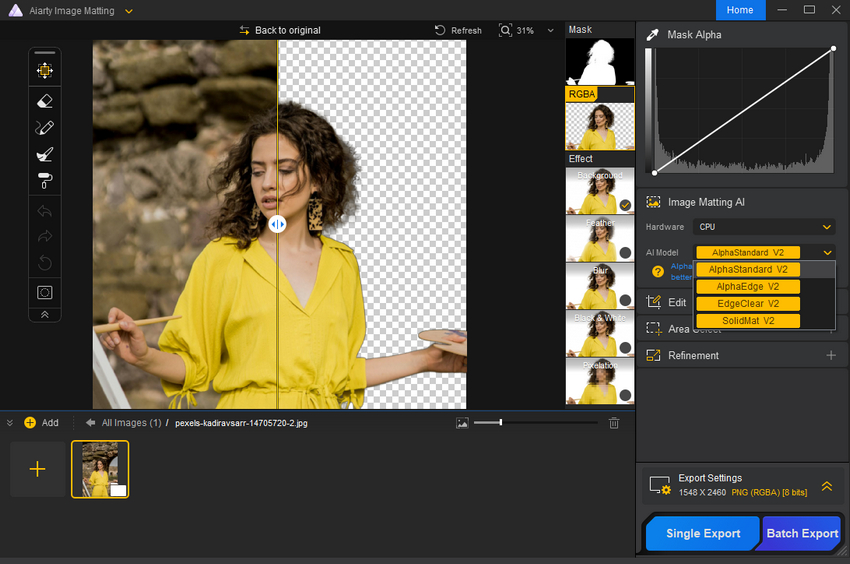
Aiarty Image Matting is one of several desktop tools that offer batch processing and AI‑powered masking.
- Beginners — Remove.bg — intuitive and fast, but watch for quality limits on free tier. Alternative: Pixlr (free, no sign‑up).
- Professionals — Photoshop + Layerbench — full control, batch actions, and edge‑cleanup shrink. Clipping Magic as a standalone desktop option.
- E‑commerce sellers — Pixelcut — batch up to 10k images (paid), free single. Pixlr — free batch with ZIP export.
- Linux users — GIMP — open‑source, local, cross‑platform. Also ripolas.org for quick browser‑based removal.
- Privacy‑first — ripolas.org — fully local, free, private. GIMP — local and open‑source.
- High‑volume batch — Pixlr (free) or Photoshop actions (paid). Pixelcut paid batch for very large catalogs.
- Hair / fur / fine edges — Clipping Magic, Pixelcut, Adobe Firefly — each claims strong performance. Test with your own images.
- Figma users — Unbackground — Figma plugin for in‑prototype background removal.
- Photoshop‑only — Layerbench — one‑click cutout and export, edge cleanup, and lossless layer export — all inside Photoshop.
Each recommendation is based on tool specifications, community feedback, and real‑world use patterns. The right choice depends on your volume, quality requirements, and budget.
Reliable Sources for Further Comparison
No single review can replace your own testing. Here are the most trustworthy places to dig deeper, each with a different strength.
- Adobe Firefly product page — the definitive source for official features, workflow steps, and claimed capabilities. Best for understanding what the vendor promises. (Visit page)
- PiXimperfect YouTube video — a side‑by‑side visual test of 12 tools. Best for seeing actual output differences on the same images. (Watch video)
- Reddit community threads — honest user experiences, complaints, and workarounds. Best for learning what goes wrong in real‑world use. (Read discussion)
- FeedBird tool overview — a broad roundup with pricing notes and beginner/pro distinctions. Good as a starting point. (Read article)
Recommendation: For a final purchase decision, cross‑reference the vendor’s product page, a video test showing actual output, and a community discussion where real users share their wins and frustrations. That combination gives you the most complete picture before you commit time or money.