- Category:
- Background Removal
- Summary:
- Remove background from your signature for free using AI-powered online tools that automatically deliver transparent PNGs for contracts and letterheads.
Upload your signature image & get a transparent PNG in seconds. Free AI-powered tools—Remove.bg, Certopus, Canva, Pixelcut, Fotor—automatically detect your signature, strip the paper or white background, and deliver a clean cutout ready for contracts, letterheads, or certificates. Most tools work without signing up.
Free Online Tools That Automatically Remove Signature Backgrounds
All six tools below follow the same core workflow: upload a photo or scan of your handwritten signature (JPG, PNG, or similar), let the AI detect the ink strokes, and download the result as a transparent PNG. No design skills required. The sections below help you compare them and pick the right one for your situation.
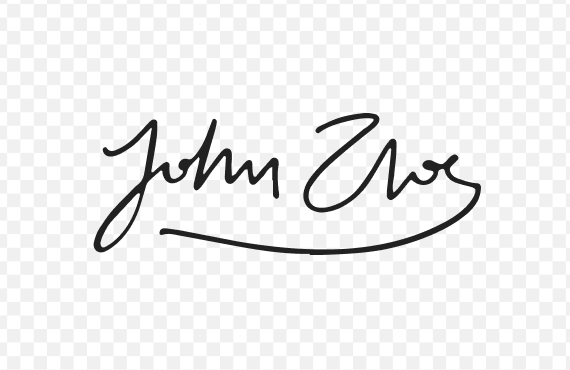
A finished transparent signature — the output every tool in this guide delivers.
Comparison of Top Free Signature Background Removers
| Tool | Free tier | Max file size / resolution | Formats | Privacy | Extra features |
|---|---|---|---|---|---|
| Remove.bg | Free low-res download; paid for high-res | Not specified on tool page | JPG, PNG | Server-side | AI tuned for signatures |
| Certopus | Fully free, unlimited, no account | Not specified | PNG, JPEG, JPG | Client-side — images never leave your device | Certificate design suite included |
| Canva | Free for 1 use; unlimited with Canva Pro | Not specified | JPG, PNG | Server-side | Erase/restore brushes, crop, rotate |
| Pixelcut | Free trial (limits not specified) | 100 MB · 8000×8000 px | JPG, PNG, HEIC | Server-side | High-resolution support |
| Fotor | Free + paid tiers | Not specified | JPG, PNG | Server-side | Paper-background removal |
Data sourced from each tool’s official page as of September 2026. Cutout.pro also offers a dedicated white-background removal tool but was unreachable at time of writing.
Which Tool Should You Choose?
Unlimited & private — Certopus
No limits, no account, and client-side processing means your signature never touches a server. Ideal for privacy-conscious users and frequent extractions.
Highest resolution — Pixelcut
Handles files up to 100 MB and 8000 px wide — the best choice for large, high-resolution scans. Also supports HEIC from iPhones.
One-off + editing — Canva
If you only need one removal and already use Canva, the free use covers you. The erase/restore brushes are handy for touching up tricky edges.
Solving Common Problems When Removing Signature Backgrounds
Even with good AI tools, things can go wrong. Here are two real issues reported by users and how to fix them.
Why Your Signature Looks Blurry After Uploading
⚠ Real user report
An Epicor ERP forum member uploaded a 1726 × 799 px signature image that appeared blurred when retrieved through the system. The community identified three root causes:
- Background not fully transparent. Leftover gray or white pixels cause the system to apply anti-aliasing, which softens edges. Ensure the output is a true transparent PNG (checkerboard background in preview).
- Grayscale tones in the signature. Convert the image to pure black-and-white — no shades of gray. Use a threshold adjustment (in Photoshop or any photo editor) to push all pixels to either #000000 or #ffffff.
- Wrong file format. Save as PNG, not JPG. JPG compression introduces artifacts that look like blur in enterprise software.
Fixing Jagged Edges and Keeping Fine Strokes
AI background removers sometimes nibble away thin parts of a signature or leave rough, pixelated edges. Two reliable fixes exist depending on whether you work in a desktop app or want to stay in the browser.
Technique 1 — Adobe Illustrator Image Trace
Open your signature image in Illustrator, then use the Image Trace panel with the Strokes preset and enable Ignore White. This produces a clean vector outline that retains fine pen strokes. An Adobe Community moderator confirmed this setting reliably removes the background while keeping the signature crisp.
Technique 2 — Canva’s Erase & Restore Brushes
After running Canva’s automatic background remover, use the Erase brush to clean up stray background pixels and the Restore brush to paint back any parts of the signature that were accidentally cut away. This is a quick, non-destructive way to refine results without desktop software. (Source: Canva’s feature page.)
Advanced Tips for Professional Transparent Signatures
These techniques are for practitioners who need vector output, faster desktop workflows, or manual control over the final result.
Creating a Vector Signature with Illustrator’s Image Trace
For a signature that scales to any size without losing quality — ideal for letterheads, logos, or large-format printing — convert it to a vector using the community-confirmed method:
- Place your signature image in Adobe Illustrator (File → Place).
- With the image selected, open the Image Trace panel (Window → Image Trace).
- Choose the Strokes preset from the panel’s preset menu.
- Check the Ignore White option — this tells Illustrator to treat white as transparent and only trace the ink.
- Click Expand on the control bar to convert the trace into editable vector paths.
- Export as SVG for web use or place the vector directly into your document. (Source: Adobe Community moderator guidance.)
Speeding Up Photoshop Workflows with a Plugin
If you regularly remove backgrounds from signatures in Photoshop, a dedicated plugin can collapse the usual select–mask–export sequence into a single action. Layerbench is a Photoshop panel that performs a one-click subject cutout: it runs Photoshop’s Select Subject, creates a layer mask, trims to the subject’s bounds, and exports a transparent PNG — all in one step. It also offers a mask-only mode that leaves the PSD editable for further refinement, and an edge cleanup function that shrinks the mask by 1–3 px to remove leftover background halos. For designers processing multiple signatures, the lossless layer export feature outputs selected layers as trimmed transparent PNGs at original size with no scaling.
For a deeper look at Photoshop’s built-in selection tools, see the guide on using Select and Mask to remove any background.
Manual Touch-Up with Canva’s Erase & Restore
Canva’s Background Remover includes a pair of brushes that give you fine control after the automatic step. Switch to the Erase brush (set a small size for detailed areas) to remove leftover specks of background. Switch to Restore to bring back any part of the signature the AI mistakenly removed. This is especially useful for signatures with very light pen pressure or thin flourishes. (Source: Canva’s feature documentation.)
Video Tutorials for Step-by-Step Learning
If you prefer watching the process rather than reading, these video resources walk through the same techniques in Microsoft Word and Adobe Photoshop. The written instructions above cover the most common tools and issues; the videos below provide full visual demonstrations.
!Microsoft Word document interface with a scanned signature selected, showing the Remove Background tool in the ribbon
A Word document with a scanned signature selected — the starting point for the Word-based removal method shown in the videos below.
Microsoft Word methods
- Remove background from scanned signature in Word — Knowledge for Future
- Remove Signature Background In Word — GuideRealm (full guide)
- Remove background from signature in Word — third walkthrough
Adobe Photoshop methods
- Silent step-by-step for Photoshop — Facebook tutorial
- Remove background from handwritten signature — Graham Higson
These videos are external resources and are not affiliated with this article. They are listed here as supplementary visual guides for the methods discussed above.