- Category:
- Troubleshooting
- Summary:
- Couldn't find background to remove in Photoshop? It's a 2026 bug fixed by switching to Cloud processing in Preferences — instantly works on all images.
▶ Immediate fix This error is a regression bug introduced with Photoshop 2026. Open
Edit > Preferences > Image Processing, change "Select Subject and Remove Background" from Device to Cloud, restart Photoshop. That resolves it in most cases. If not, update your GPU driver or use the manual Object Selection Tool workaround.
The "Couldn't Find Background" Error Is a Regression Bug in Photoshop 2026
If you've clicked Remove Background in the Properties panel's Quick Actions section and seen the dialog box read "Could not find the background to remove", you've encountered one of the most widely reported bugs in Photoshop 2026. The exact same failure also triggers the companion error "couldn't find any subject" when you try the Select Subject feature — both AI-powered functions break together.
Error #1 — Remove Background "Could not find the background to remove." Appears in Properties > Quick Actions after clicking Remove Background. Confirmed on Reddit.
Error #2 — Select Subject "Couldn't find any subject." Appears when using Select Subject from the toolbar or menu. Same root cause as the background removal failure.
What started it. Multiple users across Adobe Community and Reddit report that the feature worked reliably in Photoshop 2025 and broke immediately after updating to the 2026 release. One user running version 27.0 confirmed the problem appeared right after the update. Adobe Community threads carrying titles such as "Why can't I remove backgrounds in photoshop 2026", "Photoshop remove background failed error", and "Subject Selection and Background Removal Not Working" show that the issue is widespread and not tied to a specific image type or system configuration.
It happens on every image. Users repeatedly note that the bug is not image-specific — it fails on all files, from simple product shots to complex portraits. As one Reddit user put it: "It's happening with every image that I try." The problem is a pipeline-level regression in the 2026 update, not a quirk of unusual content.

The "Could not find the background to remove" dialog is the most common variant of this regression. Source: YouTube.
Switching to Cloud Processing Fixes the Bug Immediately
The most reliable fix — validated by at least eight users on the primary Reddit thread — is to change the processing preference from local (Device) to Cloud. Here is the exact procedure:
- Open Edit > Preferences > Image Processing (on macOS: Photoshop > Preferences > Image Processing).
- Locate the section "Select Subject and Remove Background".
- Change the dropdown from "Device" to "Cloud".
- Optionally, change the other three dropdowns from "Faster" to "More stable" for additional reliability.
- Restart Photoshop for the change to take effect.
Why this works Device (local) processing uses your computer's GPU to run the AI models. The 2026 update introduced a compatibility issue in this local pipeline. Cloud processing sends the image to Adobe's servers instead, bypassing whatever broke in the local GPU path. The tradeoff: Cloud is slightly slower because it requires upload time, but it is more stable and immune to local driver conflicts.
Device (local) — Faster but fragile Uses your GPU for AI inference. Fast — no upload needed. Susceptible to driver regressions and hardware conflicts. This is where the 2026 bug lives.
Cloud — Slower but stable Sends image data to Adobe's servers. Requires upload time (depends on file size and connection). Avoids local GPU issues entirely. The recommended temporary fix until Adobe patches the device pipeline.
This fix has overwhelming community confirmation. The Reddit thread where it was posted shows at least eight positive confirmations from users who responded with "Solved!", "works out", or an upvote. An independent article on CloudRetouch reports the same fix and explains the Device-vs-Cloud distinction in more detail.
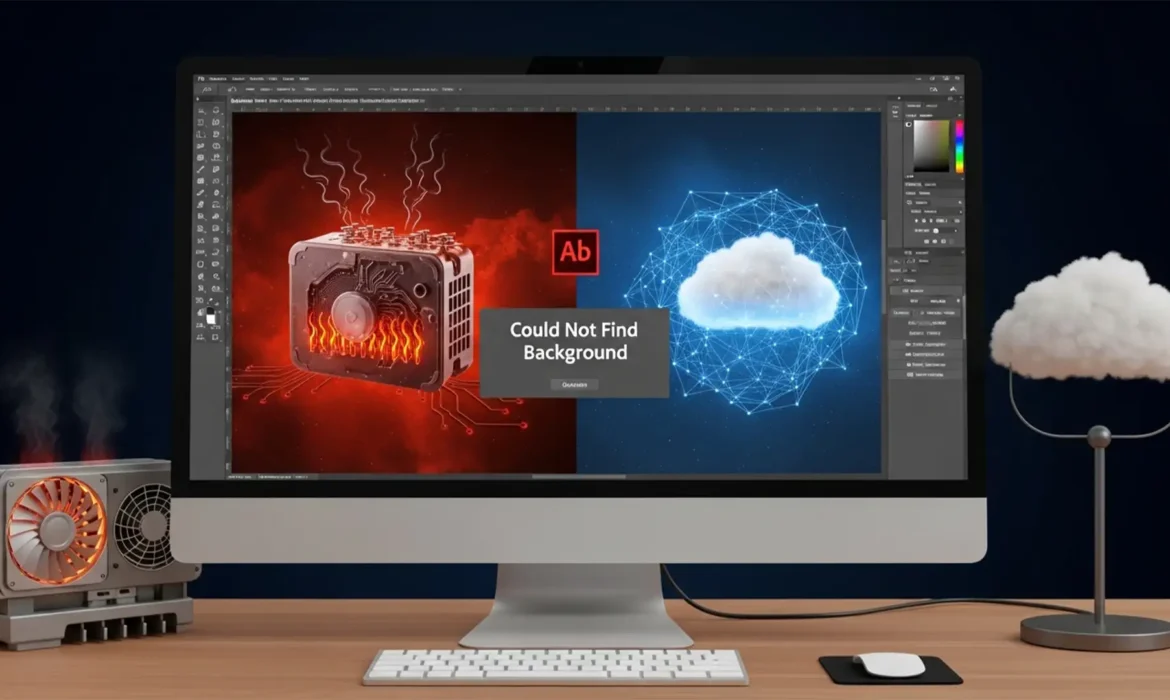
Device vs Cloud processing: the local GPU path (left) is where the regression occurs; the cloud path (right) bypasses it. Source: CloudRetouch.
Updating Your GPU Driver Is a Second Fix to Try
Not every case is solved by the Cloud preference. A subset of users have found that updating the graphics card driver resolves the issue while keeping Device (local) processing active.
Reddit user cstrindgard reported that the problem was caused by the graphics card driver, and updating it resolved the issue completely — even though they already had the most recent driver installed. This suggests that the original "most recent" driver may have had a regression that a later point-release fixed.
Drivers aren't the whole story Another user,
runtman, confirmed they had the latest drivers already, and the driver update alone did not help. They needed the Cloud processing change. The GPU fix works in some cases but not all; the Cloud fix is the more reliable primary solution.
Practical guidance for updating your driver:
- NVIDIA users: Use GeForce Experience or download directly from nvidia.com.
- AMD users: Use the Adrenalin software or the AMD driver auto-detect tool.
- Intel integrated graphics: Use the Intel Driver & Support Assistant.
After updating, restart Photoshop and test. If the error persists, fall back to the Cloud processing fix described above.
Quick Checks and Fallback Methods
Before diving into more complex troubleshooting, a few quick sanity checks can rule out common pitfalls. The following items address specific scenarios reported by users.
Reset Your Workspace
A corrupted workspace state can interfere with panel functionality. Go to Window > Workspace > Reset to default. This requires no restart and takes only a few seconds. Source
Verify Your Subscription Is Active
One Reddit user was asked whether their subscription was current — an inactive subscription can disable some Quick Action features. Check your Adobe account status under Help > Sign Out / Manage Account. Reddit thread
Make Sure the Layer Is Unlocked
Background removal only works on pixel layers. If your Background layer has a padlock icon, click it to unlock the layer before using the tool. YouTube tutorial
The Manual Workaround: Object Selection Tool + Select and Mask
This method works regardless of the bug because it uses a different selection engine. It takes more steps, but it is reliable.
- Select the Object Selection Tool from the toolbar (or press
W). - Drag a rough marquee around your subject. Photoshop will auto-detect the subject boundaries.
- Click Select and Mask in the options bar to refine edges, especially around hair, fur, or complex detail.
- Under Output Settings, choose Output To: New Layer with Layer Mask, then click OK.
- The original layer remains intact; the subject is isolated on a new layer with a mask.
Workflow shared by Reddit user johngpt5 in the main troubleshooting thread.
The Discover Panel Error: A Different Bug
A distinct but related error appears in the Discover Panel (not the Properties panel): "This action can only be applied to image layers. To try on a different layer, select the one you want from the Layers panel, then click Refresh." This error can occur even on valid pixel layers and appears to be a separate bug where the panel misidentifies a pixel layer as non-pixel. Adobe Community thread
The "This action can only be applied to image layers" error from the Discover Panel — a related but distinct bug. Source: YouTube.
Don't Waste Time Reinstalling Photoshop
One user explicitly states: "I installed and reinstalled Photoshop, but the problem continues." A clean reinstall does not remove the preferences or the processing pipeline configuration. Since the bug is in the 2026 update's local processing code, reinstalling the same version gives you the same bug. Skip the reinstall and go straight to the Cloud processing fix.
🧭 Troubleshooting decision tree
- Start: Error "Could not find background to remove"? → Go to step 2.
- Quick checks: Subscription active? Layer unlocked? Workspace reset? → Still failing? Go to step 3.
- Primary fix: Change processing to Cloud. Restart Photoshop. Fixed? → If no, go to step 4.
- Hardware fix: Update GPU driver. Restart. Fixed? → If no, go to step 5.
- Fallback: Use the manual Object Selection Tool + Select and Mask workaround.
What Adobe Hasn't Addressed About This Regression
No official Adobe help article exists. Across all community sources — including Adobe Community threads that have been active for weeks — zero Adobe staff responses appear. None of the threads contain an official "Adobe Employee" reply acknowledging the bug or offering a supported fix. This leaves users relying entirely on crowdsourced solutions from Reddit, YouTube, and third-party sites.
What is still unknown:
- Whether a future Photoshop update will revert the Device processing behavior or fix the underlying pipeline issue.
- Whether certain GPU models are disproportionately affected — the evidence so far is anecdotal.
- The exact version number where a permanent fix will ship has not been announced.
Where to track official updates: Bookmark the Adobe Community Photoshop forum and search for "Remove Background" or "Subject Selection" threads. Until Adobe publishes a fix, the Cloud processing preference and the manual Object Selection Tool workaround are the two reliable paths forward.
If you work with subject cutout and layer export frequently, the plugin Layerbench offers a one-click cutout-and-export workflow that runs Select Subject, creates a mask, trims to bounds, and exports a transparent PNG — all in a single action. Its edge-cleanup step applies a mask shrink with a user-chosen radius to reduce background halos, and its lossless layer export supports multiple selected layers in sequence. A useful tool for batch work while the native Remove Background feature remains unreliable.