- Category:
- Troubleshooting
- Summary:
- Fix the Photoshop scratch disk full error even when free space remains: free at least 100GB, delete temporary files, and defragment your hard drive.
Start here
Photoshop's "scratch disk full" error means the drive used for temporary swap space has run out of accessible room. Most cases are resolved by one of these five actions:
- Free at least 100 GB on the scratch disk drive — delete
~PST####.tmpfiles fromC:\Users\[You]\AppData\Local\Temp(Windows) or~/Library/Caches/Adobe(Mac). - Set additional scratch disks via Edit > Preferences > Scratch Disks — use your fastest SSD first.
- Reduce History States from 50 to 20–30 under Edit > Preferences > Performance.
- Reset Photoshop preferences with
Shift+Alt+Ctrl(Windows) orShift+Option+Command(Mac) at launch. - If the error persists despite free space, defragment your HDD or switch to an SSD — Photoshop needs contiguous free space.
“Scratch Disk Full” Is Often a Contiguous Space Problem, Not a Capacity Problem
Photoshop uses a scratch disk as virtual memory when your computer's RAM cannot hold all the data for the current operation Adobe Helpx. When free space is fragmented or hidden by OS reserves, the error fires even though Windows or macOS reports 50 GB or more as available.
Three hidden factors cause this:
- HDD fragmentation. Photoshop requires a single uninterrupted block of free space. On a fragmented hard drive, no single block may be large enough Lifewire.
- OS reserved space. The hibernation file, pagefile, and System Protection snapshots occupy room that the file system treats as “in use” — even though it appears free in Finder or File Explorer.
- Leftover temp files from crashes. Abandoned
~PST####.tmpfiles (Windows) orTemp####files (Mac) may still be locked by the system as “in use” even after Photoshop has closed Lifewire.
User reports of “scratch disk full despite 50 GB free” are common, as are cases where Photoshop will not launch at all after a crash. Adobe's official guidance recommends freeing at least 100 GB — a concrete threshold that accounts for these hidden reserves Adobe Helpx. Lifewire's advice to “free up space” without a specific number leaves many users unsure how much is enough.
Key insight: If your scratch disk is an HDD, defragmentation can resolve the “despite space” problem by consolidating free blocks into one contiguous region. Do not defrag an SSD — it has no moving parts and the operation reduces its lifespan.
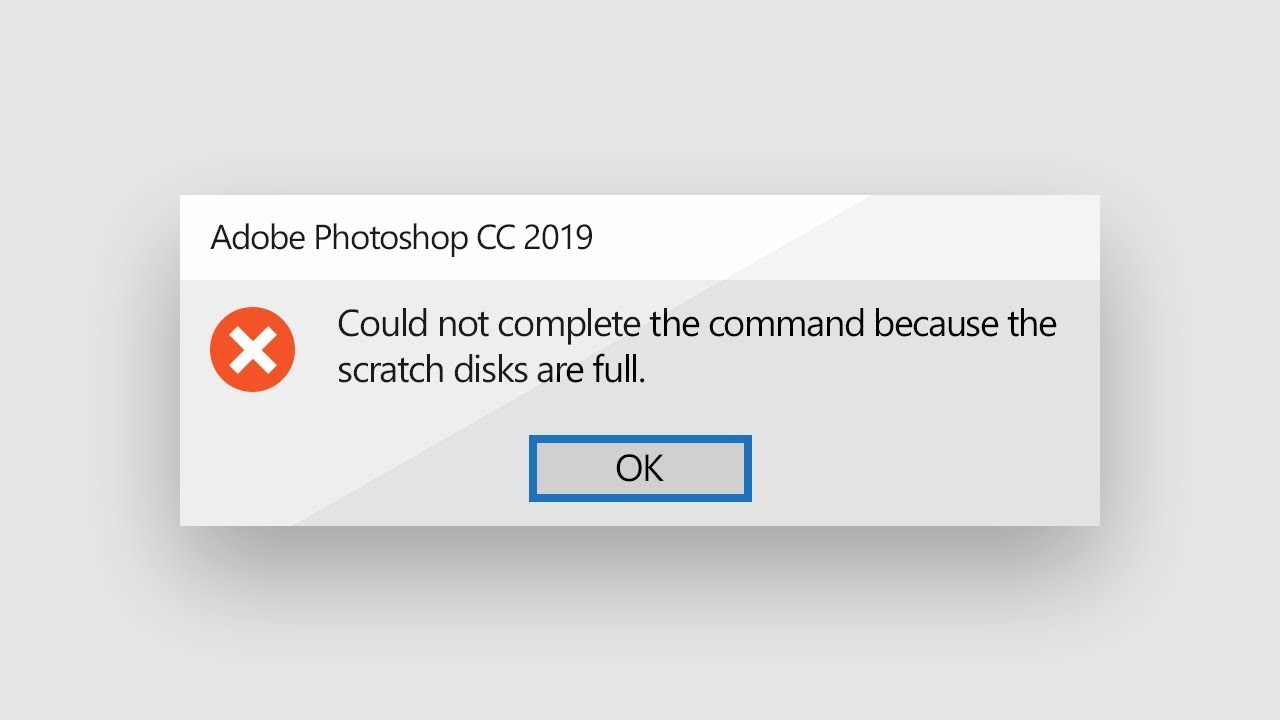
The classic “Could not initialize Photoshop because the scratch disks are full” error — the most common message users encounter at startup.
Freeing 100 GB and Deleting Temp Files Resolves Most Cases Immediately
This is the single most effective fix. Adobe's official troubleshooting guide explicitly states: “Free up at least 100 GB of space on your primary scratch disk drive.” Adobe Helpx. Below is the exact procedure for both operating systems.
How to Free at Least 100 GB on Your Main Scratch Disk
- Delete Photoshop temporary files. On Windows, navigate to
C:\Users\[YourUserName]\AppData\Local\Tempand delete every file that begins with~PSTorPhotoshop Temp. On Mac, open~/Library/Caches/Adobeand remove files matchingTemp####— then empty the Trash. - Run Disk Cleanup (Windows). Type “Disk Cleanup” in the Start menu, select your scratch disk drive, and check Recycle Bin, Temporary files, and System cache. Run it as Administrator to clear system temp files.
- Free up system reserves. Reduce the size of the hibernation file (
powercfg /hibernate /size 40in an admin terminal) or disable it entirely if you do not use sleep mode. Lower the pagefile size or move it to another drive. - Move large personal files off the drive. Transfer videos, installers, or archived projects to an external drive or cloud storage.
Quick check: After cleanup, restart Photoshop. If the error is gone, you can stop here. For many users, this single step resolves the issue without any further configuration.
Where to Find Photoshop Temporary Files on Windows and Mac
Photoshop's temp files have predictable names, which makes manual deletion straightforward:
- Windows:
~PST####.tmp— located inC:\Users\[User]\AppData\Local\TempLifewire. The####is a variable series of digits; sort by date modified to find the largest ones. - Mac:
Temp####— found in/private/var/folders/...or~/Library/Caches/Adobe/Lifewire. Use Terminal withfind / -name "Temp*" -size +100Mto locate large orphaned files.
After deleting these files, restart Photoshop. The error may clear without any additional steps.
Why 100 GB Is the Recommended Target
Adobe Helpx explicitly recommends freeing at least 100 GB Adobe Helpx. This figure accounts for:
- The scratch disk's need for contiguous free space — especially on HDDs.
- OS reserved space (hibernation, pagefile, snapshots) that can consume 30–50 GB on a typical system.
- Working with large, multi-layer PSD files (1 GB or more) that may require 2–3× their file size in scratch space Lifewire.
For users who work with small files (under 100 MB), less space may suffice, but 100 GB is the safe floor that covers the widest range of scenarios.
How to Automate Temp File Cleanup Going Forward
Prevent the error from recurring by scheduling regular cleanup:
- Windows (Task Scheduler): Create a basic task that runs weekly, executing
del /q /s C:\Users\*\AppData\Local\Temp\~PST*.tmp 2>nul. Set it to run whether the user is logged on or not. - Mac (cron): Add a crontab entry:
0 3 * * 0 find /private/var/folders -name "Temp*" -mtime +7 -delete(runs every Sunday at 3 AM, deleting temp files older than 7 days). - Manual monthly check: Open Disk Cleanup (Windows) or use About This Mac > Storage > Manage (macOS) to review large files.
Resetting Photoshop Preferences Fixes Errors That Space Cleanup Cannot Reach
When the scratch disk error persists despite ample free space, a corrupted preferences file may be the culprit. Adobe's official guidance includes a specific key-combination reset that Lifewire does not cover Adobe Helpx.
The Standard Preference Reset with the Startup Key Combination
- Windows: Hold
Shift+Alt+Ctrlimmediately after launching Photoshop. When prompted, confirm the deletion of the Adobe Photoshop Settings file. - macOS: Hold
Shift+Option+Commandat launch. Confirm the same dialog. - After resetting, reconfigure your scratch disks in Edit > Preferences > Scratch Disks — the reset clears all previous scratch disk assignments.
Important: A preference reset erases custom workspace arrangements, saved keyboard shortcuts, and interface preferences. It does not delete your brushes, actions, or presets (those live in separate folders). To be safe, back up the
Adobe Photoshop Settingsfile before resetting.
The Deep Clean Slate Reset (Cache + Preferences)
For stubborn cases — especially after a crash that left Photoshop unable to launch — combine the preference reset with a full cache flush:
- Windows: Delete the entire contents of
%temp%andC:\Users\[User]\AppData\Local\Adobe\(after backing up any custom presets). - macOS: Delete
~/Library/Caches/Adobeand~/Library/Preferences/Adobe Photoshop [version] Settings. - Check for corrupt font caches or third-party plug-ins that may falsely trigger the error. Temporarily move the
Plug-insfolder out of the Photoshop directory and test whether the error clears.
When to try this: If you see “Could not initialize Photoshop because the scratch disks are full” at startup — even after freeing 100 GB — a corrupt preferences file is the likely cause. The clean slate reset resolves it in the majority of those cases.

A preference reset often turns this error into a “fixed” outcome — especially when the error appears immediately at launch.
Changing the Scratch Disk to a Different Drive Offers a Fast Alternative
If you cannot free enough space on your primary drive — or if that drive is slow — reassigning the scratch disk to a faster or emptier drive is a practical solution.
How to Configure Additional Scratch Disks in Preferences
- Open Edit > Preferences > Scratch Disks (Windows) or Photoshop > Settings > Scratch Disks (macOS) Adobe Helpx — advanced.
- Check the boxes next to the drives you want to use. Arrange their priority with the up/down arrows — the fastest drive should be at the top.
- Click OK and restart Photoshop for the changes to take effect.
Can You Use an External SSD? (Conflict Clarified)
The guidance on external drives is mixed. Lifewire advises against “network or removable drives” Lifewire, while Adobe's advanced documentation lists exFAT and FAT32 — formats common on external drives — as supported Adobe Helpx — advanced.
The practical middle ground: a Thunderbolt or USB-C external SSD can work well if the connection is stable and the drive is fast enough. Avoid USB 3.0 connections — they are too slow and prone to disconnects that can crash Photoshop. Never use a network drive as a scratch disk.
Which Drive Makes the Best Scratch Disk
Speed matters enormously for scratch disk performance. Ranked from fastest to slowest:
- NVMe internal SSD — the fastest option; ideal for heavy multi-layer work.
- SATA internal SSD — still very fast; a huge improvement over any HDD.
- External Thunderbolt SSD — nearly as fast as internal SATA; good for laptops.
- External USB-C SSD — acceptable for moderate workloads; watch for disconnects.
- Internal HDD — the slowest option; prone to fragmentation-related errors Adobe Community.
Format note: Supported scratch disk formats are APFS and macOS Extended (Journaled) on Mac, and NTFS, exFAT, or FAT32 on Windows Adobe Helpx. Format your external drive accordingly before assigning it.
Adjusting Performance Settings Prevents Future Scratch Disk Errors
Once the immediate error is resolved, fine-tuning Photoshop's performance settings reduces the likelihood of it returning.
Reduce History States and Enable Auto Save Recovery
The default number of History States is 50 Adobe Helpx. Each state consumes scratch disk space. Dropping to 20–30 frees significant room without compromising practical undo capability.
- Go to Edit > Preferences > Performance (Windows) or Photoshop > Settings > Performance (macOS).
- Lower the History States value to 20 or 25.
- Under File Handling, ensure Automatically Save Recovery Information is enabled — this protects your work if the scratch disk fills during a session.
The Safe Range for RAM Allocation
Increasing the RAM dedicated to Photoshop reduces its reliance on the scratch disk. However, allocating more than 80% of total system RAM can slow the entire computer because the OS itself is starved of memory Lifewire. Adobe's official documentation does not specify a cap, leaving users to overshoot Adobe Helpx.
A safe guideline:
- 16 GB RAM system: allocate 60–70% (approximately 10–11 GB).
- 32 GB RAM system: allocate 70–80% (approximately 22–26 GB).
- 64 GB RAM or more: allocate 75–85% — the OS still has ample headroom.
A Monthly Maintenance Routine Keeps the Scratch Disk Healthy
Set a recurring reminder to perform these four checks:
- Delete
~PST*orTemp####files older than 7 days. - Verify that at least 20% of the scratch disk drive is free.
- If you increased History States for a project, reset them back to 20 after finishing.
- Confirm that the scratch disk is still set to your fastest available drive — a newly added SSD should be assigned top priority.
Which Fix Should You Try Based on Your Exact Symptom?
Different manifestations of the scratch disk error respond to different fixes. Use the table below to match your situation to the right action.
| Your symptom | Most likely fix | Why this works |
|---|---|---|
| “Error at startup — can’t open Photoshop” | Clean Slate Reset (preference reset + cache flush) | A corrupted preferences file is the most common cause of launch-blocking errors. |
| “Error only when working on large PSD (1 GB+)” | Free 100 GB + reduce History States to 20 | Large files require contiguous scratch space; fewer history states reduce per-operation demands. |
| “Error says full despite 50 GB free” | Defrag HDD or switch scratch disk to an SSD | Fragmentation or OS reserves are consuming the apparently free space. |
| “Error happens after cropping” | Clear crop tool values in the options bar | Incorrect units (inches vs pixels) can make the crop operation request an absurdly large file. |
| “Mac — can’t find temp files” | Search ~/Library/Caches/Adobe and use find / -name "Temp*" -size +100M |
Mac hides the ~/Library folder by default; the Terminal command locates large orphans. |
| “External SSD not recognized as scratch disk” | Format as exFAT or APFS; connect via Thunderbolt/USB-C; set priority after internal drive | Unsupported formats and slow connections prevent Photoshop from using the drive reliably. |
Adobe Helpx and Lifewire Are the Most Reliable Sources for Further Help
No single source covers every edge case. Here is how the three most useful resources compare, and when to consult each.
| Source | Best for | What it lacks |
|---|---|---|
| Adobe Helpx <br> (Official) | Preference reset key combination, the 100 GB threshold, supported drive formats, exact error message text Adobe Helpx. | Does not cover edge cases like crop tool units, HDD defragmentation, or preventive automation. |
| Lifewire <br> (Practical tips) | Exact temp file names (~PST####.tmp / Temp####), crop tool fix, RAM allocation warning, defragmentation note Lifewire. |
Omits the preference reset procedure and the deep clean slate method. |
| Adobe Community <br> (Real-world reports) | Validation that “scratch disk full despite free space” is a widespread frustration; community-tested tips like purging cache and SSD upgrade advice Adobe Community. | Not authoritative for technical correctness; some suggestions may be outdated. |
Our recommendation: Start with Adobe Helpx for the official step-by-step workflow. If that does not resolve the issue, consult Lifewire for the edge-case fixes (crop tool, defrag, temp file names). Browse the Adobe Community only for reassurance that others have faced — and solved — the same problem.
All trademarks and product names referenced belong to their respective owners. This article is not affiliated with or endorsed by Adobe Inc.