- Category:
- Workflow Tips
- Summary:
- Top photoshop alternatives for mac: Affinity Photo free (AI via Canva Pro), Pixelmator Pro one-time ~$30, plus GIMP for budget and Krita for painting.
Five alternatives worth your time — and who each one fits.
- Affinity Photo Now free. CMYK, Pantone, strong rendering. AI features need Canva Pro.
- Pixelmator Pro One‑time purchase ~$30 (orig. price). Layer‑based editing, Mac‑native polish.
- GIMP Free, but inconsistent Mac performance — test before relying on it.
- Krita Free. Designed for digital painting and illustration.
- PhotoLine Niche but essential for 1‑bit / high‑DPI print workflows.
Full breakdown with TCO, performance data, and migration tips below.
What Makes Affinity Photo the Strongest Competitor?
Affinity Photo has been widely considered one of the top Photoshop alternatives for years, and as of October 2025 it became free — a pricing shift that fundamentally changes how Mac users evaluate their options. Before the rebrand, it was already a paid tool that scored 9/10 in hands‑on testing and earned praise as a genuine rival to Photoshop. Digital Camera World notes that editor Timothy Coleman — a nearly 20‑year Photoshop veteran — personally recommends Affinity as his top alternative.
Affinity Photo alongside Procreate — two tools frequently recommended for Mac creative work.
The core strengths are clear: full CMYK and Pantone support for print‑centric workflows, quick rendering and rapid cut‑and‑paste performance on Apple Silicon, and a layer‑based editing model that Photoshop users will find familiar. TechRadar and other outlets had already ranked Affinity as a top pick before the price dropped to zero; the free price simply removes the last barrier.
The “Free” Catch — What AI Features Actually Cost
The headline “Affinity Photo is free” is accurate for the core editor — all standard pixel editing, masking, layer work, and retouching tools are included at no cost. However, the advanced generative AI features (such as AI‑driven subject selection, generative fill, and content‑aware tasks) require a Canva Pro subscription. According to Digital Camera World, the AI capabilities are gated behind Canva’s paid tier, which runs $144 per year for individuals. This creates a split value proposition:
- If you don’t need generative AI: Affinity Photo is genuinely free — no subscription, no hidden charges.
- If you rely on AI‑powered tools: You’ll pay $144/yr for Canva Pro, which over three years totals $432 — close to Adobe’s Photography Plan at $360 for the same period.
Bottom line: For users who do not depend on generative AI, Affinity Photo is the most cost‑effective option on the market. For AI‑dependent workflows, the “free” label is misleading — factor the Canva Pro subscription into your budget.
Real‑World Performance on Apple Silicon
Affinity Photo runs natively on M1, M2, M3, and M4 chips. In the hands‑on test conducted by Diginate, it delivered “quick rendering and rapid cut‑and‑paste” with no reported crashes or lag. The interface feels responsive even with multi‑layer documents, and the app takes full advantage of Metal acceleration. Unlike some free alternatives, Affinity does not exhibit the CPU‑spiking behaviour that can make a Mac fan spin up under load.
Why Pixelmator Pro Is a Favorite for Mac Users
Pixelmator Pro has built a loyal following among Mac users who want a Photoshop alternative that feels built for macOS. It supports layer‑based pixel editing “along the lines of Photoshop,” according to DPReview forum participants, and its interface follows Apple’s design conventions — making it feel native rather than ported. YouTube reviewer Andy Hutchinson selected Pixelmator Pro as his top choice, with Affinity Photo a close second for users who need pre‑press features.
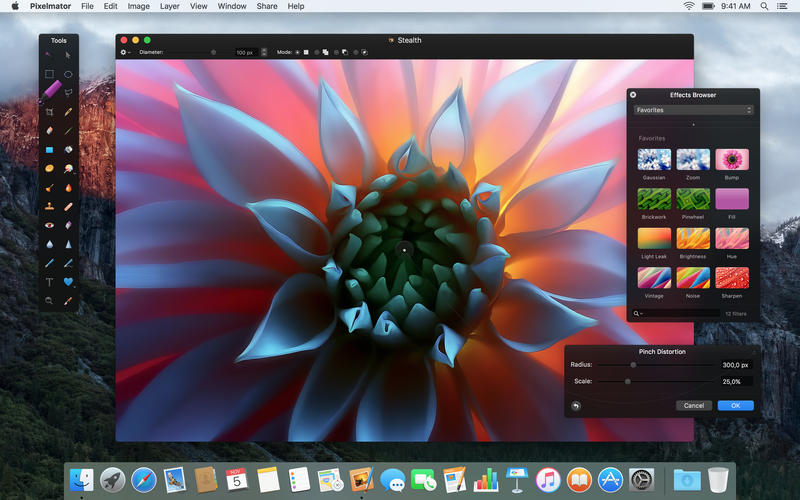
Pixelmator Pro’s interface — a Mac‑native design with familiar layer controls and distortion tools.
Originally priced at $29.99 (a figure still cited in forums and reviews), Pixelmator Pro offered exceptional value as a one‑time purchase. Current pricing may differ, but even at a higher point it remains a strong contender. The app handles common Photoshop workflows — masks, adjustments, blend modes, text layers, and RAW importing — without requiring a subscription.
How Photomator and Pixelmator Pro Differ
This is a frequent point of confusion. Pixelmator Pro is the direct Photoshop alternative: a full layer‑based image editor for compositing, retouching, and design. Photomator, by contrast, is a Lightroom‑style tool focused on non‑destructive RAW development, cataloging, and color grading. If you need to edit a single image with layers and masks, reach for Pixelmator Pro. If you need to manage a photo library and apply global adjustments, Photomator is the appropriate choice. Both apps now support HDR output for compatible displays, though they lack gainmap HDR support — a nuance that matters if you publish HDR content for platforms like Chrome.
What Free Options Actually Work on Mac?
Free photo editors are plentiful, but not all of them run well on macOS. Here is what the evidence shows about the three most‑mentioned free alternatives.
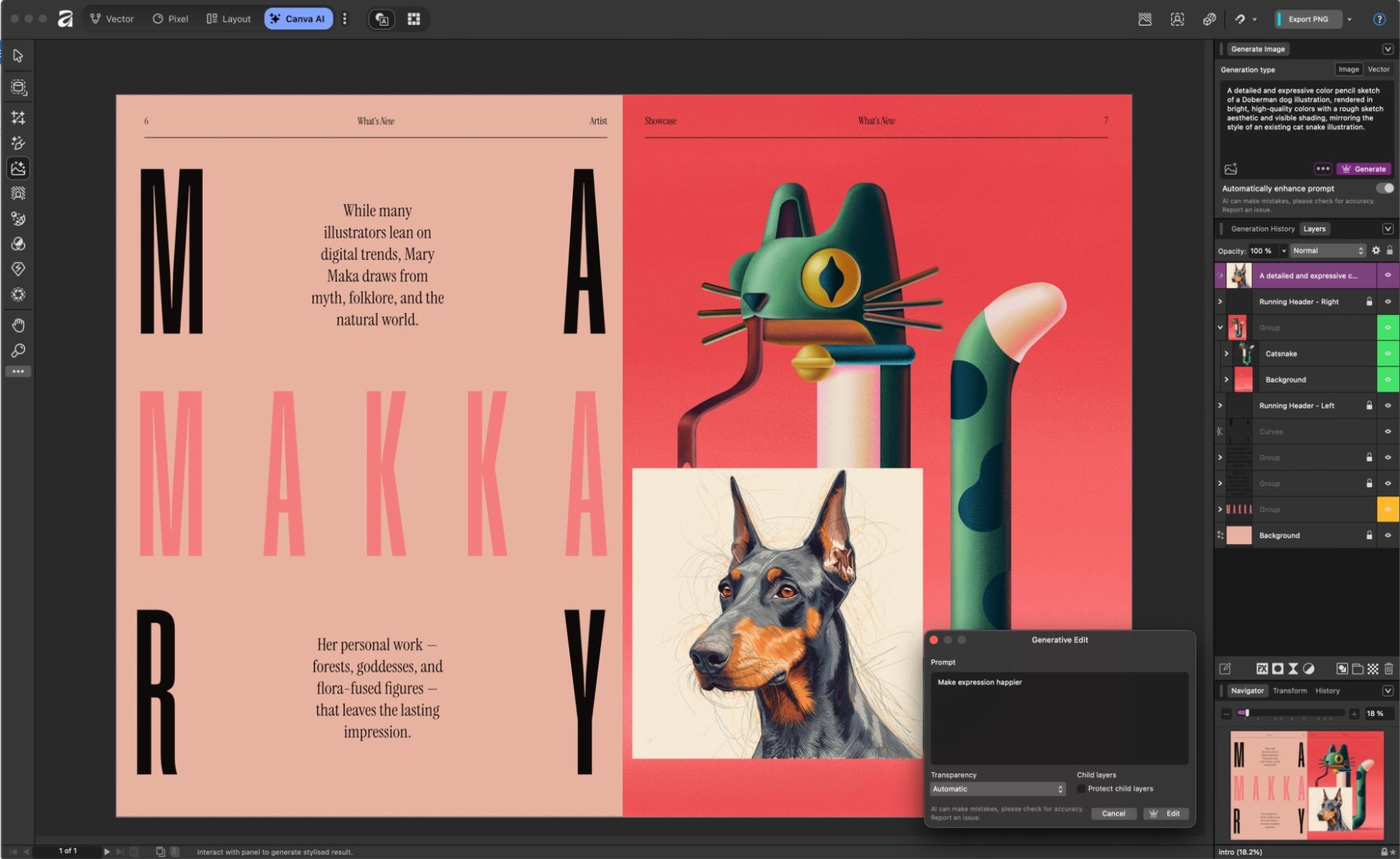
Free and low‑cost editors — Canva, Fluer, and others — offer varying levels of Mac compatibility.
GIMP — The Free Standard with a Performance Risk
GIMP is the oldest and most well‑known free image editor, and outlets like Zapier list it as a valid Photoshop alternative. However, hands‑on testing on Mac reveals a significant performance gap. Diginate reported that GIMP “took over 4 minutes to load” and crashed during use on a standard Mac configuration. The CPU usage was heavy enough to cause other applications to become unresponsive.
⚠ GIMP on Mac — test before you commit. Performance varies by macOS version and hardware. If you have patience and a fast machine, GIMP may work well for basic editing. For time‑sensitive or multi‑layer work, consider another option.
GIMP’s feature set is extensive — layers, masks, color adjustment, and a wide plugin ecosystem — but the Mac build has historically lagged behind the Linux and Windows versions in stability. If you decide to try it, use the most recent stable release and test with your typical file sizes before relying on it professionally.
Krita and Darktable — Honourable Mentions for Specific Needs
Krita is a free, open‑source painting application built for digital artists. It offers brush engines, layer modes, and animation tools that rival commercial apps. If your primary work is illustration or concept art rather than photo retouching, Krita is a strong choice. Darktable fills a different niche: it is a RAW processor akin to Lightroom or Capture One, designed for non‑destructive photo editing and library management. Both are genuinely free with no hidden subscriptions, and both run well on Apple Silicon.
Which Alternative Handles Graphic Design and Print Workflows Best?
For graphic designers working with print, CMYK, Pantone, or high‑DPI black‑and‑white output, the choice of alternative matters more than for general photography. Here is where the differences surface.
!Graphic design interface showing an illustration project — used in PhotoLine for 1‑bit workflow example.
Illustration and design work often requires specific colour and bit‑depth support that not every alternative provides.
The 1‑Bit Workflow Problem in Affinity Photo
A MacRumors forum thread revealed a critical gap for professional graphic designers: Affinity Photo cannot handle 1‑bit (black‑and‑white) images intended for high‑DPI printing. When it encounters a 1‑bit file, it converts it to 8‑bit, which can cause a “disaster” in the final PDF output — halftones render incorrectly, file sizes balloon, and print shops reject the result. This is a showstopper for comic artists, academic illustrators, and anyone producing spot‑colour or black‑only print materials.
PhotoLine — The Unsung Hero for 1‑Bit and Mixed‑Resolution Work
PhotoLine is a lesser‑known German‑developed application that handles 1‑bit images correctly — and, according to the same MacRumors discussion, does it better than Photoshop. It offers full layer support in 1‑bit mode, the ability to mix different resolutions in a single document, and robust handling of spot channels. If your workflow involves high‑DPI black‑and‑white output, PhotoLine is the only alternative that reliably matches (and in some respects exceeds) Photoshop’s capabilities.
Affinity Photo Still Wins for CMYK and Pantone
If you do not need 1‑bit support, Affinity Photo remains a strong choice for print design. Its CMYK and Pantone colour management is mature, and it can produce press‑ready PDFs without the subscription cost of Adobe InDesign or Illustrator. For standard multi‑colour print work — brochures, posters, packaging mock‑ups — Affinity covers the essentials competently.
What Is the Total Cost of Ownership for Each Option?
Purchase price alone does not tell the full story. The table below calculates a 3‑year and 5‑year total cost for each alternative, including subscription renewals and the optional Canva Pro tier for Affinity’s AI features. Prices are drawn from multiple sources and reflect the most recent data available.
| Tool | Upfront / Yearly | 3‑Year Cost | 5‑Year Cost | Notes |
|---|---|---|---|---|
| Adobe Photography Plan | $120 / year | $360 | $600 | Photoshop + Lightroom; price per DPReview |
| Affinity Photo (no AI) | Free | $0 | $0 | Free as of Oct 2025; Digital Camera World |
| Affinity Photo + Canva Pro | $144 / year | $432 | $720 | AI features require Canva Pro; DCW |
| Pixelmator Pro | ~$29.99 one‑time | ~$30 | ~$30* | Orig. price Diginate; current may vary |
| Acorn 5 | $29.99 one‑time | ~$30 | ~$30 | Basic editor; Diginate |
| Fluer | $8.33 / month | ~$300 | ~$500 | Monthly sub; Zapier |
| GIMP / Krita / Darktable | Free | $0 | $0 | Open‑source, no hidden fees |
*Pixelmator Pro’s long‑term cost assumes no paid major‑version upgrade; some users report free updates within the same major version. If a future major version requires a new purchase, the 5‑year cost may increase.
The key observation: Affinity Photo without AI is the cheapest option at $0, but adding Canva Pro for AI features brings the 3‑year cost ($432) ahead of Adobe’s Photography Plan ($360). Users who rely on generative AI should carefully compare these two paths rather than assuming “free” means zero cost.
What Are the Most Common Problems When Switching?
Moving away from Photoshop involves more than downloading a new app. Based on forum discussions and user reports, here are the issues that trip people up — and how to handle them.
Subscription Fear Turns Into Migration Anxiety
Many users report wanting to leave Adobe’s subscription model but fearing the productivity loss during the learning curve. A Reddit thread on r/macapps captures this tension: users know they want a one‑time purchase, but they worry about compatibility with existing PSD files and muscle memory. The following checklist can help smooth the transition:
- Export key assets — save layered PSDs as TIFF or PDF where possible; both Affinity and Pixelmator import these formats reliably.
- Map your shortcuts — Affinity Photo and Pixelmator Pro allow custom keyboard shortcuts. Spend 30 minutes replicating your most‑used Photoshop shortcuts.
- Test with one project first — do not migrate your entire workflow in one day. Pick a non‑critical project and run it start‑to‑finish in the new app.
- Keep Photoshop installed — you can uninstall later; having it available during the transition reduces stress.
GIMP’s Unreliable Performance
As noted earlier, GIMP’s 4‑minute load time and crash risk make it unsuitable for professional or time‑sensitive work. If you need a free editor and GIMP does not run well on your Mac, try Krita for painting or Darktable for RAW processing instead.
The 1‑Bit Disaster in Affinity
If your work involves 1‑bit black‑and‑white images for print, do not use Affinity Photo — it converts them to 8‑bit and corrupts the output. PhotoLine handles 1‑bit correctly and offers full layer support in that mode, making it the only safe alternative for that specific workflow.
HDR Confusion Between Pixelmator and Photomator
Users sometimes claim Pixelmator Pro has “no HDR support.” This is outdated information. Both Pixelmator Pro and Photomator support new HDR output for HDR‑capable displays. The distinction is that they lack gainmap HDR (the format used by Chrome). If you edit HDR content for the web, confirm your target platform’s requirements. For general HDR photo editing and display, Pixelmator Pro works fine.
Migrating Custom Actions and Shortcuts
Photoshop actions (.atn files) do not transfer to Affinity or Pixelmator. You will need to rebuild them manually. Affinity Photo supports a macro recording panel — use it to recreate common sequences like frequency separation or sharpening. Keyboard shortcut customisation is available in both Affinity and Pixelmator Pro. Community‑created shortcut cheat sheets are worth searching for; many users share their mappings for the most common Photoshop‑to‑Affinity translations.
If you regularly export layers from complex PSDs, consider a dedicated plugin panel like Layerbench for Photoshop, which streamlines subject cutout and lossless layer export — useful as you manage files during the transition period.
All trademarks, product names, and quoted material are the property of their respective owners. Pricing and feature availability may change after the publication date (September 2026). Always verify current pricing on the official website.