- Category:
- Workflow Tips
- Summary:
- Colorize an image with AI: compare Palette.fm and Colorize Images app by pricing, privacy, and use cases; pick the best for desktop or mobile.
The short answer
For most people, Palette.fm (free with 21+ AI filters, used by 6.6M+ people) or the Colorize Images mobile app (free with ads, 1M+ downloads, 4.3 stars) serve as strong starting points. Choose Palette.fm when you want fine-grained control on desktop; pick the app when you need quick results on a phone. Both let you test the output before deciding whether to pay.
Quick Guide – What Do You Actually Need From a Colorizer?
Not every tool fits every situation. The right choice depends on how many photos you have, whether you care about historical accuracy, and how much you want to spend. Below are four common scenarios and the tool that maps to each.
-
Fast & free for a few family photos – Best match: The Colorize Images app works offline after download, stores your photos for only 24 hours, and costs nothing beyond occasional ads.
Colorize Images app -
High accuracy for historical shots – Best match: Palette.fm offers 21+ AI filters and paid plans ($49 one-time or $72/year) with no watermarks. Kevin Kelly (founding editor of Wired) has endorsed the service.
Palette.fm -
Already using Canva for design – Best match: Canva Colorify is built into Canva — no extra tab needed. It handles files up to 50 MB and includes manual sliders for saturation and cyan/red balance.
Canva Colorify -
Batch processing + upscaling – Best match: EzEnhancer.ai accepts 1–20 images per upload and bundles an AI upscaler, old-photo restoration, and background remover in one interface.
EzEnhancer.ai
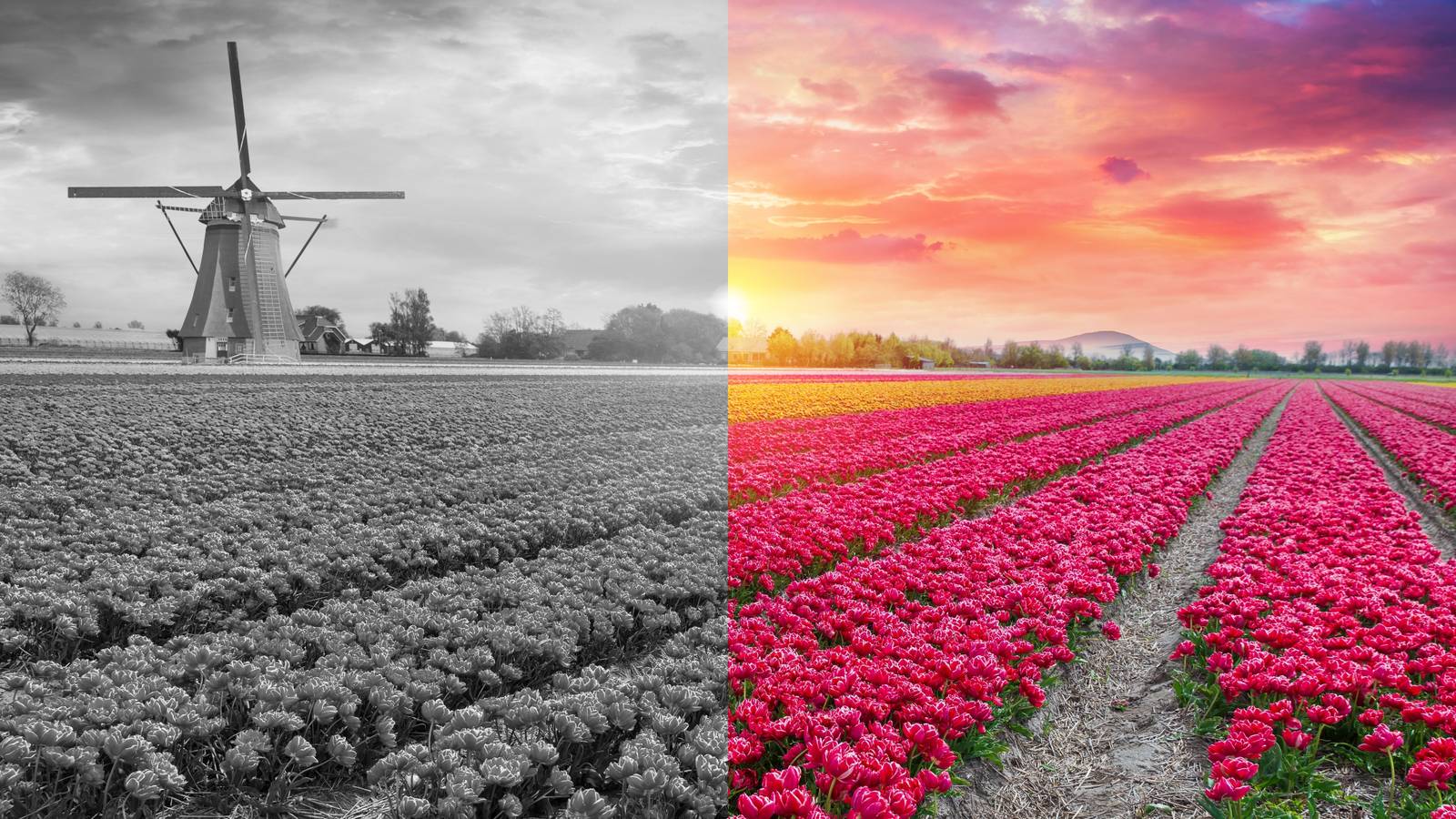
A landscape shot of a Dutch windmill and tulip fields — black-and-white on the left, AI-colorized on the right. Most tools can produce this kind of transformation in under a minute.
Which AI Colorizer Should You Use? (Comparison Table)
The table below lays out the five most popular options side by side. Use it to narrow down your choice before you dive into the details.
| Tool | Pricing | Sign-up? | Max file | Batch | Manual adjust | Privacy | Accuracy note |
|---|---|---|---|---|---|---|---|
| Palette.fm | Free tier / $49 one-time or $72/yr | Free tier available | Not publicly listed | Not specified | 21+ AI filters, keyword-based customization | Not disclosed | Users report occasional brown/purple skin tones & flat orange |
| EzEnhancer.ai | Free basic plan | Not required for basic | 1–20 images per upload | Yes (1–20) | Claims natural skin tones, HD output | Not disclosed | Claims historical accuracy |
| Canva Colorify | Free with sign-up | Required | 50 MB; PNG, JPG, JPEG only | Not specified | Saturation, cyan/red sliders | Not disclosed | No explicit disclaimer |
| Colorize Images app | Free with ads / $0.50 8-hr pass / $1.50 monthly | No (app) | JPEG / PNG | Not specified | Not available | 24-hr encrypted storage, then deleted | States: "may differ from historical reality" |
| DeepAI Colorizer | Free Standard / HD / Genius (PRO) | Not required for free | Accepts URLs | Not specified | Quality level selection | Not disclosed | No explicit disclaimer |
Privacy Policies – Where Do Your Photos Go?
Among the five tools, only the Colorize Images app publishes a clear data-retention policy: your photos are stored in encrypted form for up to 24 hours and then permanently deleted. The other tools do not publicly describe what happens to your uploads after processing. If you are handling sensitive or irreplaceable family images, this gap is worth considering.
Privacy gap
None of the browser-based tools (Palette.fm, EzEnhancer, Canva, DeepAI) disclose whether they retain processed images for model training, analytics, or any other purpose. If this concerns you, the mobile app with its stated 24-hour deletion policy offers the clearest guarantee — or you can work entirely offline with manual methods.
What Does "Free" Actually Mean?
The word "free" covers markedly different experiences depending on the tool:
- Palette.fm — free tier is available but limited; paid plans remove restrictions and cost $49 one-time or $72/year.
- EzEnhancer.ai — offers a free basic plan; the exact resolution or watermark limits are not spelled out on the site.
- Canva Colorify — free to use but requires a Canva account (sign-up is the cost).
- Colorize Images app — free with ads; ad-free passes cost $0.50 for 8 hours or $1.50 per month.
- DeepAI — free at Standard quality; HD and Genius levels require a PRO subscription.
In every case, "free" means you give up something — ads, sign-up data, resolution, or features. Know the trade-off before you upload.
File Format and Size Gotchas
Not every tool accepts every file type, and this catches many users off guard:
- Canva Colorify — capped at 50 MB and only accepts PNG, JPG, or JPEG. TIFF scans and large-format images will not load.
- EzEnhancer.ai — supports 1–20 images per batch, but the per-image size limit is not publicly listed.
- DeepAI — accepts image URLs rather than direct file uploads, which can be convenient for web-sourced images but less so for local scans.
- Colorize Images app — limited to JPEG and PNG; no RAW or HEIC support.
If your source files are TIFF, HEIC, or very large scans, you may need to convert them first — or switch to a desktop tool that has no format restrictions.
How Accurate Is AI Colorization – and Where Does It Go Wrong?
AI colorizers are impressive, but they are not historians. The Colorize Images app includes a candid disclaimer: "colors reflect AI's best reconstruction and may differ from historical reality." That sentence matters because colorization is an inference, not a restoration.
Common failure modes
- Skin tone bias — Palette.fm notes that some competing tools produce heavy brown/purple tones and flat orange skin, a pattern that suggests the AI has learned from a narrow range of training data.
- Color bleeding — edges between objects (a person's arm against a wall, for example) can blur into one another, giving the image a soft, watercolour look.
- Unrealistic vegetation — grass and foliage often come out unnaturally bright green because the model defaults to modern colour film stock rather than early-20th-century emulsions.
- Ethnicity-insensitive rendering — if the training data over-represents light skin tones, the AI may miscolour the faces of people with darker skin.
EzEnhancer.ai claims "natural skin tones" and "historical accuracy" as features, but those are marketing claims — no independent audit is available. The practical takeaway: treat every AI result as a draft, not a definitive restoration.
User tip from the app's documentation
The Colorize Images app recommends using well-focused, high-contrast scans and pre-adjusting brightness before uploading. A muddy or low-contrast original forces the AI to guess more, which increases the chance of artefacts.
How to Colorize Photos Manually When AI Isn't Good Enough
When historical accuracy or creative control matters more than speed, manual colorization is the alternative. Corel PaintShop Pro provides a structured method that avoids the "AI damage" that some users find in automated results. YouTube creator PiXimperfect (4M subscribers) demonstrates a similar "no AI damage" workflow in Photoshop.
PaintShop Pro method (4 steps)
- Increase colour depth to RGB 16-bit per channel. This gives you enough data to paint smooth gradients without banding.
- Create a new raster layer above your black-and-white photo.
- Set the blend mode to Color (Legacy). This lets the colour you apply sit on top of the original luminance — meaning the shading and contrast from the original photo remain intact.
- Paint with your chosen skin tone. Use a soft brush and build up the colour gradually. Sample from reference photos when you can.
The same principle works in Photoshop: a Color blend mode layer (or the "Colorize" option in a Hue/Saturation adjustment layer) lets you add colour without destroying the underlying detail. The trade-off is time — a single portrait can take an hour or more — but the result has no AI hallucinations.
Advanced Workflow – Colorize With AI, Then Fix by Hand
You do not have to choose between speed and control. A hybrid workflow lets you get the best of both: let AI handle the broad colour mapping, then refine the details manually.
The hybrid approach
Step 1: Run AI colorization (Palette.fm or Canva Colorify) to establish base colours across the whole image.
Step 2: Download the result and open it in Photoshop or PaintShop Pro.
Step 3: Use a Color blend-mode layer to correct skin tones, sky, and vegetation that the AI got wrong.
Step 4: (Optional) Run a separate AI upscaler if the final image needs to print at large sizes.
Canva's Colorify app already includes manual sliders for saturation and cyan/red balance — so you can make the first round of corrections without leaving the browser. For finer work (fixing a single face, adjusting a specific fabric colour), move to desktop software.
This workflow is especially useful for portraits, where skin tone accuracy is critical and AI often struggles. The AI gives you a 70% solution; the remaining 30% is where your eye — and a few minutes of manual painting — make the difference.
Your photo → Need speed? Use AI → Unsatisfied? Refine manually
╱
Need accuracy? Manual only
Are AI-Colorized Images Authentic Enough to Share?
Sharing an AI-colorized image in a historical group or archive comes with responsibilities. A Facebook roller derby community has a clear rule: AI-altered images must be identified as such. The group admin notes that AI tools embed metadata that Facebook can detect automatically.
Three practical guidelines:
- Always label AI-colorized photos when posting in historical, archival, or genealogical groups. A simple note — "colourised by AI (Palette.fm, 2026)" — is enough.
- Be aware that platforms may auto-flag AI-edited content. If the platform adds a label, do not remove it — doing so can trigger account restrictions.
- Treat AI colour as interpretation, not fact. The Colorize Images app states plainly that colours "may differ from historical reality." Apply the same caveat to everything you share.
How to Tell If Your Colorized Image Is Accurate
The closing step — and the one most guides skip — is verification. Before you save or share a colorized image, run through this checklist.
Accuracy checklist
- Skin tones appear natural. If skin looks purple, brownish-grey, or flat orange (a pattern noted by Palette.fm about some alternatives), the AI has likely misidentified the subject's skin type.
- Colours match known historical context. Grass in 1920s photographs was not the same bright green as modern digital grass. If you know the era, check against period-appropriate references.
- No colour bleeding at edges. Look at the boundary between a person's hair and the background, or between a building and the sky. Bleeding indicates the model could not segment the image cleanly.
- The original was well-focused and high-contrast. The Colorize Images app notes that blurry or low-contrast scans produce unreliable results. If your source is soft, the output will be too.
What to do if it fails
If the image fails any of the checks above, try a different tool — Palette.fm and the Colorize Images app use different models and may yield different results for the same photo. Pre-adjusting brightness and contrast before uploading can also help. And when nothing else works, the manual method described earlier will give you full control.
When to accept the result
A good AI colorization feels coherent: the colours are internally consistent, the skin tones read as human, and nothing screams "wrong." But coherence is not the same as historical truth. Use the checklist to catch obvious errors, and always keep the original black-and-white file as your reference.