- Category:
- Workflow Tips
- Summary:
- Explore 2026's best Photoshop plugins for designers—26 curated plugins for retouching, typography, AI masking, workflow that save time and boost creativity.
At a glance: the plugins worth your time
This roundup covers 26 plugins across retouching, typography, mockups, creative effects, colour grading, workflow automation, AI tools, and specialised use cases. Each entry includes price model, key features, and real-user feedback from PCMag, Reddit, Quora, and Adobe's own documentation.
- Retouching & masking DxO PureRAW, Topaz Gigapixel AI, Lumenzia, Portraiture, Layerbench
- Typography Fontself
- Mockups & batch MockupBatch, Photo Collage Maker, WebPShop
- Creative effects Filter Forge, AlphaPlugins, DFT, Corel ParticleShop
- Colour grading Nik Collection, Exposure, 3D LUT Creator
- Workflow BrushBox, Configurator Reloaded, GuideGuide, Zevrix Xtension
Who this guide serves — and what you'll find here
Photoshop has a plugin ecosystem that can feel sparse compared to After Effects or Premiere. Several Reddit users have noted that frustration, particularly when searching for unique textures, distortion effects, or generative patterns. At the same time, many designers are tired of monthly subscription fees and want one-time purchases that actually speed up repetitive tasks.
This guide focuses on designers — graphic, UI, print, and print-on-demand (POD) creators. Photography-oriented plugins are included when they serve design workflows (retouching product shots, colour grading composites, enlarging assets). Every plugin listed below has been evaluated against real user feedback, editorial testing from PCMag, and community discussions on Reddit and Quora. We flag where a plugin is free, one-time purchase, or subscription-based, and we note compatibility with Apple Silicon and Photoshop's UXP architecture.
If you are looking for plugins strictly for photography (RAW processing, lens correction, culling), some of these will still be relevant — but our emphasis throughout is on tools that make design work faster, more creative, or more repeatable.
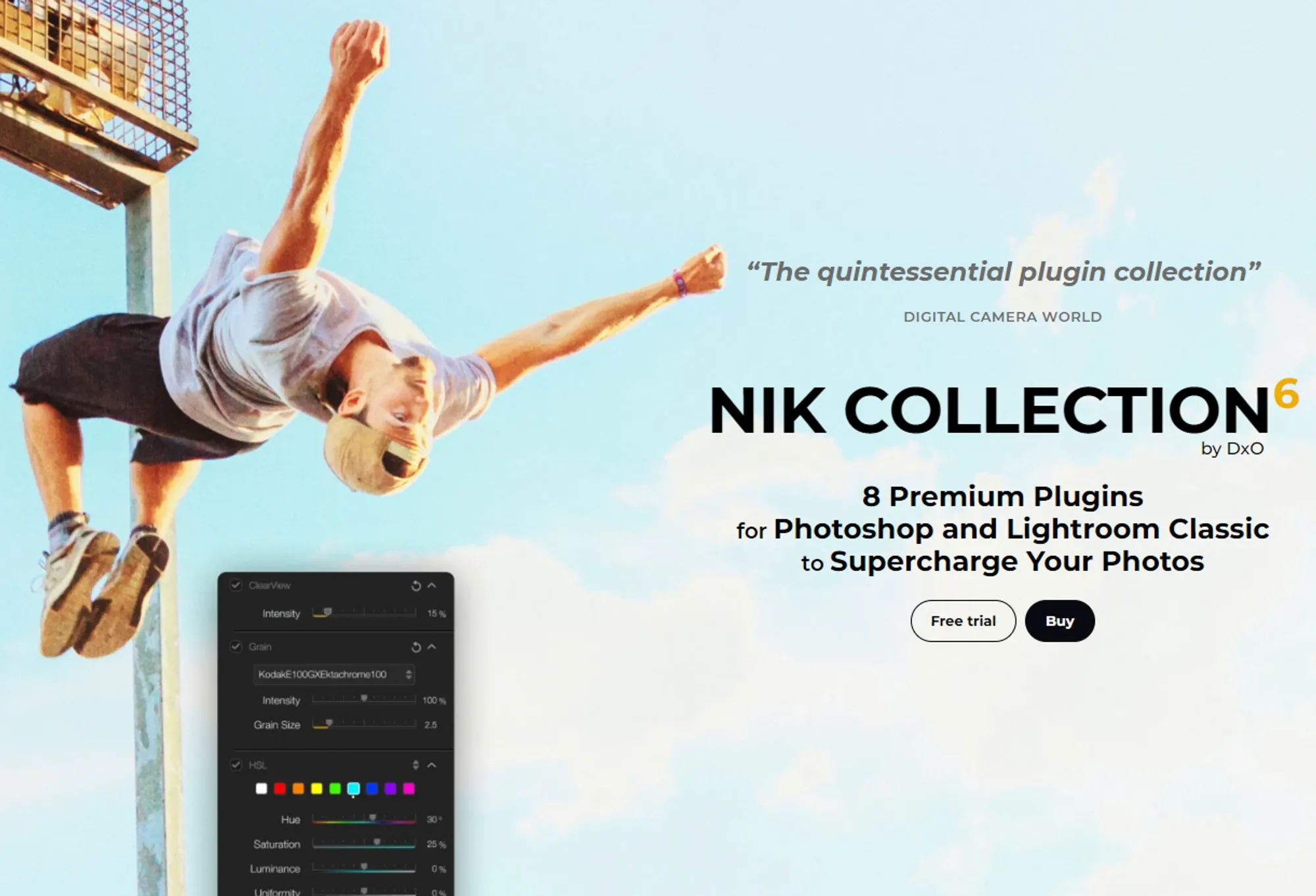
Nik Collection 6 remains one of the most comprehensive plugin suites for colour grading and film looks. Image: DxO / Eagle
The plugins designers actually reach for
This section forms the heart of the article — a category-by-category breakdown of the most useful Photoshop plugins for designers in 2026. Each plugin entry covers price, key capabilities, pros and cons, and the type of designer who will benefit most.
Retouching & AI masking
DxO PureRAW [paid] [one-time]
Offers excellent noise reduction while retaining fine detail. Includes lens sharpening and distortion corrections for a large database of camera/lens profiles. Works as a Lightroom Classic plug-in but integrates well with Photoshop for RAW preprocessing. File sizes increase noticeably.
Best for: designers who work with high-ISO product shots or event photography.
Topaz Gigapixel AI [paid]
AI-based image enlargement that upscales without the usual softening or pixelation. Useful for print designers who need to push small source images to large poster dimensions.
Best for: print and large-format designers working with low-res source material.
Topaz Sharpen AI [paid]
Uses machine learning to selectively sharpen, stabilise, and correct focus. Handles motion blur and mild defocus better than Photoshop's native Smart Sharpen.
Best for: designers who need to salvage slightly soft images for comps or mockups.
Topaz Mask AI [paid]
AI-guided masking that excels on fine detail — hair, fur, translucent objects. Produces cleaner edges than Select Subject in many cases.
Best for: compositing work where edge quality on complex subjects matters.
Portraiture (Imagenomic) [paid]
Automates skin retouching with natural-looking smoothing. Lets you control the amount of smoothing and preserve texture so results don't look plastic.
Best for: portrait and beauty retouching within commercial design projects.
Neat Image [paid]
Noise reduction with detailed camera and ISO profiling. Produces a custom noise profile per image, which yields cleaner results than generic noise filters.
Best for: designers dealing with noisy images from high-ISO or low-light shoots.
Lumenzia [paid]
Luminosity masking panel that automates complex selections based on tonal ranges. Highly recommended by Reddit users for colour grading and compositing. Works non-destructively with layer masks.
Best for: advanced compositing, exposure blending, and targeted colour adjustments.
Layerbench licence model not stated
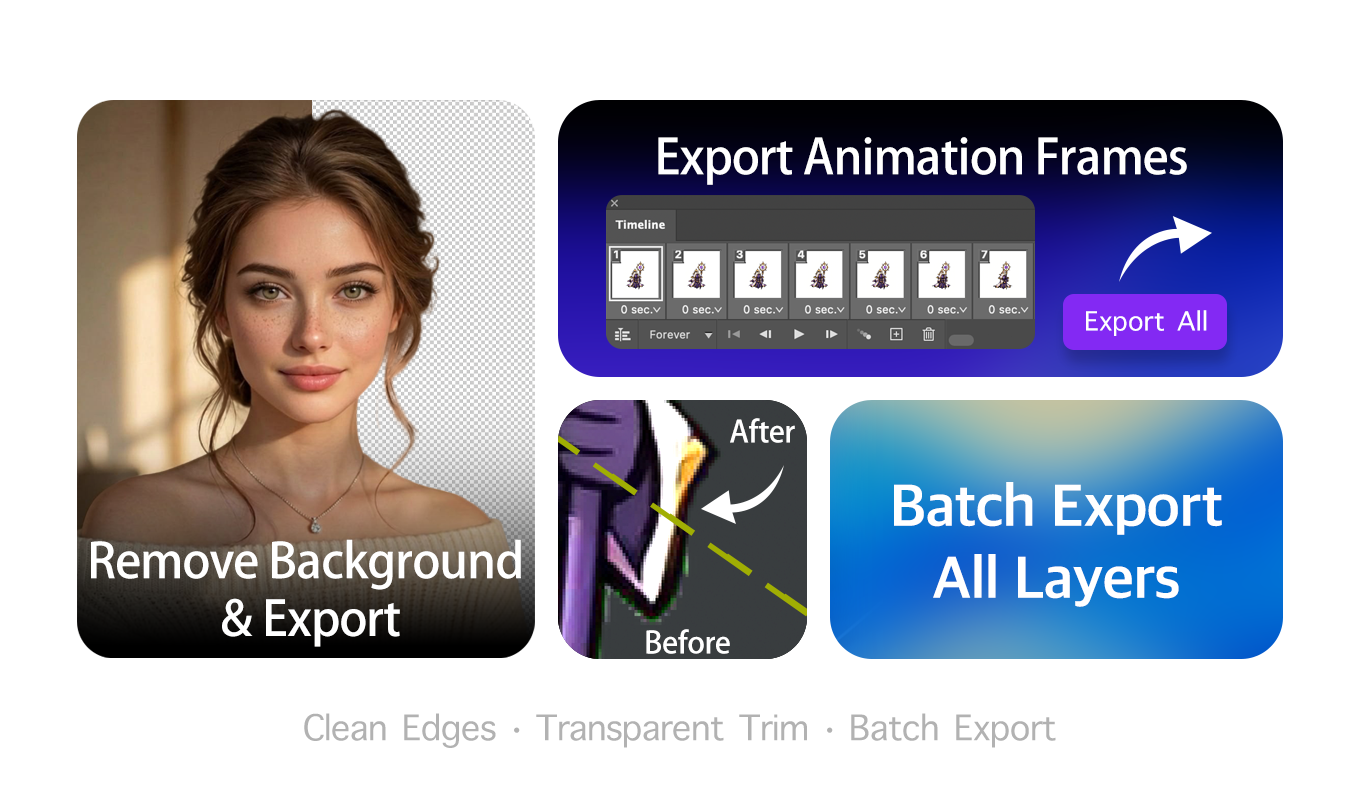
Layerbench — a separate Photoshop plugin: cut the subject to transparency, trim transparent margins, and batch-export layers, all in one panel.
Related: Photoshop background-removal plugins compared · Remove tool in Photoshop.
A Photoshop plugin panel for subject cutout and layer slicing. Features one-click cutout with transparent PNG export, AI subject selection, mask-only mode, cut-to-new-layer, edge cleanup with user-supplied radius (1–3 px), and lossless layer export of selected layers as trimmed transparent PNGs.
Best for: designers who frequently isolate subjects or need to export multiple layers as individual assets.
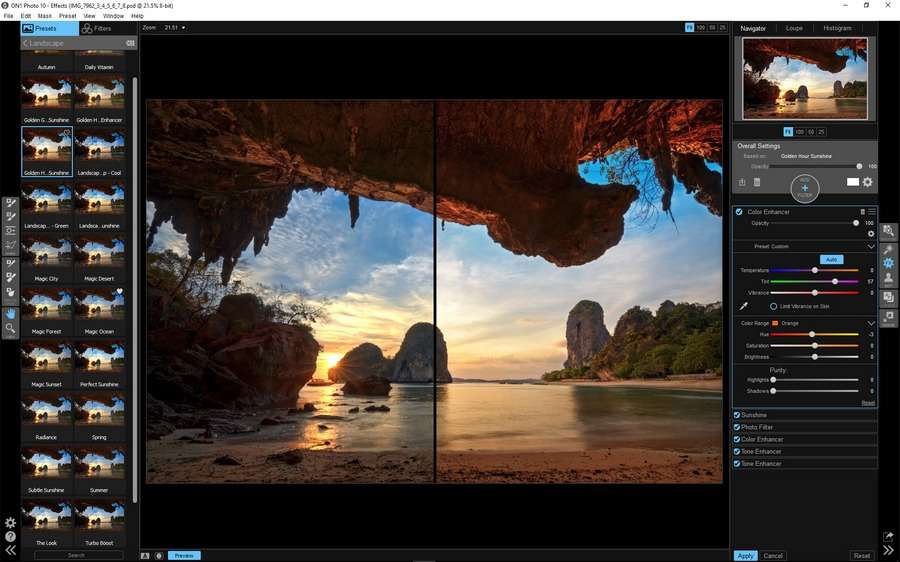
ON1 Photo 10 — a retouching and effects plugin with before/after comparison. Image: Mockplus
Typography & font creation
Fontself [paid] [one‑time]
Converts hand-drawn lettering or vector art into full OpenType fonts directly inside Photoshop and Illustrator. Supports bitmap and vector formats, kerning, ligatures, and alternates. No need to leave Adobe apps to build a font.
Best for: logo designers, lettering artists, and anyone who creates custom display type.
Mockups & batch export
MockupBatch [paid] [one‑time]
Designed for bulk mockup generation. Works in three steps: select a folder of mockup PSDs, a folder of artwork, and an export folder. Handles multiple Smart Objects automatically, supports batch video mockup export, and runs on Apple Silicon. One user noted it can generate 100 mockups "while you grab a coffee."
Best for: POD sellers and agencies producing large volumes of product mockups.
Photo Collage Maker [paid]
Intelligent batch mode with a face filter (include or exclude images with faces) and file-name captioning. Useful for creating quick collage proofs from product shoots.
Best for: e-commerce designers who need to batch-produce collage-style marketing images.
WebPShop [free]
Google's official plugin to open and save WebP images in Photoshop. Essential for web designers who need to deliver modern image formats without leaving the app.
Best for: web and UI designers optimising page load performance.
Image Processor Pro (Dr. Brown) [free]
Extends Photoshop's native Image Processor with advanced batch options — resizing, format conversion, renaming, and output folder control. Saves hours on repetitive export tasks.
Best for: any designer who regularly batch-processes images.
Zevrix Xtension (LinkOptimizer, BatchOutput) [paid]
Automation suite for batch exporting, printing, and asset optimisation. LinkOptimizer reduces file sizes by replacing linked images with optimised versions; BatchOutput automates print and PDF workflows.
Best for: production designers and print professionals with high-volume output.
Creative effects & textures
Filter Forge [paid] (free library available)
A modular filter and texture generator with a huge downloadable library of user-created effects. Creates procedural textures, distortion patterns, and lighting effects that would be tedious to build manually.
Best for: poster and album-art designers who want unique, generative textures.
AlphaPlugins various (EngraverIII paid, LaplacianBlend free)
Official Adobe-listed suite including EngraverIII (complex engravings), EngraverAI (AI-based), LaplacianBlend (free — blends layers by Laplacian edges), TurbulenceDistortion, FireFor, Digitalizer II, RichText, DigitalChaos, and IcePattern. A versatile collection for distortion and texture work.
Best for: designers seeking unusual distortion effects and patterned textures.
DFT (Digital Film Tools) [paid]
Simulates optical camera filters, film stocks, lens flares, and colour correction. Useful for adding cinematic atmosphere to composites without manual grading.
Best for: motion-poster designers and anyone creating film-adjacent visuals.
Corel ParticleShop [paid]
A brush plug-in powered by Corel Painter that adds natural-media effects — smoke, fire, bubbles, fur — as Photoshop brushes. Each effect is adjustable.
Best for: illustrators and designers who want painterly effects within Photoshop.
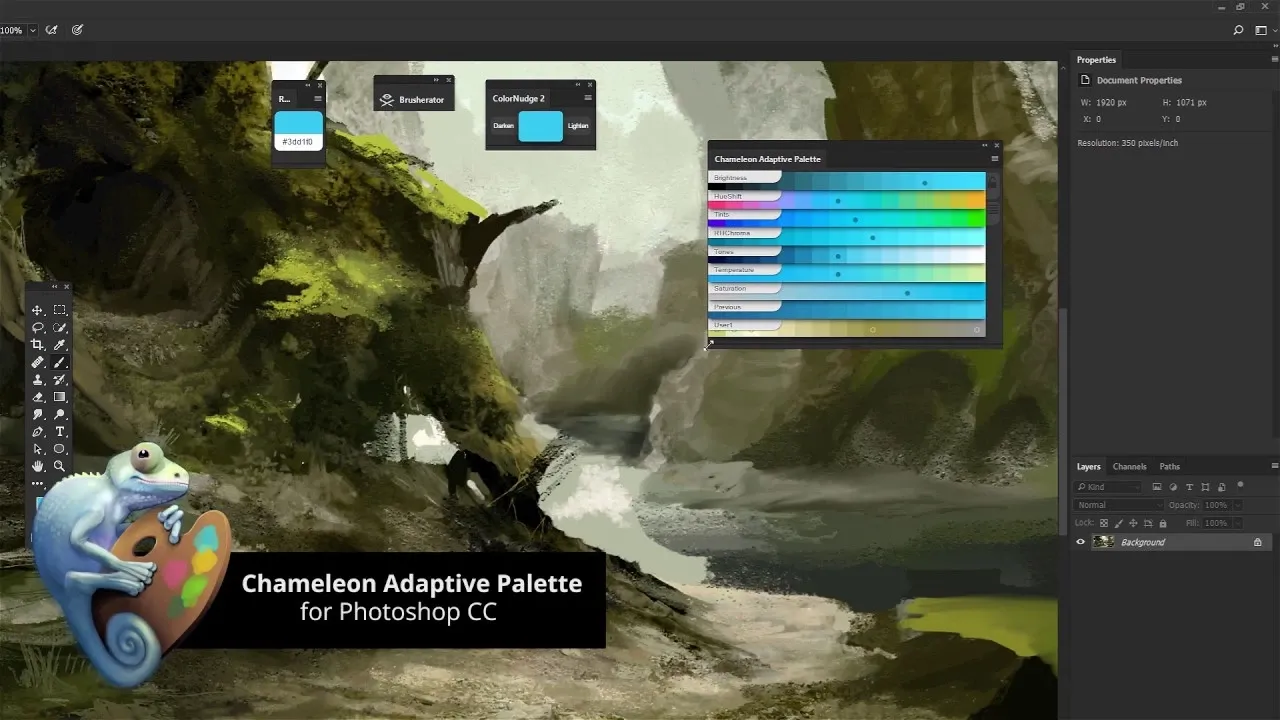
The Chameleon Adaptive Palette plugin helps extract and manage colour palettes from any image. Image: Pics.io
Color grading & LUTs
Nik Collection [paid] [one‑time per version]
A suite of 7 plug-ins covering colour grading (Color Efex), black-and-white (Silver Efex), HDR, sharpening, and more. Native Apple Silicon support. Integrates with Adobe and Capture One. The film-look presets are widely used, though the non-destructive workflow is considered underwhelming compared to newer tools.
Best for: designers who want a broad range of film emulation and colour effects in one package.
Exposure (Alien Skin / Exposure Software) [paid]
An alternative to Nik Collection that some Reddit users say they now prefer. Offers film emulation, texture overlays, bokeh effects, and batch application. Stronger non-destructive workflow than Nik.
Best for: designers who want film looks with a more modern workflow.
Infinite Color [paid]
A colour grading plugin recommended by Reddit user JohnnyDes64 alongside Lumenzia. Provides targeted colour transformations and creative LUT-style adjustments.
Best for: designers who want a dedicated colour-grading panel without the complexity of Nik's full suite.
3D LUT Creator [paid]
Enables precise colour grading through a 3D colour-space interface. You can export custom LUTs for use in Photoshop, video apps, and camera profiles. Gives fine-grained control over hue, saturation, and luminance independently.
Best for: colour-critical work where preset filters don't offer enough precision.
Workflow automation & organization
BrushBox [paid] [one‑time] $19 one‑time
Brushes organisation tool that Kyle T. Webster called "the organisational plug-in digital artists have been hoping for." Lets you tag, search, and group brushes. Available on Gumroad, not Adobe Exchange.
Best for: illustrators and digital painters with large brush libraries.
Configurator Reloaded [free]
Creates custom action panels with multiple workspaces. A Reddit user described it as "truly transformative." Provides an alternative to the now-abandoned Retouching Toolkit. Free — the author is tomzagx on Gumroad.
Best for: power users who want to build personalised tool panels for repetitive tasks.
GuideGuide [paid]
Precision grid and guides manager. Creates columns, rows, baseline grids, and modular layouts with exact measurements. Useful for UI, print, and editorial design.
Best for: UI and print designers who rely on consistent grid systems.
Raya Pro [paid]
A panel for luminosity masks, exposure blending, and compositing. Sits alongside Lumenzia as a tool for advanced tonal selections and seamless composites.
Best for: photographers and compositors doing exposure blending and HDR work.
AI & generative tools (native & plugin)
Adobe Firefly / Generative Fill native to Photoshop (varies by plan)
Adobe's integrated AI text-to-image and generative fill capabilities. Native to Photoshop (not a third-party plugin) but included here because it fundamentally changes what designers can do — add or remove objects, extend backgrounds, generate variations from text prompts. Availability depends on your Creative Cloud plan.
Best for: any designer who wants AI-assisted image generation without leaving Photoshop.
Geospatial & specialized
Avenza [paid]
Enables import, editing, and export of geospatial imagery — aerial and satellite photos with embedded coordinate data. Useful for map design and environmental infographics.
Best for: designers working with GIS data or creating map-based visuals.
Paid vs free plugins: a decision framework
Designer surveys and forum discussions consistently surface one frustration: subscription fatigue. Many designers prefer one-time purchases even when the upfront cost is higher. The table below summarises pricing models for the plugins in this guide, plus factors to consider when deciding.
| Plugin | Price model | Approximate cost | Best for |
|---|---|---|---|
| MockupBatch | One‑time | Not listed (one‑time) | Bulk mockups |
| BrushBox | One‑time | $19 | Brush organisation |
| Nik Collection | One‑time per version | ~$149 | Colour & film effects |
| DxO PureRAW | One‑time | ~$129 | Noise reduction |
| Portraiture | Paid (perpetual) | ~$199 | Skin retouching |
| Configurator Reloaded | Free | $0 | Custom action panels |
| WebPShop | Free | $0 | WebP format support |
| Filter Forge | Paid (free library) | ~$149 | Procedural textures |
Checklist before buying any plugin:
- Verify last update date — abandoned plugins can cause crashes on newer Photoshop versions.
- Confirm UXP or legacy compatibility — Photoshop 22.0+ manages UXP plugins via Adobe Exchange; legacy plugins still work but may lack optimisation for Apple Silicon.
- Test with a trial or money-back guarantee before committing.
- Check forum posts for known issues — Reddit and Adobe's community forums are good sources.
- Consider whether a one-time purchase or subscription fits your budget and upgrade cycle.
How to install and keep Photoshop plugins running smoothly
Adobe introduced the Plugin Marketplace in October 2020 with Photoshop 22.0, moving toward UXP-based plugins. However, traditional third-party plug-ins are still available outside the marketplace. Here is how to handle both approaches.
Installing UXP plugins (Adobe Exchange)
Open Photoshop, go to Plugins > Plugin Marketplace (or the Marketplace icon in the taskbar). Browse or search, then click Install. The plugin appears in the Plugins panel after a restart.
Installing legacy plugins manually
Download the plugin file (usually .8bi, .plugin, or a folder). Copy it to the Photoshop Plug-ins folder — typically C:\Program Files\Adobe\Adobe Photoshop [version]\Plug-ins on Windows, or /Applications/Adobe Photoshop [version]/Plug-ins on macOS. Restart Photoshop.
Performance tip: Too many active plugins can slow down startup and cause instability. Use only the plugins you need for a given project. Tools like Configurator Reloaded let you load panels on demand rather than all at once, reducing bloat.
If a plugin like Retouching Toolkit is "pretty much dead now" (as one Reddit user noted), consider replacing it with a maintained alternative such as Configurator Reloaded. Always check the plugin's compatibility with your version of Photoshop — especially after major updates.
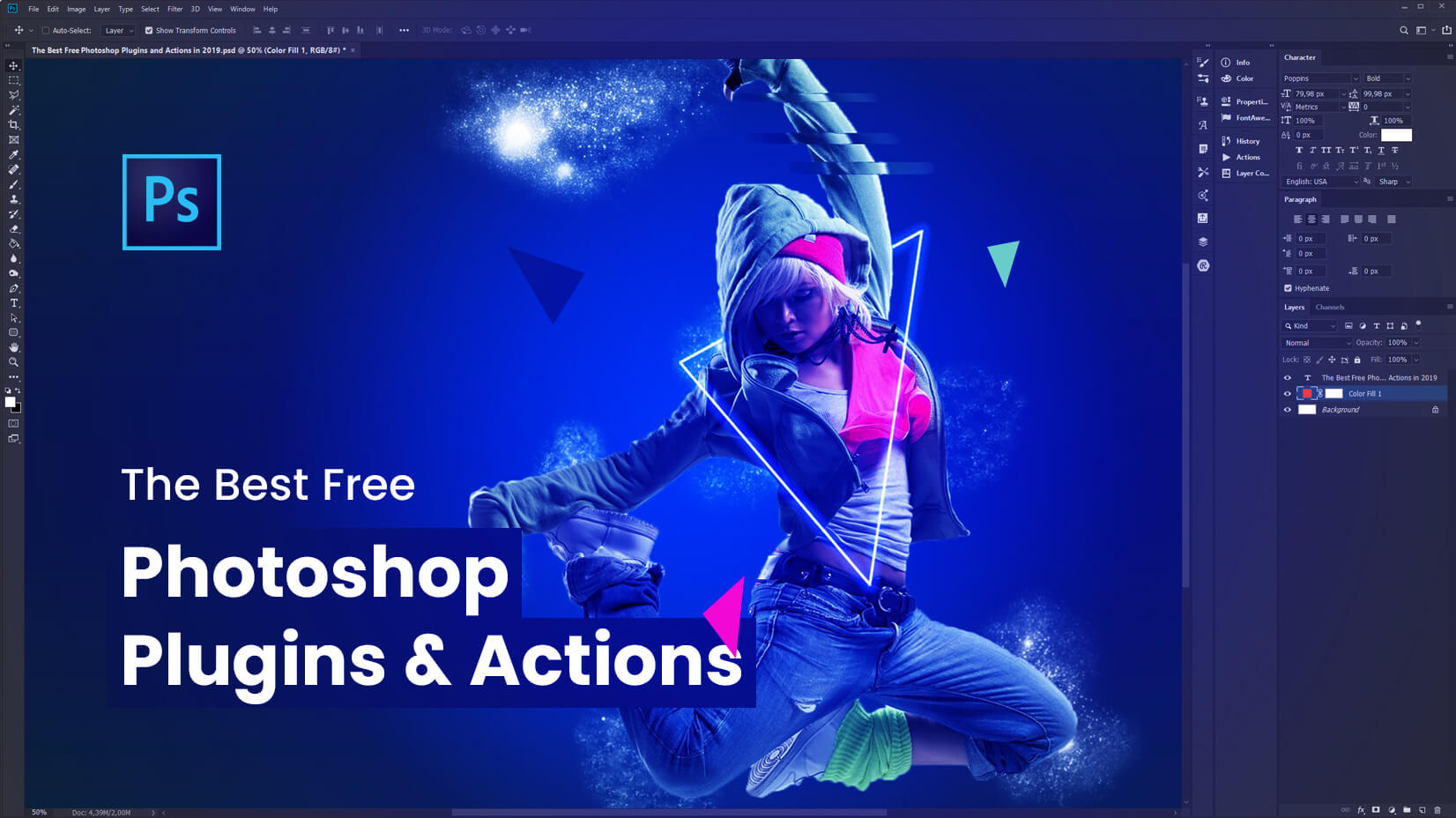
Free plugins and actions can add significant capability without cost. Image: GraphicMama
Your first plugin: choose MockupBatch or Configurator Reloaded
If you are unsure where to start, these two plugins address the most common pain points expressed by designers: repetitive tasks and subscription fatigue.
MockupBatch (one-time purchase) is for anyone who regularly produces product mockups — print-on-demand sellers, packaging designers, branding agencies. It turns a 45-minute manual mockup session into a 3-step batch process that runs while you do something else.
Configurator Reloaded (free) is for anyone who has ever wished Photoshop had a custom panel for their most-used actions. If you find yourself repeating the same sequence of menu commands, layer adjustments, or filter settings, building a panel with Configurator Reloaded saves those steps permanently.
Start here:
- Download MockupBatch from its official site. Prepare a folder of mockup PSDs and a folder of artwork. Run the 3-step process: select mockup folder → artwork folder → export folder. Let it generate 100 mockups while you take a break.
- Download Configurator Reloaded from the author's Gumroad page (tomzagx). Open Photoshop, go to Plugins > Configurator Reloaded, and create a new workspace. Drag your most‑used actions into the panel — resize to canvas, convert to sRGB, export as PNG, etc.
- For each new project, load only the workspace panel you need. This keeps Photoshop fast and your workflow focused.
Once these two are in place, explore the other plugins in this guide based on the type of design work you do most. The colour grading tools (Nik Collection or Exposure) are a strong next step for anyone creating posters, album art, or cinematic composites. The creative effects plugins (Filter Forge, AlphaPlugins, DFT) fill the "unique textures and distortions" gap that Reddit users often mention.
Every plugin listed here is actively maintained and has a community of users who share tips and workflows. Start with one, master it, and add others only when they genuinely save you time or expand what you can create.