- Category:
- Workflow Tips
- Summary:
- Photoshop software for students is available at $20/month for Creative Cloud, with free options via school licenses or alternatives like GIMP and Photopea.
What you actually pay — at a glance
- I need the full Creative Cloud
Student plan: $20/month for 20+ apps.
See the plan - I only need Photoshop
No single-app student option. Individual plan: $22/month.
Compare plans - My school might cover it
Many universities provide Creative Cloud free via site license.
MIT example - I want a free tool
GIMP (desktop), Photopea (browser), or DaVinci Resolve.
Community discussion
Is Photoshop Free for Students?
Adobe does not offer a free, full version of Photoshop to students directly. The company's free trial page states plainly that Photoshop is not free for students — though students do receive a 7-day free trial of the Creative Cloud Pro plan, which includes Photoshop along with the rest of the suite. After those seven days, a paid subscription is required.
7-day trial
You can start a free trial of Photoshop at any time. No payment is required upfront, but you will need to provide a payment method. Cancel before the week ends to avoid being charged.
K12 exception: Adobe Express for Education is free for K12 schools and districts. It includes privacy controls, safe search, and no paywalls or ads — but it is not the full Photoshop application. As Adobe clarifies, Creative Cloud (which includes Photoshop) requires a purchased subscription. If you are a K12 student or teacher, Adobe Express is a useful free option, but it does not replace Photoshop's advanced editing capabilities.
If your school is a college or university, you may have access to Photoshop at no cost through an institutional license — that is covered later in this article.
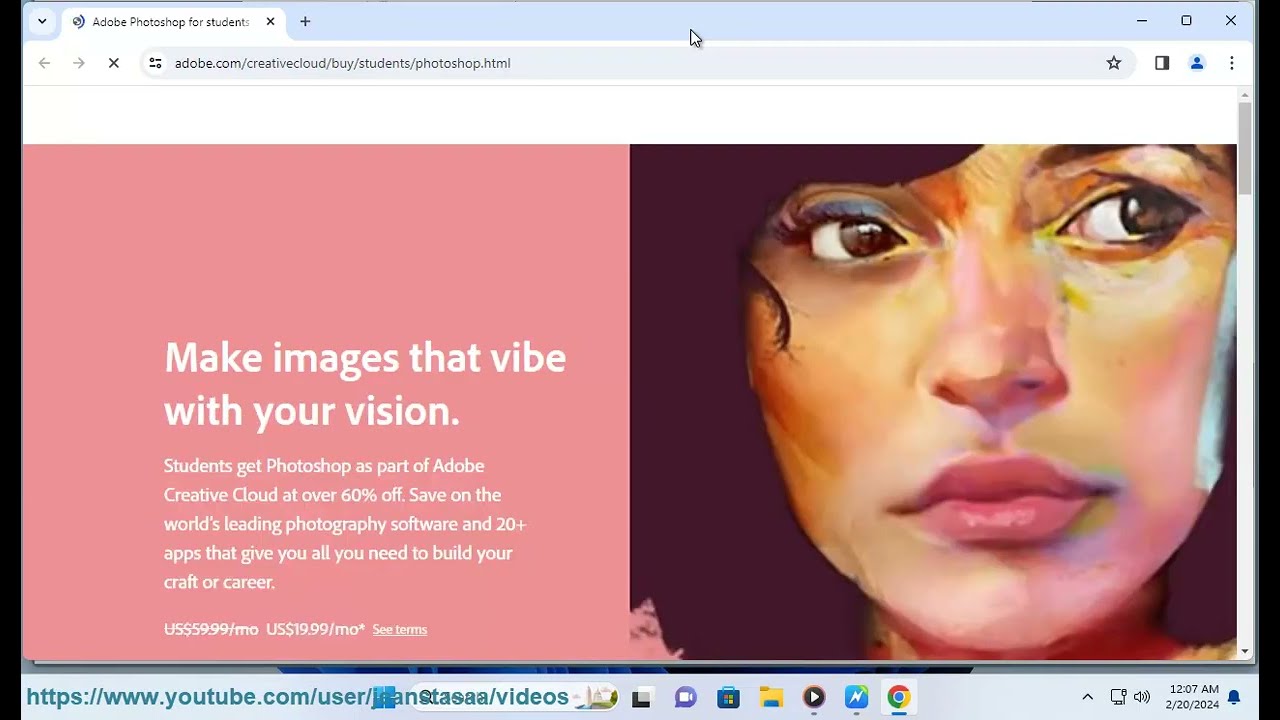
Adobe's student landing page promotes the discounted Creative Cloud Pro plan. Individual Photoshop is not available under the student discount.
How Much Is the Student Discount and What Does It Actually Save You?
The "71% Off" Claim vs. the Real Math
Adobe advertises a student discount of "over 71%" on its free trial page. That figure is accurate — but only when you compare the student plan to the full retail price of Creative Cloud Pro (roughly $52/month). The student plan costs $20/month, which works out to about a 71% reduction on the full suite.
However, if you only need Photoshop, the calculation changes. A single-app individual Photoshop subscription costs $22/month. The student plan, at $20/month, saves you only about 9% — and you still have to pay for the entire suite regardless of whether you use the other apps.
| Plan | Monthly Price | What You Get | Effective Saving vs. Retail |
|---|---|---|---|
| Student Creative Cloud Pro | $20 | 20+ apps including Photoshop, Illustrator, InDesign, Premiere Pro | ~71% off full suite retail |
| Photoshop Individual (no student discount) | $22 | Photoshop only | — |
| Student plan (single-app equivalent) | $20 | Pays for the whole suite even if you use one app | ~9% vs. single-app individual |
Key takeaway
The 71% discount is real if you need multiple apps. If you only use Photoshop, it is more like a 9% saving — and you are still locked into the full suite.
Can You Get Just Photoshop as a Student?
The short answer is no. There is no student-specific single-app plan for Photoshop. The only student option is the full Creative Cloud Pro bundle at $20/month. Several Reddit users have expressed frustration about this, with one parent noting on a discussion thread that the student plan "bundles all of Creative Cloud" and is "not actually a discount unless you need the entire collection."
If you only need Photoshop, your options are: pay $22/month for the individual plan, use a free alternative, or check whether your school provides access (covered in the next sections).
What If You Only Need Photoshop, Not the Full Creative Cloud Suite?
This is the most common pain point among students. You need Photoshop for a class or personal project, and paying $20/month for a bundle of 20 apps you will never launch feels wasteful. Here is how to decide.
Decision framework
Use the student plan if you are a design, photography, or video major who regularly uses Illustrator, InDesign, Premiere Pro, or After Effects. The $20/month plan then becomes genuine value.
Skip the student plan if you only edit photos occasionally or need Photoshop for a single semester. Use one of the free alternatives below or check for a school license.
Some students turn to the Adobe Photography Plan (which includes Photoshop and Lightroom), but as of the latest pricing, that plan is not available under the student discount — you would need to check Adobe's pricing page for current options. The photography plan sometimes costs less than the student bundle for photo-only users, but Adobe does not always offer it as a student-specific subscription.
If you are trying to decide, consider this: the Reddit parent whose son's peers all use GIMP reported that most of them get by just fine without Photoshop. Industry requirements vary, but for many courses, free tools are acceptable.
How to Check if Your School Already Pays for Photoshop
Step-by-Step Institutional License Check
Many colleges and universities provide Adobe Creative Cloud to all students at no additional cost through a site license. Massachusetts Institute of Technology (MIT) is a well-documented example: every MIT student, faculty member, and staff gets full access to Creative Cloud free of charge, using their @mit.edu email address.
Here is how to find out whether your school offers the same:
- Search "[your school name] Adobe Creative Cloud license" or "[your school] IT software" on your school's website.
- Check your IT page for a "Software for Students" section. Many institutions list available software including Adobe products.
- Follow the access method — typically you enter your school email address at adobe.com and authenticate through your institution's login portal (like MIT's Touchstone system).
- Wait for activation. MIT's accounts are processed nightly and can take up to 24 hours to activate. Other schools may have similar delays.
- Contact IT support if you cannot find information. Schools with site licenses often provide 24/7 support (MIT, for example, offers round-the-clock help via its IS&T Service Desk).
For institutions that use a portal-based login rather than direct .edu email verification, the procedure is similar — you authenticate through the school's system rather than Adobe's. The key is to start at your school's IT website, not Adobe's.
What to Do If Your School Uses a Different System
Some schools distribute Adobe licenses through a campus software portal (e.g., an internal app store) rather than through direct email verification. In these cases, contact your IT help desk and ask specifically: "Does our institution have a site license for Adobe Creative Cloud, and how do students access it?"
Can you use the school license at home?
Yes — in most cases. If your school uses an institutional license (like MIT's), you authenticate remotely using your school credentials. You can install and use the software on your personal computer, not just in campus labs. MIT's license, for example, works anywhere as long as you authenticate through Touchstone.
A typical institutional license includes: Acrobat DC Pro, After Effects, Animate, Dimension, Dreamweaver, Illustrator, InDesign, Photoshop, Premiere Pro, and XD. Some schools also include additional apps. The exact list varies, so check your institution's software catalog.
One important note from MIT's guidance: keep personal and institutional accounts separate. If you already have a personal Adobe account using your school email, that personal account remains separate from the one your school provides. Do not merge them — use the institutional account for school work and keep your personal account for anything else you do with Adobe.
Best Free and Cheap Alternatives to Photoshop for Students
If the student plan does not fit your budget or your needs, several capable alternatives exist. The following tools were mentioned in the same Reddit discussion where students and parents shared their real-world workarounds.
GIMP Free · Desktop (Windows, Mac, Linux)
Full-featured image editor with layers, masks, filters, and extensive plugin support. The interface is different from Photoshop, and it lacks native CMYK support and advanced RAW processing. Many students use it successfully — one Reddit commenter noted "most of my son's peers are using GIMP at school."
Best for General photo editing, illustration, compositing
Photopea Free (web) · Browser-based
Works entirely in your browser and supports PSD files natively. Excellent for quick edits, resizing, and layer-based work. A subscription unlocks advanced features, but the free tier is surprisingly capable. No installation required.
Best for Quick edits, PSD compatibility, no installation
Affinity Photo $69.99 one-time purchase · Desktop (Windows, Mac, iPad)
Professional-grade image editing without a subscription. Supports PSD import, RAW processing, HDR merging, and focus stacking. Does not use the same plugin ecosystem as Photoshop, but its native toolset is strong. A free trial is available.
Best for Professional work, one-time payment, no recurring fees
DaVinci Resolve Free · Desktop (Windows, Mac, Linux)
Primarily a professional video editor, but its Fusion page includes node-based compositing and color grading tools that handle still-image work. Overkill for simple photo edits but ideal if you also edit video.
Best for Video + photo compositing, color grading
Adobe Express Free for K12 · Web + mobile
Adobe's free tool for schools includes templates, basic photo editing, and design tools. Not a replacement for Photoshop, but useful for quick assignments, presentations, and social media graphics. Includes privacy controls and safe search.
Best for K12 students, quick graphics, classroom projects
| Tool | Cost | Platform | PSD Support | Limitations |
|---|---|---|---|---|
| GIMP | Free | Desktop | Limited | Different UI, no native CMYK, basic RAW |
| Photopea | Free (web) | Browser | Full | Internet required, advanced features behind paywall |
| Affinity Photo | $69.99 one-time | Desktop | Import | Different ecosystem, no subscription model |
| DaVinci Resolve | Free | Desktop | No | Primarily video, steeper learning curve for photos |
| Adobe Express | Free (K12) | Web + mobile | No | Limited editing capabilities vs. full Photoshop |
Common Photoshop Bugs and Version Confusion: What Students Actually Report
Even after you get access to Photoshop, the experience is not always smooth. Students and other users regularly report interface changes, performance bugs, and data loss issues. Here are the most common problems and how to handle them.
Interface Changes and Missing Features
A recurring complaint on the Adobe Community forum is that Photoshop's interface shifts noticeably between versions. One frustrated user wrote: "2019 is different than 2020 and 2021… Shapes are gone. It's absolutely ridiculous!" Adobe Community Expert Jane responded that shapes are not deleted — they were relocated to the Shapes panel, where you can click "Legacy Shapes and more" to access the full library.
Actionable advice
To avoid being caught off guard by interface changes, turn off automatic updates in the Creative Cloud desktop app. This lets you stay on a version you are comfortable with while you learn the current layout. When you are ready to update, review the official What's New page first.
For students who need to learn Photoshop efficiently, Adobe's expert recommends these resources:
- Official Adobe tutorials at helpx.adobe.com/photoshop — free, structured, and updated for each version.
- Photoshop Training Channel on YouTube — practical walkthroughs for common tasks.
- "Adobe Photoshop Classroom in a Book" by Conrad Chavez — a project-based book that matches the current version.
Performance Bugs on Mac (M1 / M1 Pro / Sequoia)
Several active bug reports on the Adobe Community forum affect students using Macs:
Warm/red color cast on canvas
GPU-accelerated canvas rendering shows an incorrect warm or red tint in Photoshop 27.10.
✓ Roll back to a prior version or disable GPU acceleration in Preferences > Performance.
High WindowServer GPU usage (M1 Macs)
macOS WindowServer uses 80-90% GPU when Photoshop, Illustrator, or InDesign are open.
✓ Update to the latest macOS and Photoshop version. If it persists, reduce display refresh rate or use a single monitor.
10-bit HEIC files fail to open
Photoshop 25.12 on macOS Sequoia 15.0 cannot open 10-bit HEIC images.
✓ Convert HEIC files to 8-bit using the Photos app or a third-party converter before importing.
Cloud Documents Disappearing
One of the most alarming bugs reported: "I just lost 3 days worth of stuff." Cloud Documents stored in Adobe's cloud can sometimes vanish or fail to sync, especially on unstable connections or when switching between devices.
Prevention
Do not rely solely on Cloud Documents for critical work. Always save a local copy as a .psd file on your hard drive or cloud storage (Google Drive, Dropbox, etc.). Use version history (File > Version History) for cloud-saved files, but treat the local .psd as your primary backup.
If you do lose Cloud Documents, check the Adobe Community forum's bug tracker for the latest status — Adobe engineers often post workarounds and fix timelines there.
Prices and offers referenced as of September 2026. Institutional licensing details based on MIT's publicly documented program — your school's process may differ. Always verify current pricing on Adobe's official site.