- Category:
- Workflow Tips
- Summary:
- Compare best online photo editors: Photopea for advanced layers, Canva for beginners, and Pixlr for free AI tools, all in your browser, with pricing & privacy.
Here is a quick overview of the top contenders:
Photopea offers a notably powerful layer-based editor similar to Photoshop, making it a top choice for advanced users and PSD editing.
Canva is a leading option for beginners and social media creators thanks to its intuitive drag-and-drop interface and extensive template library.
Pixlr provides one of the most extensive suites of free AI-powered editing tools, standing out for quick, creative edits and effects.
All three run entirely in your browser. Below, we break down exactly how they compare across features, AI capabilities, pricing, and privacy.
What This Guide Does (and Doesn't) Cover
This guide focuses exclusively on browser-based online photo editors — tools you can open, edit in, and export from without downloading or installing any software. We evaluate them across four key dimensions: feature depth, AI capabilities, pricing structure, and privacy practices.
We exclude dedicated desktop software like GIMP, Darktable, or traditional Adobe Creative Cloud apps, though we cross-reference mobile companions where relevant. While tools like Adobe Express and Pixlr offer mobile apps, our primary testing here is on the web-based versions.
AI tools in this space are evolving rapidly; we cover the current stable features from leading platforms as of mid-2026. Pricing is always subject to change, so it is wise to check each tool's official website for the latest plan details.
Feature Comparison: Layers, RAW, and File Format Support
The most significant differentiator between online editors is whether they support layers and raw camera files. The table below provides a quick snapshot, followed by detailed explanations.
| Feature | Photopea | Canva | Pixlr | Photoshop (Web) |
|---|---|---|---|---|
| Layers & Masks | Full support | Objects (no layers) | AI-assisted decompose | Full support |
| RAW Support | 10+ camera formats | No | No | Yes (via Camera Raw) |
| File Formats | 40+ (PSD, SVG, PDF, AI) | PNG, JPG, PDF, SVG | Common + background removal | PSD, RAW, TIFF, PNG |
| AI Tools | Basic (via scripts) | Extensive (Pro) | Very extensive (free tier) | Generative Fill (Firefly) |
Layer and Mask Support
Photopea offers full layers, blending modes, and masks — closely mirroring the Photoshop desktop experience. This makes it a strong candidate for users migrating from legacy software like CS5 or older versions of Photoshop.
Photoshop web includes layers, masks, and retouching tools, though as PCMag notes in its 2026 review, it lacks automatic noise reduction and has fewer filters compared to its desktop counterpart.
Pixlr offers AI-assisted layer decomposition, allowing you to separate elements of an image into layers for more precise editing. Canva operates strictly with drag-and-drop objects rather than a traditional layer stack — simpler to use, but less powerful for complex compositions.
!Photopea web-based image editor interface showing a person in a plaid shirt, with layers panel and editing tools visible:max_bytes(150000):strip_icc()/photopea-online-picture-editor-5bead7d446e0fb00267a5ac1.png)
Photopea's interface closely mimics desktop photo editing software, offering full layer and mask support directly in the browser.
RAW Image Handling
For photographers who shoot in raw format, support varies widely. Photopea supports over 10 camera raw formats, including DNG, CR2, CR3, NEF, ARW, RW2, RAF, ORF, and FFF, with tools for exposure, color balance, contrast, and highlight/shadow adjustments.
Lightroom web provides full raw profiles, noise reduction, lens corrections, and AI tools like Generative Remove. It is one of the most robust options for serious photographers who want to stay entirely in the browser. Affinity by Canva also offers non-destructive raw editing in its Pixel module, as highlighted by Amateur Photographer's roundup of free editing software.
File Format Ecosystem
Photopea leads significantly in format support. It can open and save PSD, PNG, JPG, GIF, BMP, WEBP, SVG, PDF, AI, AVIF, DDS, HEIC, TIFF, MP4, TGA, CDR, PDN, EPS, INDD, and Figma files — over 40 formats in total. This makes it invaluable for designers who receive files from a wide range of sources.
Canva and Pixlr handle standard web and print formats, but neither offers the breadth of Photopea for niche or legacy file types.
AI Features vs Traditional Editing Tools
AI tools have become a major selling point for online editors, but they serve different purposes than traditional manual editing. Understanding where each excels helps you choose the right tool for the task.
What AI Can Do Now
Pixlr currently offers one of the most extensive sets of AI tools available in a free online editor. These include background removal, object removal, generative fill, image expand, AI upscaling (up to 25 megapixels), denoise, text-to-image, text-guided editing, face swap, stickers, decompose into layers, video generation, and image animation.
Canva Pro provides a strong AI suite including Magic Eraser, Background Remover, Background Generator, Smart Crop, and AI-powered subject detection. BeFunky, which has been online since 2007, now offers AI-powered background removal, photo expansion, upscaling, and a smart image enhancer.
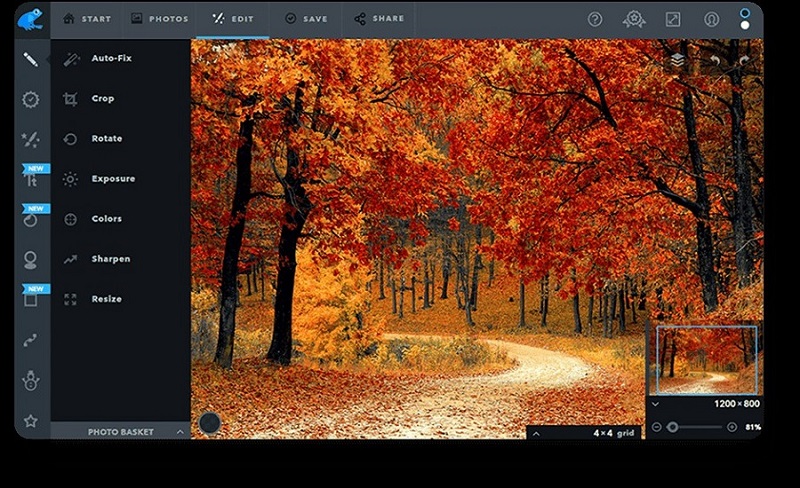
BeFunky combines traditional editing controls with modern AI-powered tools for background removal and enhancement.
Where AI Still Falls Short
Despite rapid advances, AI tools have clear limitations. A discussion on DPReview highlights that while AI editors work, the results are often "very limited" in scope compared to manual, precision editing. Advanced techniques like Dodge & Burn, clone stamping, healing brush, and frequency separation still require direct manual control.
Only Photopea and Photoshop web currently support the full range of traditional retouching tools that professionals rely on for detailed work.
The Right Tool for Each Task
The best approach is often a hybrid one. For quick fixes and creative effects, AI tools in Pixlr or Canva can save enormous time. For precision retouching, color grading, or complex composites, Photopea or Photoshop web are more appropriate. Many users find value in combining tools — for example, using Photopea for detailed layer work, then exporting to Canva for final layout and text.
Pricing Transparency: Free Tiers, Subscriptions, and AI Credits
Understanding the true cost of an online editor requires looking beyond the "free" label. AI features, advanced exports, and high-resolution output are often tied to subscription plans or credit systems.
| Tool | Free Tier Limitations | Premium Plan | AI Credit System |
|---|---|---|---|
| Photopea | Ad-supported; full features included | No subscription required (donation optional) | None |
| Pixlr | Ad-supported; AI credits limited | Starts at $1.99/month | Yes — credits used per AI action |
| Canva | Many AI tools locked (Magic Eraser, Background Remover) | Pro at £13/month (~$16.50) | Unlimited AI with Pro |
| Adobe Express | Limited AI features | Premium plan (included with Creative Cloud) | Firefly credits |
| Lightroom / Photoshop Web | Free trial only | $9.99/month (billed annually) | Included in subscription |
Truly Free Options
Photopea remains one of the few truly free options with no account required and no feature gating. It is supported by ads, which can be removed via a small donation. Pixlr also offers a generous free version that does not require an account, though AI features consume credits that replenish slowly or require a paid plan for heavy use.
Subscription Costs
Adobe's products remain the most expensive option for serious photographers. The Photography Plan, which includes Lightroom and Photoshop web, runs at $9.95/month. Canva Pro, at approximately $16.50/month, is comparable in cost but targets a different audience — social media and marketing creators rather than photographers.
AI Credit Systems
Pixlr uses an AI credit model where each action (background removal, generative fill, upscaling) consumes a set number of credits. The free tier provides a limited daily refresh, after which you must wait or upgrade. Canva and Adobe have moved toward similar models, though Canva Pro offers unlimited AI usage within the subscription.
Premium online editors often include text overlay, advanced effects, and high-resolution export as part of their subscription plans.
Privacy and Security When Editing Photos Online
Uploading images to a third-party server raises legitimate privacy concerns. Different tools handle data in very different ways, and understanding these differences is critical for professionals working with sensitive or client-owned images.
Account Requirements
Photopea and the free version of Pixlr are notable in that they do not require an account to start editing. Canva, Adobe Express, and BeFunky all require users to create a free account, which stores your designs and uploaded images on their servers.
Data Handling Concerns
Pixlr emphasizes its "dedication to security and privacy" and has maintained a 15-year track record in the space. Canva's privacy policy has historically permitted the use of uploaded images for AI training, although users can opt out. A recent discussion in a photography Facebook group highlighted the frustration of users running legacy software (CS5) on Windows 11 who are being forced to migrate to newer platforms, raising trust issues about data handling in modern tools.
What to Do If You Need Maximum Privacy
Photopea is the strongest choice for privacy-sensitive work. All image processing happens in-browser; your files are never uploaded to a server. This means you can edit sensitive images with complete confidence that they are not being used for training or stored on third-party infrastructure.
If you need AI features but want to maintain privacy, Pixlr's free version allows anonymous use, though its AI tools do send image data to servers for processing.
Real-World User Scenarios: When to Use Which Editor
Different users have different needs. Here is how the top editors map to common real-world situations based on community feedback and expert recommendations.
🎨 Casual Social Media Creators — Best fit: Canva or Adobe Express. Drag-and-drop interfaces, thousands of templates, and easy text/effects make these ideal for quick social posts.
📸 Hobbyist Photographers on a Budget — Best fit: Photopea or Pixlr. Reddit communities and Amateur Photographer both recommend these as strong free alternatives for editing without a subscription.
⚙️ Professionals Needing Precise Control — Best fit: Lightroom/Photoshop web or Photopea. DPReview forums consistently cite Adobe's web apps as the gold standard, while Photopea serves as a capable fallback.
🔄 Legacy Software Refugees — Best fit: Photopea. Users migrating from CS5 or older versions will find Photopea's Photoshop-like interface and PSD support immediately familiar.
Advanced Editing Techniques You Can Do Online (Power-User Tips)
Many professional-grade techniques are entirely possible within a browser using Photopea or Pixlr. Here are a few power-user tips drawn from experienced editors on platforms like Quora.
✏️ Pro Tip: Dodge & Burn in Photopea Use the Dodge Tool (O) to lighten specific areas and the Burn Tool (O) to darken them. This creates depth and contrast that directs the viewer's eye. Always check the "Protect Tones" checkbox to maintain natural skin tones and avoid color shifts.
- Clone Stamp & Healing Brush: Photopea fully supports the Clone Stamp (S) and Healing Brush (J) for precise retouching of blemishes, dust spots, or unwanted objects. These tools work exactly as they do in desktop Photoshop.
- Blending Modes: In Pixlr, the "decompose into layers" feature allows you to separate an image into its component layers, then apply blending modes for advanced composite effects.
- Shortcut Keys: Photopea supports many of the same keyboard shortcuts as Photoshop. Press
Ctrl+Jto duplicate a layer,Ctrl+Tfor free transform, andBfor the brush tool.
For more on making precise selections, see our guide on how to master the object selection tool in Photoshop — many of the same principles apply to Photopea's selection tools.
How to Choose Your First Online Photo Editor in 5 Minutes
If you are ready to get started right now, follow these simple steps to pick the right tool and begin editing.
- Identify Your Primary Need — Are you creating social graphics, editing RAW photos, experimenting with AI, or concerned about privacy?
- Match Your Need to a Tool — Social graphics → Canva or Adobe Express. RAW/PSD editing → Photopea or Lightroom web. AI experimentation → Pixlr. Privacy → Photopea.
- Open the Tool and Try a Starter Task — Canva: Create a social post with a filter and text overlay. Photopea: Open a RAW file and adjust the exposure and color balance. Pixlr: Run AI background removal on a portrait and try a generative fill. Adobe Express: Remove a background and add animated text.
Each of these tools is free to start, and you can complete the task entirely within your browser. If the tool does not meet your needs, simply open another tab and try a different one — no downloads required.