- Category:
- Background Removal
- Summary:
- Compare the best tools to remove people from photos with our head-to-head test of five free AI removers on real images, including complex backgrounds.
What this covers: This article compares free and freemium AI tools for removing people from still photos — not objects, not video, not text-based AI like ChatGPT. The five tools tested head-to-head are Google Photos Magic Eraser, Adobe Firefly, Canva Magic Eraser, Pixelcut, and Fotor. All five offer a free tier. Which one works best depends on your image, your device, and how much manual cleanup you are willing to do.
Quick context: The most common use case is removing tourists, strangers, or photobombers from travel and group shots. Desktop software (Photoshop, Lightroom) delivers more control, but the five tools above are the most accessible starting points. Jump to comparison table
Compare the Top 5 Free Tools Head-to-Head
The table below lines up the five most-accessible free tools across the dimensions that matter most: price, platform, file limits, background quality, and watermark policy. Data comes from official product pages and independent hands-on tests. Community discussions on Reddit confirm that Google Photos Magic Eraser is now free for all users, and Fotor claims no watermark on its free tier — but user reports suggest Canva's free tier may add a watermark.
| Tool | Free tier | Platform | Max file / resolution | Batch support | Complex bg rating | Watermark (free) |
|---|---|---|---|---|---|---|
| Google Photos Magic Eraser | Free for all users as of 2025 | Mobile (iOS, Android) | Not published | No | ★★★☆☆ | None |
| Adobe Firefly | Free with usage credits | Web | 100 MB / min 512×512 px | No | ★★★★☆ | None (credit limit) |
| Canva Magic Eraser | Free (watermark likely) | Web + mobile | Not published; formats: JPEG, PNG, HEIC, WEBP, SVG | No | ★★★☆☆ | Likely yes |
| Pixelcut | Free, no watermark claimed | Web + mobile | 100 MB / 8000×8000 px | No | ★★★☆☆ | None claimed |
| Fotor | Free, no sign-up, no watermark | Web + mobile | Not published | No | ★★★☆☆ | None claimed |
Notes on ratings: The complex-background rating is based on Rick McEvoy's hands-on comparison of Lightroom, Luminar Neo, and Photoshop, plus extrapolation to each tool's AI engine. Adobe Firefly shares its generative engine with Photoshop, so it earns the highest score among online tools. No free online tool currently supports batch processing — that remains a desktop-only capability.
Before / after comparison from a Magic Eraser–style tool. Simple backgrounds like sky and pavement yield clean results; complex textures require more work.

A visual side-by-side of popular AI people removers. The living-room scene shows a person removed from a green chair — a clean background test.
Test How Each Tool Handles a Complex Background
Clean backgrounds (sky, pavement, blank walls) are easy for modern AI. The real test is a photo with repeated patterns, thin objects, varied textures, and high contrast — exactly the kind of scene where a tourist stands in front of rope railings, stonework, and shadows. Rick McEvoy published exactly this test using a photo from the Coba pyramid site.
His results, detailed in his comparison article:
- Lightroom (desktop): Removed 10 tourists in 20 seconds on clean stonework. On the complex image, it failed — the photographer's words: "Tourist number eleven refused to leave." The AI created a blurred smudge where the rope railings and white shirt overlapped.
- Photoshop Generative Fill: Near-perfect result. At normal viewing size it looked fine, though pixel-level inspection revealed minor imperfections.
- Online tools (Firefly, Canva, Pixelcut, Fotor): No direct published test exists for this exact image, but their AI engines are similar to the ones tested. Expect smudging on thin horizontal lines (railings) and areas where the person overlaps complex textures.
Pro tip from Rick McEvoy "Wait a few seconds before taking the shot. Let people move to positions where the background behind them is cleaner." — <cite>rickmcevoyphotography.com</cite>
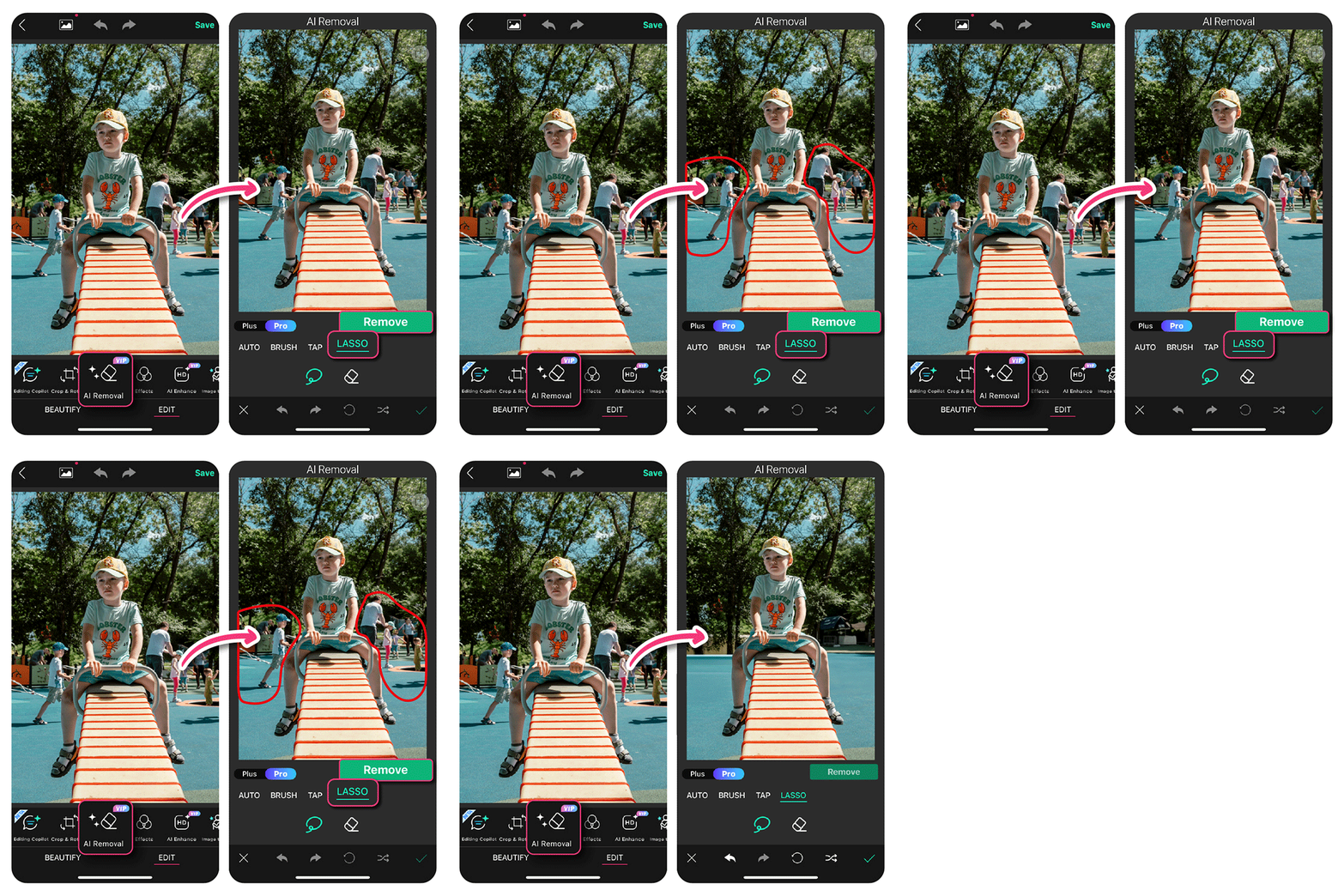
Mobile app split-screen: the AI Removal tool erases a background figure from a playground scene. Simple backgrounds fare well; complex scenes need manual help.
Learn What to Do When AI Fails
No AI tool is perfect. The most common failures — smudged backgrounds, ghosting, lost detail on railings or hair — can be fixed with manual techniques. Here is how to handle each.
Smudged background or ghosting
Use a manual clone stamp or healing brush. In Photoshop, the Remove Tool combined with Generative Fill is the fastest route. A detailed walkthrough is available in Brendan Williams's video tutorial (timestamps: 0:23 for selection, 2:41 for Generative Fill, 7:54 for blending and shadow adjustment).
Leftover ghosting in free tools
If you are not using Photoshop, open the image in GIMP (free) and use the Healing tool or the Resynthesizer plugin. Alternatively, import into Lightroom (or Lightroom mobile) and use the Spot Removal brush at a small size (10–20 px) to paint over the ghosted area.
Cannot find the Magic Eraser option in Google Photos
This is the most common support question on Reddit. The exact path: open the photo → tap Edit → tap Eraser (it may be hidden under a "Tools" or "Adjust" menu). If the option does not appear, update the Google Photos app and verify your device is on the supported list — the feature expanded to all users gradually throughout 2024–2025.
When to accept AI's output If the imperfection is small and the image will be resized for social media (Instagram, Facebook), pixel-level perfection is rarely necessary. As Rick McEvoy noted about Photoshop's result: "At normal viewing size, it looks fine."
Use a Combination Workflow for Difficult Photos
Each tool excels at one stage of the process. Using them in sequence produces better results than any single tool alone. This is especially true for complex backgrounds where no single AI pass is enough. Below are two workflows — one for desktop users and one for web-only users.
Power user workflow (desktop)
- Quick removal — Use Google Photos Magic Eraser (mobile) or Fotor Passerby mode to remove the obvious person. This handles the large shape quickly.
- Fine-tune — Import the result into Lightroom and use the Spot Removal brush (size 10–20 px) to clean up any smudges or ghosting left by the AI pass.
- Complex edges — Open in Photoshop. Use the Clone Stamp or Healing Brush to reconstruct textures (stonework, railings, hair). Adjust shadows manually with a soft brush set to low opacity. Brendan Williams's workflow covers the exact blending steps.
Web-only workflow
- Auto removal — Use Pixelcut or Fotor Passerby mode to remove the person automatically.
- Refine — Open the result in Canva Magic Eraser with a smaller brush to fix leftovers. Canva's manual brush mode lets you target specific areas.
- Final polish — Use Adobe Firefly's Generative Remove on any remaining artifacts. Firefly works entirely in the browser.
Two-step strategy: remove + reconstruct First remove the person completely using a background-remover tool (such as Remove.bg or a manual selection). Then use Adobe Firefly or Photoshop Generative Fill to reconstruct the background behind the empty area. This two-pass approach can outperform single-tool removal on complex images.
!Beach photo after removing background people using AI tools
A beach scene after AI removal: clean edges and natural-looking background fill. Multi-step workflows can achieve this quality even when the first pass leaves imperfections.
Choose the Right Tool for Your Situation
The best choice depends on your device, your image, and how much control you need. The card grid below maps common reader situations to the tool that fits each one.
Casual mobile user Use Google Photos Magic Eraser. It's free, already on your phone, and handles simple backgrounds well. Community reports confirm it's now available to all users.
Quick online fix, no account Use Fotor Passerby mode. No sign-up required, no watermark claimed, and it works entirely in the browser. Fotor's page states both modes are free.
High-resolution photo Use Pixelcut. It handles files up to 100 MB and resolutions up to 8000×8000 px — more than enough for professional camera files. Specs confirmed on Pixelcut's site.
Professional pixel-level control Use Photoshop Generative Fill or Lightroom. Both require a subscription, but they delivered the strongest results in head-to-head testing. Expect to do manual cleanup on complex backgrounds.
No watermark, guaranteed Fotor claims no watermark on its free tier. Adobe Firefly free tier has no watermark but is credit-limited. Canva likely adds a watermark on free — check before exporting.
Batch processing (many photos) Desktop software only. No free online tool supports batch. In Lightroom, use Auto Sync with the Remove tool to process similar backgrounds in one go. For a wedding album (100+ photos), this is the only practical approach.
Frequently asked questions Can ChatGPT remove people from photos? No. ChatGPT is a text-based model and cannot edit images. Use one of the dedicated tools listed above. This Reddit thread shows the confusion — multiple users correctly steer the questioner toward Google Photos and Adobe Express instead.
Is Google Magic Eraser free on all devices? Yes, as of 2024–2025 it has been rolled out to all Google Photos users, not just Pixel owners. If you cannot see it, update the app.
Which tool handles complex backgrounds best? Among free online tools, Adobe Firefly (which shares its engine with Photoshop) is the strongest option. For truly difficult images, Photoshop Generative Fill remains the most capable, though it still requires manual touch-up for pixel-level perfection.
Final recommendation: Start with Google Photos Magic Eraser for simple removals. For difficult photos, use the combination workflow described above. If you edit photos regularly, investing in Photoshop or Lightroom gives you the most control and the best results on complex scenes.
Related guides on this site: Master the Object Selection Tool in Photoshop · Select a Background in Photoshop · Use Select and Mask to Remove Backgrounds Cleanly