
- Category:
- Workflow Tips
- Summary:
- InPixio reviews: one-click AI for object removal & sky replacement impresses but slow, stability issues & missing Mac features are complaints; from $49.99/yr.
The short answer: InPixio stands out for one‑click AI tasks like object removal and sky replacement, but expert reviews highlight slow performance, stability issues, and shallow feature depth. Pricing starts at $49.99/year (Standard) with higher tiers at $79.99 and $89.99. Mac users face significant gaps — no sky replacement, AI backgrounds, or text‑to‑image. If you need professional‑grade speed, layers, or strong Mac support, consider alternatives such as Photoshop Elements or Affinity Photo.
What Do Expert and User Reviews Actually Say About InPixio?
This section covers the full range of published verdicts — from professional test labs to everyday users — so you can weigh the praise against the pain points before spending any money.
Expert Verdicts – PCMag vs ExpertPhotography vs ePHOTOzine
Three established outlets have tested InPixio in recent years, and their conclusions paint a notably mixed picture. PCMag reviewed the v12 Windows version and found the software “slow, unstable” and ultimately “difficult to recommend”. Their test system met the minimum specs (8 GB RAM, Core i3), yet the application crashed during routine tasks and object removal took far longer than competing tools.
ExpertPhotography scored the Mac v10 Pro edition 70 out of 100. The review praised the stripped‑back interface for absolute beginners, but flagged sluggish performance even on an M1 Mac, a lack of organisational tools (no tagging, no albums), and the omission of sky replacement on macOS. The verdict: adequate for occasional hobbyist use, but not a tool for serious editing workflows.
A third review, from ePHOTOzine, tested version 11 on PC and reported no lag during basic edits. This apparent contradiction is almost certainly version‑ and hardware‑related: ePHOTOzine reviewed an earlier release before the heaviest AI tools were added, while PCMag and ExpertPhotography tested the current, more demanding feature set.
Bottom line across expert tests: InPixio is simple to learn, but performance varies sharply by version and hardware. If you have a fast Windows PC with 16 GB+ RAM, you may fare better than the reviewers — but Mac users and anyone with a modest machine should expect stutter and waiting.
User Sentiment – SoftwareAdvice and Trustpilot
Trustpilot aggregate rating for InPixio — generally positive among casual users, though detailed complaints surface elsewhere.
User review aggregators show a split between hobbyists who enjoy the simplicity and more experienced users who hit limits. On SoftwareAdvice, InPixio gathers 114 reviews with the following average ratings (out of 5):
- Ease of Use: 3.64
- Functionality: 3.58
- Value: 3.52
- Support: 3.35
Common pros cited include the fun factor, the usefulness of the free version for light edits, and the short learning curve. Cons that recur across multiple reviews include forced upgrade notifications after a lifetime purchase, recurring billing issues, and difficulty reaching customer support. On Trustpilot, the tone is warmer — many call the AI editing “pretty cool” and appreciate the one‑click results — but the platform's aggregate score (4 stars from over 11,800 reviews) should be read alongside the more detailed critique on SoftwareAdvice.
The Performance Problem – Why Do Sources Disagree?
The conflict between ePHOTOzine (no lag) and PCMag/ExpertPhotography (slow, crashes) is one of the most confusing aspects of the InPixio literature. Here is what likely explains it:
- Version differences: ePHOTOzine tested v11, which lacked some of the heavier AI modules (upscaling, noise removal, text‑to‑image) that were added or improved in v12. The AI tools are the primary resource hogs.
- Hardware demands: PCMag’s test system met the minimum specs (Core i3, 8 GB RAM) and still crashed. ExpertPhotography noted slowness even on Apple M1 silicon. Users with faster CPUs and 16 GB+ RAM may have a smoother experience, but the software does not optimise well for lower‑end machines.
- Task dependency: Basic sliders and cropping run fine. The slowdowns appear when using object removal (especially with complex backgrounds), batch operations, and sky replacement.
Practical advice: Download the free trial and test the exact operations you plan to use — object removal, sky swap, upscaling — on your own computer. If the trial feels sluggish, the paid version will not improve. No amount of settings tweaking can fix fundamentally slow AI inference.
Common User Frustrations
Beyond speed, several consistent complaints emerge from forums and review sites:
- No organisational features: InPixio lacks tagging, albums, or any file‑management system. You cannot work across multiple images in tabs — each image opens in a separate window. This makes batch work or even simple project tracking cumbersome.
- Post‑purchase confusion: A user on JustAnswer reported buying the Pro version specifically for object removal, then being unable to locate the tool in the interface — a sign that the module layout is not immediately intuitive despite the overall simple look.
- Upgrade‑notification fatigue: Several SoftwareAdvice reviewers, including one who paid for a lifetime license, describe repeated pop‑ups urging them to upgrade. This aggressive upselling erodes trust.
- Community sentiment: On Reddit’s AskPhotography group and Facebook photo communities, users frequently ask for an “easy” photo editor. InPixio is mentioned as a candidate, but the conversation often veers toward free alternatives (GIMP, Photopea) or subscription‑free options (Affinity Photo) instead.
What users like
- Very short learning curve
- Good one‑click AI results (sky, background)
- Free trial available (with save limitation)
- Fun for casual photo play
What users dislike
- Slow on modest hardware; crashes reported
- No layers, no organisation, no batch
- Forced upgrade notifications
- Billing / cancellation friction
How Much Does InPixio Actually Cost and What Do You Get?
Pricing Tiers and Feature Lock
| Tier | Yearly Price | Key AI Tools Included | One‑Time Option |
|---|---|---|---|
| Standard | $49.99 | Basic corrections, object removal, photo cutter | – |
| Pro | $79.99 | Standard + sky replacement, photomontage | – |
| Ultimate | $89.99 | Pro + upscaling, noise removal, text‑to‑image | – |
| Avanquest one‑time | $59.99 | Manual editing only — no AI tools | Yes |
Pricing details come from PCMag and the official Avanquest site. The one‑time $59.99 option is easy to miss: it lacks all AI features, so you get only basic manual sliders. The free trial lets you test the full feature set, but saving any edited image requires a paid activation — a lock‑in risk worth noting before you invest time.
Default Checkout Add‑Ons
PCMag’s review flagged a common cart trick: the default checkout includes 5‑PC installation rights and a Photo Maximizer add‑on, both pre‑checked. Review your cart before paying, or you may spend more than the advertised tier price.
Is the Cost Justified?
At $49.99–$89.99 per year, InPixio sits below Adobe’s Photography plan ($119.88/yr) but above or on par with one‑time competitors. Photoshop Elements costs $99.99 one‑time and offers layers, guided edits, and solid organisation — no annual fee. Our take: InPixio’s subscription makes sense only if you need exactly its AI shortcuts (one‑click sky/background swaps) and you have a fast Windows PC. For everyone else, a one‑time purchase like Elements or Affinity Photo delivers more long‑term value.
What AI Features Does InPixio Offer and How Well Do They Work?

The main InPixio interface — tools are arranged left, editing area centre, with slider‑based adjustments.
The Three Core Modules
InPixio splits its functionality into three distinct modules, each accessed from the launcher:
- Photo Editor — basic adjustments (exposure, colour, crop), retouching (healing brush, clone stamp), and non‑destructive RAW processing (supports Canon CR3, Fuji X‑T4, and others).
- Photo Eraser — object removal and the clone tool, powered by AI for automatic selection.
- Photo Cutter — background removal and cutout creation, with edge refinement controls.
AI‑Powered Tools (Per Tier)
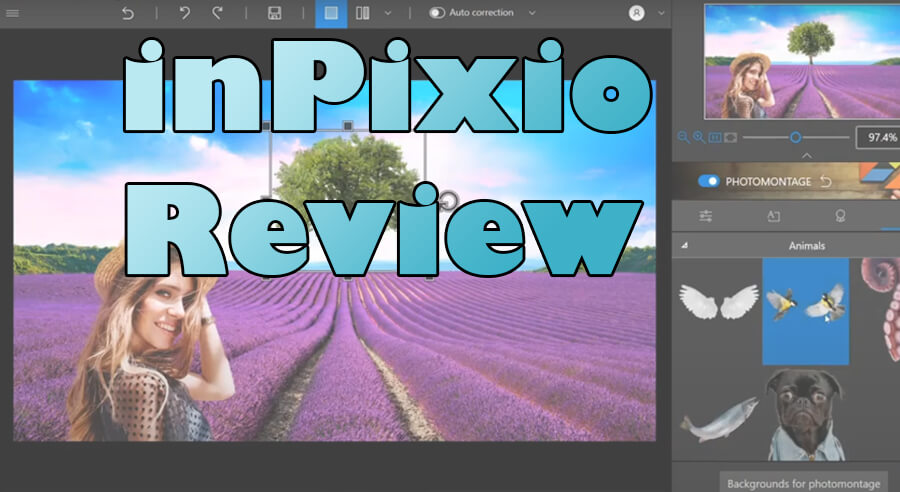
Photomontage and sky replacement output — one of InPixio’s marquee AI features, though results can look artificial in complex lighting.
The table below summarises what each AI tool does and the limitations reported by reviewers:
| Feature | Available In | Performance Notes | Platform |
|---|---|---|---|
| Object removal | All tiers | Works well on simple backgrounds; slow and imprecise on complex edges (hair, foliage) | PC + Mac |
| Sky replacement | Pro+ | Effective for clear skies; may look flat in golden‑hour or overcast scenes | PC only |
| Upscaling | Ultimate | Decent for web/social use; not suitable for print‑size enlargement | PC + Mac |
| Noise removal | Ultimate | Reduces luminance noise moderately; heavy chroma noise still visible | PC + Mac |
| Text‑to‑image | Ultimate | Experimental quality — not at the level of specialised generative AI tools | PC only |
| AI Backgrounds | Pro+ | Generates background from a prompt; useful for product mock‑ups | PC only |
Tutorial Walkthrough – Removing an Object in 5 Steps
Based on the official InPixio support guides, here is the standard workflow for object removal:
- Open Photo Eraser — launch the module from the main hub and load your image.
- Mark the area — use the green brush to paint the object you want to remove (the AI selects similar tones). Use the red brush to protect areas you want to keep.
- Apply removal — click “Remove Object.” InPixio analyses the selection and fills the area with surrounding texture. This is where the slowdown is most noticeable on larger selections.
- Fine‑tune with clone tool — if the AI result has obvious seams, switch to the manual clone tool to blend edges.
- Export — save as JPEG, PNG, or TIFF. The free trial blocks saving at this step.
Performance tip: If the object removal tool is very slow, reduce the image resolution before editing (work on a copy). InPixio processes at full resolution even for previews, which strains limited RAM.
Can InPixio Replace Photoshop? (Comparison with Top Alternatives)
InPixio vs Photoshop Elements
Photoshop Elements ($99.99 one‑time) is the closest direct competitor: both target hobbyists, both offer guided edits, and both avoid the full complexity of the parent Photoshop. Elements wins on feature depth — it has layers, advanced retouching, a proper organisational module (the Organiser), and far better performance on modest hardware. InPixio’s only advantage is that its AI tools (sky replacement, object removal) are slightly more “one‑click” out of the box. But Elements’ guided edits achieve similar results with more control.
InPixio vs Affinity Photo vs Luminar Neo
Affinity Photo ($69.99 one‑time) is a pro‑level editor with layers, masks, full colour management, and equal Mac/PC support. It has no AI gimmicks, but its raw performance and stability set a high standard. Luminar Neo (subscription or one‑time) offers AI sky replacement, object removal, and upscaling with significantly better speed on both platforms — and its Mac version includes all the AI features InPixio restricts to Windows.
Decision Table – InPixio vs Top 3 Alternatives
| Product | Price (One‑Time / Annual) | AI Feature Set | Platform Parity | User Rating | Best For |
|---|---|---|---|---|---|
| InPixio | $49.99–$89.99/yr<br/>or $59.99 (no AI) | Moderate — sky, object, upscale | Mac missing key features | 3.5–4.0 / 5 | Windows hobbyists who want one‑click AI |
| Photoshop Elements | $99.99 one‑time | Moderate — guided edits, no generative AI | Full parity | 4.3 / 5 | Anyone wanting layers + organisation without a subscription |
| Affinity Photo | $69.99 one‑time | Minimal — no AI‑focused tools | Full parity | 4.6 / 5 | Photographers who need pro‑level editing at a one‑time price |
| Luminar Neo | $99.00 one‑time<br/>or $49.99/yr | Broad — AI sky, object, upscale, relight | Full parity | 4.2 / 5 | Hobbyists who want AI tools and good Mac support |
Is InPixio Safe and Trustworthy? (Cancellation, Refund, Malware)
Refund Policy and Cancellation Difficulty
InPixio offers a 30‑day money‑back warranty, but multiple user reports on SoftwareAdvice and PCMag describe slow or non‑responsive refund processing. Several users mention that cancelling a subscription required multiple emails and follow‑ups. If you decide to buy, using a credit card or PayPal with buyer‑protection features adds a layer of safety.
Safety – Is It Malware‑Free?
PCMag’s test system encountered no malware or unwanted software during installation. InPixio is owned by Avanquest, a legitimate software publisher that has been in business for decades. The main safety risk is downloading from third‑party sites — always download directly from the official InPixio website or the Avanquest store.
Customer Support Reach
Support is available via phone, email, and online ticketing. The SoftwareAdvice rating for support is 3.35/5, which is below average for photo‑editing software. The official support site provides thorough how‑to guides for all modules, so many common questions can be answered without contacting a human agent.
Mac vs PC – What Features Are Missing on the Mac Version?
This is one of the most critical purchase factors for Mac users. The Mac version of InPixio is stuck at v10 (Windows is at v12) and requires macOS 10.14.6 or later. No further Mac updates have been released, which means several features available on Windows are simply absent on macOS.
| Feature | Windows (v12) | Mac (v10) |
|---|---|---|
| Sky Replacement | ✅ Pro+ | ❌ |
| AI Backgrounds | ✅ Pro+ | ❌ |
| Text‑to‑Image | ✅ Ultimate | ❌ |
| Upscaling / Noise Removal | ✅ Ultimate | ✅ Ultimate |
| Object Removal | ✅ All tiers | ✅ All tiers |
| RAW Processing | ✅ | ✅ (non‑destructive) |
| M‑series optimisation | N/A | No native optimisations |
ExpertPhotography confirmed that even on an M1 Mac the software feels slow — and without native Apple Silicon support, future‑proofing is a concern. Mac users who need AI sky replacement or text‑to‑image should look at Luminar Neo or Affinity Photo, both of which offer full feature parity across platforms.
How to Make InPixio Work in a Real Editing Workflow (Cross‑Tool Combination)
Because InPixio lacks organisation, layers, and batch processing, it is not suitable as a standalone workflow tool. However, it can fill a specific niche when combined with other software.
Why InPixio Alone Isn’t Enough for a Whole Workflow
No cataloguing, no albums, no tags, no batch operations, no layers — these omissions mean that editing more than a handful of images quickly becomes chaotic. InPixio works best as a single‑image AI finishing tool, not as your main editing environment.
📂 Lightroom + InPixio
Use Lightroom for cataloguing, raw conversion, and global adjustments. Export the final image as a TIFF or high‑quality JPEG, then open it in InPixio only for AI‑heavy tasks: sky replacement, object removal, or upscaling. No direct integration — manual export/import — but the workflow is straightforward.
🖌️ Affinity Photo + InPixio
Affinity Photo handles layers, advanced retouching, and masks. Use InPixio exclusively for generative‑style tasks (AI background swap, object removal) where Affinity’s manual tools would take longer. This stack is more economical than an Adobe subscription and covers almost every editing need.
📱 Mobile + InPixio Desktop
If you shoot with a phone and want quick AI edits, use InPixio as your desktop “magic wand” for the occasional hero image. For everyday batch editing (event photos, travel albums), stick with Lightroom Mobile or Snapseed — InPixio’s single‑image workflow is too slow for volume.
🧪 Photoshop Elements + InPixio
Elements already covers layers and organisation. Use InPixio only when Elements’ guided edits cannot achieve the effect you want — for instance, a complex sky replacement where Elements’ auto‑selection struggles. This avoids paying for a second subscription while keeping InPixio as a specialist tool.
Best Use Cases for InPixio
- Hobbyists who edit a few photos per week and want one‑click AI fixes without learning layers or masks.
- Windows users with a fast PC (Core i5 or better, 16 GB RAM, SSD) who accept occasional lag for the convenience of automated sky/background swaps.
- Beginners who find Photoshop overwhelming and need a gentle on‑ramp — but only as a stepping stone, not a long‑term tool.
- Not suitable for Mac users, event photographers who batch‑edit, or anyone who needs professional‑grade output (print‑ready upscaling, precise masking, colour‑accurate retouching).