- Category:
- Selection & Masking
- Summary:
- The deselect in Photoshop shortcut Ctrl+D (Cmd+D) instantly removes selections; learn to fix issues like text mode or IME conflicts for a smooth workflow.
The shortcut: Ctrl+D (Windows) or Cmd+D (macOS).
Pressing this instantly removes the active pixel selection (the "marching ants" border). If the shortcut does nothing, you may be in a text-input mode, have an IME active, or be trying to deselect a layer or path instead — each has its own fix, covered below.
The Standard Deselect Shortcut Works for Pixel Selections
The Two-Key Command That Removes the Marching Ants
The most direct way to deselect in Photoshop is Ctrl+D on Windows or Cmd+D on macOS. This keystroke clears the entire active pixel selection — the dashed outline often called "marching ants" — in a single press. It is documented across multiple authoritative sources, including Adobe's official keyboard shortcuts page, the Julieanne Kost blog, and TourBox's Photoshop guide.
Importantly, this shortcut only affects pixel-based selections — the marching ants that appear when you use the Marquee, Lasso, Magic Wand, or Quick Selection tools. It does not deselect layers and does not deactivate Pen Tool paths. Those are separate concepts that require different methods (covered later in this article).
When You Can't Use the Keyboard — Right-Click and Menu Fallbacks
If you prefer the mouse or have a keyboard that is temporarily unavailable, two fallback methods work identically to Ctrl+D / Cmd+D:
- Right-click anywhere inside the active selection and choose Deselect from the context menu.
- Go to the menu bar and click Select > Deselect.
Both produce the same result: the marching ants disappear and the selection is cleared. These are standard Photoshop behaviours that have remained consistent across recent versions.
When to use the fallbacks: if you are using a tool that captures keyboard input (such as the Type tool) or if you have an Input Method Editor (IME) active that intercepts Ctrl+D, the menu or right-click method bypasses those conflicts entirely.
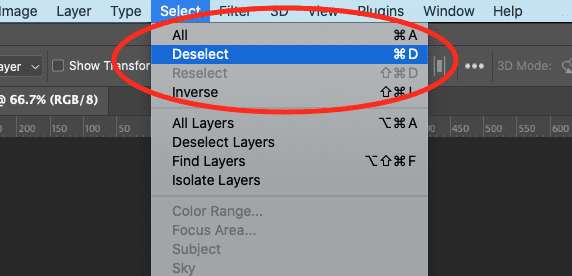
The Select > Deselect menu option — a reliable fallback when the keyboard shortcut is blocked.
Related Shortcuts — Reselect and Inverse
Two companion shortcuts are worth knowing because they are the most common actions you will take immediately after a deselect:
- Shift+Ctrl+D (Win) / Shift+Cmd+D (Mac) — Reselect. Restores the last selection you removed, whether you deselected intentionally or accidentally. This is documented on Adobe's shortcuts page and the Julieanne Kost blog.
- Shift+Ctrl+I (Win) / Shift+Cmd+I (Mac) — Inverse. Flips the selection so that everything previously unselected becomes selected, and vice versa. Very useful when you have selected a background and want to switch to the subject. This shortcut is frequently mentioned in community discussions on Reddit's r/photoshop.
Together, these three shortcuts — Deselect, Reselect, and Inverse — cover the majority of selection-management needs in a typical editing session.
Platform and Keyboard Differences
The location of the Ctrl and Cmd keys varies by keyboard and can trip up users who switch between machines:
- Windows PC (desktop or laptop):
Ctrlis in the bottom-left corner of the keyboard, usually besideFnorWin.Dis on the right hand, so the movement is a short reach across the home row. - Apple Magic Keyboard (Mac):
Cmd(⌘) sits directly to the left of the space bar.Dis in the same position as on a PC. The muscle memory difference is small, but users switching from a PC sometimes pressCtrlinstinctively, which does nothing on macOS unless mapped. - Gaming keyboards with remappable keys: If you have custom key bindings in your keyboard software (e.g., QMK, Logitech G Hub, Razer Synapse), a system-level remap can override
Ctrl+Dbefore Photoshop sees it. Check your keyboard profile if the shortcut stops working unexpectedly. - iPad with Apple Pencil: When running Photoshop on an iPad, you can use the on-screen keyboard shortcut or the Select & Mask workspace. The desktop shortcut does not transfer directly, but the right-click and menu methods work as expected.
Quick Visual Guide — The Select Menu in Action
The screenshot above (Select menu with Deselect highlighted) shows the menu path. Below is a broader view of a typical active selection — a yellow rotary phone — with the Select dropdown open, illustrating how the marching ants appear before you deselect.
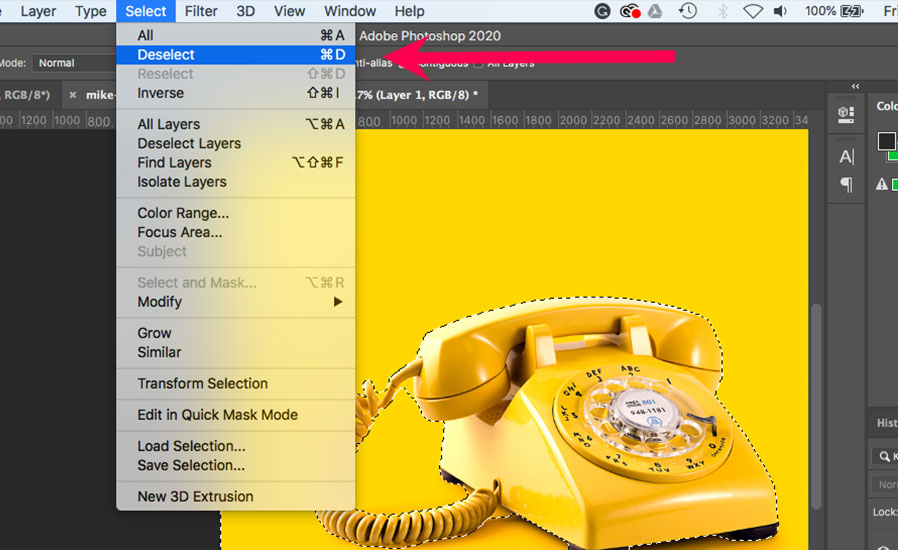
A marching-ants selection on a yellow phone. Press Ctrl+D or choose Select > Deselect to clear it.
How to Deselect Only Part of a Selection
Removing the entire selection and starting over is wasteful when you only need to carve out a small area. Photoshop lets you subtract from an existing selection using a simple modifier key.
Hold Alt (Windows) or Option (macOS) while dragging with any selection tool — the Lasso, Marquee, Magic Wand, or Quick Selection tool. The cursor gains a minus sign (–) next to it, indicating you are in "Subtract from Selection" mode. Anything you draw or click inside that mode is removed from the active selection.
This technique is widely documented. The Adobe Community forum features an Adobe employee listing it as one of four primary methods. Julieanne Kost's blog also covers it in her 25 selection shortcuts and tips.
For completeness, here is the full set of modifier-driven selection modes:
- Add to selection:
Shift+ drag - Subtract from selection:
Alt/Option+ drag - Intersect with selection:
Shift+Alt(Win) /Shift+Option(Mac) + drag
Worked example: Suppose you have a rectangular selection around a photograph, but you want to exclude a circular watermark in the centre. With the Elliptical Marquee tool active, hold Alt (Win) / Option (Mac) and drag around the watermark. The circle is removed from the selection instantly, leaving the rest intact.
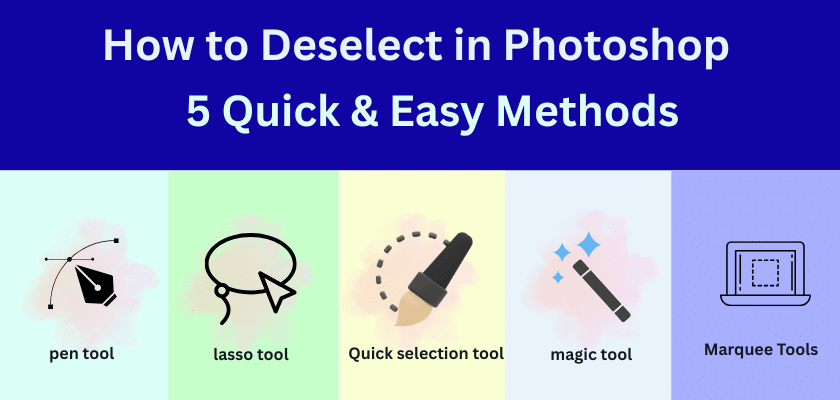
Each of these tools supports the subtract-from-selection modifier (Alt / Option).
Tip
If you hold
Alt/Optionand the selection disappears entirely, you may have clicked outside the existing selection rather than inside it. Release the mouse, undo (Ctrl+Z/Cmd+Z), and try again with the starting point clearly inside the marching ants.
Why Ctrl+D Doesn't Deselect Layers — and How to Fix It
A very common source of confusion: pressing Ctrl+D / Cmd+D does not deselect the active layer in the Layers panel. It only removes the pixel selection (marching ants). The layer itself remains highlighted and active.
Photoshop has three distinct "selection" concepts, and each is managed differently:
- Pixel selection (marching ants): what
Ctrl+D/Cmd+Dclears. - Layer selection (active layer): the layer highlighted in the Layers panel. Deselecting it means no layer is active, so any edits you make apply to nothing — useful for avoiding accidental changes.
- Path selection (Pen Tool / vector mask): an active path in the Paths panel. Described in the next section.
To deselect a layer so that no layer is active, use one of these methods:
- Click an empty area at the bottom of the Layers panel (below the last layer or in the grey space).
- Cmd+click (Mac) / Ctrl+click (Win) the currently selected layer's thumbnail to toggle it off.
The Adobe Community thread confirms that the Cmd+click method is the only reliable way to achieve a completely empty layer selection. Note that Adobe's official shortcuts page does not document this — it is a community-derived workaround.
Pro tip — one-move macro: To clear both the pixel selection and the layer selection in quick succession, press Ctrl+Shift+A (deselect layers) followed by Ctrl+D (deselect selection). This gives you a clean slate: no marching ants and no active layer.
The Layers panel (right) with an active layer highlighted. Clicking the empty grey area below the layer stack deselects it.
The Path Problem — Deselecting Pen Tool Paths
The Pen Tool creates paths, not pixel selections. Pressing Ctrl+D / Cmd+D will have no visible effect on an active path because there are no marching ants to clear. This is a well-known point of confusion, as noted in Reddit discussions and various tutorial comments.
To deselect a path:
- Click an empty area in the Paths panel (Window > Paths).
- Or press
Escto deactivate the path temporarily.
If you need to turn a path into a pixel selection so that Ctrl+D works normally:
- Right-click the path in the Paths panel or on the canvas.
- Choose Make Selection — adjust feather and anti-alias as needed.
- Now the marching ants appear, and
Ctrl+D/Cmd+Dwill deselect them.
Remember: the Pen Tool and the selection tools operate in different panels. The Paths panel and the Layers panel each have their own deselection logic. Mixing them up is the most common reason a user feels the shortcut "doesn't work."
Common mistake
Many YouTube tutorials blur the line between paths and selections. If you followed a Pen Tool tutorial and then tried
Ctrl+Dwith no result, check the Paths panel — the path is likely still active there.
Why Your Deselect Shortcut Isn't Working
When Ctrl+D / Cmd+D appears to do nothing, one of these conditions is usually the cause. Run through this checklist in order:
-
Is a selection tool active?
If you are using the Brush, Eraser, Clone Stamp, or Type tool,Ctrl+Dmay either do nothing or behave unexpectedly. Switch to a selection tool (Marquee, Lasso, Magic Wand, Quick Selection) and try again. -
Is an Input Method Editor (IME) overriding the shortcut?
Users of Chinese, Japanese, or Korean keyboard layouts often find that their IME interceptsCtrl+Dfor a system function (like opening a dictionary). Temporarily switch to an English keyboard layout (Win+SpaceorCmd+Space) and test the shortcut again. This specific issue is reported in Adobe Community discussions. -
Have you customised your keyboard shortcuts?
Go to Edit > Keyboard Shortcuts (Win) or Photoshop > Keyboard Shortcuts (Mac). Search for "Deselect" and verify thatCtrl+D/Cmd+Dis still assigned. If it has been changed, reset the shortcut set to defaults or reassign it. -
Are you on a tablet or non-standard keyboard?
On an iPad, the desktop shortcut does not apply. Use the on-screen keyboard or the Select and Mask workspace. On a gaming keyboard, check your keyboard software for remapping that might interceptCtrl+D.
If none of these steps resolves the issue, restart Photoshop and test with a new document. A corrupted preferences file can also cause shortcut failures — reset preferences by holding Ctrl+Alt+Shift (Win) or Cmd+Option+Shift (Mac) while launching Photoshop.
Quick Reference — All Deselection Methods Compared
The table below summarises every method covered in this article, grouped by what you are trying to deselect. Use it as a quick cheat sheet when you are in the middle of a workflow.
| What to deselect | Shortcut / action | When to use |
|---|---|---|
| Full pixel selection (marching ants) | Ctrl+D (Win) / Cmd+D (Mac) or Select > Deselect or right-click → Deselect |
Remove the entire selection border at once |
| Part of a pixel selection | Alt (Win) / Option (Mac) + selection tool |
Carve out a specific area without starting over |
| Reselect the last selection | Shift+Ctrl+D (Win) / Shift+Cmd+D (Mac) |
Accidentally deselected? Restore the previous marching ants |
| Layer (active in Layers panel) | Click empty area in Layers panel or Cmd+click / Ctrl+click layer thumbnail |
Make no layer active to prevent accidental edits |
| Path (active in Paths panel) | Click empty area in Paths panel or press Esc |
Deactivate a Pen Tool path |
| Fine-tune selection edges | Press Q → paint black to hide areas → press Q again |
Complex edges (hair, glass) where subtract-mode is too coarse |
The Quick Mask method (last row) is especially useful for organic subjects. Enter Quick Mask (Q), use a soft brush with black paint to conceal parts of the selection, then press Q to return to marching ants. An Adobe Community expert (@Nerdio) lists this as one of four recommended techniques in this thread.
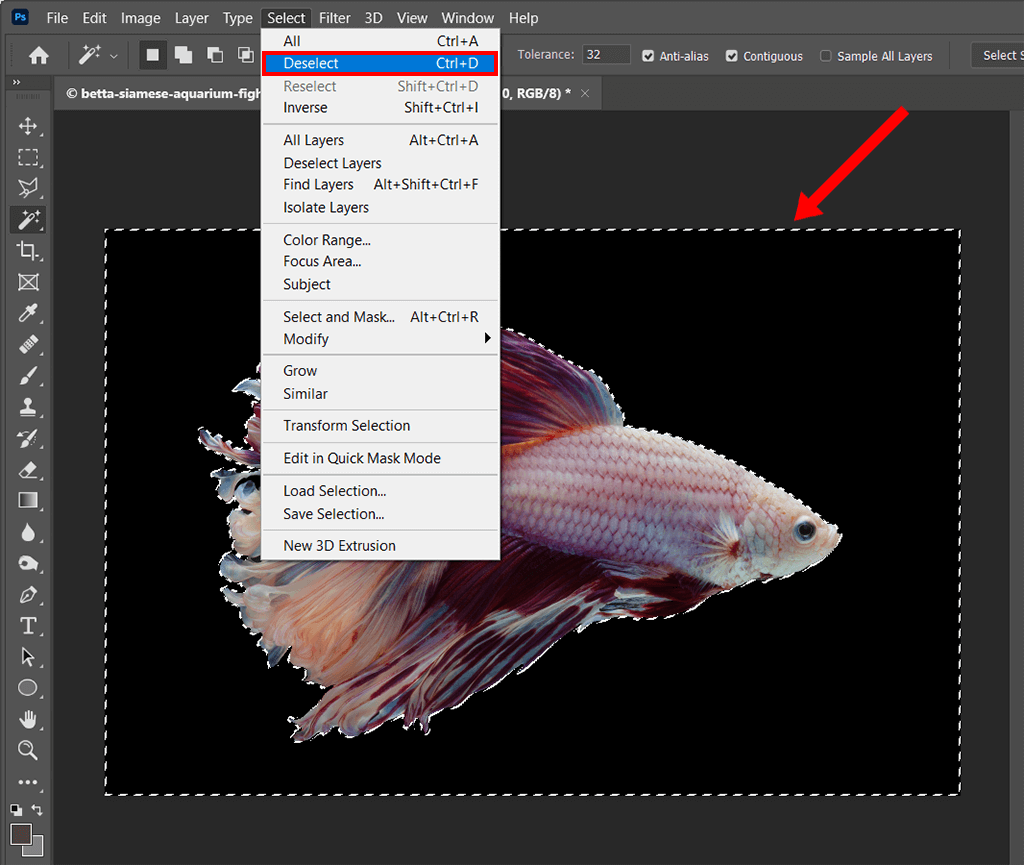
A marching-ants selection around a betta fish — a typical starting point for trying any of the methods above.
Where to Learn More — The Best Sources for Photoshop Selection Shortcuts
The resources below are the most authoritative and up-to-date references for all things related to Photoshop selections and shortcuts. Each serves a different purpose, so pick the one that matches your current need.
-
Adobe Official Keyboard Shortcuts Page
The definitive, always-updated reference for every Photoshop shortcut. Bookmark this for any key combination you need to look up.
Visit shortcuts page → -
Julieanne Kost's Blog
An Adobe evangelist who publishes practical, pro-level shortcuts. Her 25-selection-shortcuts post is a must-read for advanced workflows.
Read the blog → -
Adobe Community Forums
Real user questions answered by Adobe staff and power users. Best for troubleshooting edge cases like IME conflicts or Pen Tool paths.
Browse the forum → -
Reddit r/photoshop
Community-driven discussions that often surface workarounds not found in official docs. Good for "I've tried everything" scenarios.
Join the discussion →
Note: Adobe previously maintained a dedicated "How to deselect in Photoshop" page at adobe.com/products/photoshop/deselect.html, but that URL is no longer accessible. The shortcuts page linked above serves as the current official reference and covers all selection-related shortcuts.