- Category:
- Background Removal
- Summary:
- Remove.bg alternatives for Photoshop users include free Adobe Firefly for one-click hair removal, Photoroom for batch of 250, and the built-in Quick Action.
Remove.bg's standalone website closes December 1, 2026. If you use Photoshop, your replacement depends on what you need:
➜ One‑click AI speed — use Adobe Firefly (free, handles hair and glass).
➜ Batch e‑commerce — try Photoroom (250 images per batch) or Pixlr (free ZIP batch).
➜ Full control inside Photoshop — use its built‑in Quick Action or the Layerbench plugin for one‑click cutout and edge cleanup.
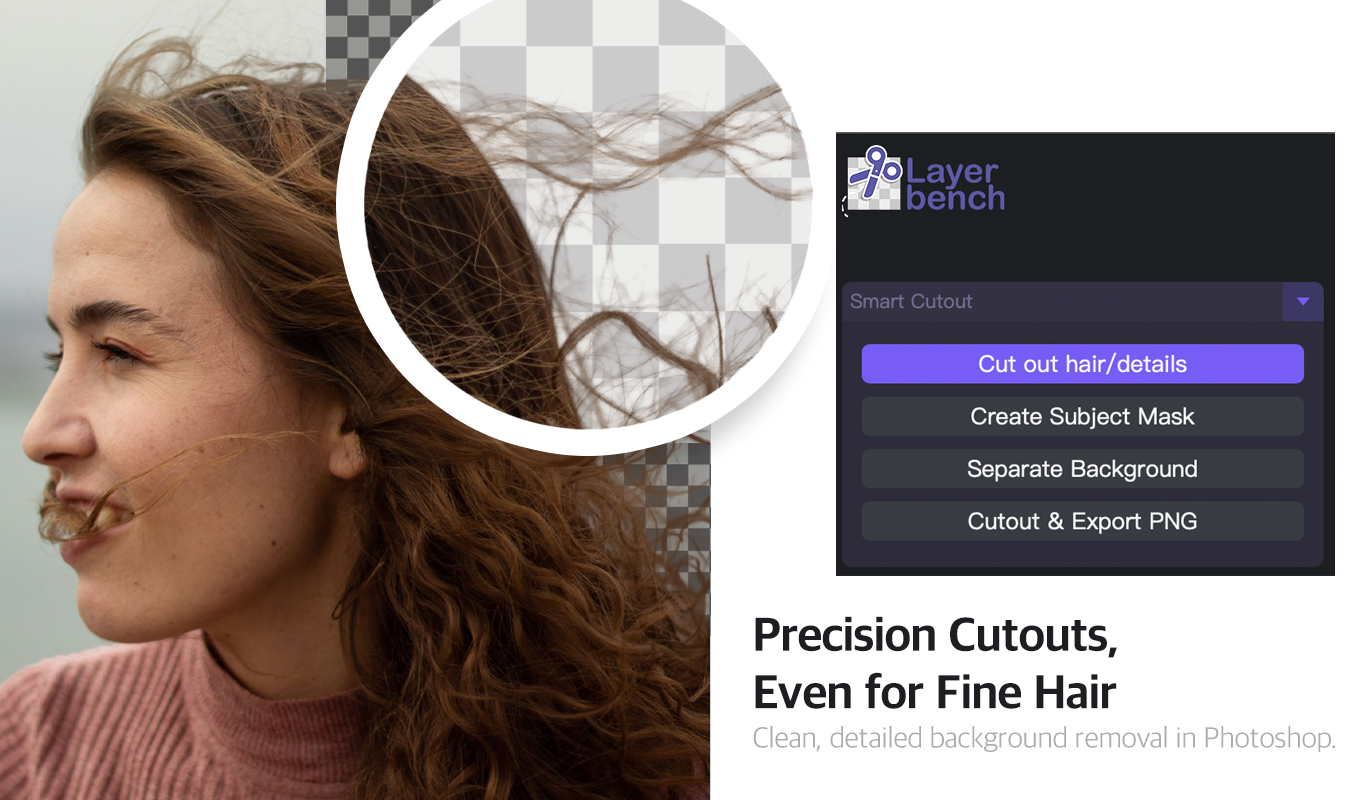
Layerbench — a separate Photoshop plugin: Smart Cutout keeps fine hair on transparency (Cut out hair/details, Create Subject Mask, Separate Background, Cutout & Export PNG).
Related: Remove.bg alternatives · Photoshop background-removal plugins compared.
Test your chosen workflow before the deadline — the sections below walk through each option.
Compare Pricing and Batch Limits of Top Alternatives
Before you pick a tool, it helps to see the key numbers side by side. The table below covers the ten most relevant options for Photoshop users, including free‑tier limits and batch capabilities. Remove.bg itself is listed as a baseline — its credit‑based pricing and the December 1 shutdown are noted.
| Tool | Price / month (free tier) | Batch limit | Photoshop integration | Free‑tier resolution |
|---|---|---|---|---|
| Remove.bg | Credit‑based (free tier exists) | 500 images/min | Plugin, Figma, Zapier | 0.25 MP |
| Adobe Firefly | Free (unlimited) | Single image | Adobe ecosystem | Full (no cap stated) |
| Pixlr | Free (watermark‑free) | Batch ZIP | None | Varies (check policy) |
| Photoroom | From $7.50 (free tier) | 250 images | API | Free tier may have limits |
| Adobe Photoshop | $22.99 (free trial) | Manual / Actions | Built‑in (Quick Action) | Any (no cap) |
| Canva | From $12 (Pro feature) | Single image | None | Full (Pro) |
| PhotoRoom (mobile) | Free (watermark) | Single image | None | Varies |
| Claid | From $9 | API batch | API | — |
| Clipping Magic | From $3.32 | Single image | None | — |
| Adobe Express | From $9.99 | Single image | Adobe ecosystem | Full |
Pricing data sourced from the Photoroom blog and theory7.net. Remove.bg free‑tier resolution of 0.25 MP is confirmed by theory7. Batch speeds — 500 images/min for remove.bg and 250 for Photoroom — are maximums; real‑world results depend on image size and complexity.
Speed vs. control: automated AI tools handle volume; manual editing in Photoshop gives you precision.
Try Adobe Firefly for Free One‑Click Background Removal
Adobe Firefly is a free, browser‑based tool that removes backgrounds in a single upload. It works on JPG and PNG images and outputs a PNG with a transparent background. What makes it stand out is its ability to handle fine details — hair, fur, and even transparent objects like glass — without manual masking.
Firefly strengths
- Free, no watermark
- Handles hair, fur, transparent objects
- No manual masking required
- Outputs full‑resolution PNG
Best for quick single images
Limitations
- Single image only — no batch
- No manual refinement built in
- Requires internet connection
Pair with Photoshop for polish
How to use it: Go to the Firefly background removal page, upload your JPG or PNG, wait a few seconds for the AI to detect edges, and download the transparent PNG. According to Adobe, the tool "detects the edges of your subject automatically, including fine details like hair, fur, and transparent objects."
Tip
Firefly is ideal for the first pass on complex subjects. If the result needs tweaking, open the PNG in Photoshop and refine the mask with a Brush tool — this two‑step workflow is faster than doing everything manually.
Edit Multiple Images Fast with Pixlr's Batch ZIP
Pixlr offers a free AI background remover that handles batch processing: you upload several images at once (JPEG, PNG, BMP), the AI removes backgrounds from all of them, and you download a single ZIP file. You can choose to save with a transparent, black, or white background.
This makes Pixlr a strong option if you need to clean up a batch of product photos or social media graphics quickly and don't want to pay for a subscription. The free tier currently does not add a watermark, though output resolution may be limited — check Pixlr's current policy before committing to a large batch.
Workflow idea
Use Pixlr for the initial bulk removal, then open the results in Photoshop (or GIMP, if you're on a budget) for any manual touch‑up. This keeps your per‑image cost at zero.
Use Photoroom for E‑Commerce and API Integration
Photoroom is built specifically for product photography. It offers AI background removal, AI‑generated backgrounds, a retouch tool, and a batch editor that handles up to 250 images per batch. It also provides API access, so you can connect it to Zapier, Shopify, or your own automation pipeline.
Photoroom's free tier is available, with paid plans starting at $7.50/month. The company claims that teams using an all‑in‑one tool can launch up to four times faster than with traditional workflows. For store owners who need consistent, on‑brand product images at scale, Photoroom is a direct replacement for remove.bg's batch and API capabilities.
Note
The free tier of the PhotoRoom mobile app (separate from the Photoroom web platform) includes a watermark on exports, according to theory7.net. The Photoroom blog does not mention a watermark for the free web tier — verify current policy on the official site before relying on it for commercial work.
Stay Inside Photoshop with Its Built‑In Quick Action
If you already have a Photoshop subscription ($22.99/month or part of a Creative Cloud plan), the built‑in "Remove Background" Quick Action is the most direct alternative to remove.bg — no extra tools, no browser tabs.
Procedure: Select the layer containing your image → go to Help > Photoshop Help > Browse > Quick Actions > Remove Background. Photoshop runs its AI subject selection and creates a layer mask. According to Adobe's official helpx documentation, best results come from high‑contrast images. If the mask isn't perfect, you can refine it manually using the Brush tool on the layer mask — black hides, white reveals.

Photoshop's Remove Background Quick Action is one click away in the Help menu — then refine with the Brush tool.
Why this matters for remove.bg users: The free remove.bg output is capped at 0.25 megapixels, which can look blurry when zoomed in. Photoshop's Quick Action has no resolution cap — you can output at full camera resolution, making it a better choice for print‑ready files.
For a deeper look at all the ways to remove backgrounds inside Photoshop, see this step‑by‑step guide on the same site.
Install Layerbench for One‑Click Cutout and Edge Cleanup in Photoshop
Layerbench is a dedicated Photoshop plugin panel that turns subject cutout and layer export into a single‑click operation. It sits inside Photoshop and gives you several capabilities that complement the native Quick Action:
- One‑click cutout and export: Runs subject selection, creates a mask, trims to the subject bounds, and exports a transparent PNG — all in one action.
- AI subject selection: Uses Photoshop's own Select Subject to build a mask without manual drawing.
- Mask‑only mode: Creates the cutout mask on the current layer and stops, leaving the PSD fully editable for further refinement.
- Edge cleanup: Applies a mask Minimum (shrink) with a user‑chosen radius of 1–3 px to reduce leftover fringes and halos.
- Lossless layer export: Exports one or more selected layers as transparent PNGs, each trimmed to its visible‑pixel bounds at original size, with no scaling.
Layerbench is a good fit if you need a non‑destructive, repeatable workflow inside Photoshop and want to avoid switching to a browser tool for every image. It does not offer batch processing — each image is handled individually — but the precision and integration make it a strong companion to AI‑first tools like Firefly.
Troubleshoot Common Problems with AI Background Removers
Why Is My Free Remove.bg Output Blurry?
Cause: The free tier caps resolution at 0.25 megapixels. When you zoom in, edges look soft and pixelated.
Fix: Use a paid credit on remove.bg for full resolution, or switch to a tool with no resolution cap — Adobe Firefly, Photoshop Quick Action, or Layerbench all output at your source image's full size.
Source: theory7.net.
Can I Remove Backgrounds from 200 Photos Without Paying?
Free batch options: Pixlr's batch ZIP (images per batch not capped in documentation), Photoroom's free tier (up to 250 images per batch), and remove.bg's 500 images/min rate (requires credits).
Workaround: Process 200 images through Pixlr's batch tool in groups, then use Photoroom's free trial for the remainder. If you're willing to pay, Claid's API or Photoroom's paid plans start at $7.50/month.
Why Do Wine Glasses (Transparent Objects) Look Terrible?
Why it happens: Most AI background removers are trained on solid, opaque subjects. Transparent and reflective objects — glass, water, ice — confuse the edge detection, leaving artifacts and halos.
Which tool handles them: Adobe Firefly explicitly claims to handle transparent objects. Test it with a glass photo. If artifacts persist, switch to Photoshop's manual mask refinement: use a layer mask and paint the transparent areas by hand.
Is It Safe to Upload Client Photos?
Short answer: If confidentiality is critical, avoid free online services that process images on remote servers. Instead, use client‑side tools — Photoshop's Quick Action, the Layerbench plugin, or any tool that runs entirely on your machine.
None of the tools in the research memo publish detailed privacy policies regarding image retention, so for sensitive work, local processing is the safest path.
Does the Free PhotoRoom App Really Have a Watermark?
According to theory7.net, the free version of the PhotoRoom mobile app (iOS/Android) adds a watermark to exported images. The Photoroom blog does not mention a watermark for the free web tier.
Recommendation: Check the official app store description or the Photoroom website for the current policy before relying on the free version for commercial work.
Combine Tools for a Streamlined Workflow
No single tool does everything perfectly. The most efficient approach chains two or three tools together, letting each do what it does best. Below are three proven combinations.
Quick AI + Manual Polish (Firefly → Photoshop)
- Upload your image to Adobe Firefly and download the transparent PNG. Firefly handles complex edges (hair, fur, glass) automatically.
- Open the PNG in Photoshop. Add a layer mask and use a soft Brush tool (black to hide, white to reveal) to clean up any remaining artifacts.
- Export at full resolution as a PNG or PSD.
This workflow combines Firefly's AI speed with Photoshop's manual precision — faster than doing everything by hand, more accurate than relying on AI alone.
Batch Removal + Automation (API → Zapier → Cloud)
- Remove.bg API / Photoroom API / Claid API → 2. Zapier → 3. Google Drive / Shopify
If you process hundreds of images per week, set up an automated pipeline: images land in a Dropbox or Google Drive folder, Zapier triggers the removal API, and the results are saved back to the cloud. Remove.bg's API works until December 1, 2026; after that, switch to Photoroom's API or Claid.
For a detailed comparison of API pricing and speed, see this API comparison guide.
Budget E‑Commerce Line (Pixlr → Photoroom Free → GIMP)
- Use Pixlr for free batch removal — upload multiple images, download a ZIP of transparent PNGs.
- Stage them in Photoroom's free tier to add AI‑generated backgrounds or adjust composition (check current watermark policy).
- For final retouching, open in GIMP (free, open‑source) and refine edges manually.
This path costs nothing and works well for small shops or solo creators who need decent results without a subscription.
Test Your Chosen Tool Before Remove.bg Shuts Down
Deadline: December 1, 2026 — 9:00 CET
Remove.bg's standalone website will close on this date. Start testing your replacement workflow now so you have time to adjust before the transition.
Use this verification checklist to confirm that your chosen tool (or combination) meets your needs:
- Output resolution — Compare the result to remove.bg's free 0.25 MP cap. Is it sharp enough for your use case (web, print, social)?
- Edge quality on complex subjects — Test with a photo that has hair, fur, or a transparent object (e.g., a wine glass). Does the tool handle it, or do you need manual refinement?
- Batch speed — Run 50 images through the tool and time the process. Does it keep pace with your workflow?
- Integration test — If you rely on Photoshop integration, verify that the plugin or built‑in action works with your current version of Photoshop.
- Privacy check — For client work, confirm that the tool processes images locally (Photoshop, Layerbench) or that the service's privacy policy meets your requirements.
Once you've tested each item on the list, you'll know exactly which alternative to rely on when remove.bg goes offline. The time to find surprises is now, not on December 1.