- Category:
- Export & Automation
- Summary:
- Save as SVG from Photoshop in 2025/2026: enable Legacy Export As (needs Preferences/Rosetta), use Copy SVG, or bridge via Illustrator; vector layers required.
Adobe removed native SVG export from Photoshop starting with version 22.4.3 (2021). The Save As and Export As dialogs no longer list SVG by default.
Three methods still work in 2025/2026:
- ① Legacy Export As (enable in Preferences)
- ② Copy SVG from right‑click menu
- ③ Illustrator / Inkscape bridge
SVG export requires vector layers — raster images cannot become true vector. Choose the method that fits your file type.
Enable Legacy Export As in Preferences
Adobe originally removed the SVG option when it introduced the modern Export As dialog, but left a compatibility checkbox. This method restores the old export panel where SVG remains available.
Checking the Preferences Checkbox
- Open Preferences: Go to File → Preferences → Export (Windows) or Photoshop → Preferences → Export (macOS).
- Enable the checkbox: Tick “Use Legacy Export As”. A restart is not required — the change takes effect immediately.
- Open the Legacy dialog: Go to File → Export → Export As. The old panel appears with SVG in the format dropdown.
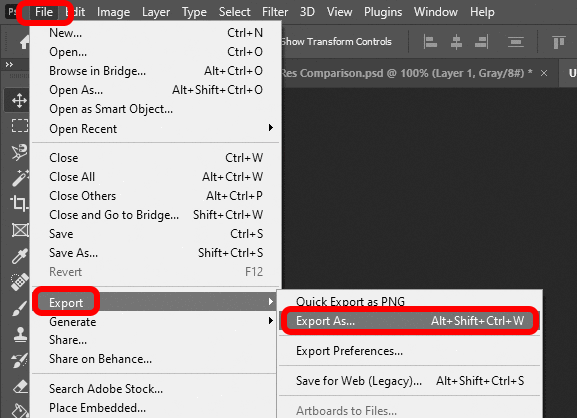
The Legacy Export As checkbox in Preferences restores the old Export As dialog that includes SVG format.
✔ Tip
For best results, ensure your layer is a vector shape or path before opening Export As. If the SVG option appears grayed out, the active layer contains raster content — convert it to a shape first.
Running Photoshop Under Rosetta (Apple Silicon Only)
On Macs with Apple Silicon (M1, M2, M3 chips), the Legacy Export As checkbox may be invisible unless Photoshop runs under Rosetta emulation. This is a known limitation confirmed by multiple users in the r/photoshop community.
- Locate Photoshop in Finder (Applications folder).
- Right‑click the app icon and choose Get Info.
- Check “Open using Rosetta” in the General section.
- Restart Photoshop. The Legacy Export As checkbox now appears in Preferences.
⚠ Note
Running under Rosetta may slightly affect performance. You can uncheck it after exporting and restart normally — the preference stays enabled once set.
Exporting from the Legacy Dialog
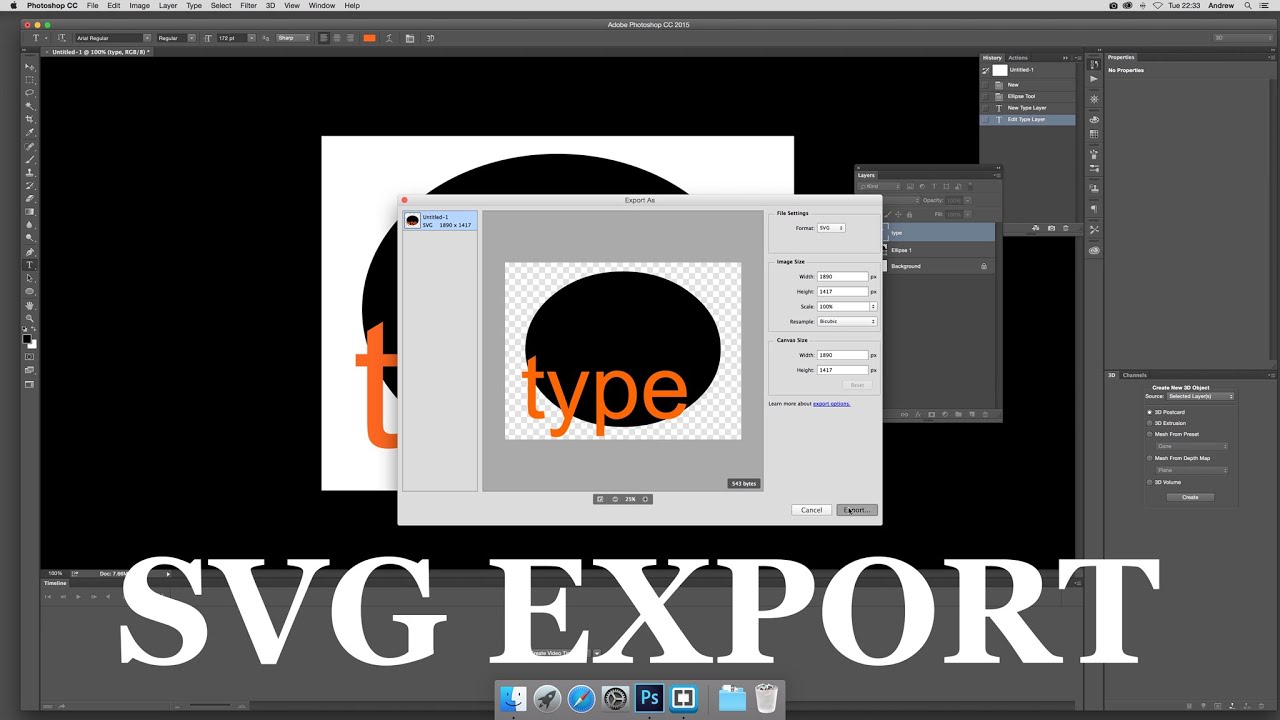
With the legacy panel active, select File → Export → Export As. In the format dropdown choose SVG. Key settings to check:
- Scale: Leave at 1× unless you need a specific size — SVG is resolution‑independent.
- Preserve Shapes: Keep this checked to maintain editable vector paths.
- Include Metadata: Typically off for web‑ready SVGs.
✔ Platform Summary
Windows — Legacy Export As works directly. Mac Intel — works directly. Apple Silicon — requires Rosetta.
Use the Copy SVG Context Menu Method
In Photoshop 2025, a Copy SVG option appeared in the right‑click context menu for vector layers. This method was first documented by Reddit user swnest and confirmed by dozens of users. It works without changing any preferences and is the fastest route for single vector layers.
Right‑Click the Layer and Choose “Copy SVG”
- Select a vector layer in the Layers panel — shape layers, text converted to shape, or a path.
- Right‑click the layer (or Ctrl‑click on a single‑button mouse).
- Choose “Copy SVG” from the top of the context menu. If you don’t see it, ensure the layer is vector — the option only appears for vector content.
The Copy SVG option appears at the top of the context menu when a vector layer is selected. (Source: YouTube tutorial demo)
⚠ Common Miss
Some users look at the bottom of the menu and miss the option. It sits at the top, just below the layer name. If it’s absent, the layer likely contains raster data.
Paste and Save the SVG File
- Open a text editor (TextEdit on Mac, Notepad on Windows, or any code editor).
- Paste the copied content — it appears as XML markup. This is normal.
- Save the file with a
.svgextension. On Mac, use “Save As…” and select “If no extension is provided, use .txt” — then rename to.svgin Finder. On Windows, simply name itfilename.svg. - Alternative: Paste into svgviewer.dev (a free online SVG viewer) to preview and download the file directly — no text editor needed.
Understanding What You Get
The Copy SVG method preserves pure vector paths exactly — strokes, fills, and shapes remain editable. However, if the layer has a mask, the visible result is embedded as a raster image inside the SVG wrapper. The file still opens as SVG, but the masked area is not true vector.
✔ When to Use This
Best for single shape layers, logos made of vector paths, and text that has been converted to shapes. Avoid for layers with masks, smart objects, or group layers.
Export via Adobe Illustrator or Free Alternatives
For complex files — multiple groups, layer effects, mixed vector and raster content — the most reliable path is through a dedicated vector tool. Adobe Illustrator handles SVG natively, and free options like Inkscape and Vectr work well for most use cases.
Open Photoshop File in Illustrator
- Save your PSD and open it directly in Illustrator (File → Open or drag the file onto the Illustrator icon).
- Review the import: Illustrator preserves layers, shapes, and paths. Some layer effects (drop shadows, glows) may rasterise — check the appearance panel.
- Export as SVG: Go to File → Save As and choose SVG. The SVG Options dialog lets you choose encoding, font type, and CSS properties.
This method is recommended by CreativePro as one of the two reliable workarounds for production‑ready SVGs.
Trace Raster Artwork with Online Tools
If your Photoshop file contains raster artwork (pixels, photos, painted elements) and you need a true vector SVG, you must trace it — convert pixels to paths. Options include:
- Illustrator’s Image Trace — highly configurable, best results for logos and illustrations.
- Inkscape’s Trace Bitmap — free, open‑source, works well for simple shapes.
- Online vectorizers — convenient but often degrade quality, especially for transparent handwritten text or fine details.
⚠ Warning
Free online converters frequently mishandle transparency and thin strokes. For handwritten or script text, the Copy SVG method or Illustrator produces significantly cleaner results. One Reddit user noted that “most converters mess it up” when working with transparent handwritten elements.
Batch Export with Photoshop Generator
Photoshop’s built-in Generator feature can export multiple layers as separate SVG files in one step — useful for icon sets or design systems.
- Enable Generator: Go to File → Generate → Image Assets.
- Rename layers with a
.svgsuffix (e.g.,icon.svg) directly in the Layers panel. - Save the PSD — Generator exports each named layer as a separate SVG file into the same folder as the PSD.
✔ Note
Generator exports SVGs only from vector layers. Raster layers or smart objects are exported as PNG instead — even if you name them
.svg. Check each output in a browser to confirm it is truly vector.
Fix Common SVG Export Errors
Even with the right method, SVG export from Photoshop can produce unexpected results. These are the most frequent issues reported by the community and how to resolve them.
Strokes Appear Double or Wrong Fill
Stroke effects — especially those set to “Outside” or “Inside” position — often misrender in SVG. The Adobe Community thread on this issue shows doubled strokes and shifted fills.
- Fix: Set stroke alignment to Center before exporting. If the design allows, rasterise the stroke layer and embed it as PNG — though this sacrifices vector scalability.
- Alternative: Export the shape without strokes, then reapply strokes in Illustrator or your vector editor.
⚠ Known Limitation
Photoshop’s SVG exporter does not faithfully translate Inside/Outside stroke positioning. Center‑aligned strokes export reliably.
Blank or Rasterised SVG from Groups/Smart Objects
If your SVG opens as a blank file or shows a raster image instead of vectors, the source layer likely involves groups or smart objects. The Copy SVG and Legacy Export methods only work on individual vector layers.
- Fix: Flatten the group to a single shape layer (Layer → Merge Shapes), or rasterise smart objects and use the Illustrator/Inkscape bridge to trace.
- For complex files: Use Illustrator to open the PSD — it handles groups and smart objects more predictably.
Transparent Text Gets Messy in Online Converters
Handwritten or script text with transparency often produces artifacts — jagged edges, lost strokes, or filled interiors — when run through free web converters. This is because many converters flatten transparency before vectorizing.
- Fix: Use the Copy SVG method (if text is converted to shape) or export via Illustrator. Both preserve transparency correctly.
Why Can’t I Convert a JPG to SVG?
SVG is a vector format — it stores mathematical paths, not pixel data. A JPG or PNG contains no vector information, so Photoshop cannot magically turn it into a true SVG. The file would embed the raster image inside an SVG wrapper, which defeats the purpose of scalability.
This misunderstanding appears frequently in Adobe Community questions. The correct workflow: vectorize (trace) the raster artwork in Illustrator or Inkscape first.
Compare the Three Methods
Each method suits different file types and workflows. The table below summarises the key tradeoffs.
| Method | Vector Fidelity | Raster Support | Platform | Best For |
|---|---|---|---|---|
| Legacy Export As | High (pure vectors) | Not supported — raster layers ignored | Windows Mac Intel Rosetta | Pure vector shapes, batch export |
| Copy SVG | High (vectors); raster embedded if masked | Embedded as raster — not scalable | All (vector layers) | Single vector layers, fast workflow |
| Illustrator / Inkscape | Full control | Can trace raster to vector | All (separate app) | Complex files, raster‑to‑vector, production SVG |
🔀 Quick decision guide
Your artwork is pure vector shapes → try Copy SVG (fastest, no setup).
You need batch export or prefer the old dialog → use Legacy Export As (enable in Preferences first).
You have raster content, effects, or need production‑ready SVG → use Illustrator or Inkscape.
You only have a JPG/PNG and want a scalable vector → use a vector tracing tool (Illustrator Trace, Inkscape Trace Bitmap).
Where to Look for More Help and Official Resources
The Photoshop SVG export situation continues to evolve with each update. These are the most active and reliable sources for troubleshooting and new discoveries.
Adobe Community Forum
The primary thread on this topic has 286 replies and over 582,000 views — the largest collection of user‑tested workarounds. Browse the thread →
CreativePro (Khara Plicinic)
Concise article covering the two main workarounds with screenshots. Updated regularly for new Photoshop versions. Read the article →
YouTube – Brendan Williams
Visual walkthrough of the Legacy Export As and Illustrator bridge methods. Includes troubleshooting for grayed‑out options. Watch the tutorial →
Reddit r/photoshop
Where the Copy SVG method was first documented. Community‑driven with real‑time updates when Adobe pushes changes. Join the discussion →
These sources are maintained by active Photoshop users and industry professionals. Bookmark the Adobe Community thread in particular — it is the first place where new workarounds appear when Adobe updates the export behaviour.