- Category:
- Workflow Tips
- Summary:
- Create clipping masks in Illustrator with this tutorial: how to hide objects using shapes, edit masks non-destructively, and control layering for crisp designs.
⌨ Ctrl/Cmd+7 Make a clipping mask in one keystroke.
Quick steps: Place a vector shape on top of your artwork → select both → press Ctrl+7 (Windows) or Cmd+7 (Mac). Or use Object → Clipping Mask → Make. The top shape becomes the mask; everything outside it is hidden. (Adobe HelpX)
What Is a Clipping Mask and How Does It Work?
A clipping mask is a non‑destructive way to hide parts of your artwork. It consists of two elements:
- Clipping path — the vector shape that defines the visible area.
- Masked objects — the artwork (vectors, rasters, text, groups) that gets cropped to the shape of the clipping path.
According to Adobe’s official documentation, only vector objects can serve as clipping masks, but they can mask any type of artwork — including embedded raster images. When an object becomes a clipping mask, its fill and stroke are automatically removed.
🔍 Key difference from opacity masks: A clipping mask uses a vector path to create a hard cut‑off — no gradual transparency. Opacity masks (created via the Transparency panel) use grayscale to produce fades and semi‑transparency. (Skylum)
What Is the Keyboard Shortcut for a Clipping Mask?
The fastest way to create a clipping mask is the keyboard shortcut:
- Make:
Ctrl+7(Windows) /Cmd+7(Mac) - Release:
Alt+Ctrl+7(Windows) /Option+Cmd+7(Mac)
Alternatively, use the menu path Object → Clipping Mask → Make (or Release). (Skylum tutorial)
How to Make a Clipping Mask in Illustrator — Four Methods
You can create a clipping mask using any of these four workflows. The mask shape must always be on top of the objects you want to clip.
- Menu: Select the top shape and the artwork → Object → Clipping Mask → Make.
- Keyboard shortcut:
Ctrl+7/Cmd+7— the fastest method for repeated use. - Layers panel: Select the top object, click the Make/Release Clipping Mask icon at the bottom of the panel (looks like a dotted square).
- Right‑click: Select the top shape and the masked objects → right‑click → choose Make Clipping Mask from the contextual menu.
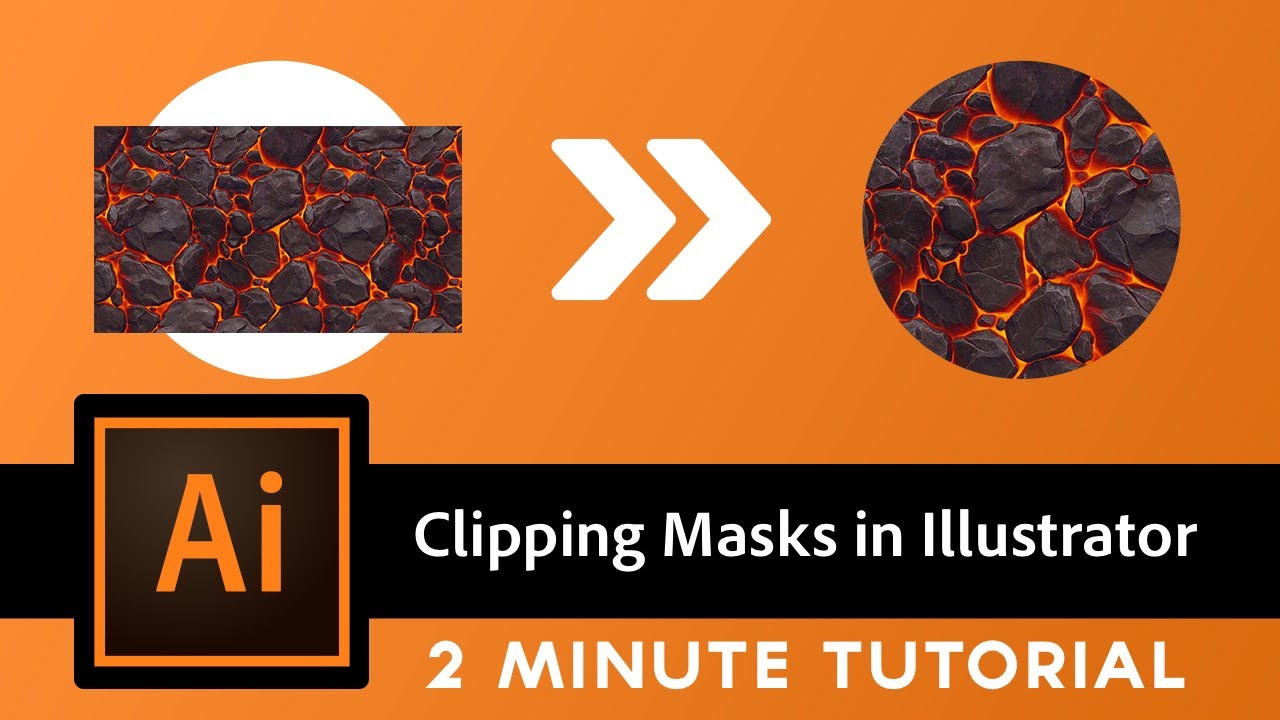
A circular clipping mask cropping a lava texture — the area outside the circle is hidden.
How to Edit and Release a Clipping Mask
Once you have a clipping mask, you can adjust its contents or remove it entirely.
To edit the masked artwork: double‑click anywhere inside the mask group to enter isolation mode. Make your changes — move, scale, recolor — then double‑click outside the group to exit. (Skylum)
To release the mask: select the masked group → Object → Clipping Mask → Release, or press Alt+Ctrl+7 / Option+Cmd+7. The original fill and stroke of the mask shape are not restored automatically, but you can reapply them. (Adobe HelpX)
Why Can’t I Make a Clipping Mask — Common Problems and Fixes
Clipping masks sometimes fail for reasons that are easy to overlook. Below are the most frequent culprits and how to resolve them.
-
❌ Mask shape is not on top
The vector shape must be the topmost object in the selection. Drag it above the artwork in the Layers panel or useCtrl+Shift+]to bring it forward. -
❌ Mask shape is not a vector
Only vector objects can act as masks. If you are using a raster image or a pixel‑based shape, create a vector shape (rectangle, circle, pen path) instead. (Adobe HelpX) -
❌ Live text used directly
Text must be converted to outlines first: select the text → Type → Create Outlines → then use it as the mask shape. -
❌ Multiple objects in a group
When you group several shapes, only the topmost object in the group becomes the mask — the rest become masked content. Use a compound path instead (Object → Compound Path → Make). -
❌ Layer ordering accident
If your mask shape is the first object in a layer, it masks the entire layer. Move the mask shape and artwork into a separate group or sublayer to control what gets clipped.
How to Fix Opacity Loss After Masking
A common frustration reported by Illustrator users is that artwork loses its transparency after applying a clipping mask. This happens because opacity can be set at three different levels: the top object, the clip group, and individual masked objects. (Reddit discussion)
To diagnose: select the clip group, open the Appearance panel, and check the Opacity setting there. If it shows 100% but individual objects inside the group have lower opacity, click into the group via isolation mode and adjust each object’s opacity directly.

Locate the clip group in the Layers panel, then use the Appearance panel to check opacity at each level.
How to Use Multiple Shapes as a Single Clipping Mask
To use several shapes (for example, two overlapping circles that together form a single mask area), you must first combine them into one vector outline.
Step 1: Select all the shapes you want to use as the mask.
Step 2: Go to Object → Compound Path → Make (or use Pathfinder → Unite).
Step 3: Place the compound path on top of your artwork and apply the clipping mask as usual.
Tip: If holes appear where you expect solid areas, the compound path’s winding direction may need adjustment. Open the Attributes panel and toggle the “Even‑Odd” rule.

A compound path from two circles masking an image — the hole is created by the inner edge of the path.
How to Create a Reverse Clipping Mask
A reverse clipping mask hides the inside of a shape and reveals everything outside it. This is useful when you want to show the background through a cutout.
Technique:
- Draw a large rectangle that covers the entire artboard (this will be the outer boundary).
- Place the shape you want to cut out on top of the rectangle.
- Select both and use Pathfinder → Minus Front to subtract the shape from the rectangle.
- Use the resulting compound path as your clipping mask — the area outside the original shape remains visible.
Use case: Creating a vignette or a “peephole” effect where the background shows through a letter or logo.
How to Make a Text Clipping Mask in Illustrator
Filling text with an image or pattern is a classic design technique. Here is how to do it reliably.
- Type your word or phrase and set the size and font you want.
- Select the text → Type → Create Outlines (or press
Ctrl+Shift+O/Cmd+Shift+O). This converts live text to vector outlines. - Place the outlined text on top of the image or artwork you want to fill it with.
- Select both and apply the clipping mask (
Ctrl+7/Cmd+7).
⚠ Important: Live text cannot be used directly as a clipping mask. Outlining is required because the mask must be a vector path. (Adobe HelpX)
Clipping Mask vs. Opacity Mask — Which One Should You Use?
Both tools hide parts of your artwork, but they work differently and suit different purposes.
| Feature | Clipping Mask | Opacity Mask |
|---|---|---|
| How it hides | Hard cut‑off using a vector path | Gradual fade using grayscale |
| Created via | Object → Clipping Mask → Make or Ctrl+7 |
Transparency panel → Make Opacity Mask |
| Supports gradients | No — only on/off visibility | Yes — black hides, white reveals, grey is semi‑transparent |
| Best for | Clean cutouts, text fills, precise cropping | Fades, shadows, vignettes, soft edges |
Hard edge vs. gradual fade
← clipping mask (sharp boundary) | opacity mask (soft transition) →
Comparison: a clipping mask produces a hard edge; an opacity mask creates a gradual fade using grayscale values.
How to Use Clipping Masks on Illustrator for iPad
The iPad version of Illustrator does not support keyboard shortcuts, but you can still create clipping masks through the touch interface.
- Via the Actions toolbar: select your top shape and the artwork → tap the Actions icon → choose Make Clipping Mask.
- Via the Layers panel: tap the mask icon (crop shape) in the layer properties.
- Compound paths: use the Shape Builder tool to merge multiple shapes into a single outline before masking.
- Editing: there is no isolation mode equivalent; tap the mask group in the Layers panel to select it, then adjust individual objects.
The core rules remain the same: the mask shape must be a vector and it must be on top of the content you want to clip.
Performance Tips for Working with Clipping Masks
Clipping masks are non‑destructive, but large or complex masks can slow down your workflow. Use these strategies to keep Illustrator responsive:
- Use linked images instead of embedded when placing high‑resolution raster files inside a mask. Linked images keep the file size smaller.
- Group masked objects together to reduce the number of individual items Illustrator needs to calculate.
- Consider the Crop Image feature for simple, permanent cropping — it reduces file size because it discards hidden pixel data.
- Avoid nesting masks inside other masks when possible; each additional level adds processing overhead.
💡 Note: If you experience sluggishness when selecting or transforming a masked group, try expanding the mask (Object → Clipping Mask → Release) temporarily while you work on the content, then reapply the mask.