- Category:
- Workflow Tips
- Summary:
- An artboard serves as a canvas in design tools, letting you create multiple screens, adjust dimensions for various devices, and efficiently export assets.
An artboard is a digital canvas inside design software — like a sheet of paper within an infinite workspace — that you can create, name, resize, and export independently of other artboards in the same file.
It lets you keep multiple designs (icon sets, app screens, logo variations, packaging panels) in one document and export each one separately at multiple scales.
- Also called: Frame (Figma), Canvas (some tools)
- Max in Illustrator: 1,000 per document
- Shortcut: Shift+O (Illustrator)
- Resolution tip: 72 ppi for screen work
What Is an Artboard and What Makes It Different From a Single Large Canvas?
If you search for a definition of "artboard," you will find two formulations that sound different but point to the same idea. Adobe's official documentation calls it "like a sheet of white paper that forms the base for your artistic work." The design glossary at Whatif Design describes it as "a digital canvas used in design software to create and organize design elements." Both are accurate — the artboard is your working surface — but the real value emerges when you use more than one in a single file.
The term itself has a long history. It originated from physical drawing boards that artists used to hold paper in place. When design software adopted the metaphor, the artboard became the digital equivalent: a bounded area where your artwork lives, distinct from the infinite grey pasteboard that surrounds it. The design glossary notes that this migration from physical to digital happened early in the development of vector and raster tools, and the concept is now embedded in virtually every professional design application.
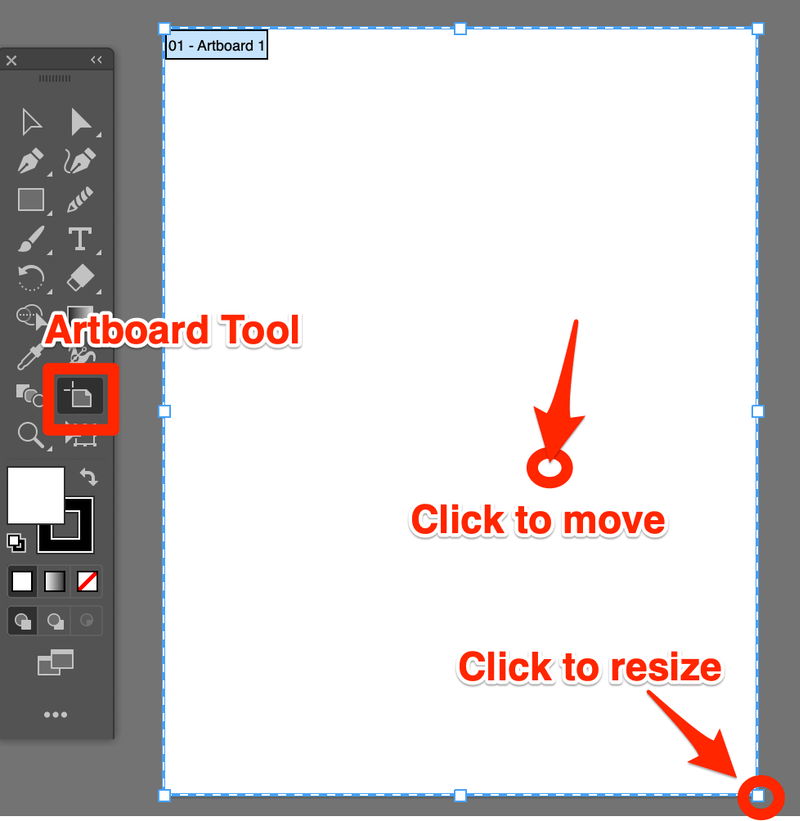
An artboard in Illustrator acts like a single sheet of paper within an infinite digital workspace. The Artboard Tool (highlighted) lets you move, resize, and rotate each canvas independently.
The Beginner Confusion — and the Answer
A frequently asked question on design forums — captured in a popular Reddit thread — goes like this: "What exactly is the point of artboard, and how do they differ from just using a large canvas?" It is a fair question. If you can draw anywhere on an infinite canvas, why restrict yourself to bounded rectangles?
The key difference is independence. A single large canvas is one continuous surface: everything you draw is part of one output. If you want to create a set of ten icons, you either cram them into one file and crop them out later, or you create ten separate documents. Artboards solve both problems. Each artboard behaves like its own document — it has its own size, orientation, name, and export settings — yet all artboards live in the same file, so you can see everything side by side.
As the Reddit explanation puts it:
Say for example you are creating a set of icons with 10, 20, or even a 100 different icons. It would be a pain in the ass to have to export all of them individually one at a time. With artboards you can export each as separate files with just a few clicks and you could export them all in different scales (1×, 2×, 3×, etc.).
That single ability — batch export at multiple scales — is the feature that most often converts sceptics into regular artboard users.
Why Multiple Artboards Matter for Real Projects
Beyond batch export, artboards provide two quieter but equally important benefits:
- Visual continuity. When you can see all artboards next to one another — for instance, every screen of a mobile app or every page of a brand guide — you naturally keep styling consistent. School of Motion notes that "being able to see all of the artboards next to one another helps keep the continuity of your design consistent throughout your entire project."
- Single-file organisation. Indiana University's training materials put it plainly: "Artboards allow you to create multiple pieces of art that are all contained in a single file." That means one file to store, one file to back up, one file to send to a collaborator — and the recipient sees every variant immediately.
In short, an artboard is not just a bounded canvas. It is a self-contained output unit that shares a file with other output units, saving you from the chaos of dozens of loose documents and the tedium of manual cropping.
How Artboards Work in Adobe Illustrator (The Most Common Context)
Illustrator is where most designers encounter artboards first, and it remains the tool with the most mature artboard feature set. Here is how to handle them effectively.
Creating and Managing Artboards
The Artboard Tool is your primary control. Press Shift+O to activate it — a shortcut noted by School of Motion — and you can click anywhere on the pasteboard to add a new artboard, drag to set a custom size, or click an existing artboard to select it. Once selected, the Properties panel shows width, height, orientation, and name. You can duplicate artboards with Alt‑drag (Windows) or Option‑drag (macOS) for fast iteration.
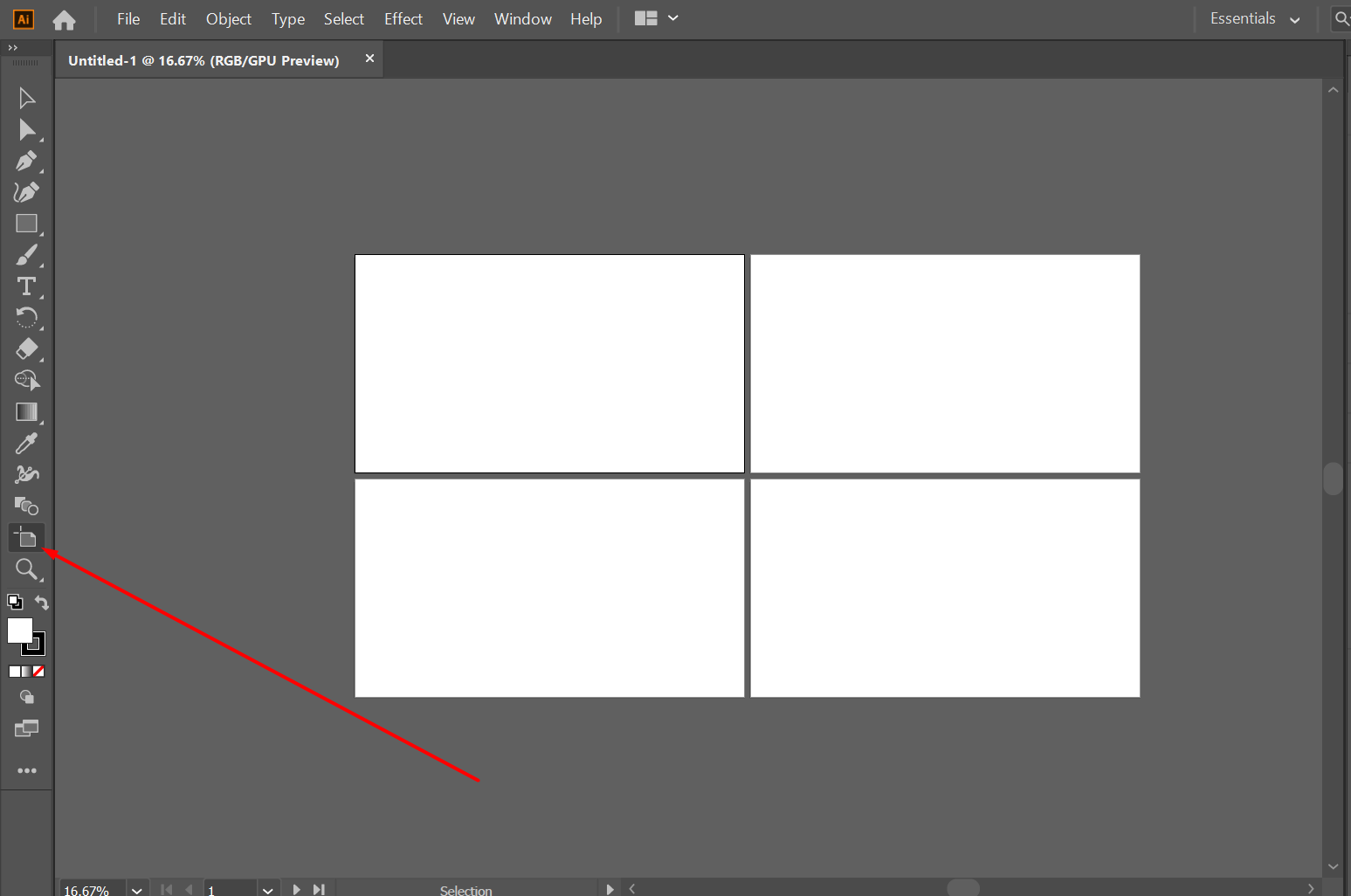
Adding multiple artboards in Illustrator — each can have its own size, name, and export settings.
The 1,000 Artboard Limit
Illustrator allows a maximum of 1,000 artboards per document, as specified in Adobe's official documentation. For most projects — a brand system with 30 pages, a UI flow with 80 screens — that is plenty. If you approach the limit, organisation becomes critical: name each artboard clearly and use the Artboards panel (Window > Artboards) to reorder, colour‑code, and navigate.
New in Illustrator 2026
The Illustrator 2026 release (v30.0) introduced several quality‑of‑life improvements that make artboard management faster. Laura Coyle's overview of the update highlights four changes worth knowing:
- On‑canvas naming — you can edit an artboard's name directly on the artboard itself, without opening the Properties panel.
- Artboard colours — assign colour labels to artboards (blue for wireframes, green for final art, red for revisions) so the artboard border and the Artboards panel show the category at a glance.
- Locking — prevent an artboard from being moved or resized accidentally. Useful when you have a layout grid you do not want disturbed.
- Snapping between artboards — artboards now snap to each other's edges, making it easier to align them precisely in a grid.
Artboards Across Other Design Tools — Figma, Sketch, Affinity Designer, and Canva
The artboard concept is not limited to Illustrator. Every major design tool implements it, though the name and behaviour vary slightly. The design glossary lists Figma and Sketch alongside Illustrator as core tools that use artboards (Figma calls them "Frames," but the functionality is nearly identical).
Here is how the four most common tools compare on artboard features:
| Feature | Illustrator | Figma | Sketch | Affinity Designer |
|---|---|---|---|---|
| Max artboards | 1,000 | Unlimited (performance-dependent) | Unlimited | No stated limit |
| Shortcut | Shift+O (Artboard Tool) | F (Frame tool) | A (Artboard tool) | V (default, Move tool context) |
| Naming location | Properties panel / on‑canvas (2026) | Top bar (Frame name) | Overrides panel | Context toolbar |
| Known bugs | — | — | — | Selection issues & bleed problems |
Known Issues in Affinity Designer
Affinity Designer is a capable alternative to Adobe's tools, but community reports point to two recurring artboard problems. Users report that the Artboard Tool sometimes fails to select artboards reliably — clicking inside the artboard area selects the content instead of the artboard boundary. The workaround is to click directly on the border or use the Layers panel. A second issue involves margin and bleed settings that do not apply correctly to artboards, which can cause problems when preparing files for print.
When to Choose One Over Another
Your choice of tool depends on the type of work you do most often:
- Illustrator — best for heavy multi‑artboard print projects, brand systems, and packaging dielines where precise control over each board is essential.
- Figma — the strongest choice for collaborative UI prototyping; artboards (Frames) are the foundation of every component and screen.
- Sketch — similar to Figma but macOS-only; popular among UI teams who prefer its plugin ecosystem.
- Affinity Designer — a budget‑friendly option for vector work, but be aware of the artboard selection and bleed quirks before committing to a production workflow.
How to Export Artboards Like a Pro — Batch Export and Multiple Scales
The single biggest time‑saving feature of artboards is batch export. Instead of exporting each design one at a time, you can export all artboards — or a selected range — with a few clicks, and optionally generate multiple scale versions simultaneously.
The Batch‑Export Trick
In Illustrator, go to File > Export > Export for Screens. A dialog opens showing all your artboards as thumbnails. From there you can:
- Select which artboards to export (all, or a specific range).
- Choose a format (PNG, JPEG, SVG, PDF).
- Set the scale — and this is the key — add multiple scales like 1×, 2×, and 3× at the same time.
The Reddit discussion referenced earlier calls this out as the prime use case: "you could export them all in different scales (1×, 2×, 3×, etc.)" — a workflow that is essential for anyone designing mobile icons, UI assets, or illustrations that need to work across standard and Retina displays.
Export at 1×, 2×, 3× Simultaneously
Here is how to set it up in Export for Screens:
Pro tip
In the Scales section of the dialog, click the + button to add each scale. Name them clearly (e.g., "1×", "2×", "3×") so the exported files get suffixes likeicon-1x.png,icon-2x.png,icon-3x.png. This saves you from having to resize anything manually later.
For Photoshop users, a similar workflow exists via File > Export > Export As, where you can choose which artboards to include. And for those managing very large projects, the batch export PNG methods covered in another guide can speed up repetitive exports even further.
Format Considerations
Choose your export format based on where the assets will be used:
- PNG — best for web UI elements, icons, and anything that needs transparency.
- SVG — ideal for logos and vector graphics that must scale infinitely.
- JPEG — good for photographs or complex gradients where file size matters more than transparency.
- WEBP / MP4 — if you are using Artboard Studio (see below), these formats allow animated mockups.
Troubleshooting Common Artboard Problems
Artboards are reliable in most tools, but a few issues surface regularly in community forums. Here are the most common problems and how to fix them.
⚠ Problem 1 — Artboard tool selection not working (Affinity Designer)
Users report that clicking inside an artboard selects the content rather than the artboard itself. Affinity forum threads confirm this behaviour. Fix: click directly on the artboard border (the thin outline) rather than inside it. If the border is hard to see, zoom in. You can also try resetting the tool in Preferences > Tools.
⚠ Problem 2 — Margins and bleed not applying to artboards
In Affinity Designer, bleed and margin settings sometimes appear to have no effect on existing artboards. Community reports point to a workflow order issue. Fix: set your bleed values in Document Setup before creating artboards. For artboards that already exist, open Document Setup, adjust the bleed, then click "Apply to existing artboards" if the option is available. If not, delete and re‑create the artboards after setting the bleed.
⚠ Problem 3 — Artboard not visible or seems hidden
If an artboard disappears from the workspace, it may have been accidentally moved far off‑screen or placed on a locked layer. Fix: open the Artboards panel (Window > Artboards), locate the artboard name, and double‑click it — the view will centre on that artboard. If it is still not visible, check that no layer is locked and that the artboard itself is not locked (Illustrator 2026 added a lock toggle).
Artboard Studio — A Separate Tool That Shares the Name
It is easy to confuse the artboard feature in design software with the product named Artboard Studio. They are unrelated, but both are useful in different parts of a designer's workflow.
Artboard Studio is an online mockup generator. Instead of creating your own device frames, apparel shots, or packaging templates from scratch, you select from a library of 5,000+ mockups organised into five categories: devices, apparel, packaging, print, and branding. You place your artwork onto the mockup, adjust the fit, and export the result. The platform's site provides full details.
Pricing is straightforward:
- Free tier — limited access to mockups and exports.
- Lite Plan — $9/month (billed annually).
- Pro Plan — $19/month (billed annually).
- Lifetime Mockup Plan — $129 one‑time payment.
Export formats include PNG, JPEG, WEBP for images and MP4, WEBM for video mockups. Artboard Studio also offers a Figma plugin that gives you access to the full mockup library directly inside Figma — useful if you need to produce client presentations quickly without switching tools.
When to Use Artboard Studio vs. Native Software Artboards
The two tools serve different stages of a project:
- Use Artboard Studio when you need fast, polished mockups for client presentations, social media previews, or portfolio pieces. You skip the modelling and lighting work.
- Use native software artboards (Illustrator, Figma, etc.) for production‑ready design files — the actual source assets that will be handed off to developers or sent to print.
In many workflows, both tools appear in the same project: design the asset on artboards in Illustrator, then drop it into Artboard Studio for a presentation mockup.
How to Verify Your Artboard Setup Is Working Correctly
The last step before committing to an artboard workflow is to confirm that everything is configured as expected. A quick verification routine takes less than a minute and catches most common mistakes.
- Check your artboard dimensions. Select each artboard with the Artboard Tool and look at the Properties panel (Illustrator) or the inspector (Figma, Sketch). Confirm the width, height, and orientation match your target output. For screen design, School of Motion recommends 72 ppi as the standard resolution.
- Run a single artboard export test. Export one artboard at 1× scale, open the resulting file, and verify its pixel dimensions are exactly what you expect. A 1920 × 1080 artboard should produce a 1920 × 1080 pixel image.
- Test batch export at multiple scales. Export all artboards at 1×, 2×, and 3× using Export for Screens (Illustrator) or the equivalent in your tool. Check that each artboard produces three files and that the 2× and 3× versions are exactly double and triple the 1× dimensions. This is the workflow described in the Reddit thread that many designers rely on for icon and UI asset production.
- Check for locked or hidden artboards. Open the Artboards panel and look for any artboard that has a lock icon or appears greyed out. Locked artboards will not export unless unlocked. In Illustrator 2026, the lock toggle is visible directly on the artboard.
- Verify bleed settings (print projects only). If your project will be printed, create a test PDF export and check that the bleed area extends beyond the trim edge by the correct amount (typically 3 mm or 0.125 in). In Affinity Designer, this is where the bleed issue mentioned earlier tends to surface — double‑check by exporting a single artboard and measuring the output.
If all five checks pass, your artboard setup is solid, and you can rely on it for consistent, repeatable exports across projects. If something fails, the troubleshooting section above covers the most frequent causes.