- Category:
- Background Removal
- Summary:
- Create a white background with Adobe Express by removing backgrounds, adding solid white, and getting clean results in under a minute—no design skills needed.
In one sentence: Upload your image to Adobe Express, click Remove Background to get a transparent result, then use Add a Background and pick solid white from the Elements panel. The whole process takes under a minute — no design experience needed.
Choose the Right Adobe Tool for Your White Background Task
Adobe offers three distinct tools for removing a background and replacing it with white. Which one you pick depends on where you work, what kind of subject you have, and how much control you want after the removal. This table compares the key specs side by side.
| Tool | Best for | Max file size | Output | Free tier |
|---|---|---|---|---|
| Adobe Express (web) | Quick social graphics, flyers, posters — built-in editor with text and filters | 40 MB | PNG (transparent) | Yes, with Adobe account |
| Adobe Firefly (web) | Fine detail subjects — hair, fur, transparent objects — highest precision | 50 MB | PNG (transparent) | Yes, with Adobe account |
| Photoshop Express (mobile) | On-the-go edits from a phone; includes a dedicated color picker on Android | Varies by device | PNG / JPG | Yes |
If you are already in an Adobe Express project and just need a clean white backplate, start there. For portraits or product shots with tricky edges, Firefly typically delivers cleaner cutouts. And if you are away from a desk, Photoshop Express on your phone does the job with a few taps. Each workflow is covered in detail below.
Create a White Background in Adobe Express
Adobe Express handles background removal as a one-click quick action and then lets you replace the empty area with any solid colour — white included. The entire workflow lives in the browser, so there is no software to install.

Adobe Express logo — the free web tool used in this guide.
Step-by-Step Instructions
- Upload your image
Go to the Adobe Express change background page and upload a file. Supported formats: JPEG, JPG, PNG, WebP. Maximum file size is 40 MB. Avoid TIFF, GIF, or RAW — those are not accepted. - Remove the background
Click Remove background. Adobe Express applies its AI model and deletes the detected background area, leaving a transparent canvas behind. This step takes a few seconds. - Add a new background
Click Add a background. You are taken into the full Adobe Express editor where the Elements panel appears on the left. - Pick solid white
In the Elements panel, choose a solid colour swatch. Use the colour picker to select pure white (#FFFFFF) or type the hex value directly. The white fills the entire canvas behind your subject. - Adjust and download
Reposition your subject, apply filters, add text or graphics if needed, then download the final image as a PNG. The white background stays baked into the export.
Tip
The automatic removal gives you a transparent background — not a white one. You must add the white yourself in step 4. If you skip the "Add a background" step, you will get a PNG with transparency, which may appear as a checkerboard pattern or even black in some viewers.
Best Practices for Clean Results
The quality of the automatic removal depends heavily on the image you start with. Adobe itself recommends using a photo where the subject has clear edges with nothing overlapping the contour. Concretely:
- High contrast between subject and original background — a person against a plain wall produces a much cleaner cutout than the same person against a busy patterned backdrop.
- Avoid overlapping objects — hair, loose clothing, or props that cross the body outline confuse the AI. If your subject holds something that extends beyond their silhouette, the tool may treat it as part of the background.
- Watch out for white-on-white — if your subject is wearing white or contains large white areas (a white shirt, a light-coloured product), the AI may struggle to distinguish the subject from a white background. After the automatic removal, use the Erase and Restore brushes inside Express to manually correct the mask.
Supported File Types and Limits
| Attribute | Value |
|---|---|
| Accepted formats | JPEG, JPG, PNG, WebP |
| Maximum file size | 40 MB |
| Not supported | TIFF, GIF, RAW, BMP |
| Output format | PNG with transparent or white background |
If your source image exceeds 40 MB, compress or resize it before uploading. Free image compressors or a quick resize in any photo editor will bring it within range. Adobe Express does not have a batch upload feature — each image is processed one at a time.
What to Do After Removal
Once the white background is in place, Adobe Express gives you a full design canvas. You can:
- Add filters and adjustments — change brightness, contrast, saturation, or apply a preset look to make the subject pop against the white.
- Insert text and graphics — overlay product names, logos, call-to-action buttons, or decorative elements from the built-in library.
- Resize the canvas — choose preset dimensions for social media (Instagram post, Facebook cover, TikTok video) or set a custom size.
- Download with transparency preserved — if you save as PNG, the white background is baked in as opaque pixels, but you can keep a separate transparent version by skipping the "Add a background" step entirely.
Note
The "Remove background" action eliminates the background completely, resulting in transparency. The "Change background" option replaces the existing background with a new image or colour. If your goal is a white backplate, remove first, then add white — do not use "Change background" on its own, because that expects a source image with a background still present.
What Users Say About Express Background Removal
Adobe features several users who rely on this workflow regularly. According to the Express change background page, the tool is used by:
“Perfect for product launches — I can swap backgrounds in seconds without opening Photoshop.”
— Shelly Kim, Product Launches
“As a marketer, speed matters. Express handles the heavy lifting so I can focus on the message.”
— Abs Ahlijah, Marketer
“I use it for school projects and social posts. The auto-removal saves me at least 15 minutes per image.”
— Penuel Stanley-Zebulon, Student
Remove White Background with Adobe Firefly
Adobe Firefly has a dedicated white background remover page that focuses on precision. While Express is excellent for quick edits, Firefly's AI is tuned to handle fine edge details — hair strands, fur, transparent objects — with no manual masking required.
Adobe product suite — Firefly is accessible through the same Adobe account.
Step-by-Step Instructions
- Log in with your Adobe ID
Visit the Firefly background remover page and sign in. A free account works — no credit card required. - Upload your photo
Firefly accepts JPEG, PNG, and WebP files up to 50 MB. That is 10 MB more than Express, which matters for large-resolution product shots. - Remove the background
Go to the Edit tab, select Quick Actions, then click Remove Background. Firefly processes the image and outputs a PNG with a transparent background. - Download the transparent PNG
The result is always a PNG with transparency. From here, you can bring it into Adobe Express (or any editor) to add a solid white layer behind the subject.
Tip
Firefly's model was trained on licensed and public-domain content, so you can use the cutouts commercially without worrying about copyright issues in the training data. Adobe publishes this explicitly in the Firefly white page Q&A.
Why Use Firefly for White Backgrounds
- Fine-detail detection — hair, fur, and transparent objects (glasses, bottles, fabrics) are handled automatically. Express does a good job with clear edges; Firefly goes a step further for complicated silhouettes.
- No manual masking — unlike older tools that required you to paint a mask, Firefly's AI identifies the subject boundaries on its own.
- Consistent PNG output — every download is a lossless PNG with the transparent channel intact.
- Higher file limit — at 50 MB, it accommodates larger or higher-resolution originals than the Express ceiling of 40 MB.
How to Add a White Background After Removal
Firefly removes the background to transparency; it does not fill it with white in one step. After downloading the transparent PNG, open it in Adobe Express (the two tools integrate seamlessly) and add a solid white layer behind the subject using the same Elements panel colour picker described in the Express section above. Alternatively, if Firefly's own interface offers an "add new background" option in the future, that would skip the extra step, but as of late 2026 the recommended workflow is Express for the final background fill.
When to Use Firefly Over Express
Firefly is a strong choice when your subject has fine edges that blend into the original background — for example, a portrait with flyaway hair against a white wall, or a product shot of a glass bottle on a light table. The AI has been optimised for precisely these scenarios. Adobe's Firefly white page lists product photography, portraits, headshots, and ID-style photos as explicit use cases.
User Testimonials
Creative professionals who use Firefly for cutouts have highlighted its speed and accuracy. According to the same official page:
“The cutouts are super clean — I don't have to spend time refining edges anymore.”
— Andrea Marquez, Art Director
“It's the most reliable tool I've found for removing backgrounds from complex shots.”
— En, Content Creator / Designer
“A single click gives me a ready-to-use cutout. I haven't touched a green screen in months.”
— Fia Houston-Hamilton, Creative Director
“Clean, precise cutouts in seconds — exactly what my workflow needed.”
— Madeline Salazar, Content Creator
Use Photoshop Express on Mobile
If you need to create a white background while away from a computer, Photoshop Express — a separate mobile app from Adobe Express — offers a dedicated Replace Background quick action. Note that this is not the same as Adobe Express; it is a distinct application available on iOS and Android.

Adobe Express mobile app — distinct from Photoshop Express, but both offer background tools.
Android Workflow
- Open Photoshop Express
Launch the app and select the photo you want to edit. - Tap Replace Background
Under Quick Actions, choose Replace Background. This opens a set of editing controls. - Remove the original background
Under the ACTIONS panel, tap Remove. The app extracts the subject and shows a transparent preview. - Add a white background
Tap COLOR or SELECTION TOOLS (the exact label depends on your version). Pick a solid white swatch or use the colour picker to select #FFFFFF. - Save the result
Export the image as a PNG or JPG. The white background is now baked into the file.
iOS Workflow
The iOS flow is similar: select a photo → Replace Background → choose a new background colour from the picker → adjust with the Edit / Rotate / Blend tools if needed → export. The interface is consistent across platforms, though the exact button labels may vary slightly between versions.
Limitations vs Desktop Tools
- Mobile-only — Photoshop Express does not have a desktop version. For a full editor with text, filters, and layout options, you need Adobe Express on the web.
- Fewer post-removal features — you can add a solid colour or a basic gradient, but you cannot layer graphics, apply complex filters, or use the extensive template library that Adobe Express offers.
- Good for quick fixes — if you are on the go and just need a clean white background for a single image, Photoshop Express will do the job in under a minute.
For a step-by-step reference directly from Adobe, see the Photoshop Express help page on replacing backgrounds.
Fix Common White Background Problems
Even with good source images, things can go wrong. Below are the most frequently reported issues and how to recover from each.
Testing your export in a different viewer can reveal transparency issues.
▢ Transparent Background Shows as White After Download
Some image viewers (Windows Photos, older Mac preview apps) render transparency as white, making it look like the removal failed. This was also reported as a bug in Photoshop after version 21.1.2, where transparent layers appeared white on screen.
Fix: Open the downloaded PNG in a browser (Chrome, Edge, Firefox) or in Adobe software to verify transparency. If it looks correct there, the viewer is the problem. Re-download and clear your cache if the issue persists. For Express exports, always download as PNG — JPG does not support transparency.
◌ Subject Has Leftover Fringing or Haloes
Automatic removal sometimes leaves a thin edge of the original background colour around the subject — a common side effect of AI-based extraction, especially when the original background was a bright colour or white.
Fix: In Adobe Express, use the manual Erase and Restore brushes to clean up the edges. For a more automated approach, a dedicated Photoshop plugin like Layerbench can apply a mask minimum (shrink) of 1–3 px to remove halos without affecting the subject's core shape.
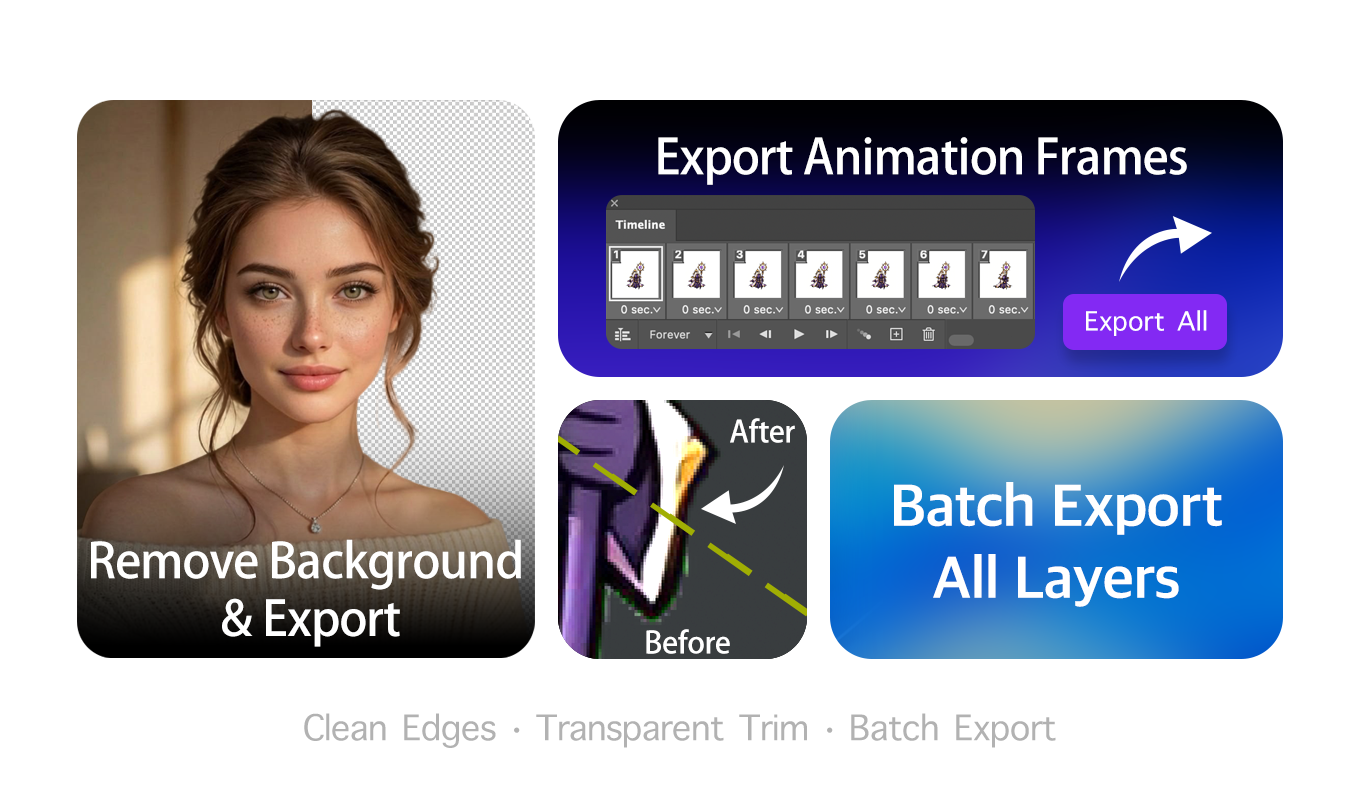
Layerbench — a separate Photoshop plugin (not Adobe Express): if you work in Photoshop, it cuts the subject to transparency, cleans halos, and exports a trimmed PNG in a couple of clicks.
○ White Objects Blend into the White Background
When the subject contains large white areas (a white shirt, a light-coloured product), the AI may fail to distinguish the subject from the new white background, leaving gaps or a merged appearance.
Fix: After the automatic removal, use the Restore brush to bring back the lost white areas of the subject. If the problem persists, switch to Adobe Firefly, which has better detection for low-contrast boundaries.
⬆ File Size or Format Restrictions
Your image may exceed the 40 MB limit (Express) or 50 MB limit (Firefly), or it may be in an unsupported format like TIFF or GIF.
Fix: Compress or resize the image before uploading. Free online tools or a quick adjustment in any photo editor will bring the file within range. Convert unsupported formats to JPEG or PNG — both tools accept those.
↔ Terminology Confusion – “Remove” vs “Change”
Adobe Express uses two different terms: Remove background (gives you a transparent canvas) and Change background (replaces the existing background with something else). If you use the wrong one, you may not get the result you expect.
Fix: For a white background, always start with Remove background to get transparency, then Add a background and pick white. In Photoshop Express mobile, look for Replace Background, which combines both steps. See the Photoshop Express help page for the exact button names on your device.
Additional background removal techniques for complex subjects are covered in our guide on Photoshop hair background removal and our comparison of remove-bg alternatives.