- Category:
- Workflow Tips
- Summary:
- Master how to zoom in Photoshop with keyboard shortcuts, the Zoom Tool, and mouse wheel, and fix common zoom problems by adjusting preference settings.
The fastest way to zoom in Photoshop is to press Ctrl + (Windows) or Cmd + (Mac) to zoom in, and Ctrl – (or Cmd –) to zoom out. You can also select the Zoom Tool (shortcut Z) and click the image, or hold Alt (Windows) / Option (Mac) and scroll your mouse wheel. For the full breakdown of every method and fixes for when zoom doesn't work, follow the sections below.
What Settings Should You Check Before Zooming?
Before diving into specific zoom methods, it pays to check a few global settings in Photoshop that govern how zoom behaves. These are located under Edit > Preferences > Tools (Windows) or Photoshop > Preferences > Tools (Mac). Julieanne Kost, an Adobe evangelist, highlights several options that many users overlook.
- Animated Zoom — When enabled, clicking and holding the Zoom Tool provides continuous, smooth zooming. Disable it if you prefer instant jumps to preset percentages.
- Scrubby Zoom — Allows you to drag left/right with the Zoom Tool to zoom out/in. Toggle it on or off depending on whether you prefer the drag-to-select zoom rectangle.
- Zoom with Scroll Wheel — When checked, your mouse scroll wheel zooms in and out directly, without needing to hold
AltorOption. Note that this setting may conflict with third-party devices such as the 3Dconnexion Space Navigator; disabling it resolves the conflict. - Overscroll — Allows you to reposition a document that is smaller than the application frame, which is handy when zoomed out.
- Flick Panning — Adds an ease-out animation when panning with the Hand Tool. Some users prefer to disable this for immediate stops.
Adjusting these preferences once means your chosen zoom method will behave predictably every time you use it.
Pro tip If you use a laptop trackpad, enabling Zoom with Scroll Wheel lets you use two-finger vertical scrolling to zoom (on Mac, this still works with the
Optionmodifier). Photoshop does not support native pinch-to-zoom, but this comes close.
How Do I Zoom Using the Zoom Tool?

The Zoom Tool in Photoshop’s toolbar — press Z to activate it instantly.
The Zoom Tool is the most visual way to magnify your image. Here are three distinct ways to use it.
Selecting and Clicking with the Zoom Tool
- Select the Zoom Tool from the toolbar, or press
Z. - Click on the image to zoom in to the next preset percentage (e.g., 66.7% → 100% → 200%). The display centers on the point you click.
- Hold
Alt(Windows) /Option(Mac) and click to zoom out.
Scrubby Zoom for Continuous Control
Enable Scrubby Zoom in the Options bar. Once active, click and drag left to zoom out, and drag right to zoom in. This gives you fluid, continuous control over the magnification level, similar to dragging a slider.
Zooming to a Specific Rectangle
With Scrubby Zoom disabled, simply drag with the Zoom Tool over the exact area you want to magnify. Photoshop zooms into that rectangle, making it one of the fastest ways to inspect a detail.
What Are the Essential Keyboard Shortcuts for Zoom?
Keyboard shortcuts are the backbone of an efficient Photoshop workflow. The table below summarises the essential zoom shortcuts for both Windows and Mac.
Table 1: Essential Photoshop zoom shortcuts by platform
| Action | Windows | macOS |
|---|---|---|
| Zoom in | Ctrl + + |
Cmd + + |
| Zoom out | Ctrl + – |
Cmd + – |
| Fit on Screen | Ctrl + 0 |
Cmd + 0 |
| Actual Pixels (100%) | Ctrl + 1 |
Cmd + 1 |
| Zoom Tool | Z |
Z |
| Scroll Wheel Zoom | Alt + Scroll |
Option + Scroll |
For a broader overview of time-saving shortcuts, see our guide on other essential Photoshop shortcuts.
Shortcuts That Work in Modal Dialogs
A little-known but powerful trick: Ctrl/Cmd + + and Ctrl/Cmd + – work even while a dialog box is open — for example, inside Curves, Levels, Free Transform, or Select and Mask. This allows you to zoom into a specific area without cancelling your adjustment, a detail Julieanne Kost emphasises in her advanced workflow guides.
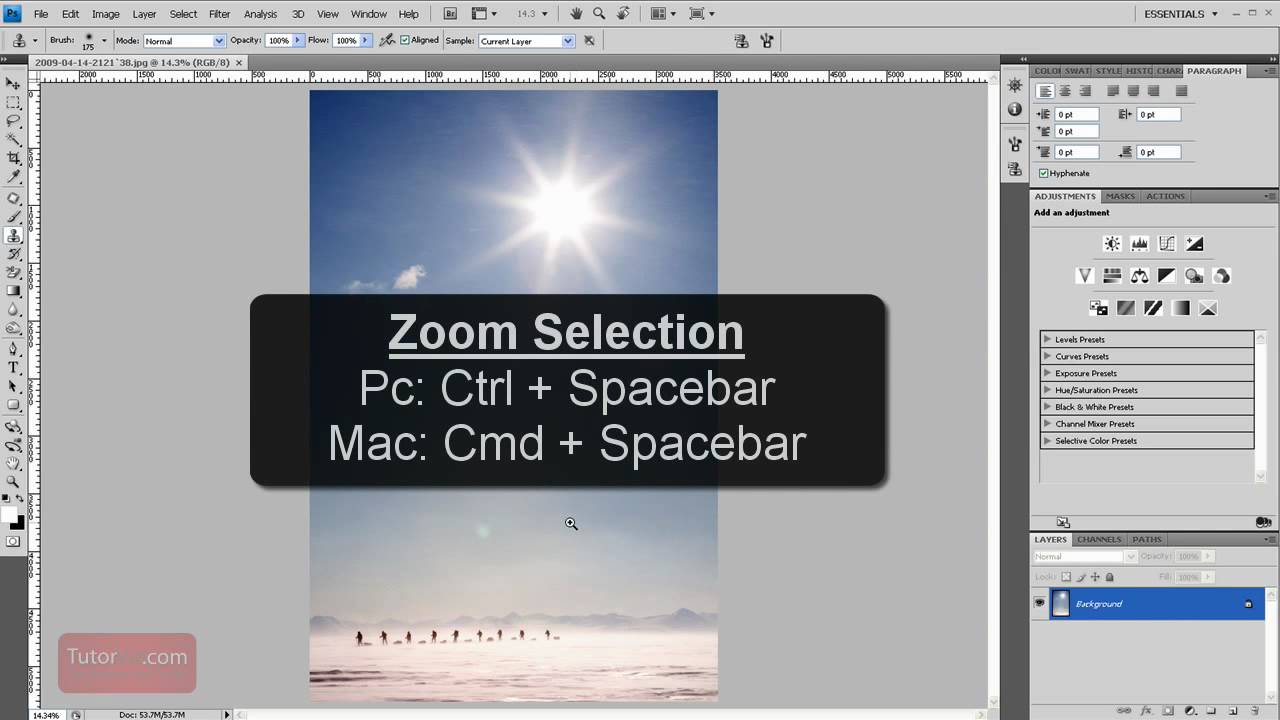
Keyboard shortcuts overlay — committing these to muscle memory will speed up your entire editing process.
How Can I Zoom with the Mouse Scroll Wheel?
Zooming with the mouse scroll wheel is a favourite among digital artists and photographers because it keeps your hand on the mouse. By default, you hold Alt (Windows) or Option (Mac) and scroll up to zoom in, down to zoom out.
If you prefer not to hold a modifier key, go to Preferences > Tools and enable Zoom with Scroll Wheel. Then your scroll wheel alone will zoom the canvas.
A common request is to change the zoom modifier from Alt to Ctrl. Photoshop does not offer a native way to remap this behaviour, as confirmed by an Adobe Community discussion. A workaround for Windows users is to use AutoHotkey to simulate Alt+Scroll when Ctrl+Scroll is pressed, though the original Ctrl+Scroll horizontal scrolling behaviour may still trigger intermittently.
How to Zoom to a Specific Area or Selection?
Sometimes you need to magnify a particular region — a face, a logo, or a fine texture. Photoshop provides three precise methods for this.
Drag with the Zoom Tool
As covered earlier, disable Scrubby Zoom in the Options bar, then drag a rectangle directly on the canvas. The area you defined fills the viewport at the highest possible magnification.
Using the Navigator Panel
Open Window > Navigator to display a thumbnail of your entire image. You can:
- Drag the red rectangle in the thumbnail to pan around.
- Drag the slider or enter an exact percentage (e.g., 66.7%) to zoom precisely.
Ctrl/Cmd+ drag in the thumbnail to zoom into a specific area.
The Navigator panel is especially useful for large documents where you need to jump between sections without losing your place.
Birds Eye View
This feature is a powerhouse for navigating large canvases. Hold down the H key, click and hold on the image — the view zooms out to show your full canvas. Drag the grey rectangle over the area you want to inspect, then release. Photoshop zooms directly into that spot. It takes only a second and eliminates the need to zoom out, pan, and zoom back in manually.

Dragging a rectangle with the Zoom Tool (Scrubby Zoom off) lets you magnify a precise region.
How to Zoom When Using Other Tools (Brushes, Select and Mask, Dialogs)?
Many users discover that Alt+Scroll does not work inside the Select and Mask workspace. This is a known limitation of modal states where modifier-key scrolling is intercepted. Fortunately, a simple alternative exists.
- Use keyboard shortcuts:
Ctrl/Cmd + +andCtrl/Cmd + –work in every context, including Select and Mask, Curves, Levels, and even during Free Transform. - Temporary zoom without switching tools: Hold
Spacebar + Alt(Windows) orSpacebar + Option(macOS) to get a temporary zoom cursor. Drag left to zoom out, right to zoom in. This works across Brush, Healing Brush, and Clone Stamp tools without ever leaving the tool you are using.
For more detailed refinement techniques, refer to our guide on refining complex selections.
How to Zoom In on All Open Documents at Once?
When comparing two images side by side, zooming them in sync saves a great deal of time. In the Options bar while the Zoom Tool is active, check Zoom All Windows. Now any zoom action applies to all open documents simultaneously.
If you only need this temporarily, hold Shift while clicking with the Zoom Tool — that single zoom action will apply to every open document without toggling the setting.
How to Fix Common Zoom Problems?
Even experienced users run into zoom issues. The table below compiles the most frequent problems reported in Adobe Communities and Reddit forums, along with tested solutions.
Table 2: Common Photoshop zoom problems and their fixes
| Problem | Cause | Solution |
|---|---|---|
Alt+Scroll does not work in Select and Mask |
Modal state blocks modifier-based scroll | Use Ctrl/Cmd + +/- or the Zoom Tool (Z) |
Cannot remap zoom modifier from Alt to Ctrl |
Photoshop does not support native modifier remapping | Enable Zoom with Scroll Wheel in Preferences, or use AutoHotkey (partial success) |
| Space Navigator zoom/pan stops working | "Zoom with Scroll Wheel" preference interferes with 3D mouse drivers | Disable Zoom with Scroll Wheel in Edit > Preferences > General |
| Photoshop becomes unresponsive at high zoom (>500%), especially with grid | GPU rendering strain from Pixel Grid overlay | Toggle Preferences > Performance > Use Graphics Processor off/on; disable Pixel Grid via View > Show > Pixel Grid; reduce grid subdivisions |
If performance issues persist, consider adjusting your export settings for a lighter file workflow.
A typical Photoshop workspace — zoom issues often arise from conflicting preferences or hardware acceleration settings.
How to Verify That Your Zoom Is Set Correctly?
After applying a zoom method, it is important to confirm that your view is accurate for the task at hand.
- Check the zoom percentage displayed in the document title bar or the Navigator panel. It shows the exact value (e.g., 100%, 66.7%, 200%).
- Reset to actual pixels: Press
Ctrl/Cmd + 1to instantly view the image at 100%. This is the only reliable way to see the image at its native resolution, confirming that you are not viewing it blurry or excessively sharp. - Fit on screen: Press
Ctrl/Cmd + 0to see the entire image within the application frame. If the image still seems clipped or misaligned, check that Overscroll is enabled in Preferences to allow flexible repositioning. - If zoom behaves unexpectedly (jumps too quickly, lags, or does not respond), return to the first section of this guide and audit your Preferences > Tools settings — Animated Zoom, Scrubby Zoom, and Zoom with Scroll Wheel are the most common culprits.
Mastering these verification steps ensures you never accidentally work at a zoom level that misrepresents your actual image data.